Owen Bradley
 Heat is the silent enemy of every gaming PC and workstation. Poor cooling leads to thermal throttling, shorter component lifespan, and noisy fans running at full tilt. Fortunately, understanding the basics of case airflow, air cooling, and liquid cooling makes it easy to build a system that stays cool and quiet under load. This guide walks through the core concepts and helps you decide which cooling approach fits your build.
Why Airflow Matters More Than Any Single Component
Before comparing fans or coolers, it helps to understand that cooling is a system, not a single part. A case with excellent airflow and a modest cooler will often outperform a poor-airflow case with an expensive cooler. The goal is to create a clear path where cool air enters, passes over hot components, and exits carrying the heat away, without stagnant pockets of warm air trapping heat near your CPU or graphics card.
Positive vs Negative Pressure
Case airflow is typically described as either positive pressure (more air pushed in than pulled out) or negative pressure (more air pulled out than pushed in). Slight positive pressure is generally preferred because it forces air out through mesh vents and gaps, reducing dust buildup inside the case. Negative pressure pulls dust in through every unfiltered crack, which means more cleaning over time.
Air Cooling: Fans and Heatsinks Explained
Air cooling uses a metal heatsink with heat pipes to draw heat away from the CPU, then relies on a fan to blow that heat into the surrounding air, which case fans then exhaust from the chassis. Air coolers are reliable, low-maintenance, and generally more affordable than liquid cooling, with no risk of pump failure or coolant leaks.
Tower air coolers with large heatsinks and dual fans can rival budget liquid coolers in performance while being simpler to install and maintain. For most mainstream builds, especially those not pushing extreme overclocks, a good air cooler is more than sufficient.
Liquid Cooling: When It Makes Sense
Liquid cooling (also called AIO, or all-in-one, cooling) uses a pump to circulate coolant through a water block on the CPU, transferring heat to a radiator where fans dissipate it. AIOs shine in high-end builds with power-hungry CPUs, tight cases where a large air tower won’t fit, or setups where minimizing CPU temperature under sustained heavy load is a priority.
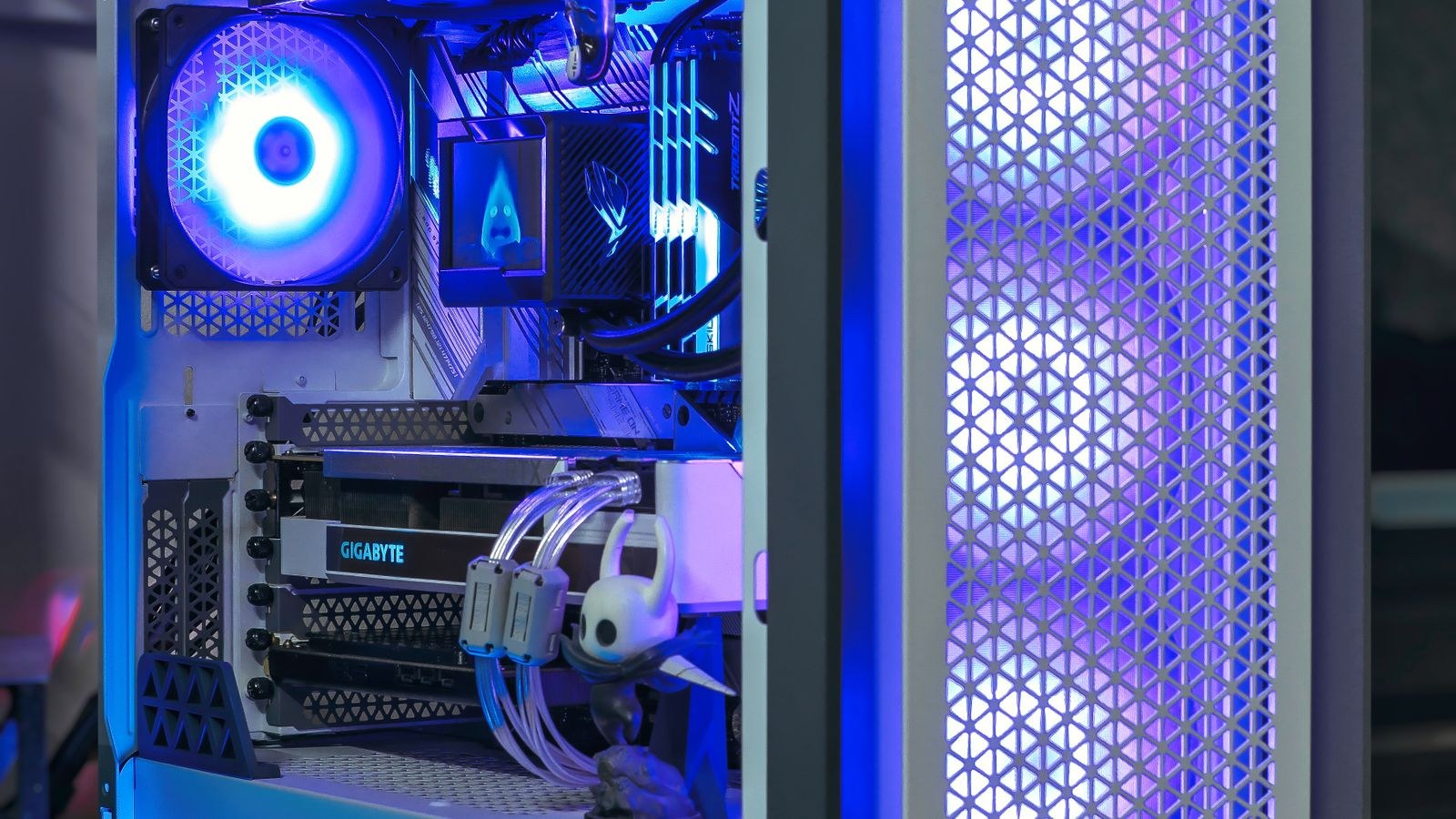
The trade-off is added complexity: a pump that can eventually fail, tubing that needs to be routed carefully, and a higher price tag. For most gamers and everyday users, liquid cooling is a nice-to-have rather than a necessity, though it does tend to look striking behind a tempered glass panel alongside RGB lighting accents.
Choosing the Right Case Fans
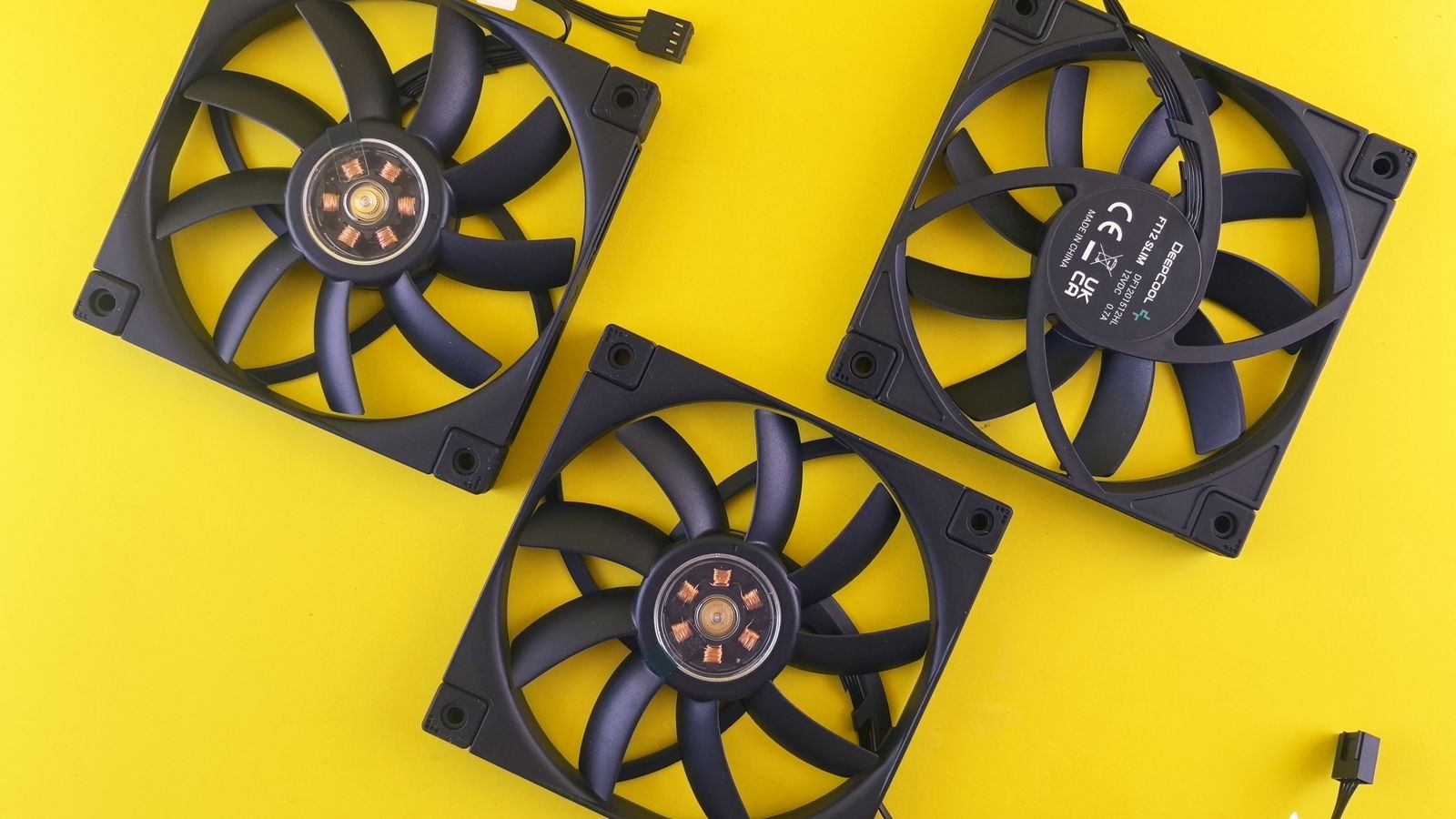
Case fans come in standard sizes, most commonly 120mm and 140mm, with larger fans generally able to move more air at lower noise levels since they can spin slower for the same airflow. When selecting fans, look at two specs: airflow (measured in CFM) for open, unrestricted spots, and static pressure for fans mounted behind restrictive surfaces like radiators or dust filters.
- Intake fans: Usually placed at the front and bottom of the case to draw in cool air.
- Exhaust fans: Typically mounted at the rear and top to push hot air out.
- Radiator fans: Need higher static pressure to push air through the tightly packed radiator fins.
A well-balanced setup for most mid-tower cases includes two to three intake fans and one to two exhaust fans, creating a clear front-to-back or bottom-to-top airflow path. If you’re building or upgrading a system, it’s worth reviewing options among the top cooling fans for PCs to find models that balance airflow with acceptable noise levels.
Don’t Forget Laptop and Case Considerations
Cooling isn’t just a desktop concern. Laptops generate significant heat in a much smaller enclosure, and inadequate airflow can cause serious thermal throttling during gaming or rendering. A dedicated cooling pad with built-in fans can meaningfully lower laptop temperatures, and it’s worth browsing the best cooling fans for laptops if you notice your machine getting uncomfortably hot or slowing down under load.
For desktop builders, the case itself plays a huge role in thermal performance. Mesh front panels dramatically outperform solid glass fronts for airflow, even though glass looks sleeker. If you’re shopping for a new chassis, comparing several gaming computer cases side by side will help you spot which models prioritize airflow versus aesthetics.

Cooling the GPU: Often the Hottest Component
While CPU cooling gets most of the attention, modern graphics cards are frequently the hottest and most power-hungry component in a gaming PC. Most GPUs come with their own cooling solution built in, typically two or three fans over a large heatsink, so you don’t usually add a separate cooler. However, your case airflow directly affects how well the GPU can shed heat.
A graphics card dumps a large amount of hot air inside the case, so you need adequate exhaust to remove it before it recirculates. In cramped cases with poor airflow, the GPU can heat-soak the entire interior, raising CPU and storage temperatures as well. Ensuring good bottom or front intake positioned near the graphics card, combined with strong top and rear exhaust, keeps the whole system cooler. This is another reason case selection matters so much; comparing airflow-focused gaming computer cases helps you find a chassis that gives your GPU room to breathe.
Fan Curves and Noise Management
One of the most overlooked aspects of cooling is tuning your fan curves through your motherboard’s BIOS or a software utility. A fan curve defines how fast each fan spins at a given temperature. A poorly tuned system either runs fans at full speed constantly (loud and unnecessary) or too slowly (hot and throttling). A good curve keeps fans quiet during light tasks like browsing and ramps them up smoothly only when temperatures climb under gaming or rendering loads.
- Idle range: Set fans to a low, near-silent speed when the system is cool during everyday use.
- Ramp zone: Gradually increase fan speed as temperatures rise so the change is smooth rather than sudden and jarring.
- Maximum threshold: Ensure fans reach full speed before components hit dangerous temperatures, providing a safety margin under heavy load.
Larger fans help here too, since a 140mm fan spinning slowly can move as much air as a 120mm fan spinning fast, but with far less noise. When upgrading, comparing quiet, high-airflow models among the best cooling fans for PCs lets you strike the right balance between thermal performance and acoustics.
Ambient Temperature and Room Considerations
Your cooling setup doesn’t operate in a vacuum, it can only make components a certain number of degrees cooler than the surrounding air. A PC in a hot, poorly ventilated room will always run warmer than the same machine in a cool space, regardless of how many fans you install. If your gaming area gets warm, improving room ventilation, positioning the case away from heat sources, and keeping the case off thick carpet (which can block bottom intake) all help. This matters for laptops too, which have far less room to dissipate heat and are especially sensitive to ambient temperature and blocked vents.
Maintenance Tips to Keep Temperatures Low
Dust is the enemy of consistent cooling performance. Clean dust filters every few weeks and blow out fans and heatsinks every few months with compressed air. Reapplying thermal paste every two to three years helps maintain good heat transfer between the CPU and cooler, since factory paste can dry out over time. Keeping cables tidy inside the case also improves airflow by reducing obstructions in the path of moving air. For laptop owners, elevating the machine to allow air under the chassis and pairing it with a cooling pad from the best cooling fans for laptops can noticeably reduce thermal throttling during demanding tasks.
Frequently Asked Questions
Do I need liquid cooling for a gaming PC?
No, most gaming builds run perfectly well on a quality air cooler. Liquid cooling is worth considering for high-end CPUs, compact cases, or if you want the quietest possible operation under heavy sustained loads.
How many fans does a typical PC need?
Most mid-tower builds perform well with three to five fans total, balancing intake and exhaust to maintain slight positive pressure.
What temperature is too hot for a CPU?
Sustained temperatures above 85-90°C under load are generally considered too hot for most consumer CPUs and indicate a need for better cooling or reapplied thermal paste.
Does fan direction really matter?
Yes. Fans are directional, and installing one backward disrupts your intended airflow path. Most fans have arrows on the frame indicating airflow and blade rotation direction so you can orient them correctly.
Are more fans always better?
Not necessarily. Beyond a balanced intake-and-exhaust setup, adding more fans yields diminishing returns and adds noise. Proper placement and a clear airflow path matter more than sheer fan count.
Final Thoughts
Good PC cooling comes down to matching your fans, cooler, and case airflow to your build’s needs and your budget. Prioritize a mesh-front case with balanced intake and exhaust fans, choose air or liquid cooling based on your CPU’s power draw and your noise tolerance, and stay on top of dust maintenance. Get these fundamentals right, and your system will run cooler, quieter, and last longer.