Owen Bradley
 Gaming and working at the same desk sounds simple until you actually try it. The posture that keeps you productive through a seven-hour workday is not the posture you fall into during a long session at night, and the equipment each mode demands pulls the layout in opposite directions. Work wants a clean surface, a centered monitor, and a document zone. Gaming wants mouse sweep room, a headset within reach, and often a second screen. A single desk can absolutely do both jobs, but only if you design it as two deliberate modes rather than one compromise. Here is how to set up a gaming and work desk that switches cleanly between them.
What You Need Before You Start
- A tape measure, for desk width, depth, and seated elbow height.
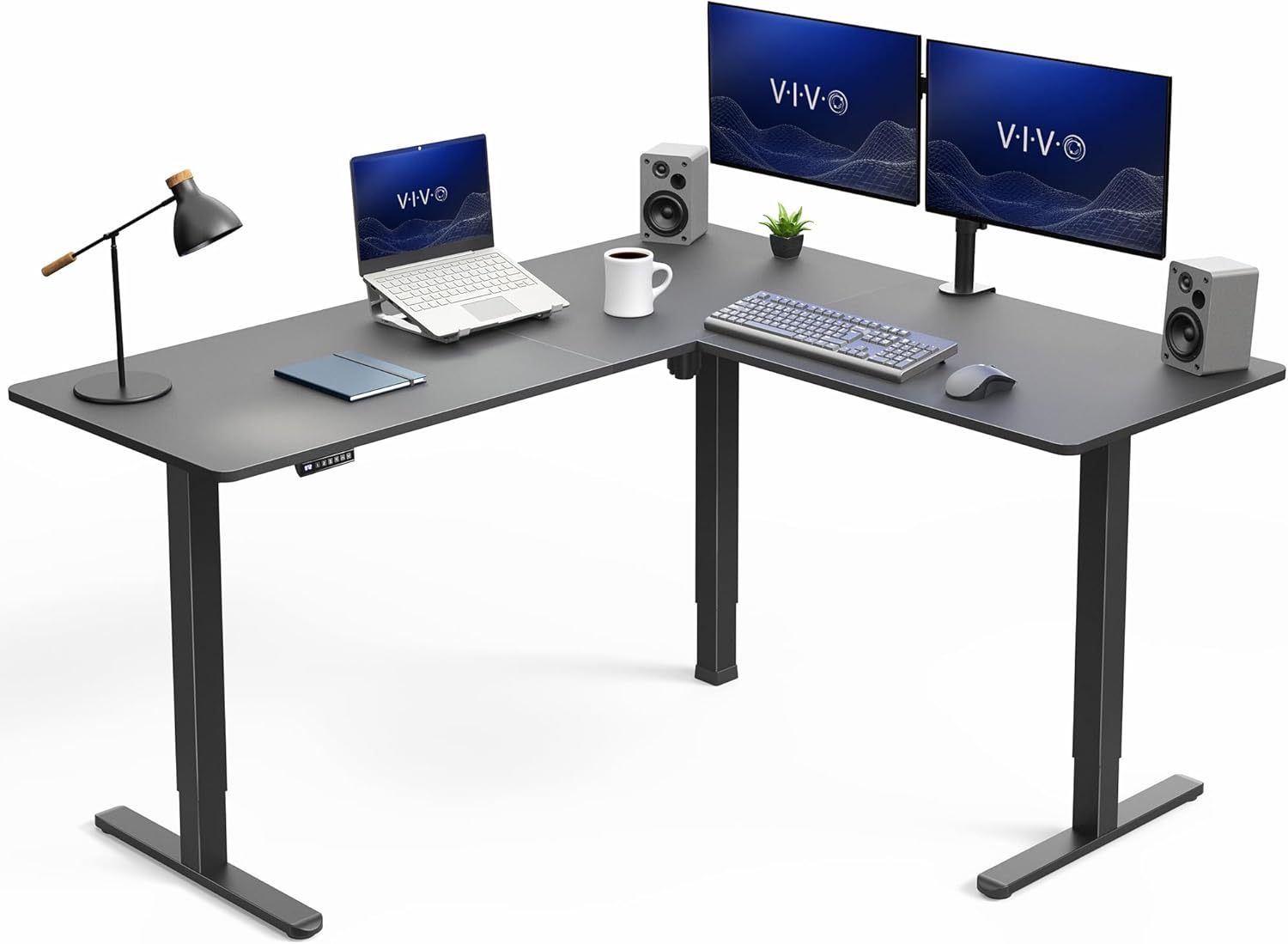
- A desk at least 55 inches wide and 27 inches deep if you plan to run two monitors or a full-size keyboard plus a low-sensitivity mouse sweep.
- A monitor arm or dual arm, which reclaims roughly 10 to 12 inches of depth from stand bases.
- A chair with adjustable seat height, depth, and armrests, since the two modes need different armrest positions.
- Cable straps, a clamp-on power strip, and a headset hook or under-desk hanger.
- Optionally a keyboard tray, if your desk sits above 29 inches and cannot be lowered.
You do not need duplicate peripherals. Most successful dual-mode setups use one keyboard and one mouse and simply change how the body meets them.
Why One Desk Needs Two Ergonomic Modes
Work posture is upright and forward-leaning, with forearms roughly parallel to the floor and the screen at or just below eye level. Gaming posture is typically more reclined, with the torso further back and the arms extended a little more, and it involves far more repetitive fast movement from the wrist and forearm. Trying to serve both from one frozen configuration is what produces the classic complaint that a setup feels almost right for everything and correct for nothing.
The fix is to identify the small number of variables that genuinely differ between the two modes, set everything else once, and make those few variables quick to change. In practice there are only four: seat height and recline, armrest position, monitor angle, and which surface zone is cleared. Everything else can stay fixed.
Step-by-Step: Build the Dual-Mode Desk
- Set desk height from your work posture first. Sit properly, feet flat, and measure from the floor to the underside of your elbow with upper arms relaxed at your sides. That number is your ideal typing surface height, usually 27 to 29 inches for most adults. Work posture is the stricter constraint because you hold it far longer, so it wins the tiebreak.
- Fix the chair to match, then note the gaming preset. Adjust seat height so feet stay flat and knees sit around 90 degrees. Then recline the backrest slightly and note that tilt number or position. Those two settings are your only chair change between modes, and both take about three seconds.
- Mount the monitors on an arm. Removing the stand base is the single highest-value move on a shared desk, because it returns the depth that a document zone or a mouse sweep needs. Set the primary display centered on your torso, top edge at or slightly below eye level, about an arm’s length away.
- Decide your second-screen strategy. If you use a second monitor, angle it inward at roughly 30 degrees on your non-dominant side rather than stacking it above, which forces neck extension during long gaming sessions. Keep the primary centered in both modes so you never twist your neck to the main task.
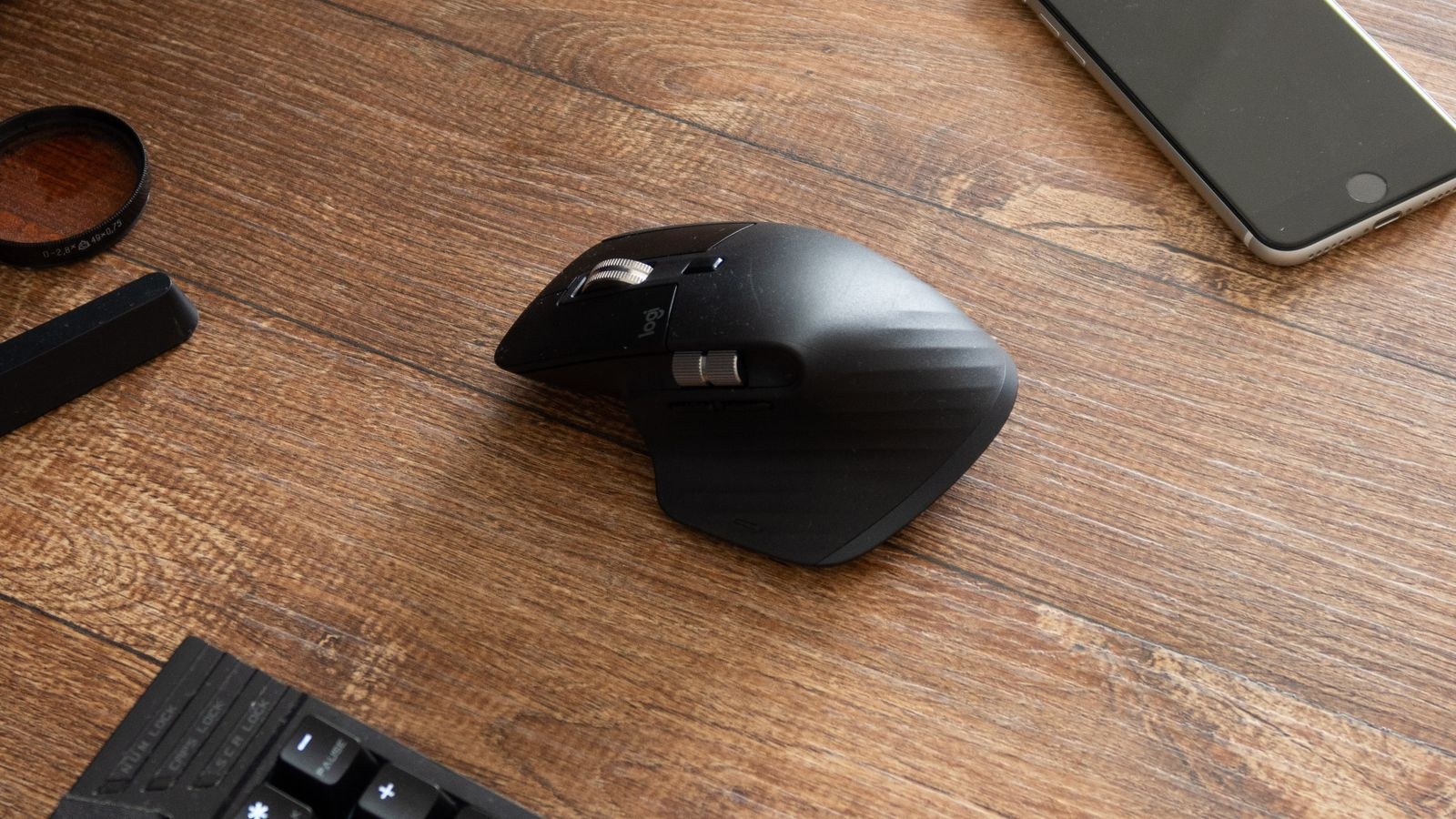
- Claim the mouse rectangle permanently. Measure a full low-sensitivity sweep, often 12 inches or more for gaming, and clear that rectangle for good. This is the space work clutter most often steals, and the one that causes the most frustration when it disappears mid-match.
- Center the keyboard on your torso. Not on the desk. If the mouse zone forces the keyboard off-center, the desk is too narrow and you need either a smaller keyboard layout or a wider surface. A tenkeyless board buys about 6 inches of mouse room instantly.
- Create one work zone and one gaming zone. Reserve the non-dominant side for whichever mode’s extras you are using: documents and a notepad for work, headset and controller for gaming. Use a single shallow tray that swaps in and out so the changeover is one motion rather than ten.
- Route cables for both modes. Bundle by destination down one back leg and mount the power strip under the desk. Leave a service loop at the headset and controller so plugging in does not drag the whole harness. If the desk raises and lowers, test the full travel range before finalizing.
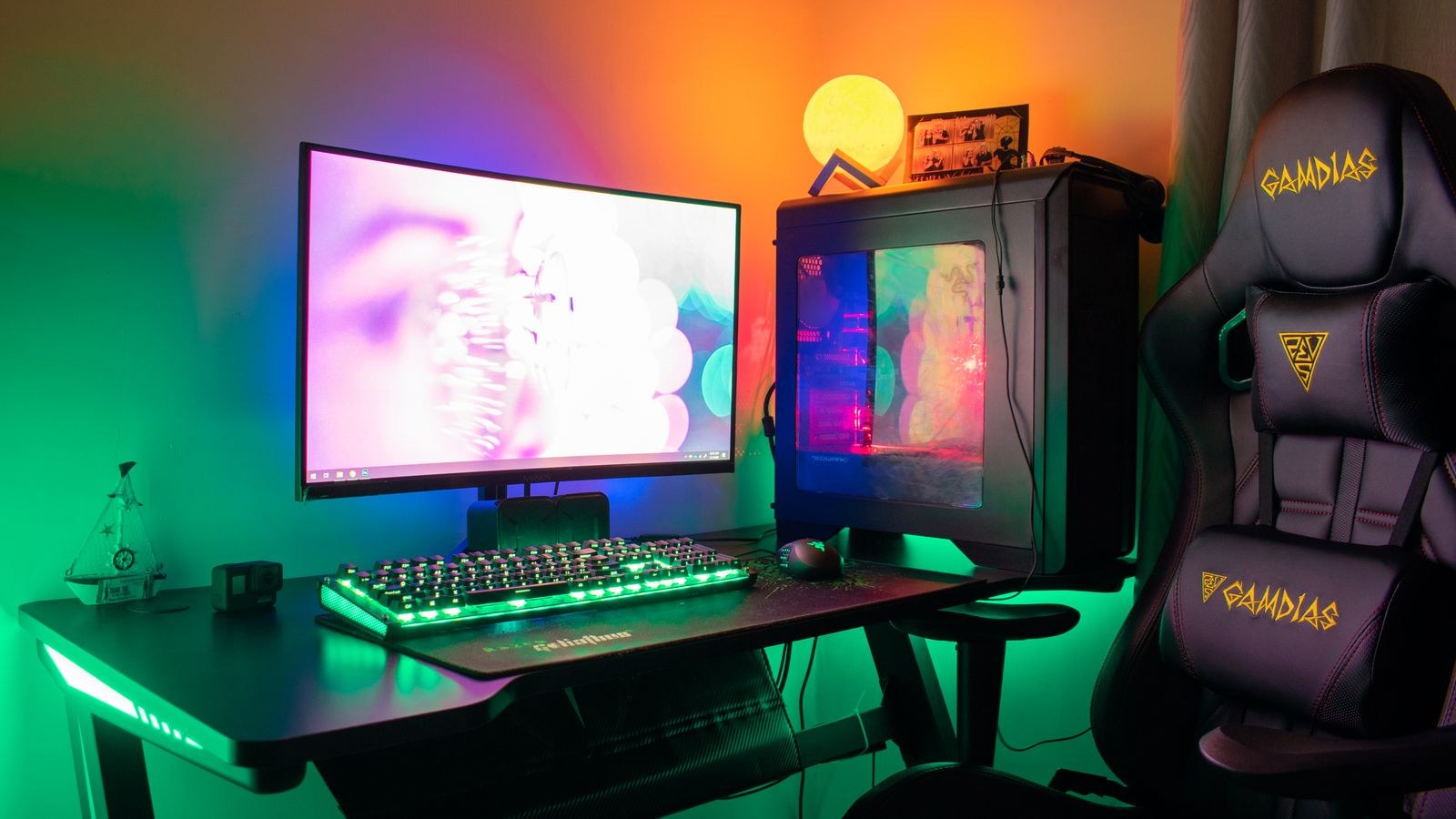
- Set your two lighting states. Work needs bright, even task light from the side to avoid screen glare. Gaming usually wants dimmer ambient light with some bias lighting behind the monitor to reduce contrast strain. A single lamp with two brightness levels covers both.
- Run each mode for a week and adjust. Log anything you had to move, reach awkwardly for, or could not find. Fix those specific items rather than rebuilding the whole layout.
Choosing the Right Desk for Both Jobs
Width is the specification that matters most. Anything under 47 inches forces a choice between a document zone and a mouse sweep, and you will resent it within a month. Depth matters almost as much, because a shallow desk pulls the monitor too close and causes eye strain during long work blocks. If you are still shopping, our roundup of the best desks for gaming and work focuses on models sized for both roles, and the best computer desks for gaming and work list covers sturdier frames that hold a heavy dual-monitor arm without wobble.
Stability deserves attention on a shared desk specifically because gaming introduces forces work never does. Rapid mouse movement and enthusiastic keypresses reveal frame flex that a spreadsheet session would never expose, and a wobbling monitor is far more distracting mid-game. Look for a crossbar or wide-footprint legs. If your priority leans toward gaming performance with work as the secondary role, the best desks for gaming tend to favor deeper surfaces and cable pass-throughs built for tower PCs.
The Chair Decision
The chair is where most dual-mode setups quietly fail. Racing-style seats often look right for gaming but have fixed lumbar bolsters and limited seat depth adjustment that make eight-hour workdays uncomfortable. Task chairs handle long work well but sometimes lack the recline range that makes evening sessions relaxing. Our comparison of gaming chair versus office chair tradeoffs breaks down which features actually matter for each mode, and the best ergonomic gaming chairs cover models that bridge the gap with adjustable lumbar and a genuine recline lock.
Safety and Comfort Notes
Long sessions in either mode carry the same risks, and a dual-use desk simply means more total hours in the chair. Set a break rhythm you will actually keep: stand and move for a few minutes every hour, and use the 20-20-20 habit of looking at something roughly 20 feet away for 20 seconds every 20 minutes to relieve eye strain.
Watch wrist angle carefully, since gaming amplifies any error. Wrists should stay neutral, not bent upward over a tall keyboard edge or pressed down into a hard desk lip. If the desk edge digs into your forearms, either lower the surface or add a soft edge. Finally, keep drinks away from the power strip and off the mouse rectangle, and make sure the tower has clearance for airflow rather than being wedged into a closed cabinet.
Troubleshooting Common Problems
The desk feels cramped in gaming mode only. Your work clutter has crept into the mouse arc. Switch to a swap tray so work items leave the surface entirely rather than migrating to the edges.
Your shoulder aches after gaming but not after work. The armrests are almost certainly too high for the reclined position. Lower them one notch as part of the mode change, or move them out slightly so the elbow is not propped up.
The monitor is at the wrong height in one mode. Set the height for work and use the arm’s tilt, not its height, to compensate when reclined. Tilting the screen back slightly keeps the viewing angle correct without moving the whole panel.
The desk wobbles during fast mouse movement. Check that the frame bolts are tight, add a crossbar if the design allows, and move the monitor arm clamp to a thicker part of the surface. A wobble that appears only with an arm usually means the clamp is on an unsupported overhang.
Mistakes to Avoid
- Setting desk height for gaming posture. Work is longer and less forgiving, so it should define the base height.
- Stacking a second monitor vertically. It looks efficient and produces neck extension over long sessions.
- Buying a desk under 47 inches wide. Dual-mode setups need surface area more than they need features.
- Leaving both modes’ gear out at once. The surface fills, and both modes get worse.
- Ignoring cable slack on a sit-stand frame. A cable that is tight at full height will eventually pull something off the back.
Frequently Asked Questions
Do I need a standing desk for a dual-use setup?
No, but it helps more here than in a work-only setup because total seated hours are higher. If you buy one, prioritize a stable frame and enough width before worrying about motor speed or presets.
Can I use one keyboard for both modes?
Yes. A tenkeyless or 75 percent board is often the best compromise, since it frees mouse room for gaming while keeping full function keys for work. Add a separate numpad only if you genuinely need one.
How wide should the desk be for two monitors?
Plan for at least 55 inches, and 60 inches is more comfortable once you account for a full mouse sweep beside a full-size keyboard. Depth of 27 to 30 inches keeps both screens far enough away.
Should the gaming PC sit on the desk or under it?
Under the desk on a stand or riser is usually better, since it preserves surface area and keeps the tower off carpet where dust intake is worst. Keep several inches of clearance on the intake and exhaust sides.
Final Thoughts
A single desk handles gaming and work well when you stop treating it as one static setup. Set the height from your work posture, put the monitors on an arm to reclaim depth, defend the mouse rectangle permanently, and reduce the switch between modes to a handful of quick adjustments: chair height, recline, armrests, and one swap tray. Get those right and the desk stops being a compromise, serving each mode properly instead of hovering awkwardly between them.