
 Owen Bradley
 A USB microphone is the fastest upgrade a stream can get, but plugging it in is only the first ten percent of the job. The difference between a stream that sounds professional and one that sounds like a laptop is almost entirely in what you do after the cable is connected: choosing the right polar pattern, setting gain so peaks never clip, positioning the capsule at the correct distance and angle, and adding a simple gate so your keyboard and fan stop broadcasting. This tutorial walks through setting up a USB microphone for streaming end to end, in the order that produces a clean signal on the first attempt.
What You Need Before You Start
- The USB microphone and its cable. Use the supplied cable where possible, since some microphones are sensitive to thin third-party cables that drop power.
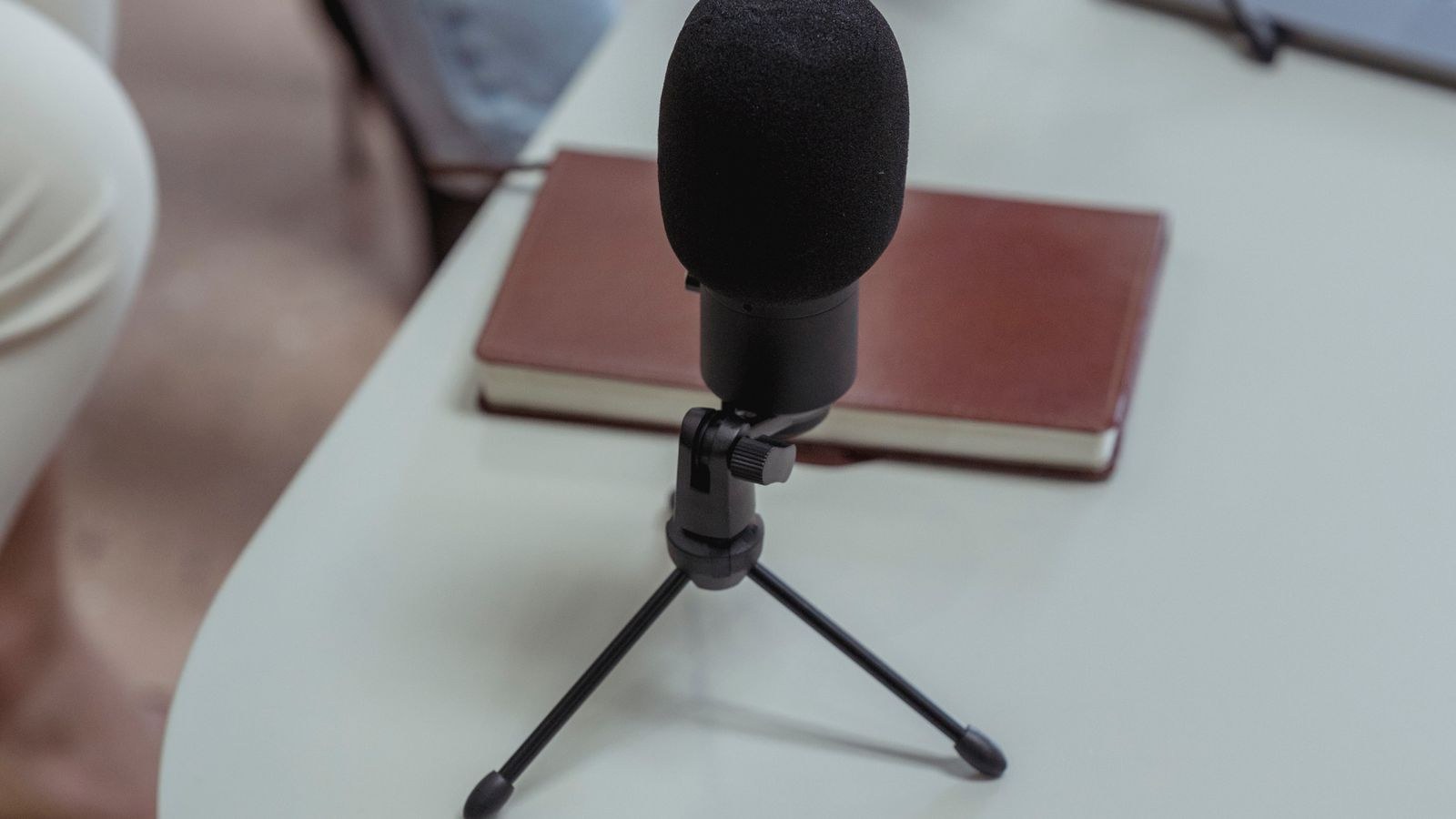
- A boom arm or stable desk stand. The included tripod works, but it sits on the desk and transmits every keystroke straight into the capsule.
- A pop filter or foam windscreen. Cheap, and it removes the plosive thumps on P and B sounds that no software fix repairs cleanly.
- Headphones for monitoring. You cannot judge your own gain through speakers without causing feedback.
- Your streaming or recording software installed, since several steps happen inside it rather than in system settings.
One decision to make up front: a standalone USB microphone gives noticeably better voice quality than a headset boom, but it captures the whole room. If your space is noisy or shared, a close-miked headset may genuinely serve you better, and the models in our roundup of the best headsets with microphone clarity for voice work are worth comparing before you commit to a desk mic.
Step by Step: Setting Up Your USB Microphone
- Mount the microphone before connecting it. Attach it to the boom arm or stand and position it roughly where you will use it. Mounting first means you set gain against the actual distance you will speak from, rather than adjusting everything twice.
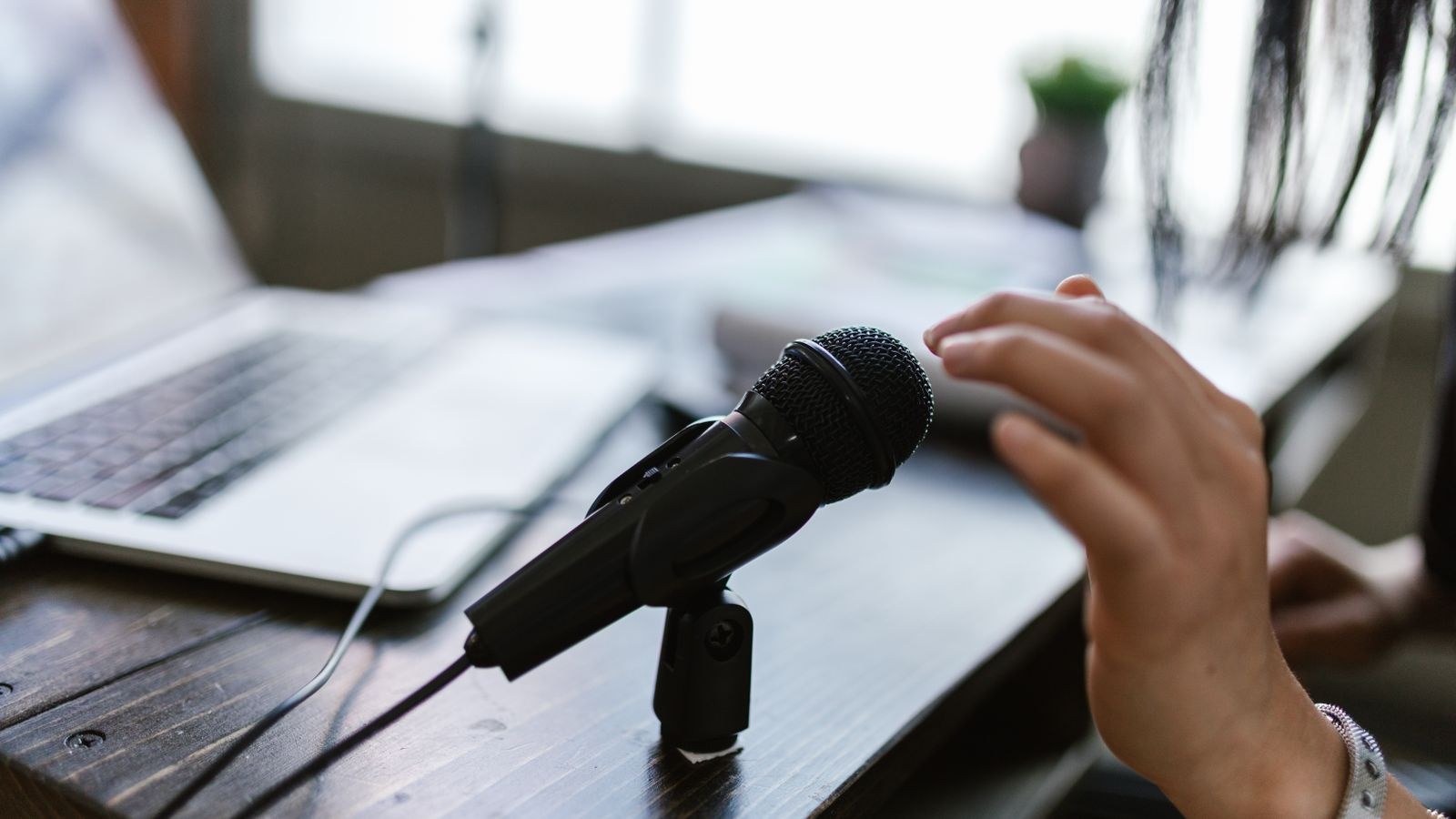
- Connect directly to the computer. Plug into a port on the machine itself, not a monitor hub or unpowered USB hub. Microphones draw meaningful current and a shared hub causes dropouts, crackling, and intermittent disconnection that look like software faults.
- Select the correct polar pattern. If your microphone has a pattern switch, choose cardioid for solo streaming. Cardioid picks up from the front and rejects the rear, which is exactly what you want with a monitor in front of you and a room behind. Omnidirectional captures everything equally and is the wrong choice for streaming. Bidirectional suits a two-person interview across a desk. Stereo is for music, not voice.
- Position the capsule correctly. Aim the front of the microphone at your mouth from roughly 15 to 20cm away, offset slightly to one side rather than directly in the airflow of your breath. Angle it either slightly above pointing down, or below pointing up, so plosives pass over the capsule. Confirm which side is the front, because side-address microphones face you with the body vertical and top-address microphones point at you end-on. Speaking into the wrong face of a side-address microphone is a classic and very audible mistake.
- Set gain with a real test, not a whisper. Open your system sound settings or your streaming software’s audio mixer and speak at your actual streaming volume, including your loudest laugh or reaction. Raise gain until those peaks reach roughly -6dB on the meter, leaving headroom. If your loudest moments hit 0dB, the signal clips and distorts permanently, and no processing recovers it. Too low is fixable later; too hot is not.
- Enable direct monitoring if available. Many USB microphones have a headphone jack that plays your voice with zero delay. Plug headphones into the microphone rather than the computer to avoid the echo of software monitoring latency, and set the monitor mix so you hear yourself clearly but not overwhelmingly.
- Add the microphone as a dedicated source in your streaming software. Create an audio input capture source and select the microphone by name rather than “Default”. Naming it explicitly stops your stream silently reassigning to a webcam microphone when a device reconnects.
- Apply a noise gate. Add a gate filter to the microphone source. Set the close threshold just above your room’s background level and the open threshold a few decibels higher, then add a hold time of around 200 milliseconds so the gate does not chatter between words. The gate mutes the channel when you are not speaking, which removes fan noise and keyboard clatter from every pause.
- Add gentle compression, then a limiter. Compression evens out the gap between your quiet explanations and loud reactions. A ratio around 3:1 with a threshold set to catch only your louder passages is plenty. Finish the chain with a limiter set near -3dB as a safety net so a sudden shout never clips the broadcast.
- Record a test and listen on headphones. Record two minutes of normal talking, including typing and a loud reaction. Listen back specifically for plosive thumps, room echo, gate cutting the start of words, and any hiss. Adjust one setting at a time and retest.
Getting the Room Right
A USB microphone hears your room as much as your voice, and a bare room with parallel walls creates the hollow, boxy sound that instantly marks an amateur stream. You do not need acoustic panels to fix it. Soft mass absorbs reflections, so a rug on the floor, curtains across the window, a bookshelf on one wall, and a fabric chair behind you make a measurable difference. Avoid setting up in the middle of a room with hard surfaces on both sides.
Distance is the other half of the equation. The closer you are to the capsule, the higher your voice sits relative to room reflections, which is why podcasters speak close. Halving the distance roughly doubles the ratio of voice to room. Just do not get so close that you trigger heavy proximity bass and plosives, which is why the 15 to 20cm range with an offset angle works well for most people.
Integrating Mic, Camera and Stream Settings
Audio does not exist in isolation on a stream. Once the microphone is clean, check that your camera is not also capturing audio, because two active sources create a hollow phased sound as they combine slightly out of sync. Disable audio on the camera source entirely. If you are still assembling the visual half of your kit, our guide to the best webcams for streaming setups covers pairing camera choice with your lighting and desk layout, and the best webcams for podcasting roundup focuses on the seated talking-head framing that suits voice-led content.
Encoder settings matter too. Set your audio bitrate to at least 128kbps for voice-led content, and confirm your streaming platform is not downsampling further. Beyond audio, the rest of the machine affects consistency: dropped frames cause audio desync that viewers blame on the microphone. Our walkthrough on how to optimize your PC setup for live streaming explains which settings to check when audio and video drift apart.
Common Mistakes to Avoid
- Setting gain from quiet speech. Your excited moments are 10dB louder than your calibration voice, and that is where clipping happens.
- Speaking into the wrong side. Side-address microphones face you broadside; talking into the top produces a thin, distant sound that people wrongly blame on the microphone.
- Leaving the mic on the desk tripod. Every keystroke and desk bump travels through the stand into the capsule. A boom arm or shock mount removes it.
- Stacking heavy noise suppression. Aggressive suppression makes voices sound underwater. A properly set gate plus a quieter room beats heavy processing every time.
- Using an unpowered hub. Intermittent crackling and disconnects usually trace back to insufficient USB power, not a faulty microphone.
- Skipping the test recording. Monitoring live hides problems that only become obvious on playback.
Frequently Asked Questions
Which polar pattern should I use for solo streaming?
Cardioid. It captures your voice from the front while rejecting sound from behind, which suppresses room noise and speaker bleed without any processing.
How far should I sit from a USB microphone?
Roughly 15 to 20cm, angled slightly off-axis from your mouth. Closer adds bass and plosives, further lets room reflections dominate.
Do I need an audio interface as well?
No. A USB microphone contains its own converter and connects directly. An interface is only needed if you move to XLR microphones or want to mix several sources in hardware.
Why does my voice sound echoey?
Room reflections, not the microphone. Add soft furnishings, move away from bare parallel walls, and speak closer to the capsule to raise your voice above the reflections.
Should I use a pop filter or a foam cover?
A mesh pop filter positioned a few centimetres in front of the capsule works better for desk use. Foam covers are designed mainly for wind and are less effective on plosives.
Is a USB microphone better than a headset for streaming?
For voice quality, yes, provided your room is reasonably quiet. In a noisy or shared space, a close-miked headset such as those in our best USB headsets roundup can deliver a cleaner result because proximity rejects everything else.
Final Thoughts
Setting up a USB microphone for streaming is mostly about doing four things properly: cardioid pattern, correct distance and angle, gain set from your loudest moments with headroom to spare, and a gate that mutes the room between sentences. Everything else is refinement. Mount the microphone off the desk, connect it straight to the machine, record a real test rather than trusting live monitoring, and change one setting at a time when something sounds wrong. Work through it once in that order and you will have an audio chain that sounds consistent every stream, without the fiddling that otherwise eats the first ten minutes of every broadcast.










