Owen Bradley
 A smart hub is supposed to be the piece that makes everything else make sense: one app, one set of automations, one place where the lights, locks, sensors and thermostat all talk to each other. Getting there is rarely as smooth as the box suggests, mostly because the devices you already own were bought at different times and speak different radio protocols. Some connect over WiFi, some over Zigbee, some over Z-Wave, some over Bluetooth, and increasingly some over Matter and Thread. Pairing a hub with an existing setup is really an exercise in working out which of your devices the hub can reach directly, which need a bridge, and which need to be replaced eventually. This guide walks through that process in a sensible order.
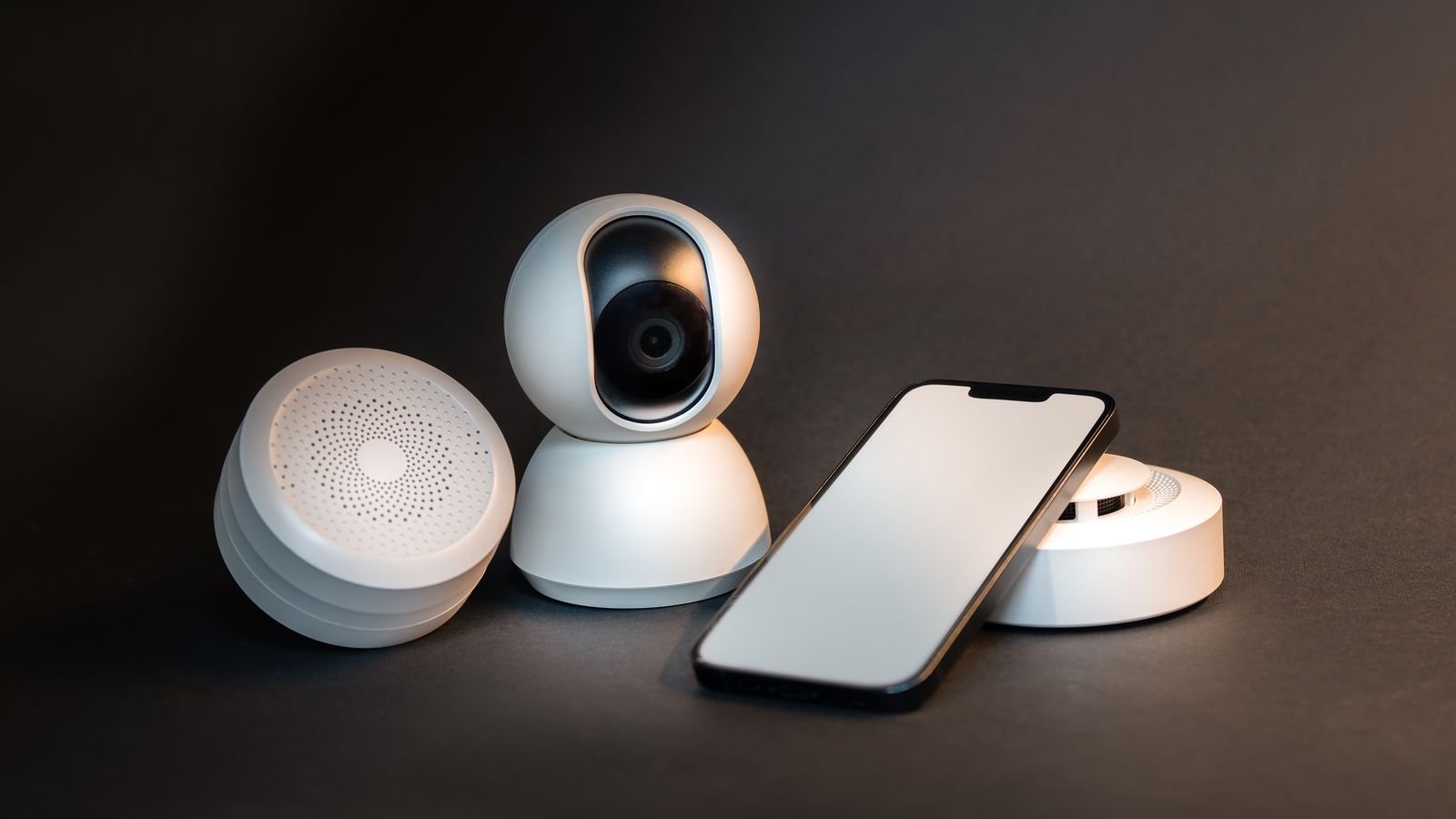
What a Hub Actually Does
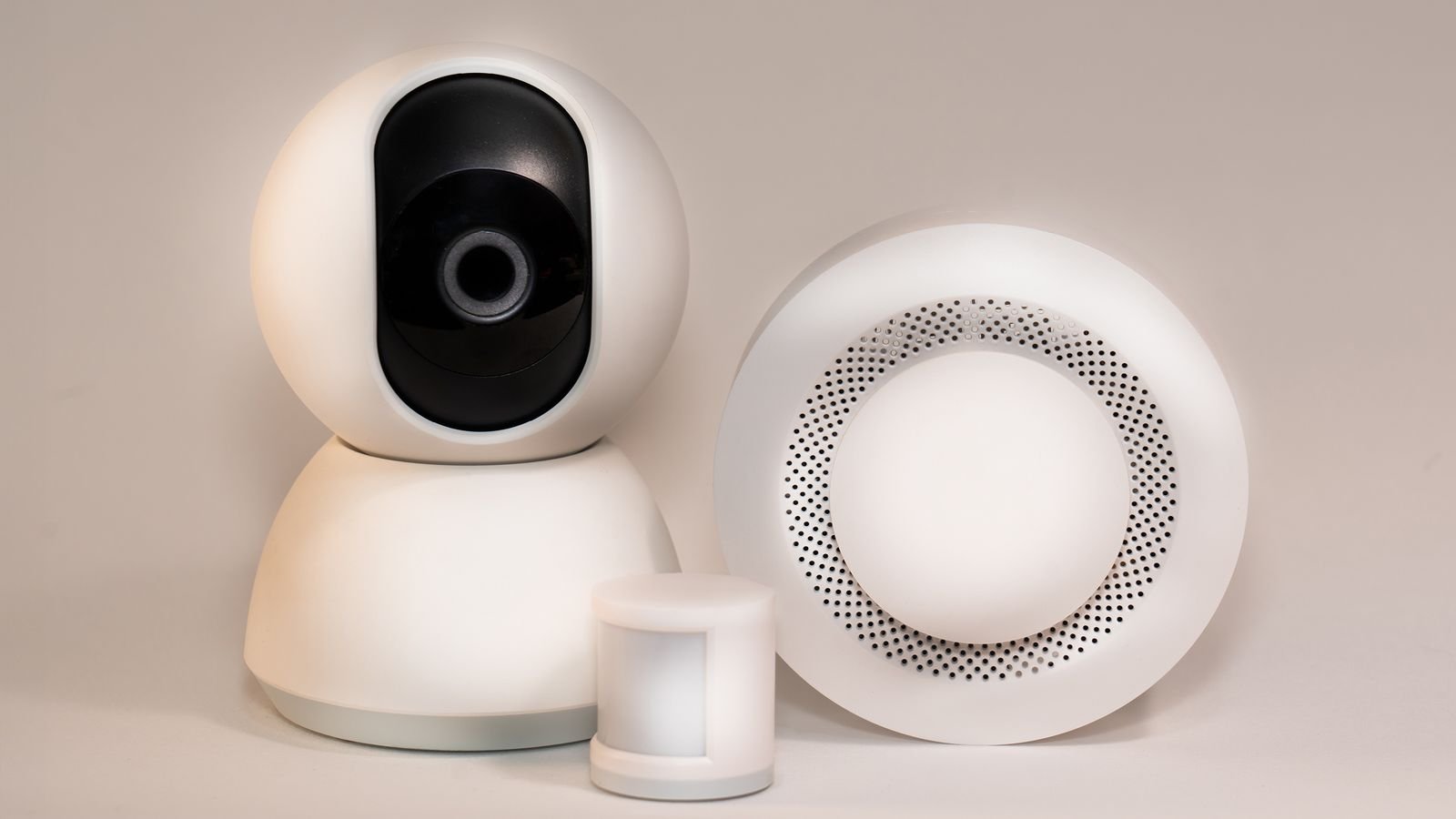
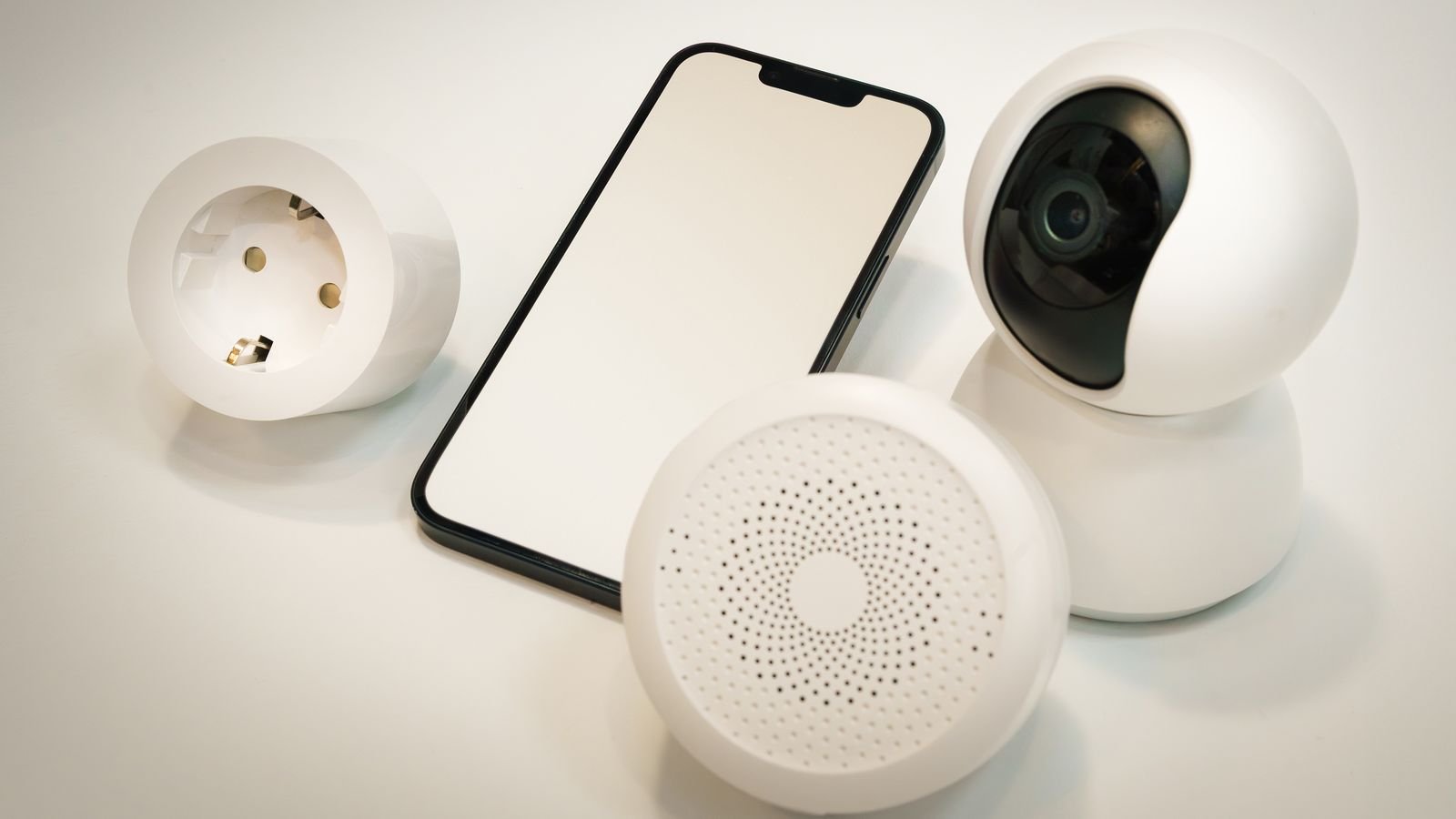
A hub performs three jobs. First, it translates between radio protocols, so a Zigbee door sensor can trigger a WiFi light. Second, it runs automation logic locally, so routines keep working when the internet drops and respond in milliseconds rather than waiting on a cloud round trip. Third, it gives you a single interface and a single set of credentials instead of six manufacturer apps.
Not everything needs a hub. Devices that speak WiFi or Matter over WiFi can often be controlled directly from a phone or a voice assistant. But the moment you own low-power battery sensors, which almost always use Zigbee, Z-Wave or Thread to preserve battery life, a hub stops being optional. Those protocols cannot reach your router on their own.
Before You Begin: Take Inventory
- List every smart device you own and note the protocol on the box, in the manual or in the manufacturer app’s device information screen
- Confirm which are already paired to another hub, bridge or app, since most devices can only belong to one controller at a time
- Collect the manufacturer app logins for each ecosystem
- Note where your router sits and where the hub will live
- Locate the reset instructions for each device; you will need several of them
- Charge or replace batteries in sensors and locks before pairing, because a low cell causes pairing failures that look like compatibility problems
- Have an Ethernet cable ready if the hub supports a wired connection
Step-by-Step: Pairing a Smart Hub With Existing Devices
- Place the hub centrally and high. Radio range is the limiting factor for Zigbee and Z-Wave. Put the hub roughly in the middle of the home, off the floor, and away from the router, microwave, metal shelving and thick masonry. Sitting it directly on top of a router is a common and avoidable source of interference.
- Wire it in if you can. An Ethernet connection to the router is more reliable than WiFi and removes one variable from every subsequent troubleshooting step.
- Power up and complete the initial setup. Install the manufacturer’s app, create the account, and let the hub download firmware before adding anything. Pairing against out-of-date firmware is a leading cause of devices that join and then immediately drop.
- Create your rooms first. Define the rooms or zones in the app before adding devices. Assigning as you go is far quicker than reorganising fifty devices later.
- Add the easy devices first. Start with mains-powered items you can see and reach: smart plugs, bulbs and switches. Early wins confirm the hub and app are working properly before you tackle anything awkward.
- Remove devices from their old controller. If a device is currently paired elsewhere, unpair or exclude it properly in that app first. Simply factory resetting the device often leaves a ghost entry that blocks re-pairing.
- Put each device into pairing mode. The method varies: bulbs usually need a specific on-off power cycle sequence, sensors have a small pinhole or internal button, and Z-Wave devices need a triple press. Have the manual open rather than guessing.
- Pair from close range, then relocate. Where a device is portable, pair it within a few feet of the hub, confirm it responds, then move it to its final position and test again. This separates pairing problems from range problems cleanly.
- Build out the mesh with mains-powered devices. Zigbee, Z-Wave and Thread all form meshes in which mains-powered devices act as repeaters while battery devices do not. Pair your plugs and switches before your distant sensors so the sensors have a route home.
- Add bridged ecosystems. Devices tied to a proprietary bridge, such as certain lighting systems, usually connect to the hub as a whole bridge rather than device by device. Link the accounts or add the bridge by its IP address, then import the devices.
- Rename everything clearly. Voice control and automations both depend on names. Use plain descriptive names such as kitchen ceiling rather than model numbers, and keep them consistent across rooms.
- Test each device individually, then build automations. Confirm every device responds on its own before you write routines. Debugging a failing automation that turns out to have a dead device in it wastes a great deal of time.
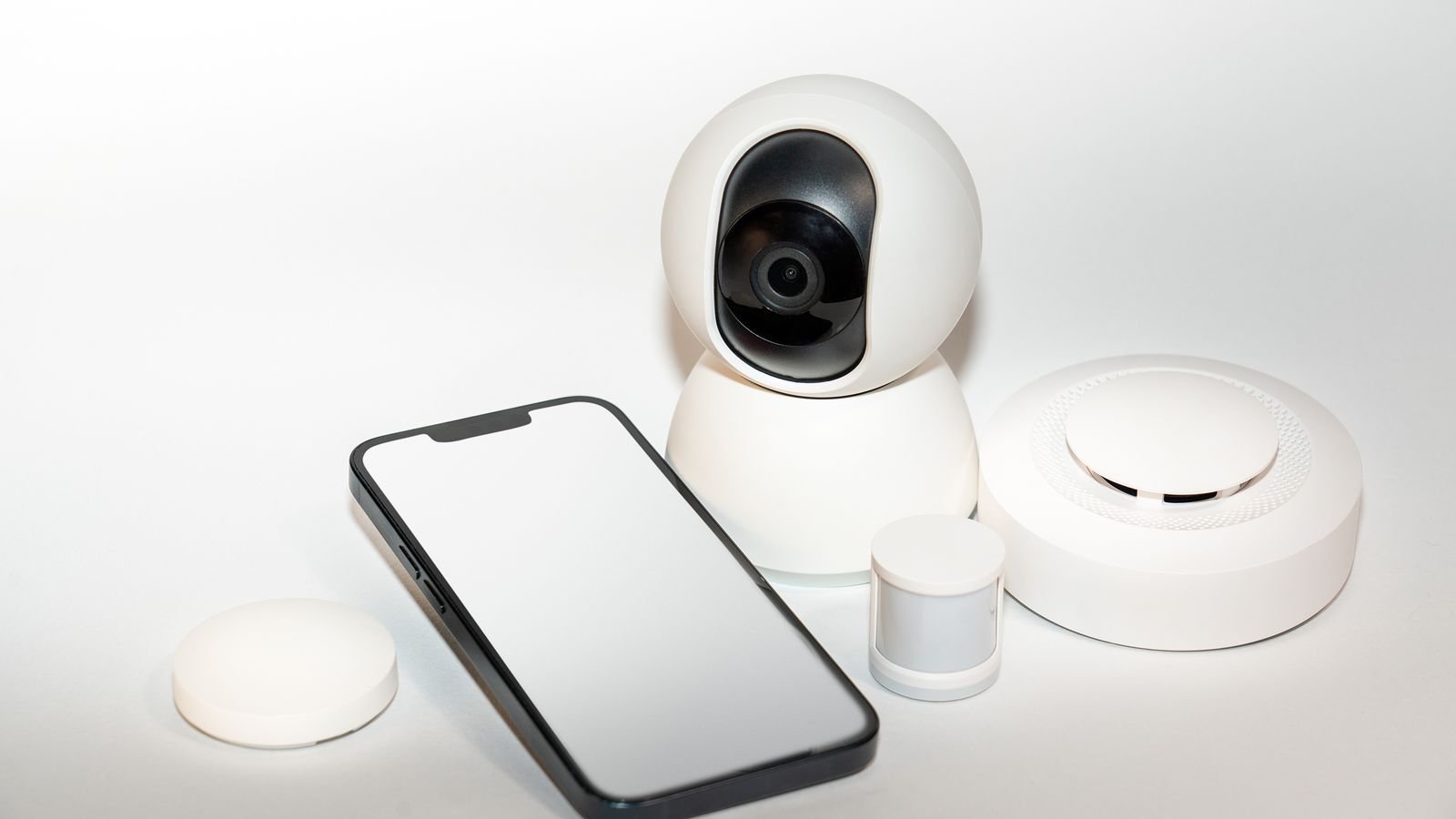
Understanding the Protocols
- WiFi — high bandwidth, no hub required, but power hungry and it consumes a router client slot per device. Best for cameras, speakers and plugs.
- Zigbee — low power mesh, very common for bulbs and sensors, shares the 2.4GHz band with WiFi so channel planning matters.
- Z-Wave — low power mesh on a sub-GHz band, so it avoids WiFi interference and penetrates walls better. Common for locks and sensors.
- Thread — a modern low power mesh, the transport underneath much of Matter, requires a border router which many new hubs and speakers provide.
- Matter — an application layer standard rather than a radio. It runs over WiFi or Thread and aims to make devices work across ecosystems, though support varies by device category.
- Bluetooth — short range and generally used for initial setup rather than ongoing control.
Choosing a Hub That Fits What You Own
The right hub is the one that speaks the protocols your existing devices use. A hub with Zigbee and Z-Wave radios built in will absorb almost any legacy setup; a hub that only bridges WiFi and Matter is cleaner but will leave older sensors stranded. Local automation execution, an accessible automation editor and a track record of firmware support all matter more than the feature list on the packaging. Comparing radio support and ecosystem compatibility across a shortlist of the best hubs for smart homes is the quickest way to check whether a candidate covers your inventory.
If your priority is automation depth rather than simply consolidating apps, the controllers reviewed in this guide to the best smart hubs for home automation lean toward local processing, conditional logic and scene control. And if you are still assembling the endpoints themselves, the compatibility notes in this roundup of the best devices for smart homes will help you avoid buying anything that your chosen hub cannot see.
Troubleshooting Pairing Failures
- Device not found: confirm it is genuinely in pairing mode, that its indicator is flashing in the documented pattern, and that it is not still claimed by another controller.
- Pairs then drops: almost always a range or mesh problem. Add a mains-powered repeater between the hub and the device.
- Slow or intermittent response: check for 2.4GHz congestion. Moving your WiFi to a different channel, or moving Zigbee to one, usually resolves it.
- Works in the app but not by voice: the voice assistant needs its own account link and a device discovery pass after new devices are added.
- Battery device unresponsive: replace the cell before assuming a fault. Voltage drops well before the app reports low battery.
- Everything fails after a router change: the hub may need re-onboarding to the new network name, and WiFi devices will each need re-provisioning.
Frequently Asked Questions
Do I need a hub if my devices already work over WiFi?
Not strictly, but you will feel the limits as the count grows. WiFi devices load your router, depend on the cloud for most automations, and cannot easily trigger each other across brands. A hub adds local control and cross-brand logic.
Can one device be paired to two hubs at once?
Usually not. Zigbee and Z-Wave devices belong to a single controller and must be excluded from one before joining another. Matter is the exception, since it supports multi-admin sharing across several ecosystems simultaneously.
Will Matter make my old devices work with any hub?
Only where the device itself supports Matter, which generally means recent hardware or a manufacturer bridge that exposes older devices as Matter endpoints. Existing Zigbee and Z-Wave gear still needs a hub with the matching radio.
Where should the hub physically go?
Central, elevated, out of a metal cabinet, and at least a metre from the router. Range is measured through walls, not in a straight line, so a hub in a hallway cupboard on the ground floor of a three-storey house will struggle to reach the top floor.
Final Thoughts
Pairing a hub with an existing smart home goes well when it is treated as a migration rather than an installation. Inventory what you own, unpair cleanly from the old controller, build the mesh outward from mains-powered devices, and name everything properly as you go. Do that and the automations become the easy part. Rush the pairing and you will spend far longer chasing devices that dropped off than you saved by skipping the inventory.