Owen Bradley
 Low frame rates feel like a hardware problem, and the internet is very willing to agree with you and suggest a new graphics card. Before spending anything, though, it is worth understanding how much performance an average PC is leaving unclaimed. Memory running below its rated speed, a power plan throttling the processor, an overlay costing frames in the background, a game defaulting to settings that cost far more than they look like they are worth, and upscaling left switched off entirely. Recovering those together frequently adds 20 to 50 percent to a frame rate for free. This guide covers how to increase FPS on a PC step by step, starting with the changes that cost nothing and ending with an honest assessment of when hardware really is the answer.
Find the Bottleneck First
Every optimisation below targets a different constraint, and applying the wrong one wastes an evening. Run your most demanding game with an overlay showing processor and graphics card utilisation, then read the pattern.
If the graphics card sits near 100 percent while the processor stays below 60, you are GPU limited, and graphics settings and upscaling are where your gains live. If the processor is pinned on one or two cores while the graphics card idles below 70 percent, you are CPU limited, and lowering resolution or graphics quality will change almost nothing. If neither is busy and the frame rate is still low, look at memory speed, a frame rate cap, or a power plan holding the system back. Long freezes when entering new areas point at storage rather than either processor.
System-Level Fixes That Cost Nothing
- Enable your memory profile. This is the single most common free gain, and an enormous number of systems never have it switched on. Memory kits ship at a conservative default speed and only run at their advertised rating once the profile is enabled in firmware. Turning it on can add 10 to 20 percent in processor-limited games. Reboot into firmware, enable the profile, save, and verify the reported speed afterwards.
- Set the power plan to high performance. Balanced plans park cores and delay clock ramping, which costs frames particularly in games sensitive to single-thread speed. Check laptop or desktop power settings for any secondary manufacturer utility doing the same thing.
- Update the graphics driver. New releases regularly include specific optimisations for recent titles, sometimes worth double-digit percentages in the affected games. Perform a clean installation rather than an upgrade in place if you have been through several versions.
- Clear the startup list. Launchers, cloud sync clients, chat applications, and update services all consume memory and cycles. Disable anything you do not need running while you play.
- Turn off unnecessary overlays. Capture, streaming, and social overlays each cost a small amount, and three or four together add up to a measurable loss. Keep only the monitoring overlay you actually read.
- Enable the operating system’s game mode and hardware-accelerated scheduling if available, then test. Both usually help slightly, and both are quick to reverse if they do not.
- Free up storage space. A solid state drive that is nearly full slows down considerably, which shows up as longer loads and streaming hitches rather than lower average frame rates.
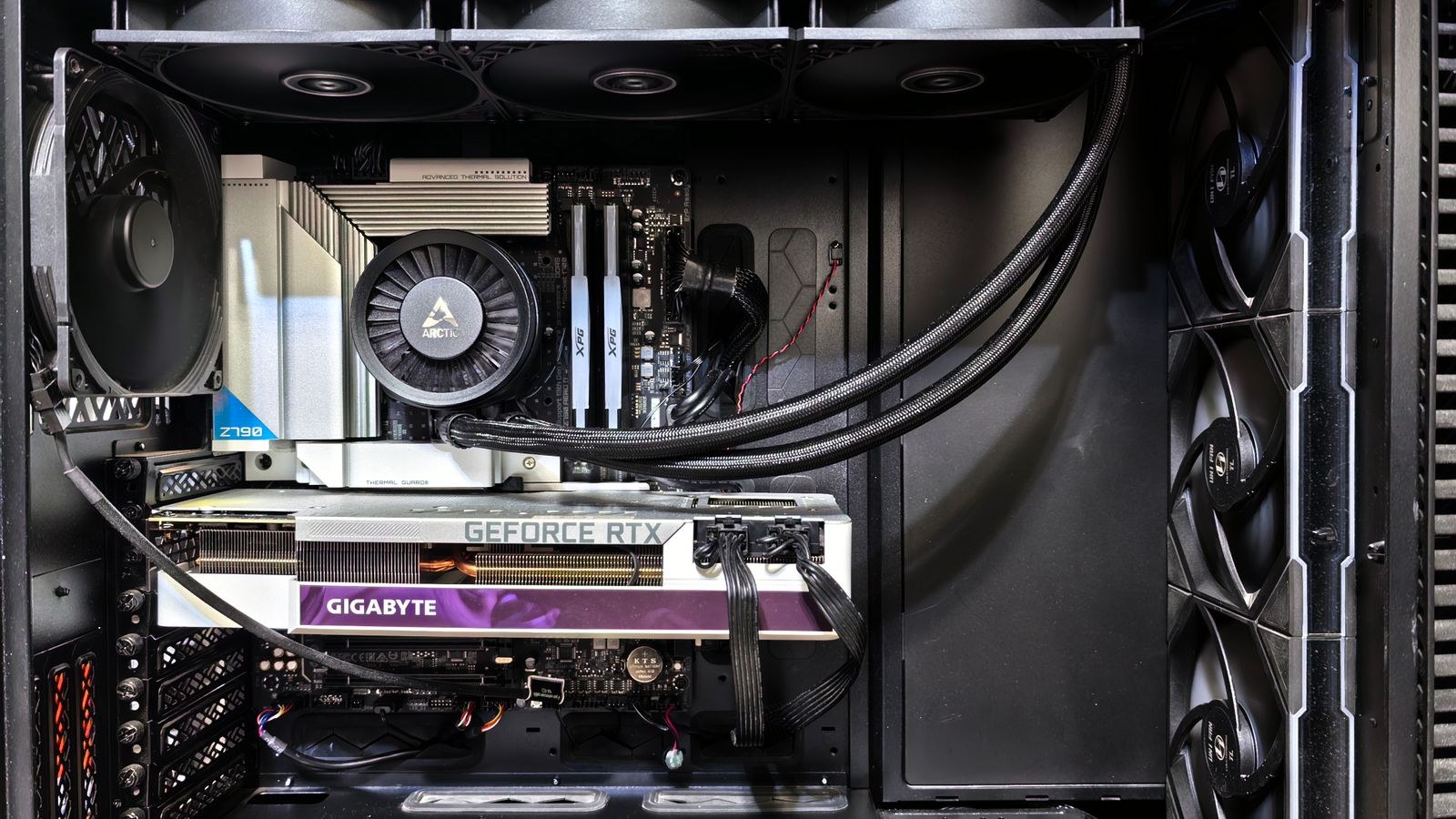
- Check for thermal throttling. A processor or graphics card running at its thermal ceiling loses clock speed continuously. Cleaning dust and tuning fan curves is free and sometimes recovers more performance than every software tweak combined.
In-Game Settings With the Best Return
Not all graphics settings cost the same. A handful consume a disproportionate share of your frame rate while contributing very little to how a game looks in motion.
- Shadow quality is usually the most expensive setting in any game. Dropping from ultra to high or medium frequently gains 10 to 20 percent, and during actual play the difference is barely visible.
- Ambient occlusion and screen-space global illumination are costly subtleties. Reducing or disabling them is rarely noticeable in motion.
- Volumetric effects, fog, and clouds are heavy on many engines and worth stepping down first.
- Ray tracing is the single most expensive option available. Turning it off, or reducing it from full path tracing to reflections only, can double a frame rate on mid-range hardware.
- Anti-aliasing costs more at higher settings with diminishing returns. Modern temporal methods are much cheaper than older supersampled approaches.
- Texture quality is nearly free provided you have enough video memory. Keep it high; it is the setting that most affects perceived sharpness.
- View distance is often processor-bound rather than graphics-bound, so lowering it helps specifically when you are CPU limited.
Change one setting at a time and measure. Ultra presets bundle a few genuinely worthwhile options with several that cost a third of your performance for detail you will never notice at speed.
Use Upscaling Properly
Upscaling is the largest free performance gain available on modern hardware, and a surprising number of players leave it switched off. The technique renders the frame at a lower internal resolution and reconstructs it to your display resolution using a trained algorithm, recovering most of the visual detail at a fraction of the cost.
The quality preset typically delivers 20 to 40 percent more frames with image quality that is difficult to distinguish from native. Balanced pushes further with a small visible softening, and performance mode is best reserved for 4K where the internal resolution remains high enough to reconstruct well. At 1080p, prefer quality mode, since aggressive settings have too few pixels to work with.
Frame generation is a related but distinct feature that inserts synthesised frames between rendered ones. It raises the displayed frame rate substantially but adds a little latency, which makes it excellent for single-player games and a poor fit for competitive shooters. Cards that support the newest reconstruction and generation features are covered in the roundup of the best GPUs with DLSS, which is worth checking against your own card before assuming a feature is unavailable to you.
Driver Control Panel Settings Worth Changing
Your graphics driver has a global control panel that overrides or supplements in-game options. Set the power management mode to prefer maximum performance so the card does not downclock between frames. Disable any driver-level sharpening or enhancement you are not deliberately using. Set texture filtering quality to high performance if you are chasing frames, since the visual difference is minimal.
Consider a frame rate cap slightly below your monitor’s refresh rate when using variable refresh technology. Capping keeps frame times consistent, reduces latency, and lowers heat, which lets the card sustain higher clocks. A steady 141 frames per second on a 144Hz panel feels considerably better than an erratic 160.
Common Mistakes When Chasing Frames
Installing a so-called optimiser or booster application is the most common and the least useful. These tools mostly disable services you needed, occasionally break things, and deliver gains you could achieve manually in five minutes.
Lowering resolution while CPU limited is the second. If your processor is the constraint, rendering fewer pixels changes nothing at all, and you have degraded image quality for no benefit.
Chasing the average frame rate while ignoring stutter is the third. A stable 90 frames per second feels far better than an average of 130 with regular drops to 40. Watch your one percent lows.
Finally, changing a dozen things at once means you learn nothing. Measure, change one variable, measure again, and keep the ones that actually helped.
When Hardware Really Is the Answer
Once memory runs at its rated speed, the power plan is correct, drivers are current, background software is minimal, upscaling is enabled, and expensive settings are tuned, whatever remains is a genuine hardware limit. If the graphics card is saturated at your target resolution, that is where the money goes, and the tier comparison among the best GPUs for gaming shows what each step up delivers.
If the processor is the constraint, which is typical in competitive titles at high frame rates, a card upgrade will change nothing and the shortlist of best CPUs for esports is the relevant read. Where memory speed or capacity is the limit, particularly in simulation and open-world titles, a properly rated kit from the best RAM for gaming comparison is an inexpensive fix. And if your symptoms are hitching and long loads rather than low frame rates, moving games onto one of the best NVMe SSDs solves it directly.
Frequently Asked Questions
How much FPS can I gain without new hardware?
On a system that has never been tuned, 20 to 50 percent is realistic once memory profiles, power settings, background software, expensive graphics options, and upscaling are all addressed. On an already optimised machine, expect very little.
Do FPS booster programs work?
Not meaningfully. They mostly automate settings you can change yourself, and some disable components you need. The manual steps in this guide are safer and more effective.
Does upscaling hurt image quality?
At quality presets on modern reconstruction techniques, the difference from native rendering is very hard to see in motion, and edge stability is sometimes better. Aggressive performance modes at low resolutions are where softening becomes obvious.
Should I cap my frame rate?
Usually yes, slightly below your refresh rate if you use variable refresh. It improves frame time consistency, reduces latency, and lowers temperatures, which helps sustained clock speeds.
Final Thoughts
Raising frame rates without spending money is mostly a process of removing self-inflicted limits. Diagnose whether the processor or the graphics card is the constraint, enable your memory profile, fix the power plan, strip out background software, tune the handful of graphics settings that cost the most, and switch on upscaling at a sensible preset. Measure after each change so you know what worked. When you have done all of it and the machine is still short of your target, you will know precisely which component to buy rather than guessing at the most expensive one.