
 Owen Bradley
 Showing something from your phone on the television should take five seconds, and sometimes it does. The rest of the time you get a device list that never populates, a black rectangle with sound but no picture, or video that runs a full second behind the audio. The reason is that screen mirroring is not one technology but three competing ones, and each has its own requirements about networks, hardware and app permissions. Once you know which system your phone and TV actually speak, most of the frustration disappears. This guide covers all three methods, the difference between mirroring and casting, and practical fixes for the lag, dropouts and black screens that break the experience.
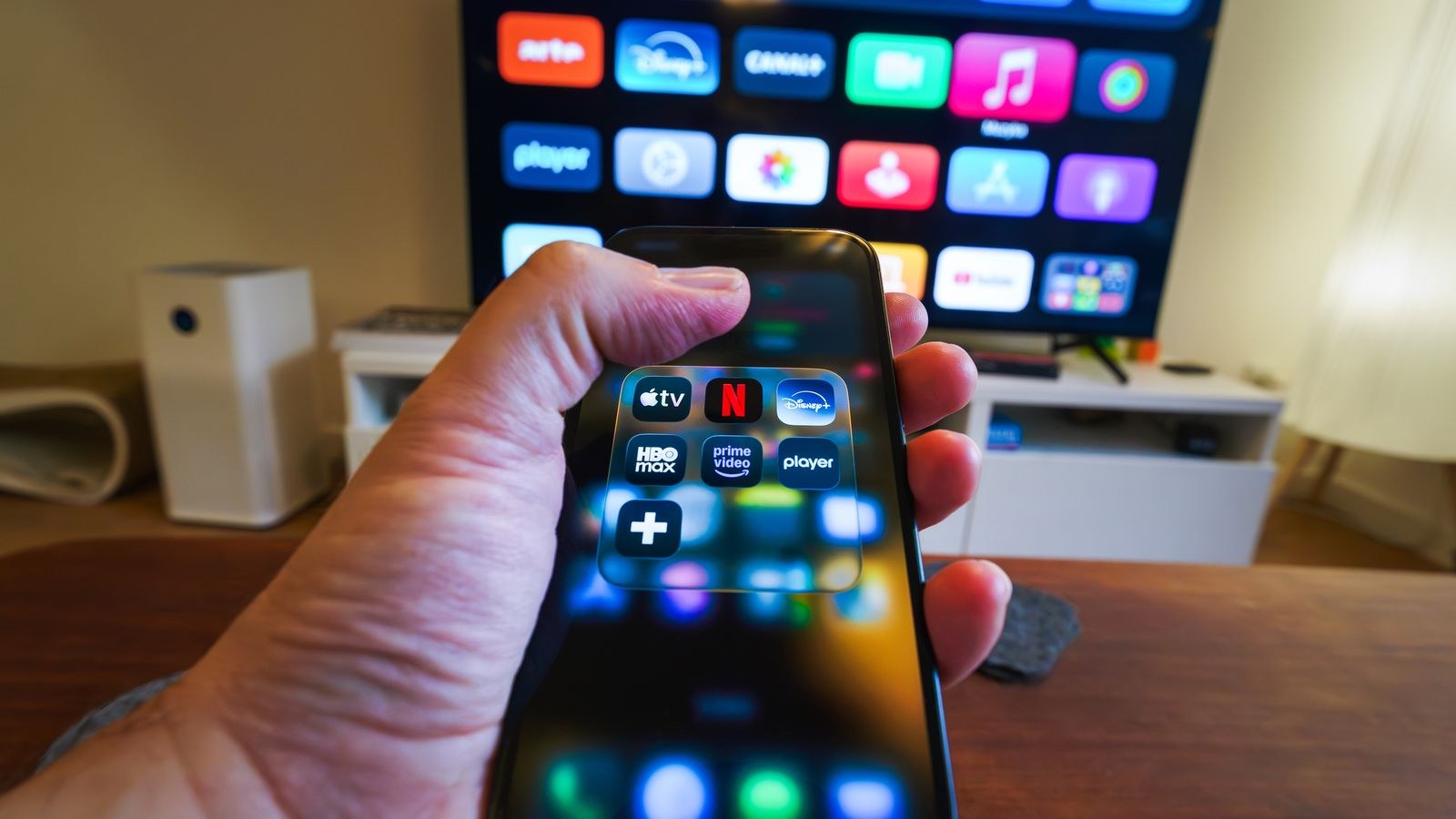
Mirroring Versus Casting: Know Which You Want
These two words get used interchangeably and they describe very different things.
Mirroring duplicates your phone’s display on the TV in real time. Everything you see appears on the big screen, including notifications and the home screen. It is the right choice for photos, presentations, apps with no TV version, and showing someone how something works. The costs are battery drain, latency, and the fact that your phone is tied up for the whole session.
Casting sends the TV a link to the content and lets the television stream it directly. Your phone becomes a remote control, so you can lock it, take a call, or leave the room without interrupting playback. Quality is higher and there is no latency, because nothing is being relayed. Casting is the better option whenever the app supports it, which covers most video and music services.
If your goal is watching a film, cast. If your goal is showing whatever is on your screen right now, mirror.
What You Need Before You Start
- Phone and TV on the same Wi-Fi network, including the same band and not one on a guest network.
- A receiver: a smart TV with built-in support, or a streaming stick or box plugged into HDMI.
- Both devices updated, since mirroring protocols are frequently patched.
- Local network permissions granted to the app doing the casting, on newer phone operating systems.
- Optionally a USB-C or Lightning to HDMI adapter for a guaranteed wired fallback.
Method 1: AirPlay From an iPhone or iPad
- Connect the phone and the TV or streaming device to the same Wi-Fi network.
- Open Control Centre by swiping down from the top-right corner on newer models, or up from the bottom on older ones.
- Tap Screen Mirroring and wait a few seconds for the device list to populate.
- Select your television or streaming device from the list.
- Enter the four-digit code that appears on the TV screen if prompted.
- To stop, reopen Control Centre, tap Screen Mirroring and choose Stop Mirroring.
For casting rather than mirroring, look for the AirPlay icon inside a video app instead. That hands playback to the TV and frees your phone entirely, which is nearly always the better experience for long content.
AirPlay also carries audio on its own, which makes it useful well beyond video. If you regularly send music around the house, our roundup of the best AirPlay speakers covers models that accept the same stream, and the best multi-room speakers guide explains how to keep several rooms in sync without noticeable drift.
Method 2: Chromecast and Google Cast From Android
- Confirm both devices are on the same network, and that the TV or dongle supports Google Cast.
- For casting, open a supported app such as a video or music service and tap the Cast icon, which looks like a screen with signal waves in the corner.
- Choose your TV from the list and playback moves to the big screen.
- For full mirroring, open the phone’s Quick Settings panel and look for Cast, Smart View, or a similarly named tile depending on manufacturer.
- Tap the tile, select the TV, and accept the on-screen prompt about capturing your display.
- Stop from the same tile when finished.
Manufacturers rename this feature constantly, which is why the tile is called something different on nearly every Android phone. If you cannot find it in Quick Settings, look under Connected Devices or Display in the settings app.
Method 3: Miracast and Direct Wireless Display
Miracast is a direct device-to-device standard that does not need a router at all, since the phone and display create their own link. Many Android phones and Windows laptops support it, and a large number of televisions include a receiver, often labelled Screen Mirroring or Wireless Display in the input list.
- On the TV, select the screen mirroring input or enable the wireless display feature in settings.
- On the phone, open the cast or wireless display option and wait for the TV to appear.
- Connect and accept the pairing prompt on the television.
Miracast is useful when there is no Wi-Fi available, at a rental or a meeting room for instance. It is also the least consistent of the three methods, with a reputation for slow connection times and occasional dropouts, so treat it as a fallback rather than a first choice.
The Wired Fallback That Always Works
When wireless is fighting you and something needs to be on screen right now, use a cable. A USB-C to HDMI adapter for modern Android phones, or a Lightning to HDMI adapter for older iPhones, mirrors the display with zero latency and no network dependency at all.
Two caveats. Some streaming apps block video output over HDMI adapters for copyright reasons, so a film may show as a black screen even though everything else works. And not every USB-C port supports video output, since the phone needs DisplayPort alternate mode. Check your model before buying an adapter.
Fixing the Problems That Actually Happen
The TV Does Not Appear in the List
Nine times out of ten this is a network mismatch. Confirm both devices are on the same network name, not one on 2.4GHz and one on 5GHz where the router isolates them, and definitely not one on a guest network. Guest networks usually enable client isolation, which blocks devices from seeing each other by design. Also check whether AP isolation is switched on in the router settings, since it does the same thing on the main network.
Then check permissions. Recent phone operating systems require apps to be granted local network access explicitly, and a denied prompt leaves the device list permanently empty with no explanation.
Black Screen With Working Audio
This is nearly always content protection. Streaming services block mirrored video output while allowing sound through. The solution is to cast rather than mirror: use the app’s own cast or AirPlay button, which sends the TV a link rather than a captured display, and the picture will appear normally.
Video Lags Behind Audio
Mirroring encodes, transmits and decodes every frame, so some delay is unavoidable. Reduce it by moving closer to the router, switching to the 5GHz band, and closing other bandwidth-heavy apps. If you are gaming or doing anything where timing matters, mirroring is the wrong tool; use a wired adapter instead.
Connection Drops Partway Through
Usually congestion or power management. Disable battery optimisation for the casting app, keep the phone plugged in for long sessions, and check whether the network is saturated by other streams. Persistent dropouts point at the network rather than the phone.
Why the Network Matters More Than the Phone
Mirroring is one of the most demanding things you can ask of a home network, because it sends a continuous encoded video stream in real time with no buffer to smooth over interruptions. A network that streams films perfectly can still stutter when mirroring, since a buffered stream tolerates a hiccup and a mirrored one does not.
If mirroring is unreliable everywhere in the house, the router is the place to look. Our comparison of the best routers for 4K streaming focuses on sustained throughput and handling many clients at once, which is exactly the load mirroring creates. If the problem is confined to one room, it is a coverage issue instead, and our guide to streaming optimized home networks covers node placement and channel planning to fix the weak corner rather than replacing hardware unnecessarily.
Mistakes to Avoid
The most common mistake is mirroring when you should be casting. People mirror a whole two-hour film, then wonder why the phone is hot, the battery is dead and the picture keeps stuttering, when a single tap on the app’s cast button would have delivered better quality with the phone idle in a pocket. Second is troubleshooting for twenty minutes without confirming both devices are on the same network band, which is the actual cause most of the time. Third is assuming a black screen means broken hardware when it is content protection working exactly as designed. Finally, do not buy a USB-C to HDMI adapter without checking that your phone’s port supports video output at all.
Frequently Asked Questions
Can I mirror an iPhone to a non-Apple TV?
Yes, if the television or streaming device supports AirPlay, which many now do. If not, a streaming stick with AirPlay support plugged into an HDMI port adds the capability to any TV. Sets that handle both AirPlay and Cast natively are common among the best gaming TVs with smart features, which also keep input lag low enough for mirrored gameplay.
Does mirroring need internet, or just Wi-Fi?
AirPlay and Google Cast mirroring need both devices on the same local network but do not need internet access for the mirroring itself. Miracast needs neither, since it creates its own direct link.
Why is my mirrored picture blurry?
The stream is compressed to fit available bandwidth. A weak or congested connection lowers quality automatically. Move closer to the router, use 5GHz, or switch to a wired adapter for full resolution.
Can I use my phone while mirroring?
Everything on your screen appears on the TV, including messages and notifications. Enable do not disturb first, or cast instead of mirror so the phone stays private.
Will mirroring drain my battery?
Yes, significantly, because the phone continuously encodes and transmits video. Keep it on a charger for anything longer than a few minutes, or cast so the TV does the work.
Final Thoughts
Screen mirroring to a TV becomes straightforward once you stop treating it as one feature. Decide first whether you want mirroring or casting, since casting solves latency, battery and quality problems in a single tap whenever the app supports it. Match the method to your phone, keep both devices on the same network band and off the guest network, grant local network permission, and keep a wired adapter in a drawer for the moments when nothing wireless cooperates. Get those basics right and putting your phone on the big screen stops being a gamble and becomes something you can rely on for the rest of 2026 and beyond.









