Owen Bradley
 Every smart device ships configured for the manufacturer’s convenience rather than yours. Voice recordings are kept by default, usage data flows out for “product improvement”, cameras upload thumbnails to the cloud whether or not you asked, and app permissions quietly include the contact list. None of that is hidden exactly, but it is spread across a dozen settings screens that nobody visits after setup day. This guide is a structured audit: work through your smart home privacy settings device category by device category, delete what is stored, switch off what you do not use, and end with a written record of what each product can actually see.
Before You Start: Build a Device Inventory
You cannot secure what you have not listed. Open your router’s connected-devices page and write down everything with a network address, then walk the house and add anything that connects by radio through a hub rather than Wi-Fi.
- Note the device, room, and which app controls it. Many households discover two or three forgotten items at this stage.
- Flag anything with a microphone or camera. These deserve the deepest review.
- Flag anything you no longer use. The fastest privacy win available is unplugging a device you stopped caring about two years ago.
- Note which account each device sits under. Devices spread across a personal account, a partner’s account and an old work login are far harder to audit.
Set aside about ninety minutes. This is not a task to rush, but it is also not one you repeat often.
Step-by-Step Privacy Audit
- Secure the accounts before the devices. Every setting below is meaningless if someone can log into the app. Set a unique password on each smart home account and turn on two-factor authentication everywhere it is offered. Then check the “linked accounts” or “authorised apps” list and revoke any third-party service you no longer use, because those retain access long after you forget them.
- Review who else has access. Open the household or family sharing list in each app and remove old housemates, former partners and contractors. Check for shared guest codes and temporary access grants that were never revoked. This is the most common real-world privacy hole and the one people never think to check.
- Delete stored voice history. In your assistant’s app, find the voice activity page, listen to a few entries to see what is actually captured, then delete everything. More importantly, change the retention setting so recordings auto-delete after a short period rather than accumulating forever, and switch off the option that allows humans to review clips for quality improvement.
- Turn off wake-word listening where it is not wanted. A speaker in a bedroom or home office often does not need to be listening at all. Use the physical mute switch, which on most devices cuts the microphone at hardware level rather than in software. If a room has three devices that all respond, disable the wake word on two of them.
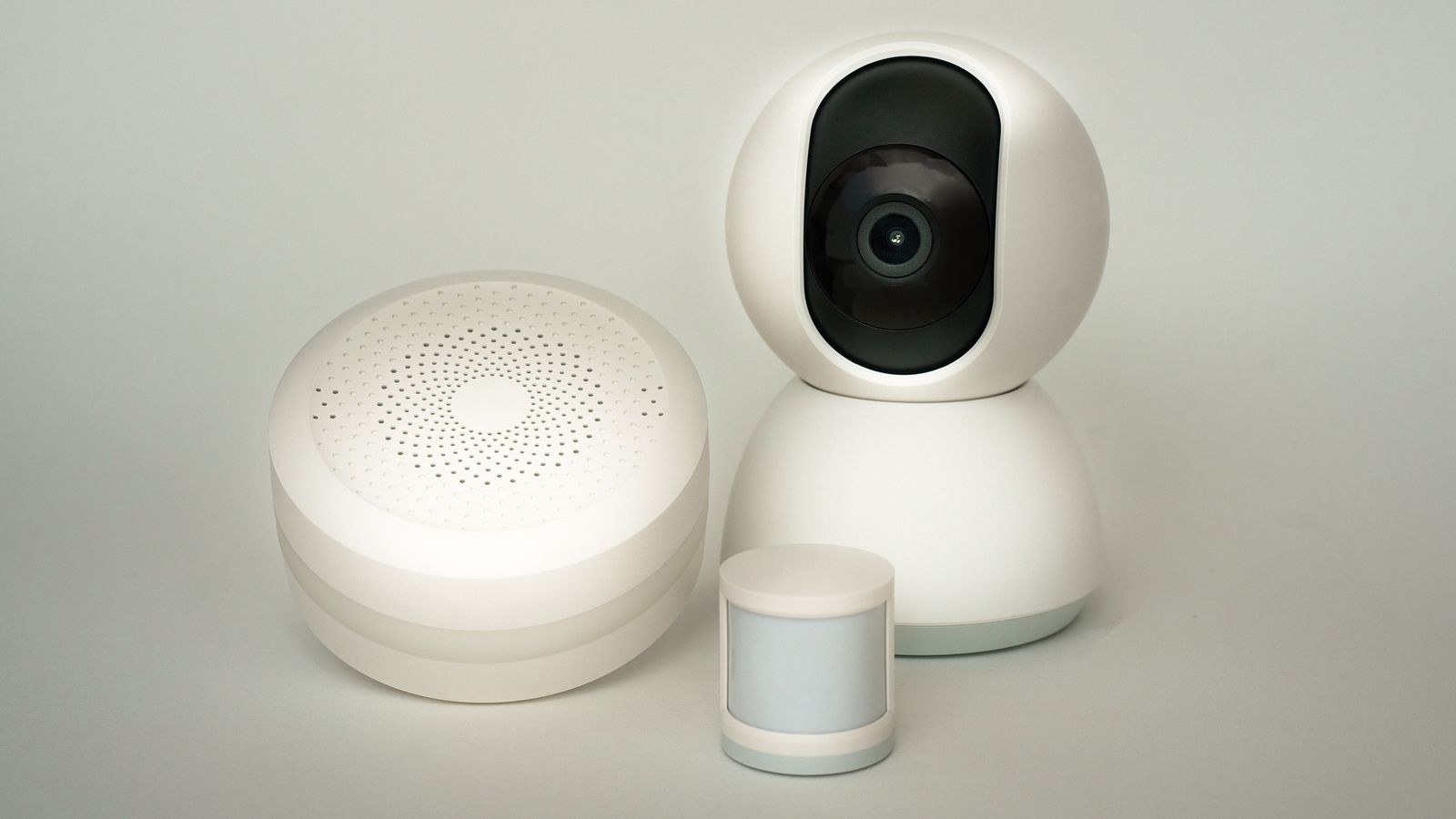
- Audit each camera’s cloud behaviour. Cameras are the highest-stakes category. For each one, check where footage is stored, how long it is retained, whether clips upload continuously or only on motion, and whether anyone outside your household has a share link. Turn off any “share with community” or neighbourhood alert feature unless you have deliberately chosen it. Devices from the best smart cameras range increasingly offer on-device storage, which keeps footage off the internet entirely.
- Create genuine no-camera zones. Decide which rooms never have a lens in them, and enforce it physically rather than through settings. Bedrooms and bathrooms are obvious. For dual-purpose rooms, use the privacy shutter or scheduled disable feature so the camera is off whenever the house is occupied. Many of the best smart home cameras now include a mechanical lens cover, which is more trustworthy than any software toggle.
- Strip app permissions on your phone. Open your phone’s permission manager and go through each smart home app in turn. Most need only local network access and notifications. Revoke contacts, calendar, SMS, call logs and precise location unless a specific feature you use depends on it. Where location is genuinely needed for geofencing, set it to “while using” rather than “always” and see whether the feature still works.
- Disable data sharing and personalised advertising. Buried in almost every app’s privacy section are toggles for usage analytics, crash reporting with content, personalised ads and marketing data sharing. Turn them off. They provide nothing to you and they are the mechanism by which device usage becomes an advertising profile.
- Check what your speaker’s shopping and calling features expose. Voice purchasing should require a spoken confirmation code or be switched off entirely. Review the contact list the assistant has imported and remove it if you never use voice calling. Comparing the best smart speakers on their privacy controls rather than sound quality alone is worth doing before your next purchase.
- Isolate devices on the network. Put smart devices on a separate guest or IoT network so a compromised bulb cannot reach your laptop or network storage. Most modern routers make this a two-minute job. The best secure wifi routers go further with per-device firewall rules that block a device from reaching the internet at all, which is ideal for anything that only ever needs local control.
- Block outbound traffic for devices that do not need it. A smart plug controlled by a local hub has no legitimate reason to phone home. Where your router supports it, deny internet access to those devices individually. They keep working locally and stop reporting anything outward.
- Write down what you found and decided. A simple list of device, data collected, retention setting and who has access turns this from a one-off scramble into something you can review in fifteen minutes next year.
What Each Device Category Actually Collects
Voice assistants store audio from the moment the wake word is detected, plus a transcript, plus a record of every command. False wake-word triggers mean fragments of ordinary conversation end up in that history, which is why reviewing and auto-deleting matters more here than anywhere else.
Cameras and doorbells collect the most sensitive data by a wide margin: continuous or motion-triggered video, often audio, plus motion timestamps that reveal your daily pattern in detail. Some also perform facial recognition, which may carry legal obligations depending on where you live and whether the camera covers a shared space.
Plugs, bulbs and sensors look harmless individually but collectively produce a precise occupancy log. When lights go on, when the kettle boils, when motion stops for the night. That pattern is genuinely revealing, and it is why network isolation matters even for trivial devices.
Locks and hubs record every entry and exit with a timestamp and an identity, since each user code is distinct. Check retention on these logs and confirm no old codes remain active.
Choosing a Platform With Better Defaults
Some ecosystems are structurally more private than others, and the difference is worth more than any individual setting. The key question is whether automations and processing run locally on a hub in your house or in a manufacturer’s cloud. Local processing means your device states never leave the building, and it keeps working when the internet does not.
Look also at whether the platform publishes a clear data retention policy, whether it supports on-device storage for video, and whether it lets you export and delete everything on request. When comparing the best smart home systems, weigh local control and open standards alongside the feature list, because a platform that keeps processing at home removes whole categories of privacy question rather than merely offering switches to manage them.
Handling Guests, Children and Shared Spaces
Privacy is not only about your own data. Anyone who enters your home is captured by your devices without having agreed to anything. A doorbell camera that records the pavement, a hallway camera that films visitors, or an assistant that transcribes a private conversation all raise reasonable concerns and, in some jurisdictions, legal ones.
The practical answers are simple. Point cameras at your own property rather than the street or a neighbour’s window, and use privacy masking zones where the field of view unavoidably overspills. Tell guests where cameras are, rather than hoping they do not notice. Disable microphones on cameras placed in social areas, since audio recording is treated far more strictly than video in many places. For children, review what a device can be asked and switch off purchasing and open web search.
Common Mistakes to Avoid
- Reusing passwords across smart home accounts. One breach elsewhere then hands over your cameras.
- Auditing settings but never checking the sharing list. Revoked physical access means nothing if the app access remains.
- Trusting a software off switch on a camera. Prefer a mechanical shutter or unplugging.
- Granting “always” location to every app. Almost nothing needs it.
- Leaving unused devices connected. An abandoned device stops receiving security updates but keeps collecting.
- Doing the audit once and never again. App updates routinely reintroduce settings and reset preferences.
Frequently Asked Questions
Does deleting voice history actually remove the recordings?
Major providers do delete the audio and transcript from your account when you request it, though anonymised derived data may persist. Setting automatic deletion is more reliable than remembering to purge manually.
Is a device with no cloud account safer?
Generally yes, because there is no remote store to breach and no account to compromise. The trade-off is losing remote access and app notifications, which is a reasonable exchange for devices that only ever operate at home.
How often should I repeat this audit?
Once a year for the full sweep, plus a quick check of the sharing list whenever someone moves out or a contractor finishes work. Also re-check after any major app update.
Will turning these settings off break my devices?
Rarely. Analytics, marketing and human review toggles have no effect on function. Location and network permissions can affect geofencing and setup, so change those one at a time and test.
Final Thoughts
Locking down smart home privacy is less about finding a hidden master switch and more about applying the same short checklist to every device you own. Secure the account, prune who has access, delete and auto-expire stored recordings, mute microphones you do not need, keep cameras out of private rooms and pointed at your own property, strip app permissions back to what a feature genuinely requires, and isolate the whole lot on its own network segment. Write down what you decided so the next review is a quick confirmation rather than a fresh investigation. Do that once in 2026 and your smart home keeps every convenience it had while collecting a fraction of what it did before.