Owen Bradley
 Few things are as immediately alarming as pressing the power button and watching your monitor display a floating “No Signal” box before dropping to standby. The good news is that this message is rarely the sign of a dead computer. It means the display is powered on and working, but it is not receiving a video signal on the input it is currently watching. That narrows the problem enormously: it is a cable, an input selection, a graphics output, or something preventing the PC from posting. This guide works through the checks in the right order, from the thirty-second fixes to the deeper hardware diagnosis, so you can get a picture back with the least effort.
What the No Signal Message Actually Means
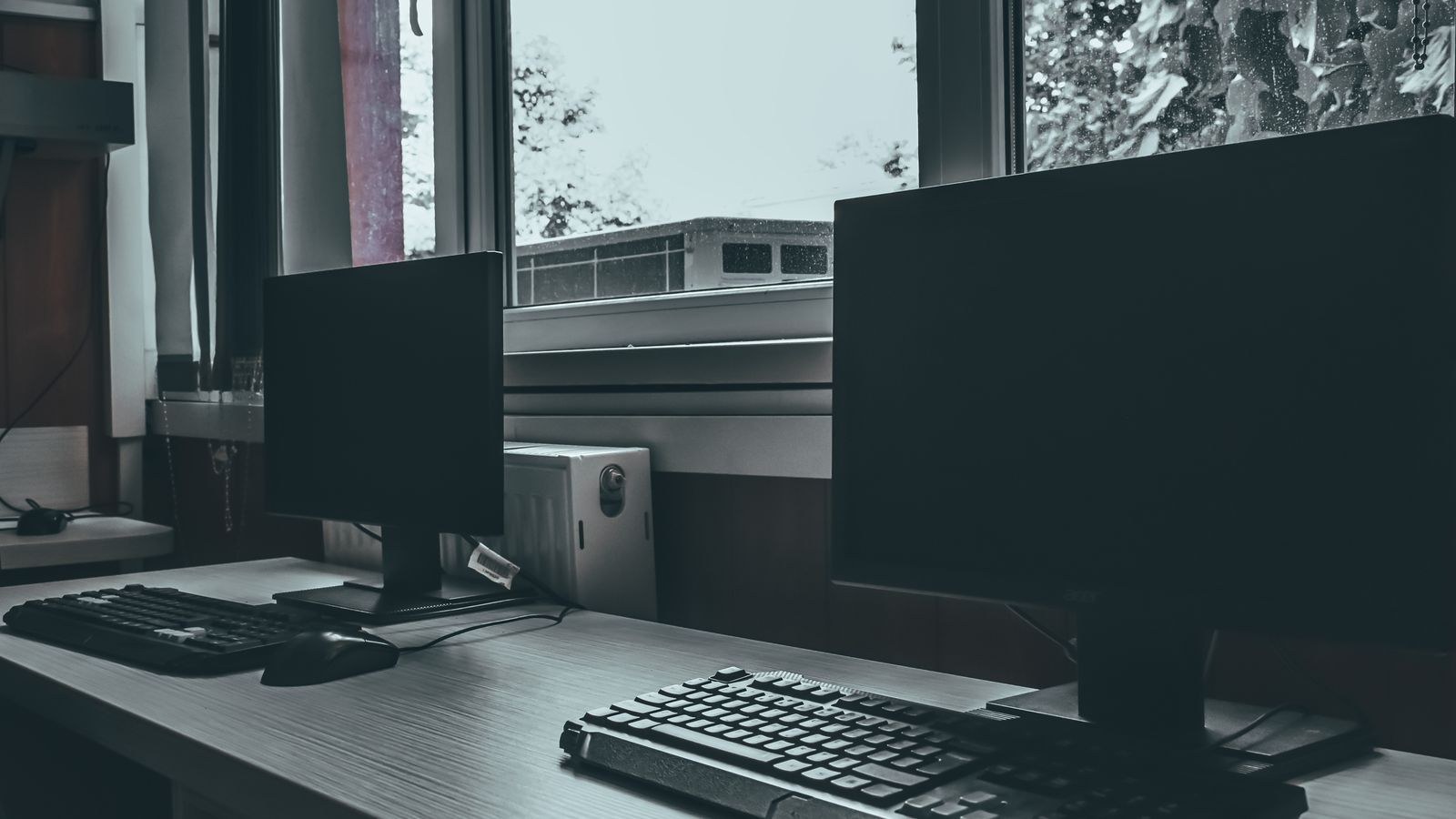
When a monitor says no signal, it is telling you that it powered up, ran its own internal check, and found nothing arriving on the selected input. That is genuinely useful information, because it rules out a failed monitor power supply and a failed backlight. The fault lies somewhere between the graphics output and the monitor’s input socket, or the computer is not producing video at all.
Work through the following steps in order rather than jumping ahead. The overwhelming majority of cases are solved in the first two sections.
Step 1: The Quick Checks
- Confirm the PC is genuinely on. Look for case fans spinning, drive activity lights, and keyboard indicator lights. If nothing is running, the problem is power, not display.
- Press the monitor’s input or source button. This is the most common fix by a wide margin. Monitors frequently sit on the wrong input, and auto-detection often fails. Cycle manually through every input: HDMI 1, HDMI 2, DisplayPort, USB-C, and so on, pausing a few seconds on each.
- Reseat both ends of the video cable. Unplug it from the monitor and from the computer, then push both firmly home. DisplayPort connectors often have a small latch you must press to release, and a partially seated plug looks perfectly normal.
- Check you are plugged into the graphics card. On a desktop with a discrete card, the video ports are in a horizontal group lower down the back of the case. The motherboard’s ports sit higher, near the USB sockets. Plugging into the motherboard while a discrete card is installed produces exactly this symptom.
- Power cycle everything. Shut down the PC, unplug the monitor from the wall for 60 seconds, plug it back in, then start the monitor first and the computer second.
Step 2: Isolate the Cable
Video cables fail more often than any other component in this chain, and a failing cable can work intermittently for weeks before dying completely.
- Swap in a known-good cable of the same type. Borrow one from a television or another machine if you have to.
- Try a different cable standard. If HDMI shows nothing, try DisplayPort, and vice versa. This tests a completely separate signal path on both devices.
- Remove every adapter, dock, KVM switch, and extension. Connect the monitor directly to the computer with one cable. Adapters and docks are a frequent cause, particularly passive HDMI-to-DisplayPort converters, which only work in one direction.
- Shorten the run. Long cables, especially over 10 feet without an active repeater, can fail to carry high-resolution or high-refresh signals reliably.
- Inspect the connectors for bent pins, debris, or a cracked housing.
Step 3: Test With a Second Display
This step splits the problem cleanly in half.
- Connect the computer to a different screen, a television will do. If the second display works, your original monitor or its cable is at fault.
- Connect the original monitor to a different device, such as a laptop or games console. If it shows a picture there, the monitor is fine and the problem is on the computer side.
- Try every port on the graphics card. Individual outputs can fail while others work perfectly.
If the monitor itself turns out to be dead and it is an older panel due for replacement anyway, our roundups of the best desktop computer monitors and the best 1080p monitors cover reliable replacements across every budget.
Step 4: Check Inside the Computer
If a second monitor also shows no signal, the fault is in the PC. Shut it down, unplug it from the wall, and press the power button once to discharge residual power before opening the case.
- Reseat the graphics card. Release the retention clip on the PCIe slot, pull the card straight out, and push it firmly back in until the clip clicks. Cards work loose during transport surprisingly often.
- Check the GPU power connectors. Confirm every supplementary power cable is fully seated at both the card and the power supply. A card without adequate power will spin its fans but output nothing.
- Reseat the RAM. Faulty or badly seated memory prevents the system from posting, and no post means no video. Remove all sticks, then try booting with a single stick in the slot your motherboard manual specifies.
- Look for diagnostic indicators. Many motherboards have small labelled LEDs for CPU, DRAM, VGA, and BOOT. Whichever stays lit tells you exactly which subsystem failed. Some boards use beep codes instead.
- Test with integrated graphics. If your processor has built-in graphics, remove the discrete card entirely and plug the monitor into the motherboard’s video output. A picture here confirms the graphics card is the problem.
- Clear the CMOS. A bad overclock or corrupted BIOS setting can stop the system posting. Use the clear CMOS jumper or button, or remove the coin cell battery for a few minutes with the machine unplugged.
Step 5: Software and Settings Causes
If the BIOS screen appears but the display goes blank once Windows loads, the hardware is fine and the cause is configuration.
- Boot into Safe Mode. Interrupt startup three times to reach the recovery menu, then choose Startup Settings and Safe Mode. If the picture returns, a graphics driver is the culprit.
- Reinstall the GPU driver cleanly from Safe Mode rather than installing over the existing one.
- Reset the display configuration. Press the Windows key with P and cycle the projection modes, or press Windows with Ctrl, Shift, and B to restart the graphics driver.
- Check for an unsupported resolution or refresh rate. If you recently set a mode the monitor cannot handle, boot into Safe Mode and set something conservative.
- Update the motherboard BIOS if you have installed a newer graphics card or processor into an older board that may not recognise it.
Special Cases Worth Knowing
- USB-C and Thunderbolt connections. Not every USB-C port carries video. Look for a DisplayPort or Thunderbolt symbol beside the port, and confirm the cable is a full-featured one rather than a charge-only lead. Panels designed around this connection, covered in our list of the best USB-C monitors, list exactly which alt modes they require.
- Multi-monitor setups. If one of several screens shows no signal, test that screen’s cable and port individually. Running out of output bandwidth on the graphics card can also blank a display. Cards with several modern outputs, like those in our roundup of the best graphics cards with dual HDMI outputs, avoid that limit.
- Signal drops after sleep. Disable deep sleep or USB selective suspend in power settings, and check for a monitor firmware update.
- Signal lost only during gaming. This usually indicates overheating or an under-specified power supply rather than a display fault.
Frequently Asked Questions
Why does the monitor work in BIOS but not in Windows?
That pattern points squarely at the graphics driver or a display setting saved by Windows. Boot into Safe Mode and reinstall the driver cleanly.
Can a monitor say no signal but still be broken?
Yes, though it is less common. A failed input board can leave the panel powered and showing its own menu while never accepting a signal. Testing that monitor on another device confirms it quickly.
Does the cable really matter that much?
Very much so at high resolutions and refresh rates. An old HDMI cable may carry 1080p at 60Hz perfectly yet fail to establish any signal at 1440p or higher.
What if the screen flickers on then goes to no signal?
That usually means the display briefly established a link and then lost it, which points to a marginal cable, a loose connector, or an unstable resolution setting.
Should I replace the monitor or the graphics card?
Do not guess. The cross-test in step 3 tells you which one is at fault in under five minutes. If it turns out the display is the weak link and you work long hours at a desk, our guide to the best monitors for home office use covers dependable everyday replacements.
Final Thoughts
No signal is a diagnosis, not a death sentence. Start with the input source button and a firm reseat of the cable, then confirm you are plugged into the graphics card rather than the motherboard. If that fails, swap the cable, then cross-test with a second display to work out which side of the connection is broken. Only after that should you open the case to reseat the card and memory or read the motherboard’s diagnostic lights. Following that order almost always finds the fault quickly, and in most cases the fix costs nothing more than a few minutes and a different cable.