 Priya Raghavan
 Choosing the best desktop computer monitors can feel overwhelming when every product page throws specs like refresh rate, panel type, and resolution at you all at once. Whether you are building a home office, upgrading a productivity setup, or simply want a sharper, more comfortable display for daily use, the right monitor makes a real difference in how you work and relax. This guide walks you through what actually matters when shopping, so you can match a screen to your needs and budget without second-guessing yourself.
Instead of ranking one model over another, we focus on how to choose. Below you will find a curated shortlist of popular options, followed by a practical breakdown of screen size, resolution, panel technology, refresh rate, and the little extras that separate a good buy from a frustrating one.

Pros
- 27" IPS panel covers 99% sRGB for accurate color across a 1920x1080 Full HD resolution
- Refresh rate up to 120Hz plus a 1ms VRB response time keep fast motion clear in games and video
- Adaptive-Sync (FreeSync compatible) matches the display's refresh rate to a compatible graphics card to reduce screen tearing
- Tilt adjustment on the stand lets you fine-tune viewing angle without a separate mount
- Dual HDMI and VGA inputs allow both a modern GPU and an older PC to connect
Cons
- No USB-C or DisplayPort listed, only HDMI and VGA, which limits single-cable laptop hookups
- 250-nit brightness is modest next to HDR-capable monitors meant for bright rooms or HDR content
- Stand offers tilt only, with no height, swivel, or pivot adjustment mentioned
The panel is a 27-inch IPS display at 1920 x 1080 resolution, covering 99% sRGB for color accuracy. It supports refresh rates up to 120Hz with a 1ms VRB response time, and brightness is set at 250 nits with a 0.311mm pixel pitch.
- 27-inch IPS panel, Full HD 1920 x 1080 resolution
- Up to 120Hz refresh rate for smoother motion
- 1ms VRB response time reduces motion blur and ghosting
- 99% sRGB color coverage and 250-nit brightness
The IPS panel type also maintains consistent color and contrast from wider viewing angles than a typical TN panel at this size.
Connectivity runs through HDMI and VGA ports, covering both current GPUs and older desktops or laptops without a digital output. Adaptive-Sync (FreeSync compatible) support means the monitor can sync its refresh rate to a compatible AMD graphics card for smoother, tear-free motion.
- HDMI input for modern PCs, consoles, and laptops
- VGA input for legacy desktop and laptop connections
- Adaptive-Sync (FreeSync compatible) for tear-free gaming and video
- No USB-C or DisplayPort input included on this model
Because there is no USB-C port, laptops that rely on single-cable video and power delivery will need a separate power connection alongside the HDMI cable.
The combination of a 120Hz refresh rate, 1ms response time, and Adaptive-Sync support makes this monitor a fit for everyday gaming and fast-motion video without stepping up to a premium 1440p or 4K display.
- Gamers upgrading from a 60Hz monitor who want smoother motion at Full HD
- Home office users who also want a monitor capable of fast-paced gaming after hours
- Anyone connecting an older PC via VGA alongside a newer HDMI source
- Not aimed at colour-critical creative work needing 4K resolution or wide-gamut coverage
Upgrading later to a higher-resolution panel would mean stepping past this monitor's 1920 x 1080 ceiling, since it is not built for 1440p or 4K signal input.

Pros
- 32-inch IPS panel with a 178-degree viewing angle keeps colors consistent off-center
- 75Hz refresh rate paired with Variable Refresh Rate reduces visible tearing during fast motion
- Flicker-free backlight and a blue light filter cut down on eye strain during long sessions
- Built-in speakers eliminate the need for separate external speakers on a basic desk setup
- Backed by a 3-year limited warranty
Cons
- Resolution tops out at 1920x1080 Full HD, well below the pixel density of a 4K panel this size
- Only HDMI and VGA inputs are included, no DisplayPort or USB-C connection
- Built-in speakers are a convenience addition, not a substitute for dedicated external speakers for critical listening
This 32-inch monitor uses an IPS panel at 1920x1080 Full HD resolution with a 75Hz refresh rate and a 3-sided frameless bezel.
- Panel size: 32 inches (31.5" viewable)
- Resolution: 1920x1080 Full HD
- Refresh rate: 75Hz with Variable Refresh Rate support
- Viewing angle: 178 degrees
The IPS panel technology is what maintains consistent color and contrast across that wide 178-degree viewing angle, which matters most in a multi-monitor setup or when more than one person is viewing the screen from an angle rather than dead center.
Connections are limited to HDMI and VGA, with front-panel controls for adjusting settings without a separate remote.
- Inputs: HDMI and VGA
- Built-in speakers for basic audio without external hardware
- Front controls for menu and preset adjustments
- Preset viewing modes: Game, Movie, Web, Text, and Mono
The absence of DisplayPort or USB-C means connecting to newer laptops that only offer USB-C video output will require a separate adapter or dongle, which is worth checking against your specific computer's available ports before purchase.
The size, refresh rate, and eye-comfort features are aimed at everyday home office and productivity use rather than competitive gaming or color-critical creative work.
- Home office setups needing a large, single-screen workspace
- Multi-monitor arrangements, thanks to the frameless bezel design
- Users sensitive to flicker or blue light during long screen sessions
- Basic multimedia use with the built-in speakers
Because resolution is capped at Full HD, text and image sharpness will look less refined than on a 4K panel of the same size, so anyone doing detailed photo or video editing may prefer a higher-resolution monitor, while general office work and web browsing suit this resolution well at typical viewing distances.

Pros
- CRISP CLARITY: This 22 inch class (21.5″ viewable) Philips V line
- 100HZ FAST REFRESH RATE: 100Hz brings your favorite movies and
- SMOOTH ACTION WITH -SYNC: Adaptive-Sync technology ensures fluid
- : The VA panel produces brighter whites and deeper blacks. You get
- Dimensions of 8.6"D x 19.4"W x 14.5"H engineered for optimal spatial fitting
Cons
- Requires verifying placement clearance for 8.6"D x 19.4"W x 14.5"H prior to installation
- Best placed in well ventilated indoor spaces away from excess moisture
Tailored for residential and professional settings, the Philips 22 Inch Computer Monitor FHD 100Hz VA VESA addresses routine requirements effectively. From an operational perspective, this model emphasizes key capabilities such as CRISP CLARITY: This 22 inch class (21.5″ viewable) Philips V line monitor delivers crisp Full HD 1920x1080 visuals. Enjoy movies, shows and videos with remarkable detail. Additionally, the integration of 100HZ FAST REFRESH RATE: 100Hz brings your favorite movies and video games to life. Stream, binge, and play effortlessly enhances overall usability during continuous activity. Measurements of 8.6"D x 19.4"W x 14.5"H provide clear dimensional boundaries for precise space planning.
Structural analysis confirms an emphasis on long-term mechanical resilience and component stability. Designed for lasting service, the structure leverages SMOOTH ACTION WITH -SYNC: Adaptive-Sync technology ensures fluid action sequences and rapid response time. Every frame will be rendered smoothly with crystal clarity and without stutter to minimize mechanical stress. Advanced joint reinforcement guards against structural sagging or premature joint wear. Dependable hardware performance ensures consistent operational output throughout the year. Precision engineering delivers a stable foundation tailored for active household demands. Carefully selected components ensure minimal maintenance overhead over long service life. Attention to manufacturing details ensures reliable utility for your Monitors.
Following practical maintenance guidelines ensures the unit retains its performance properties. Highlighting : The VA panel produces brighter whites and deeper blacks. You get true-to-life images and more gradients with 16.7 million colors, initial assembly and positioning remain straightforward using basic tools. Gentle surface cleaning with non-abrasive tools keeps outer materials looking clean and pristine. Dependable hardware performance ensures consistent operational output throughout the year. Precision engineering delivers a stable foundation tailored for active household demands. Carefully selected components ensure minimal maintenance overhead over long service life. Attention to manufacturing details ensures reliable utility for your Monitors.

Pros
- 1800R curvature wraps the screen closer to natural field of vision than flatter monitors, widening perceived depth
- Refresh rate reaches 100Hz once enabled in settings, up from a default 60Hz, reducing motion blur in fast-paced content
- TÜV-certified eye comfort technology reduces blue light emission and screen flicker for long work sessions
- Game Mode adjusts color and contrast automatically and fills the screen for wider-format game content
- Dual connectivity via HDMI and D-sub ports supports both modern and legacy source devices
Cons
- Default refresh rate ships at 60Hz — reaching the 100Hz maximum requires manually changing the setting in the monitor menu
- Panel resolution is capped at FHD (1920x1080), below the QHD or 4K options available on other 27-inch monitors
- VA panel type typically trades some viewing-angle color accuracy for higher contrast compared to IPS panels
The 27-inch VA panel uses a 1800R curvature that wraps more closely around the field of vision than a flat monitor of the same size.
- Native resolution is Full HD at 1920 x 1080
- Refresh rate reaches up to 100Hz, reducing lag and motion blur during fast-paced gaming or video playback
- The monitor ships with refresh rate set to 60Hz by default and must be changed to 100Hz in the on-screen settings
- Panel dimensions measure 9.2 in D x 24.5 in W x 18.4 in H
The curved format and 100Hz ceiling suit everyday gaming and media use rather than competitive esports setups that call for 144Hz or higher panels.
Two features are aimed at extended screen sessions: TÜV-certified eye comfort technology and a dedicated Game Mode.
- Eye comfort technology reduces blue light output and minimizes screen flicker during long work or reading sessions
- Game Mode adjusts color and contrast settings to make details easier to spot in darker scenes
- Game Mode also fills the screen with game content for a wider in-game view
- Both features are toggled through the monitor's on-screen menu rather than external software
These are display-level enhancements rather than hardware upgrades — they adjust how the existing panel renders content rather than adding new panel capability.
The monitor connects to source devices through two port types: HDMI and D-sub (VGA).
- HDMI supports most current laptops, desktops, and consoles
- D-sub allows connection to older PCs or docking stations that lack HDMI output
- No USB-C or DisplayPort connection is included on this model
- Cable management is limited to routing both cords out the rear of the stand, since no built-in cable channel is listed
This port selection favors compatibility with a mix of newer and older source devices over the single-cable convenience that USB-C or DisplayPort would offer on higher-tier monitors, which matters most for offices still running legacy desktop towers.

Pros
- 100Hz refresh rate outpaces the 60Hz standard on most Full HD monitors, so scrolling and light gaming look smoother
- VA panel with 178/178-degree viewing angles keeps color consistent when viewed from the side, unlike a typical TN panel
- Nearly bezel-free on three sides for cleaner multi-monitor setups
- EasyRead mode plus flicker-free and LowBlue technology reduce eye strain during long document-reading sessions
- Backed by a 4-year advance replacement warranty, longer than the 1 to 3 years typical of this monitor class
Cons
- Only one HDMI port and one VGA port, so connecting more than two sources at once requires a switch or dock
- Full HD 1920x1080 resolution, a lower pixel density than the 1440p or 4K panels common at this screen size
- VGA input is a legacy connector many modern laptops no longer include, so an adapter may be needed
The 271V8LB pairs a 27-inch VA panel with Full HD 1920x1080 resolution and a 100Hz refresh rate, above the 60Hz standard on most monitors in this size and resolution class. The VA panel type produces deeper blacks and higher contrast than a typical TN panel, along with a 178/178-degree viewing angle that keeps colors from washing out when you are off to the side of the screen.
- Resolution: 1920 x 1080 Full HD
- Refresh rate: 100Hz with Adaptive-Sync support
- Panel type: VA, 16.7 million colors
- Physical footprint: 24.17 in W x 9.04 in D x 18.11 in H
The near-bezel-free design on three sides makes it easier to line up two or three of these side by side without a thick black gap breaking up the image across screens.
Connectivity is kept simple: one HDMI input and one VGA input, enough for a single PC plus an older source, but not for switching between more than two devices without an external switch. There is no USB-C or DisplayPort on this model, so higher-bandwidth or single-cable setups are not supported here.
- 1x HDMI port for a modern PC, console, or laptop
- 1x VGA port for legacy desktops or older docking stations
- VESA mount compatible for wall or arm mounting
Because VGA is being phased out on newer laptops, check whether your source device still has a VGA output or whether you will need a HDMI-to-VGA or USB-C-to-HDMI adapter before setup.
This monitor is built around office and study use rather than competitive gaming, with EasyRead mode, flicker-free backlighting, and LowBlue light filtering aimed at people who spend hours looking at spreadsheets, documents, or code. The 100Hz refresh rate is a bonus for light gaming or smoother scrolling, without being marketed as a dedicated gaming panel.
- Best for office workers, students, and multi-monitor productivity setups
- Suits anyone prioritizing eye comfort over high refresh-rate competitive gaming
- A reasonable second or third screen given the slim bezel design
Gamers chasing sub-5ms response times or 144Hz-plus refresh rates for competitive titles will find faster panels built specifically for that use elsewhere in the lineup.

Pros
- 32-inch curved VA panel at 1920x1080 resolution wraps the screen edges into peripheral view for a more immersive angle than a flat panel
- 100Hz refresh rate reduces stutter and motion blur versus a standard 60Hz monitor during fast on-screen movement
- AMD FreeSync support smooths frame delivery in supported games, cutting down on screen tearing
- Black Stabilizer brightens shadowed scene areas without washing out the rest of the image
- Tilt-adjustable ergonomic stand lets the screen angle be set without a separate mounting arm
Cons
- 1920x1080 resolution on a 32-inch panel gives a lower pixel density than a QHD or 4K panel of the same size
- VA panel technology typically shows more color shift at extreme side viewing angles than an IPS panel
- No listed height adjustment on the stand, only tilt, so desk height becomes the main way to set eye-level positioning
The 32-inch VA panel runs at 1920x1080 Full HD resolution with a curved profile that wraps the outer edges of the screen slightly into peripheral vision, aiming for a more enveloping view than a flat panel of the same size. Color reproduction on VA panels typically favors contrast and black depth over the widest possible viewing angles.
- 32-inch curved VA panel
- 1920x1080 Full HD resolution
- Reader Mode reduces blue light for extended viewing
Because pixel density is lower than a QHD or 4K panel at the same 32-inch size, text and fine detail will look softer up close than on a higher-resolution alternative.
A 100Hz refresh rate smooths on-screen motion during both casual gaming and general streaming, cutting down on the stutter and blur visible on a standard 60Hz panel. AMD FreeSync support syncs the display's refresh rate to a compatible GPU's frame output, reducing screen tearing during fast-paced scenes.
- 100Hz refresh rate
- AMD FreeSync variable refresh support
- Black Stabilizer brightens dark scene detail
The Black Stabilizer feature raises visibility in shadowed areas of a game scene without overexposing brighter parts of the same frame, useful in games where enemies or details hide in dark corners.
The included stand offers tilt adjustment to angle the screen toward or away from the viewer, and onscreen controls let the display be split into sections or have basic picture settings adjusted with a few clicks rather than digging through a deep menu system. The monitor connects via HDMI, keeping cable setup straightforward for a single-cable video connection to a desktop or laptop.
- Tilt-adjustable stand
- HDMI connection
- Onscreen split-screen and control options
Because the stand offers tilt but no listed height adjustment, getting the screen to eye level depends on desk height or a separate monitor riser rather than the stand itself, worth planning for before setup.

Pros
- Stunning Image Quality in 4K Display - The 27-inch UHD 4K (3840 x
- 4K UHD HDR - To more fully realize content creators vision, this
- Color Your World - Explore HDR content the way it was meant to be
- Never In the Dark - Light up your gameplay with enhanced vision.
- Dimensions of 9.42"D x 24.15"W x 22.41"H engineered for optimal spatial fitting
Cons
- Requires verifying placement clearance for 9.42"D x 24.15"W x 22.41"H prior to installation
- Best placed in well ventilated indoor spaces away from excess moisture
Integrating thoughtful design principles, the LG -W 27-inch Ultrafine 4K UHD IPS Computer Monitor 60Hz enhances daily routines within Monitors areas. From an operational perspective, this model emphasizes key capabilities such as Stunning Image Quality in 4K Display - The 27-inch UHD 4K (3840 x 2160) IPS display reproduces clear images and vibrant colors with up to 95% DCI-P3 color gamut expression . Experience dramatic visual immersion with all your favorite shows, movies, sports and games.. Additionally, the integration of 4K UHD HDR - To more fully realize content creators vision, this monitor is compatible with VESA DisplayHDR 400 high dynamic range, supporting specific levels of color and brightness that exceed the capabilities of ordinary monitors. enhances overall usability during continuous activity. Measurements of 9.42"D x 24.15"W x 22.41"H provide clear dimensional boundaries for precise space planning.
Structural analysis confirms an emphasis on long-term mechanical resilience and component stability. Designed for lasting service, the structure leverages Color Your World - Explore HDR content the way it was meant to be seen with up to 95% DCI-P3 color gamut expression—an elevated color spectrum that brings brilliant color to life. to minimize mechanical stress. Advanced joint reinforcement guards against structural sagging or premature joint wear. Robust physical construction provides verified peace of mind during heavy daily usage. Thoughtful spatial layout allows versatile placement across modern living environments. Dependable hardware performance ensures consistent operational output throughout the year.
Following practical maintenance guidelines ensures the unit retains its performance properties. Highlighting Never In the Dark - Light up your gameplay with enhanced vision. Black Stabilizer brightens dark scenes to give you an advantage over the competition—even when they’re hiding in the shadows., initial assembly and positioning remain straightforward using basic tools. Gentle surface cleaning with non-abrasive tools keeps outer materials looking clean and pristine. Robust physical construction provides verified peace of mind during heavy daily usage. Thoughtful spatial layout allows versatile placement across modern living environments. Dependable hardware performance ensures consistent operational output throughout the year.

Pros
- 27" Vertical Alignment (VA) Panel - 1920 x 1080 Resolution - 250
- 4 ms response time - 1800R curvature - 100Hz refresh rate - VGA &
- 3,000:1 Static Contrast Ratio - 178°/178° Viewing Angles
- 16.7 million colors supported - 95% sRGB color coverage - Eye Saver
- Dimensions of 9.8"D x 24.5"W x 18.2"H engineered for optimal spatial fitting
Cons
- Requires verifying placement clearance for 9.8"D x 24.5"W x 18.2"H prior to installation
- Requires proper surface alignment during initial installation
Designed with precision, the Samsung S36GD 27 Curved Monitor LCD FHD 16 9 1920x1080 delivers versatile performance for modern Monitors spaces. Technical integration focuses on functional efficiency, incorporating 27" Vertical Alignment (VA) Panel - 1920 x 1080 Resolution - 250 cd/m² Brightness. Its balanced engineering incorporates 4 ms response time - 1800R curvature - 100Hz refresh rate - VGA & HDMI inputs to streamline day-to-day interactions. Measurements of 9.8"D x 24.5"W x 18.2"H provide clear dimensional boundaries for precise space planning. Using proper installation techniques maintains physical stability across daily activities. This balanced configuration fits smoothly into existing interior designs while maximizing efficiency.
Evaluating build quality and structural execution reveals strong manufacturing standards across components. The physical build incorporates 3,000:1 Static Contrast Ratio - 178°/178° Viewing Angles, providing essential protection against surface wear. High tolerance assembly prevents unexpected mechanical looseness during daily operation. Using proper installation techniques maintains physical stability across daily activities. This balanced configuration fits smoothly into existing interior designs while maximizing efficiency. Quality craftsmanship supports long term satisfaction for residential and professional settings. User centered design choices streamline routine interactions and enhance practical convenience. Robust physical construction provides verified peace of mind during heavy daily usage.
Long-term operational satisfaction is supported by adhering to standard installation and cleaning practices. Thanks to 16.7 million colors supported - 95% sRGB color coverage - Eye Saver Mode & Flicker Free technology - Game Mode, spatial alignment and initial setup progress smoothly for homeowners. Simple preventative care maintains mechanical responsiveness and aesthetic value over extended use. Using proper installation techniques maintains physical stability across daily activities. This balanced configuration fits smoothly into existing interior designs while maximizing efficiency. Quality craftsmanship supports long term satisfaction for residential and professional settings. User centered design choices streamline routine interactions and enhance practical convenience.

Pros
- IPS panel keeps colors consistent even when viewed from an angle, unlike TN panels which show more color shift off-center
- 100Hz refresh rate reduces motion blur during fast-paced games or scrolling versus a standard 60Hz panel
- Ultra-thin border bezels support clean multi-monitor setups without wide gaps between screens
- Game Mode and adjustable contrast settings tune the picture specifically for fast-paced content
- Reduced blue light and flicker settings aim to ease eye strain during long sessions
Cons
- Ships with a tilt-only stand, with no height, swivel or pivot adjustment built in
- Default refresh rate is set to 60Hz out of the box and must be manually changed to 100Hz in settings
- Full HD 1920x1080 resolution is lower than QHD or 4K panels in the same size class
This 24-inch monitor uses an IPS panel at Full HD (1920x1080) resolution with a 100Hz refresh rate, though the panel ships defaulted to 60Hz and needs to be switched to 100Hz manually in the on-screen menu. IPS technology keeps color and contrast consistent from wider viewing angles than TN panels typically manage.
- 24-inch IPS panel, Full HD 1920x1080
- 100Hz refresh rate (60Hz default, adjustable in settings)
- Game Mode with adjustable color and contrast
Game Mode lets contrast and color be adjusted on the fly to make fast-moving scenes easier to track, which is aimed more at gaming and video than static office document work.
The monitor includes settings to reduce blue light output and minimize screen flicker, intended to ease eye strain across long work or gaming sessions. Its super-slim design with ultra-thin bezels is built to blend into a desk setup without a bulky frame around the screen.
- Reduced blue light mode
- Flicker-reduction technology
- Ultra-thin bezel design for a compact footprint
Because the stand is tilt-only, comfort adjustments are limited to tilting the screen up or down; there is no height, swivel or pivot movement built into the base to fine-tune eye-level positioning.
This monitor fits home offices, dorm setups and casual gaming stations where a 24-inch Full HD IPS screen covers everyday document work, video and light gaming. The 100Hz refresh rate helps with fast-scrolling content and moderate-paced games more than it targets competitive esports, where higher refresh panels are typically chosen instead.
- Home office and everyday computing
- Casual and moderately fast-paced gaming
- Multi-monitor setups thanks to the thin-bezel design
Buyers wanting a fully adjustable stand or higher-than-Full-HD resolution for detailed creative work should look toward monitors built specifically around those features instead.
Pros
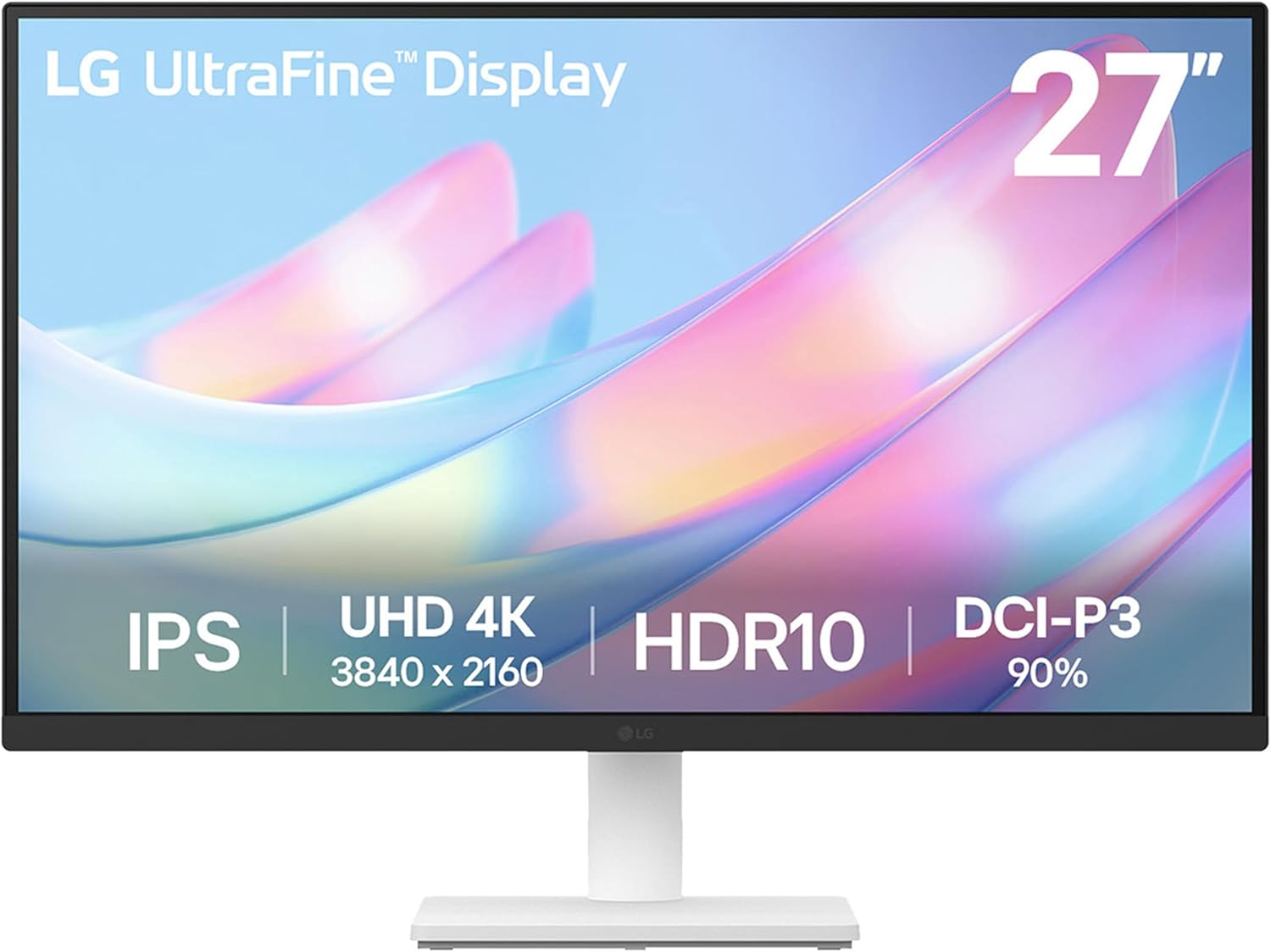
- 3840x2160 resolution with 1000:1 contrast ratio delivers deeper blacks than standard IPS panels with the same resolution
- 90% DCI-P3 colour gamut coverage suits colour-sensitive work like photo or video editing
- HDR10 support adds expanded brightness range for compatible content
- Tilt-adjustable ergonomic stand lets the screen angle change without a separate mount
- Ships with HDMI and DisplayPort cables included, along with the power adapter, so no separate cable purchase is needed
Cons
- 60Hz refresh rate and 5ms response time trail dedicated gaming monitors built for faster refresh
- Stand offers tilt only, with no height or swivel adjustment built in
- OnScreen Control software must be installed separately to access split-screen and advanced display settings
The panel delivers 3840x2160 (4K UHD) resolution with a 1000:1 contrast ratio and up to 90% DCI-P3 colour gamut coverage, paired with HDR10 support.
- IPS panel technology maintains colour accuracy across wide viewing angles
- 60Hz refresh rate and 5ms response time suit general desktop and creative work
- Borderless design reduces bezel width around the visible screen area
The combination of wide colour coverage and 4K resolution is aimed at detailed image work, where accurate colour and sharp detail matter more than high refresh rate gaming performance.
The monitor connects via HDMI or DisplayPort, both included in the box along with the power adapter and a quick start guide.
- OnScreen Control software allows splitting the display into multiple work areas from a few mouse clicks
- Reader Mode and Flicker Safe features reduce eye strain during extended use
- Ergonomic stand tilts to adjust viewing angle without an external mount
Because OnScreen Control is a separate software install rather than built into the monitor's onboard menu, accessing the split-screen and layout features requires downloading it from LG's support site first.
The 27-inch 4K panel with wide colour coverage suits users prioritizing image detail and accuracy over high refresh rate gaming.
- Creative professionals working with photo or video editing
- Home office setups needing sharp text and detailed spreadsheet work
- General desktop use where HDR10 content and DisplayPort connectivity matter
Competitive gamers chasing high frame rates may prefer a monitor built around a faster refresh rate instead, since this panel's 60Hz limit caps smoothness during fast motion regardless of the graphics card driving it.
Why the Right Monitor Matters for a Desktop Setup
Your monitor is the one piece of hardware you stare at for hours every day. A poor choice leads to eye strain, cramped workspaces, and colors that never look quite right. A good choice, on the other hand, keeps you comfortable through long sessions, gives you room to multitask, and renders text and images the way they were meant to be seen.
The good news is that display quality has improved dramatically across every price tier. Even budget-friendly picks like the Philips 221V8LB now offer full HD resolution and eye-care features that were once reserved for premium models. That means your job is less about avoiding bad screens and more about identifying which strengths line up with how you actually use your computer.
Match the Screen Size to Your Desk and Distance
Screen size is usually the first thing buyers think about, and for good reason. It sets the tone for your entire setup. But bigger is not automatically better. The ideal size depends on how far you sit from the display and how much desk depth you have to work with.
Compact Screens (22 to 24 Inches)
If your desk is small or you sit close to the screen, a 22 to 24 inch monitor keeps everything in comfortable view without forcing you to turn your head. These sizes are ideal for browsing, email, writing, and general office tasks. A model like the Samsung S30GD 24-inch pairs a crisp IPS panel with an ergonomic design, making it a smart pick for tighter spaces or a secondary display.
The Versatile 27-Inch Sweet Spot
For most people, 27 inches hits the perfect balance between screen real estate and desk footprint. It gives you room to place two windows side by side while staying easy on the eyes. The Acer KB272 and the Philips 271V8LB are both examples of frameless 27-inch panels that feel spacious without dominating your workspace.
Big and Immersive (32 Inches and Curved)
If you crave an immersive experience or want to reduce window-shuffling, a 32-inch display delivers. Curved options such as the LG 32MR50C-B and the flat ViewSonic 32-inch wrap more content into your field of view. Curved panels in particular can make large screens feel more natural, since the edges stay closer to a consistent viewing distance.
Understand Resolution: Sharpness You Can See
Resolution determines how many pixels pack into the screen, which directly affects how crisp text and images appear. The two tiers most desktop buyers care about are Full HD and 4K.
- Full HD (1920 x 1080): The mainstream standard. It looks clean on screens up to about 27 inches and keeps prices affordable. Nearly every value pick, from the Samsung Essential S3 to the Samsung S36GD curved, uses this resolution.
- 4K UHD (3840 x 2160): Four times the pixel count of Full HD, delivering razor-sharp detail and extra workspace. It shines for photo editing, design work, and anyone who wants the crispest possible text. The LG 27UP650K-W and LG 27US500-W both bring 4K clarity to a 27-inch frame.
The rule of thumb: on a 24 to 27 inch screen, Full HD is perfectly comfortable for everyday tasks. If you do detail-heavy work or simply want the sharpest image, stepping up to 4K on a 27-inch panel is well worth it.
Panel Technology: IPS vs the Alternatives
Behind every monitor is a panel type, and it shapes color accuracy and viewing angles more than almost any other spec. The most common types you will encounter are IPS and VA.
IPS panels are prized for wide viewing angles and accurate, consistent color. If you edit photos, work with design tools, or just want colors that stay true when you glance from an angle, IPS is the safe choice. Many of the picks here, including the Acer KB272 with its 99% sRGB coverage and the Samsung S30GD, use IPS technology.
VA panels, often found in curved displays, trade a little viewing-angle performance for deeper contrast and richer blacks. That makes them appealing for immersive setups and media viewing. Curved models like the LG 32MR50C-B lean on this strength to deliver punchy, high-contrast visuals.
Refresh Rate and Adaptive Sync
Refresh rate measures how many times per second the screen redraws the image, expressed in hertz. A higher number means smoother motion. For office and general use, 60Hz to 75Hz is plenty. But many modern monitors now push 100Hz or beyond at no real price premium, giving you noticeably smoother scrolling and cursor movement.
Several picks in this guide offer that extra fluidity. The Samsung Essential S3, Philips 271V8LB, and Philips 221V8LB all run at 100Hz, while the Acer KB272 reaches up to 120Hz. If you dabble in casual gaming alongside your work, that headroom is a welcome bonus.
Also look for adaptive sync support, sometimes labeled FreeSync. It syncs the monitor’s refresh rate with your graphics output to reduce screen tearing and stuttering. Many of these displays, including the LG 32MR50C-B, include this feature, which keeps fast-moving content looking clean.
Connectivity and Ports
Before you buy, check that the monitor’s ports match your computer. Most modern desktops and laptops rely on HDMI or DisplayPort, and nearly every model here includes HDMI. If you are connecting an older machine, having a VGA port as backup is handy, which is why value picks like the ViewSonic 32-inch and Samsung S36GD still include one.
For 4K displays, DisplayPort is often the better route to hit full resolution at the intended refresh rate. The LG 27UP650K-W offers both dual HDMI and DisplayPort 1.4, giving you flexibility to connect multiple devices at once. Built-in speakers, like those on the ViewSonic model, are also a nice convenience if you want to skip external audio gear.
Comfort Features Worth Prioritizing
The specs that show up in headlines are not always the ones that matter most day to day. If you spend long hours at your desk, comfort features deserve serious attention.
- Eye care technology: Look for low blue light modes and flicker-free backlighting. These reduce fatigue during marathon sessions. The Philips 221V8LB and Samsung Essential S3 both emphasize advanced eye comfort.
- Ergonomic adjustment: A stand that offers tilt, height, and pivot lets you position the screen perfectly. The LG 27UP650K-W stands out here with a fully adjustable stand that handles tilt, height, and pivot.
- VESA mount support: If you plan to use a monitor arm or wall mount, confirm VESA compatibility. Several picks, including both Philips models, support it.
- Reader modes: Features like LG’s Reader Mode shift the display to warmer tones for easier text reading, a small touch that pays off during long documents.
How to Pick the Right Monitor for You
With all these factors in mind, the choice becomes much simpler once you define your primary use case. Here is a quick way to narrow things down.
For Everyday Home Office Work
Prioritize a comfortable 24 to 27 inch Full HD IPS screen with eye-care features and a 75Hz to 100Hz refresh rate. Options like the Philips 271V8LB and Samsung S30GD cover these bases affordably.
For Multitasking and Immersion
Go big with a 32-inch display. A curved panel such as the LG 32MR50C-B wraps content around you, while the flat ViewSonic 32-inch keeps things simple with built-in speakers for an all-in-one feel.
For Creative and Detail Work
Choose 4K on a 27-inch IPS panel. The LG 27UP650K-W with its wide color coverage and adjustable stand, or the borderless LG 27US500-W, both deliver the sharpness and accuracy creative tasks demand.
For Tight Budgets
You do not have to spend much to get a solid display. The Philips 221V8LB proves that a compact, eye-friendly Full HD monitor with a generous warranty can come in at a very approachable price.
Final Thoughts
Finding the best desktop computer monitors for your setup comes down to matching a few key traits to how you work. Start with the screen size that fits your desk, decide whether Full HD or 4K resolution suits your tasks, and then lean on panel type, refresh rate, and comfort features to fine-tune your pick. Every option covered here brings a strong combination of value and reliability, so you can shop with confidence.
Take a moment to weigh your daily habits, check the ports on your computer, and think about whether extras like a curved screen or an adjustable stand would improve your comfort. With the priorities in this guide, you are ready to choose a monitor that keeps you productive and comfortable for years to come. Compare the models above and grab the one that fits your workspace best.