Owen Bradley
 The processor is the brain of your computer, and choosing the right one shapes everything from gaming frame rates to how quickly a video export finishes. Yet CPU spec sheets are dense with jargon: cores, threads, clock speeds, cache tiers, TDP, and socket names that read like license plates. This CPU buying guide translates all of it into plain language and, more importantly, connects each spec to the real work you do. By the end you will know how to match a processor tier to gaming, content creation, or everyday office tasks without overspending on capabilities you will never use.
How to Read a CPU Spec Sheet
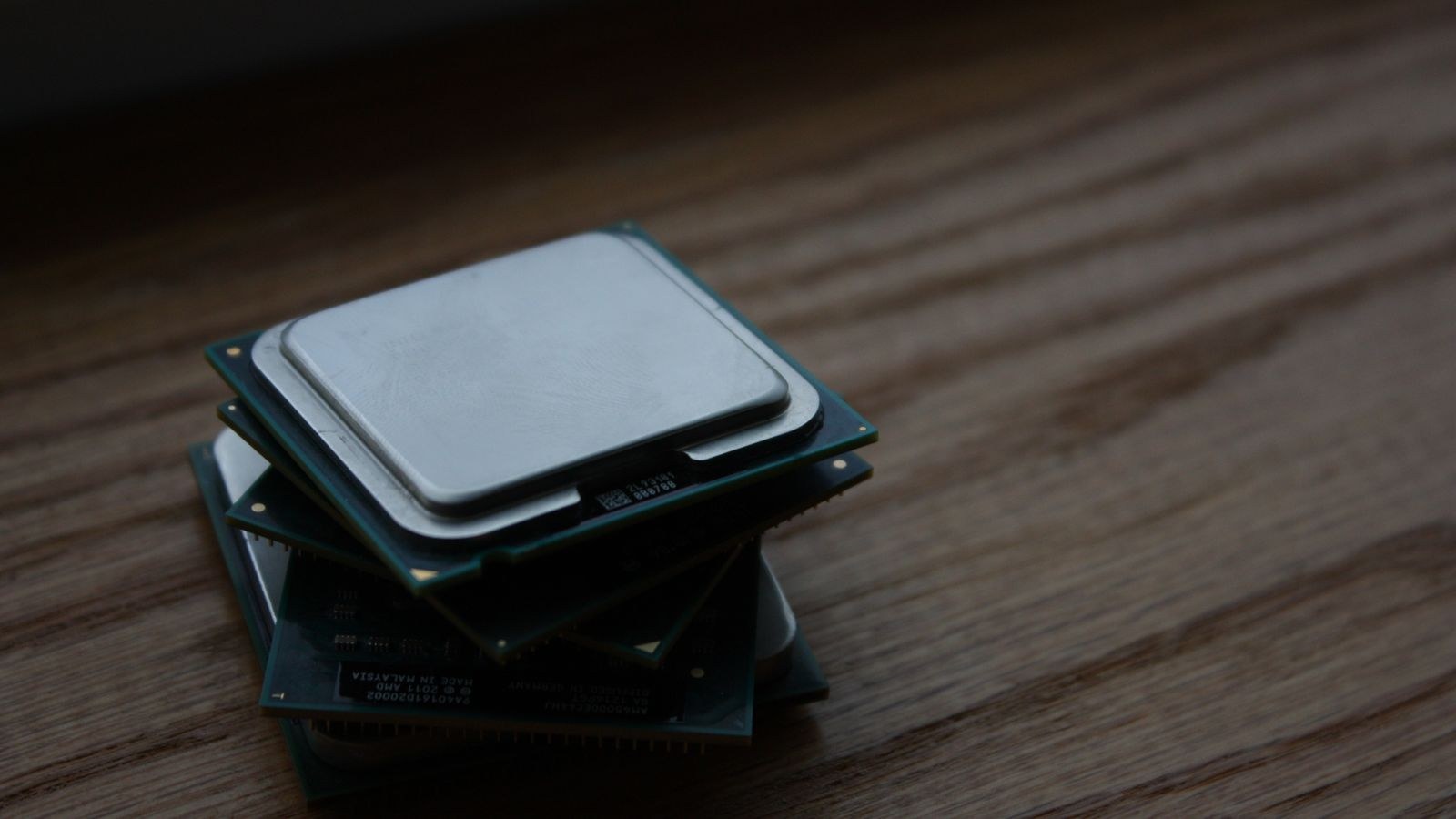
Every processor listing throws a handful of numbers at you, and knowing which ones matter for your workload saves both money and frustration. The headline figures are core count, thread count, base and boost clock speeds, cache size, and thermal design power. None of these tell the whole story on their own; a chip with fewer, faster cores can beat a chip with more, slower ones in the right task. The goal of this guide is to help you weigh them together rather than chasing a single big number.
Keep your actual usage in mind as you read. A spreadsheet-and-browser machine, a 144 Hz gaming rig, and a video-editing workstation each reward a different balance of these specs. Buy for the work you do most, not for a benchmark you will run once.
Cores and Threads Explained
A core is an independent processing unit; more cores let the chip handle more tasks at once. Threads are the streams of work each core can juggle, and most modern CPUs run two threads per core through simultaneous multithreading. For gaming, a handful of fast cores is usually plenty because most games struggle to use many cores efficiently. For rendering, compiling code, or running many programs at once, extra cores translate directly into faster results.
The trap is assuming more cores are always better. Beyond a point, adding cores does nothing for lightly threaded tasks and simply raises the price. If you are unsure how many you need, a mainstream 6-core or 8-core chip is the sweet spot for the majority of users. Gamers in particular should compare the strongest options among the best CPUs for gaming, where per-core speed often matters more than a high core count.
Clock Speed and Boost Behavior
Clock speed, measured in gigahertz, is how many cycles a core completes each second, and higher clocks mean faster work per core. Chips list a base clock for sustained loads and a boost clock they reach briefly when thermal and power headroom allow. Real-world speed depends on cooling: a well-cooled processor holds high boost clocks longer, while a cramped, hot case forces it to throttle back. Do not fixate on the boost number alone; sustained clocks under load are what you actually feel.
Clock speed only compares fairly within the same architecture. A newer 4.5 GHz chip can outperform an older 5.0 GHz one because it does more work per cycle. That per-cycle efficiency, often called IPC, is why generation matters as much as raw megahertz.
Cache: The Hidden Speed Multiplier
Cache is a small pool of ultra-fast memory built into the processor that stores data the cores need repeatedly, sparing them slow trips to system RAM. Larger and smarter cache designs can deliver outsized gains, especially in gaming, where a big cache keeps frequently used data close and pushes frame rates higher. When two chips look similar on cores and clocks, a generous cache can be the tiebreaker that makes one noticeably faster in practice.
You will see cache split into levels, with L3 being the largest and most talked-about for gaming. If you play a lot, weigh cache heavily; if you mostly render or compile, core count and clocks tend to matter more.
Sockets and Platform Longevity
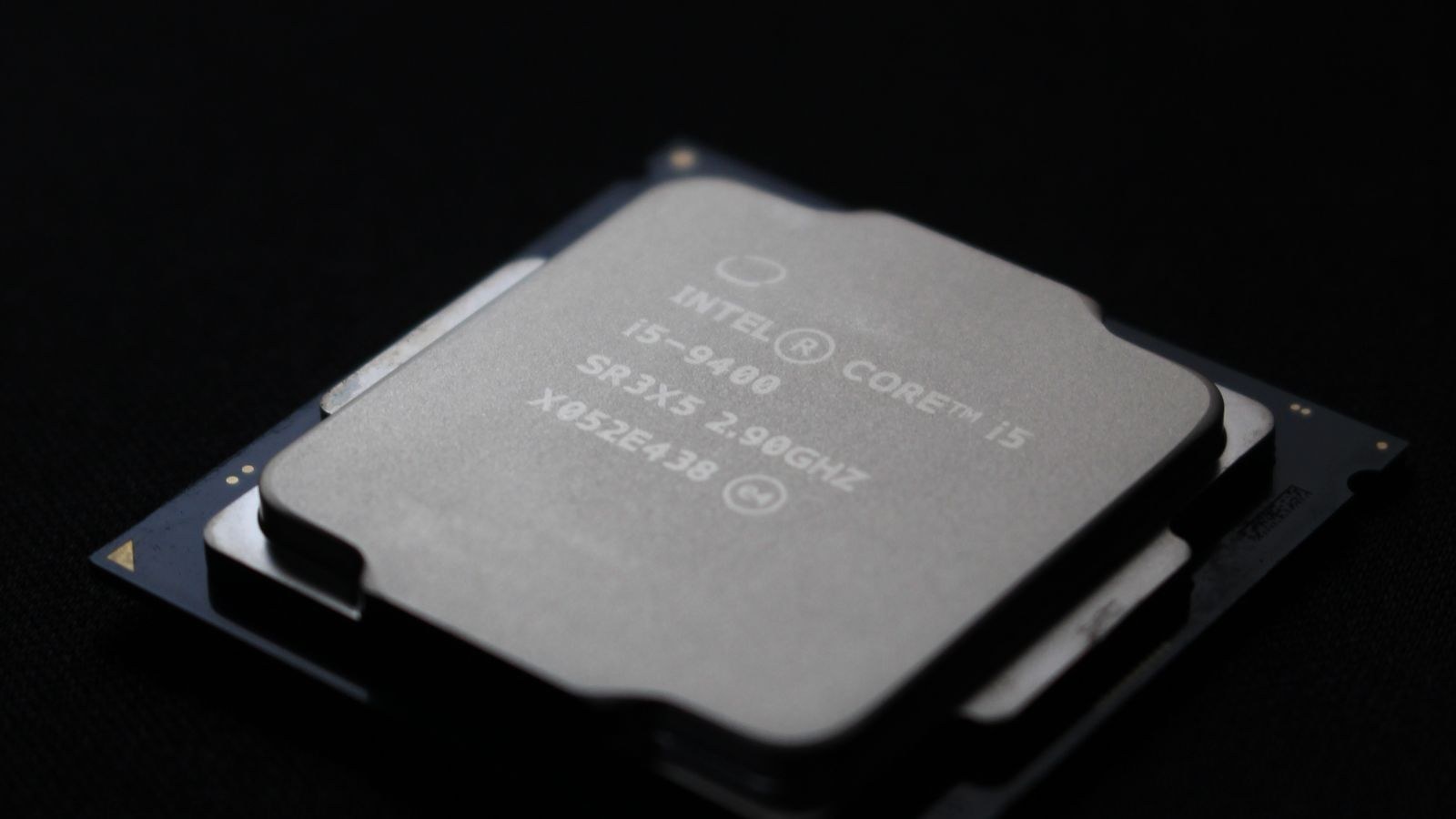
The socket is the physical and electrical interface between the CPU and the motherboard, and it determines which chips a board can accept. This matters enormously for upgrades. A platform that supports several processor generations on the same socket lets you drop in a faster chip years later without replacing the motherboard, saving money over the life of the system. A socket nearing the end of its life may leave you with no meaningful upgrade path.
Before buying, check how long a socket is expected to receive new processors. Builders who want room to grow should look at modern long-lived platforms and pair a chip with the right board, comparing options like the best AM5 CPUs that promise multiple generations of upgrade support on a single socket.
Matching a CPU Tier to Your Workload
Processors fall roughly into entry, mainstream, and high-end tiers, and the smart move is buying the lowest tier that comfortably handles your heaviest regular task. Entry chips with 4 to 6 cores breeze through browsing, office software, and light multitasking. Mainstream 6-core to 8-core chips are the versatile heart of most gaming and general-purpose builds. High-core-count chips shine for heavy rendering, 3D work, code compilation, and running virtual machines.
Overbuying is the most common mistake. If you game and browse, a mainstream chip serves you better than a workstation part that spends most of its cores idle. A balanced 8-core chip suits an enormous range of users, and comparing the best 8-core CPUs is a sensible starting point for anyone building a do-everything desktop.
Integrated Graphics and Coolers
Some CPUs include integrated graphics that can drive a display and handle light gaming, which is useful for office machines or as a fallback if a discrete card fails. Others expect you to add a separate graphics card. Similarly, some chips ship with a stock cooler adequate for stock speeds, while higher-tier parts often require a cooler you buy separately. Factor these into your budget so a seemingly cheaper chip does not surprise you with extra costs.
If you plan to run a discrete graphics card anyway, integrated graphics matter little. If you want a compact, quiet, or budget office build, a chip with capable integrated graphics can eliminate the need for a separate card entirely.
Setting a Realistic Budget
CPUs span a wide price range, and the goal is balance across your whole build rather than sinking everything into the processor. In a gaming PC, a graphics card usually deserves the larger share of the budget, with a strong but sensible CPU alongside it. In a workstation, the balance tips toward more cores. A useful discipline is to decide your total budget first, allocate to each component, then find the best chip within your CPU allowance.
Value-focused buyers often find the sweet spot sits comfortably below flagship pricing. Shoppers watching their wallet can compare the best CPUs under 300 to see how much performance a moderate budget buys before diminishing returns set in at the high end.
Bringing It All Together
Once you understand the specs, choosing gets straightforward. Identify your primary workload, pick the core count that suits it, favor per-core speed and cache for gaming or more cores for heavy multitasking, and choose a socket with a healthy upgrade runway. Then confirm the board, cooler, and memory support line up before you check out. A broad overview of the best desktop CPUs across tiers can help you sanity-check your shortlist against current options.
Overclocking and Headroom
Some processors and boards let you push clock speeds beyond factory settings, a practice called overclocking that can squeeze out extra performance for free. It requires an unlocked chip, a compatible motherboard with strong power delivery, and a capable cooler, and it generates more heat and draws more power. For most users the gains are modest and not worth the effort, since modern chips already boost aggressively on their own. Enthusiasts who enjoy tinkering can benefit, but do not buy a pricier unlocked chip and board unless you genuinely plan to use them.
If overclocking does not interest you, a locked chip on a mainstream board saves money with little practical downside. Decide this early, because it influences both the processor and the motherboard tier you should shop for, and it changes how much you need to spend on cooling.
Common Mistakes to Avoid
The most frequent buying error is overspending on a processor while starving the rest of the build, especially the graphics card in a gaming PC. Another is ignoring the platform around the chip, then discovering the board, memory, or cooler adds unexpected cost. A third is chasing a big core count for a workload that never uses it. Avoid these by deciding your workload first, budgeting for the whole system, and buying the chip that fits rather than the flashiest number on the shelf.
Frequently Asked Questions
How many cores do I need for gaming?
Most games run best on 6 to 8 fast cores. Beyond that, extra cores rarely raise frame rates, so spend the savings on a better graphics card instead.
Is a higher clock speed always better?
Only within the same generation. A newer chip with a lower clock can outperform an older one with a higher clock because it does more work per cycle. Compare architecture, not just gigahertz.
Does the stock cooler matter?
For stock speeds on mainstream chips, a good stock or budget cooler is fine. If you buy a high-end chip or plan to push performance, budget for a stronger aftermarket cooler.
How long will my socket stay relevant?
It varies by platform. Some sockets support several processor generations, letting you upgrade the chip later without a new motherboard, while others are near end of life. Check the roadmap before buying.
Final Thoughts
A CPU purchase feels intimidating only until you connect the specs to your actual work. Cores and threads govern multitasking, clocks and cache drive per-task speed, and the socket decides how long your platform stays upgradable. Match those to whether you game, create, or crunch spreadsheets, keep the whole build balanced, and resist the urge to overbuy. Do that and you will land on a processor that feels fast today and still has life left when you are ready to upgrade the chip rather than the entire system.