Owen Bradley
 Most people shopping for home internet look at one number: the download speed on the advertisement. For remote work, that number is close to the least important thing on the page. A video call does not care how fast you can pull a movie down; it cares whether your upload stream stays steady, whether latency stays low while someone else in the house streams, and whether the connection stays up for eight straight hours. This work from home internet speed guide reframes the whole decision around those three things, then walks through the router, wiring and backup choices that actually keep meetings clean. By the end you should be able to size a plan in 2026 without paying for headline speed you will never notice.

Why Upload Speed Is the Number That Matters
Every remote work tool you use is a two-way conversation, and the outbound half rides on your upload channel. When you join a meeting, your camera feed, your microphone and your screen share all leave your house at once. When you push a large file to cloud storage or sync a code repository, that is upload too. Download capacity is enormous and cheap by comparison, which is exactly why providers advertise it.
Rough working figures help. A single standard-definition call needs somewhere around 1 Mbps up. A clean HD call wants 3 to 4 Mbps up. Add screen sharing and you are closer to 5 Mbps. Now multiply by the number of people in your household who might be on calls simultaneously, and add headroom for cloud backup running quietly in the background. A household with two remote workers should treat 20 Mbps upload as a comfortable floor, not a luxury.
The trap is asymmetric plans. Many cable packages sell 500 Mbps down with only 10 or 20 Mbps up. That plan looks four times faster than a symmetric 100/100 fibre plan on paper, but for work it is meaningfully worse. If two people share a call while a laptop backs up, the upload channel saturates, your video degrades to a slideshow, and no amount of download headroom rescues it.
How to Read a Plan Sheet Honestly
Find the upload figure before anything else, even if it is buried in the footnotes. Then check whether the speed is described as “up to”, which signals a shared, contended service. Ask whether the connection is fibre to the home, fibre to the cabinet, cable or fixed wireless, because the technology sets the ceiling on upload more than the marketing tier does. Finally, check for data caps, which can quietly throttle a heavy work-from-home household late in the month.
Latency, Jitter and Packet Loss Explained
Speed tells you how much data fits through the pipe. Latency tells you how long each piece waits, and for live conversation that is what people actually perceive. Latency under 30 ms feels instant. Between 30 and 80 ms is fine. Above about 150 ms, people start talking over each other because the natural rhythm of conversation breaks down.
Jitter is the variation in that latency, and it is the silent killer of call quality. A connection averaging 40 ms but swinging between 10 and 200 ms will sound choppy and robotic even though the average looks healthy. Packet loss is the third measure: anything above about 1 percent produces audible dropouts and frozen video. Most speed test sites report all three if you look past the two big numbers, and those secondary figures diagnose call problems far better than raw throughput ever will.
Sizing a Plan for Your Household
Rather than guessing, count concurrent activity. Take the peak moment of a typical weekday: how many calls, how many 4K streams, how many game consoles downloading updates, how many cloud syncs. Assign roughly 5 Mbps up per active call, 25 Mbps down per 4K stream, and leave a third of the total as headroom so nothing runs at the edge.
For a single remote worker with light household use, a 100/20 connection is genuinely enough and the money is better spent on a good router. Two remote workers with children streaming push you toward 300/50 or a symmetric fibre plan. Content creators uploading large video files, or anyone running a home server, benefit from symmetric gigabit, but for most desk work the returns above a few hundred megabits flatten out almost completely.
Your Router Is Usually the Real Bottleneck
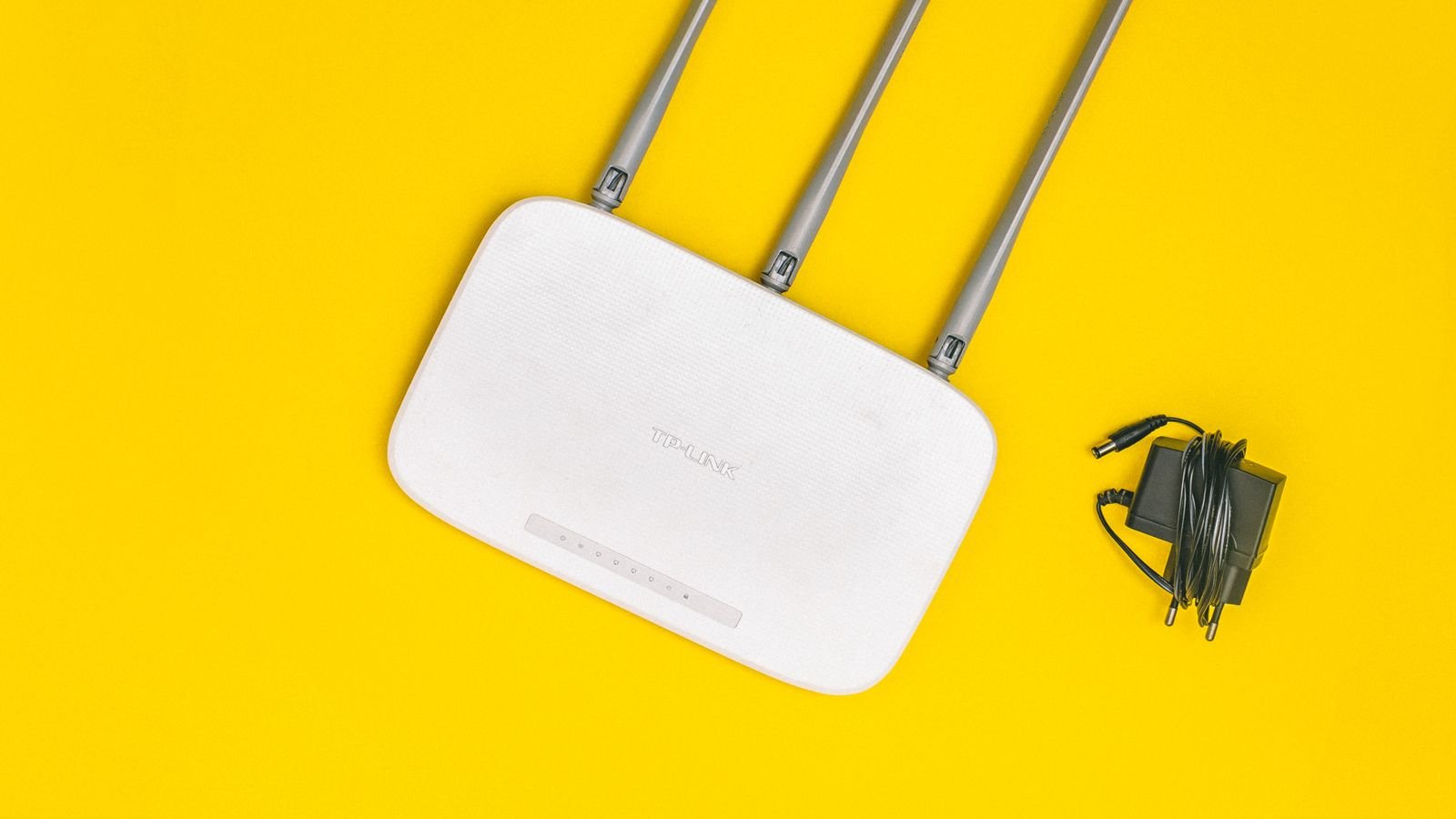
Households routinely upgrade to a faster plan, see no improvement, and blame the provider. The culprit is normally the box the provider supplied years ago. An old router runs out of processing power long before it runs out of bandwidth, and it handles congestion badly, which is exactly the failure mode that ruins calls.
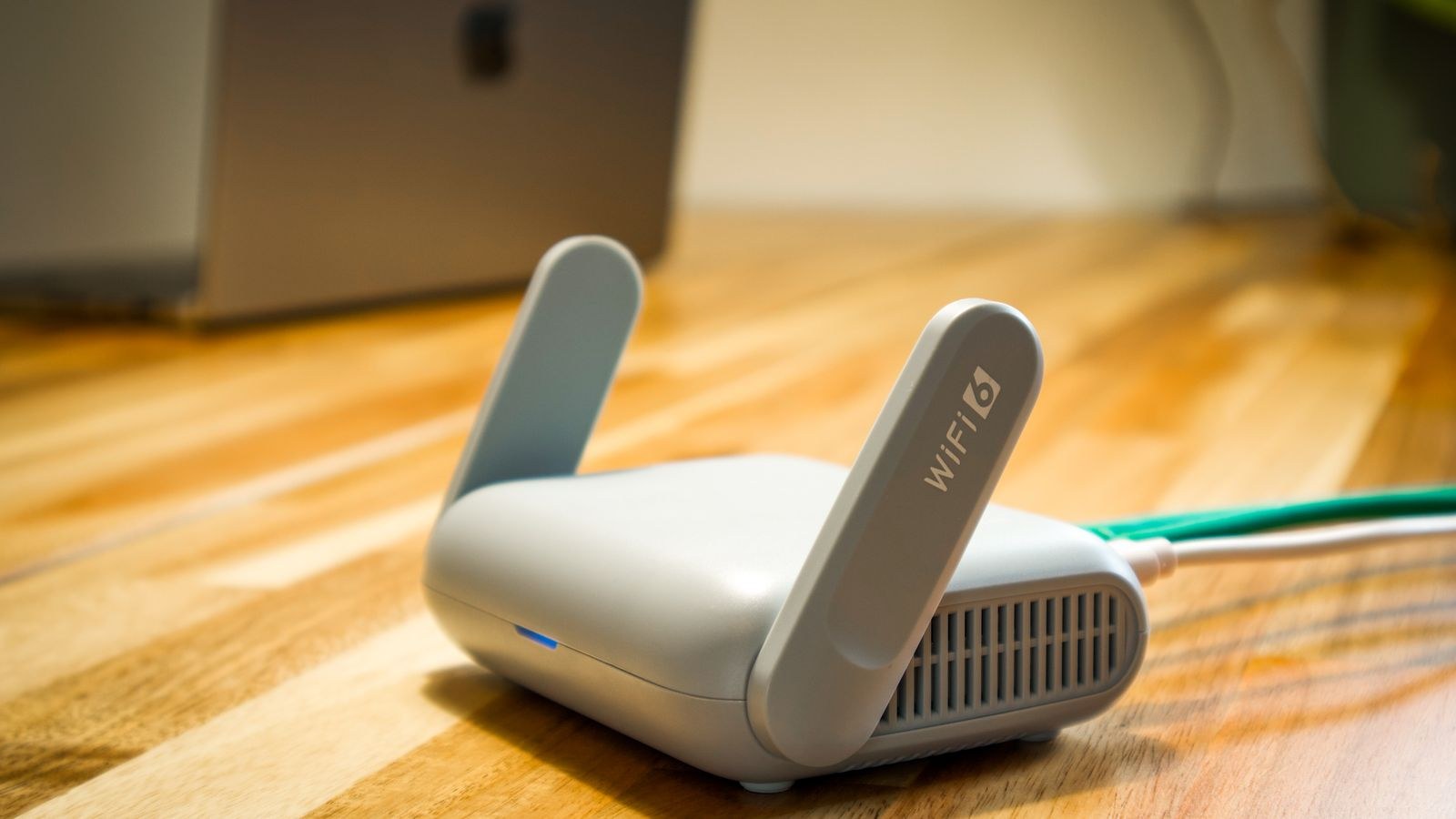
Look for three capabilities. First, modern Wi-Fi standards with support for the 5 GHz and ideally 6 GHz bands, so calls are not competing with neighbours on crowded 2.4 GHz channels. Second, real Quality of Service controls so you can prioritise conferencing traffic over bulk downloads. Third, a processor with enough headroom to handle dozens of connected devices without stalling. Our roundup of the best routers for working from home compares models on exactly those criteria rather than on peak advertised throughput.
If your work setup is a dedicated room with a desk, wired peripherals and a printer, the priorities shift slightly toward port count and wired stability. The best routers for a home office guide focuses on models with more gigabit ports and better management tools for that scenario.
Quality of Service Is Worth Setting Up
QoS lets the router decide what gets to go first when the link is busy. Configure it to prioritise your work laptop by device, or to prioritise conferencing and voice traffic by category. The effect is dramatic during the exact moments that matter: someone starts a large download mid-meeting and your call stays smooth instead of collapsing. Modern routers also support Smart Queue Management, which specifically targets the buffer bloat that causes latency to spike when the upload channel fills. If you are choosing hardware primarily around meeting quality, the best routers for video calls comparison highlights which models implement these queueing features properly.
Wire the Desk, Even If Everything Else Is Wireless
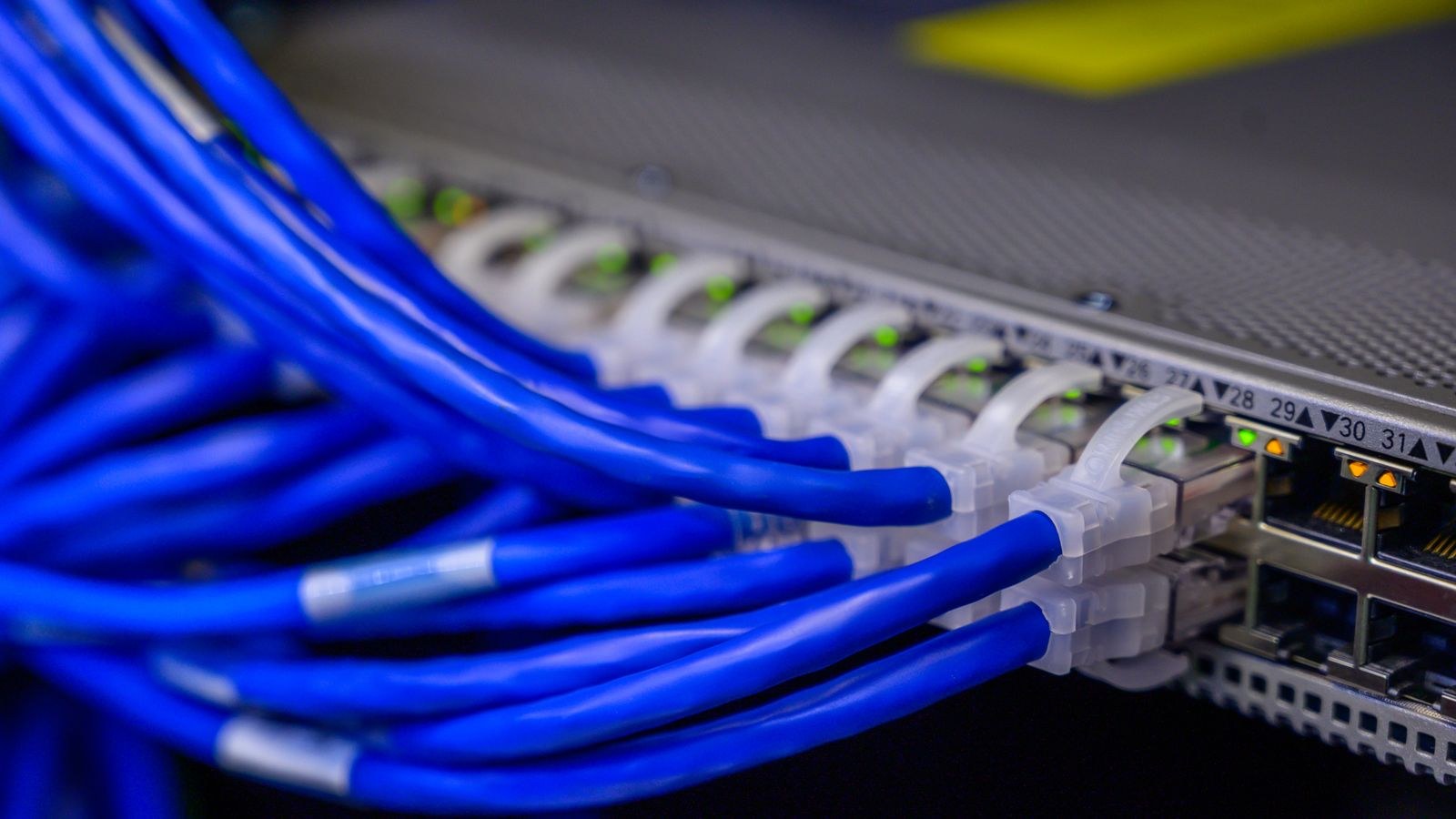
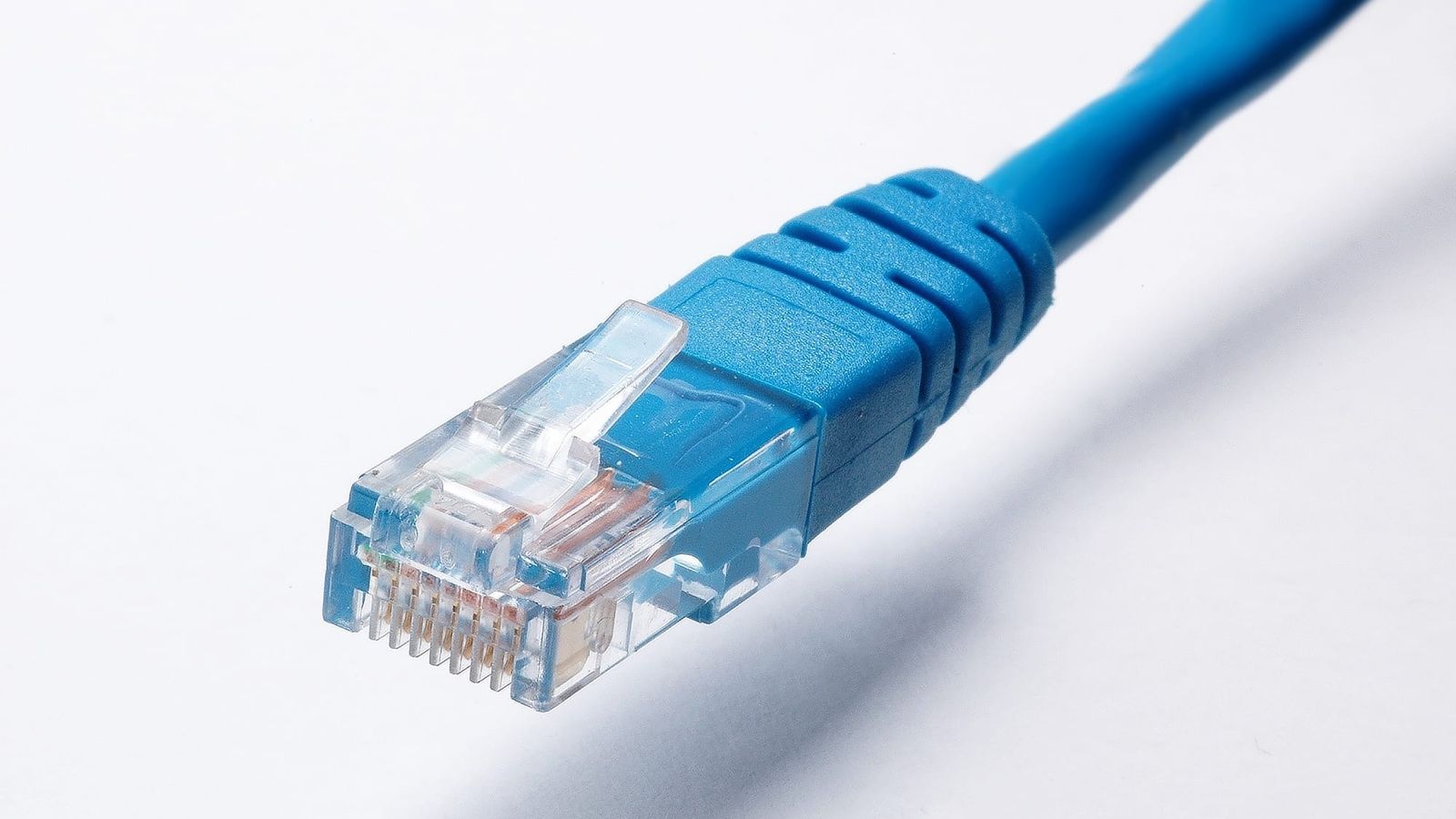
The single cheapest upgrade available to most remote workers is an Ethernet cable. Wi-Fi is shared airtime; every device in range takes turns, and interference from neighbours, microwaves and Bluetooth adds jitter you cannot control. A wired connection removes all of that variance for the one device where it matters most.
A Cat 6 cable handles gigabit comfortably over normal household runs and costs very little. If running a cable through walls is impossible, a MoCA adapter over existing coaxial wiring is far more reliable than powerline adapters, which vary wildly depending on your electrical circuits. Failing all that, position the desk within clear line of sight of the router on the 5 GHz band, and avoid placing the router inside a cabinet, behind a television, or on the floor.
Mesh Systems and Where They Help
Mesh is the right answer for large or awkwardly shaped homes where one router cannot cover every room. It is the wrong answer for a small flat with a coverage problem caused by putting the router in a cupboard. When you do use mesh, connect the node nearest your desk back to the main unit with Ethernet if at all possible, because a wireless backhaul roughly halves usable throughput and adds latency on every hop.
Redundancy: What Happens When the Line Goes Down
For anyone whose income depends on being reachable, a backup path is not paranoia, it is basic planning. The simplest option is your phone’s hotspot, which works well enough for audio calls and email but drains battery and may be capped. A step up is a dedicated mobile broadband dongle or a router with a USB modem port, which fails over automatically.
The serious option is a dual-WAN router that holds two separate internet connections live at once, typically a fixed line plus mobile, and switches instantly when one degrades. Some models can also spread traffic across both links. If uptime matters enough to justify two bills, the best load balancing routers guide explains how failover and true load balancing differ, because they are frequently confused. For a broader look at hardware chosen specifically around remote work reliability rather than raw speed, our router buying advice for remote workers ties these decisions together.

Testing Your Connection Like a Professional
Test from the device you actually work on, wired if possible, with everything else in the house idle. Record download, upload, latency and jitter. Then repeat the test during peak evening hours and while someone streams video, because the difference between those two results tells you whether your problem is the plan or the network inside your walls.
If wired results match your plan but wireless results do not, the router or the placement is at fault. If wired results fall far short of the plan at all hours, contact your provider with the logged figures. If everything looks fine on paper but calls still stutter, focus on jitter and packet loss rather than throughput, and check whether QoS is enabled.
Common Mistakes That Cost Remote Workers Money
- Buying download speed to fix upload problems. Upgrading from 300 down to 1000 down changes nothing if the upload stays at 20 Mbps.
- Keeping the provider’s default router for years. It is usually the weakest link and the cheapest to replace.
- Hiding the router. Cupboards, floors and metal shelving all cut range dramatically.
- Ignoring the 2.4 GHz crowd. Smart plugs and sensors clog that band; keep work devices on 5 GHz or 6 GHz.
- Testing only when things are quiet. The number that matters is the one you get at 3pm on a Wednesday.
- Skipping a backup path. A single missed client meeting can cost more than a year of mobile backup.
Frequently Asked Questions
How much internet speed do I really need to work from home?
For one person doing video calls and normal office work, roughly 100 Mbps down and 20 Mbps up is comfortable. Two remote workers plus streaming pushes that to around 300 down and 50 up. Beyond that you are buying insurance rather than perceptible improvement.
Is fibre worth paying extra for?
Usually yes, mainly because fibre plans are typically symmetric and have far lower, steadier latency than cable or fixed wireless. The upload and jitter advantages matter more for meetings than the headline download figure.
Why do my calls freeze when the speed test looks fine?
Speed tests measure a short burst under ideal conditions. Freezing usually points to jitter, packet loss or buffer bloat, none of which show up in a single throughput number. Enable QoS, move to a wired connection and retest while the network is busy.
Do I need a mesh system?
Only if you have genuine coverage gaps in a larger home. In a small space, better router placement and a wired desk connection deliver more improvement for far less money.
Is a mobile hotspot good enough as a backup?
For audio calls, messaging and email, yes. For sustained video meetings or large uploads it is workable but inconsistent, and data caps arrive quickly. A dedicated failover connection is better if downtime is expensive for you.
Final Thoughts
The right work from home connection is defined by consistency, not by the biggest number a provider will sell you. Prioritise upload capacity, keep latency and jitter low, put a capable router at the centre of the network, wire the desk, and arrange a fallback path for the day the line drops. Do those five things and a mid-tier plan will outperform a premium package running through neglected hardware. Spend on the parts of the chain your meetings actually depend on, and the rest of the budget stays in your pocket.