Owen Bradley
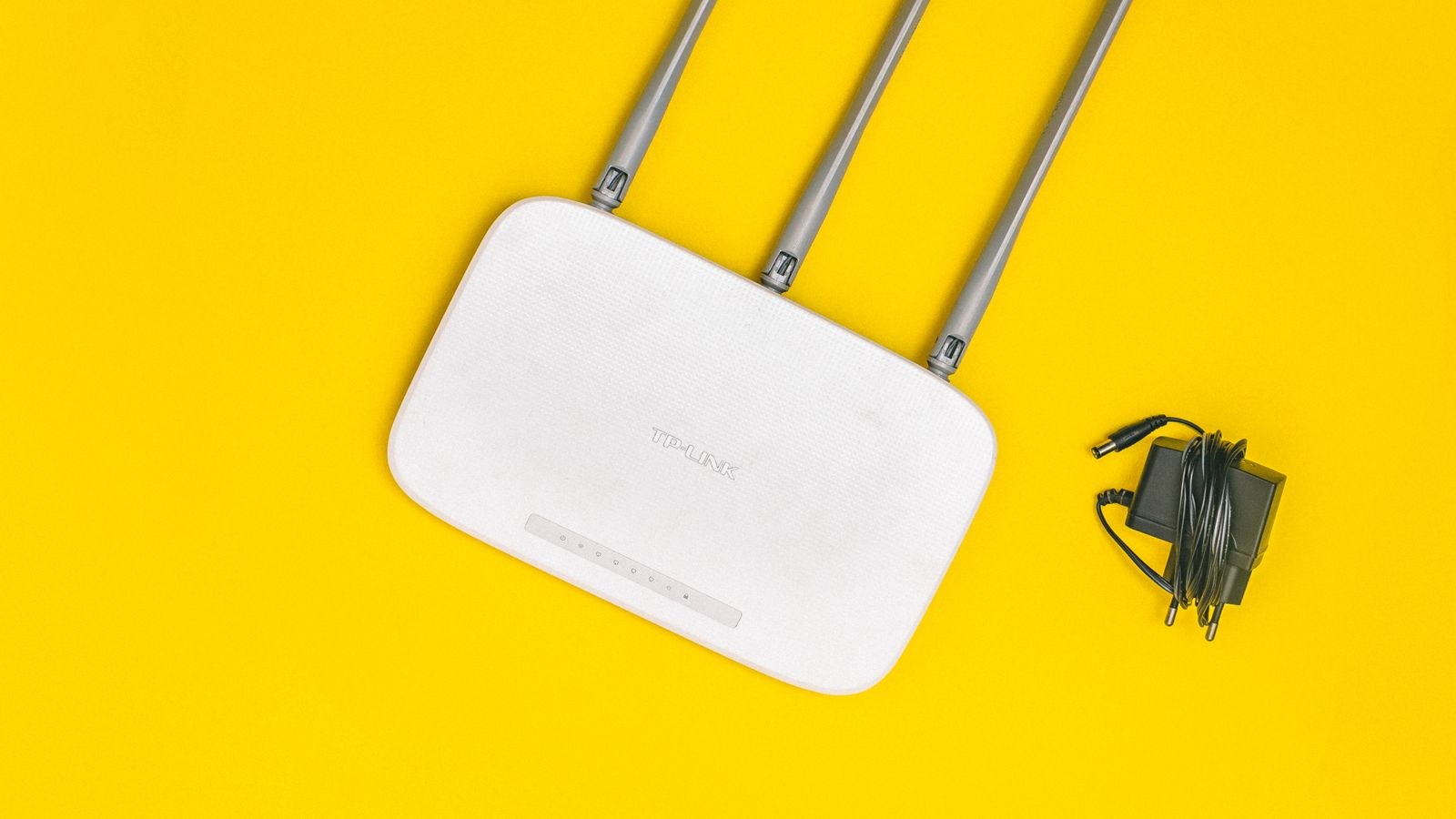
 Your Wi-Fi does not slow down at random. When a video call freezes at the same time every evening, or the bedroom drops to one bar whenever someone reheats leftovers, something in the house is competing for the same airwaves your router uses. Wireless networking shares unlicensed radio spectrum with dozens of ordinary household devices, and every one of them can steal a slice of your throughput. This guide walks through the common Wi-Fi interference sources in a typical home, ranks them by how much damage they actually cause, and explains the band choices, channel settings, and placement fixes that route your signal around the noise. Nothing here requires new hardware, though knowing where interference comes from also tells you which router features are genuinely worth paying for in 2026.
How Wi-Fi Interference Actually Works
Wi-Fi transmits on shared public frequency bands, mainly 2.4GHz, 5GHz, and on newer gear 6GHz. Anything else broadcasting energy on those frequencies raises the noise floor your router and devices must shout over. The measurement that matters is signal-to-noise ratio, not raw signal strength. A phone showing three bars can still perform badly if the background noise is high, because the receiver spends its time re-requesting corrupted packets rather than moving data.
There are two distinct problems people lump together as interference. Co-channel interference comes from other Wi-Fi networks on the same channel; those devices take turns, so you get waiting rather than corruption. Non-Wi-Fi interference comes from devices that simply blast energy across the band. They do not take turns, so packets get corrupted and retransmitted, and speed collapses faster than the bars suggest. Which one you have determines the fix.
Why Symptoms Vary by Room and Time of Day
Interference is rarely constant. Microwave ovens run for two minutes. Neighbours stream in the evening. Baby monitors switch on at bedtime. If your Wi-Fi is unreliable only in bursts, or only in certain rooms, you are almost certainly chasing an intermittent emitter rather than a broken router. Keep a rough log of when the problem hits and what was running in the house at the time. That single habit solves more Wi-Fi complaints than any setting change.
The Worst Offenders, Ranked
Not all interference is created equal. Here are the household sources that cause the most measurable damage, roughly in order of severity.
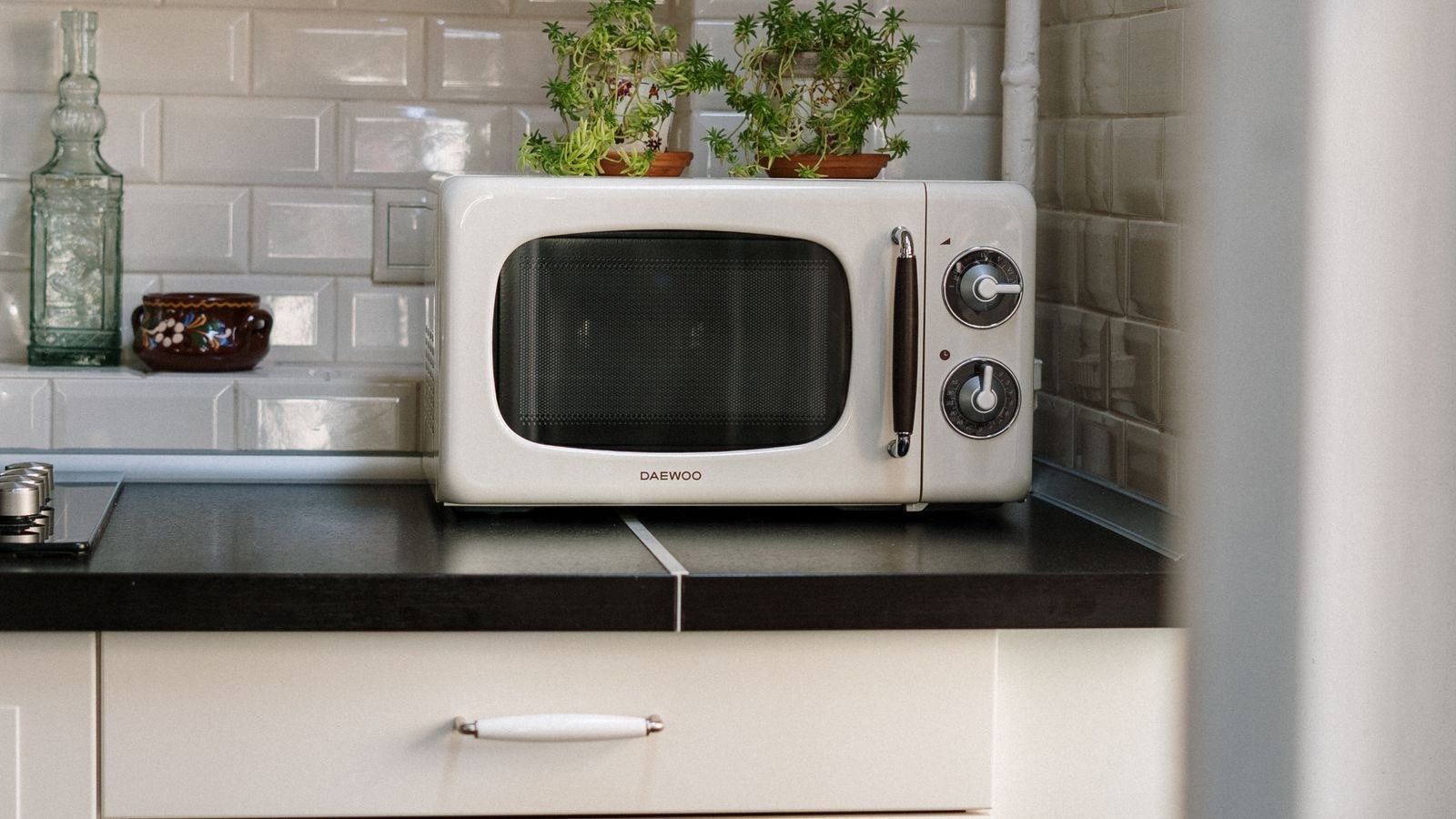
- Microwave ovens. The classic culprit. A microwave leaks around 2.45GHz, sitting right on top of the upper 2.4GHz Wi-Fi channels, and the leakage is powerful enough to wipe out a link within several metres. Effects are brief but total.
- Neighbouring Wi-Fi networks. In flats and terraced housing, this is usually the biggest ongoing drag. Twenty networks crowded onto three usable 2.4GHz channels means everyone waits.
- Cordless phones and older baby monitors. Analogue and DECT-adjacent devices on 2.4GHz can hold a channel continuously while in use, which is far worse than a two-minute microwave burst.
- Wireless video senders and older security cameras. Continuous high-bandwidth analogue video on 2.4GHz is one of the most destructive things you can put in a home.
- Bluetooth devices. Headphones, keyboards, and speakers hop across 2.4GHz. Modern Bluetooth coexists reasonably well, but a dense cluster of devices still adds noise.
- Poorly shielded USB 3.0 ports, hubs, and external drives. These emit broadband noise around 2.4GHz. A drive plugged in beside a laptop can cripple that laptop’s own Wi-Fi.
- Monitors, display cables, and power supplies. Cheap or damaged cables and switch-mode adapters radiate electrical noise. It rarely kills a network outright, but it degrades marginal links.
- Fluorescent and some LED lighting. Failing ballasts and low-quality drivers create broadband electrical interference, which typically shows up as an unexplained problem that started the week a light was replaced.
Physical Obstructions Are Not Interference, but They Feel the Same
Materials do not add noise; they absorb and reflect signal. The practical result is identical, so it is worth knowing which parts of your house are hostile. Drywall and wood cost you very little. Plaster with metal lath, brick, and concrete cost a great deal. Tiled bathrooms, mirrors, foil-backed insulation, metal filing cabinets, fish tanks, and boiler cupboards are all significant blockers, and metal in particular reflects rather than passes signal, creating dead zones behind it.
Water absorbs 2.4GHz especially well, which is why a large aquarium or a hot water tank noticeably weakens a link. If a single room is always poor regardless of time of day, suspect structure, not noise. That is the case where extra coverage hardware pays off, and our roundup of the best routers for coverage compares options built to push through difficult layouts.
Band Selection: Your Most Powerful Tool
Choosing the right band sidesteps most interference entirely, because the crowded band and the clean band are not the same band.
2.4GHz
Long range, good wall penetration, and only three non-overlapping channels in most regions. It is where almost all household interference lives. Use it for smart plugs, sensors, thermostats, and anything far from the router that only needs a trickle of data.
5GHz
Far more channels, far less household noise, much higher throughput, shorter range. This should carry your laptops, phones, TVs, and consoles. Note that some 5GHz channels are shared with weather and aviation radar, so routers using them must vacate briefly if radar is detected. Near an airport or coastal radar site that can cause odd, unexplained dropouts, and pinning the router to non-radar channels fixes it.
6GHz
The newest band offers a huge block of clean spectrum with almost no legacy devices on it, which makes it close to interference-free today. Range is the shortest of the three and it requires compatible clients. If you live somewhere dense and want to escape the neighbours entirely, this is the strongest argument for upgrading, and the best Wi-Fi 6E routers exist largely to open that band. For most households a solid dual band router that separates traffic cleanly across 2.4GHz and 5GHz already removes the majority of real-world congestion.
Channel Choice and Width
On 2.4GHz, only channels 1, 6, and 11 avoid overlapping each other. Anything else partially overlaps two neighbours and makes the whole band worse for everyone, including you. Pick one of those three, and pick the one your loudest neighbours are not using. On 5GHz you have far more room, so the goal is simply to avoid the specific channels your closest strong networks occupy.
Channel width is the setting people get wrong most often. Wider channels carry more data but scoop up more noise and collide with more neighbours. On 2.4GHz, always use 20MHz; a 40MHz channel there consumes most of the band and is bad manners as well as bad performance. On 5GHz, 80MHz is a sensible default for most homes, dropping to 40MHz in very congested buildings and rising to 160MHz only if you have few neighbours and devices that can use it. Our walkthrough on how to choose the right Wi-Fi channel covers the scanning process step by step.
Placement Fixes That Cost Nothing
Router position often matters more than router price. Aim for central, high, and open. A few rules cover most homes:
- Get it out of the cupboard. Meter cupboards, media cabinets, and TV units are metal-rich enclosures that swallow signal.
- Keep at least a metre from the microwave, the fridge, and the boiler. Distance from a strong emitter helps more than any software setting.
- Raise it. Shelf height beats floor level, because signal spreads outward and slightly downward rather than up through furniture.
- Move it away from walls and mirrors. A router flush against a wall wastes half its output into the neighbours’ flat.
- Orient antennas sensibly. On a single-storey home keep them vertical. For a two-storey house, angle some horizontally so coverage spreads between floors.
- Separate USB 3.0 drives and hubs from laptops and adapters. Even 30cm of separation can restore a link.
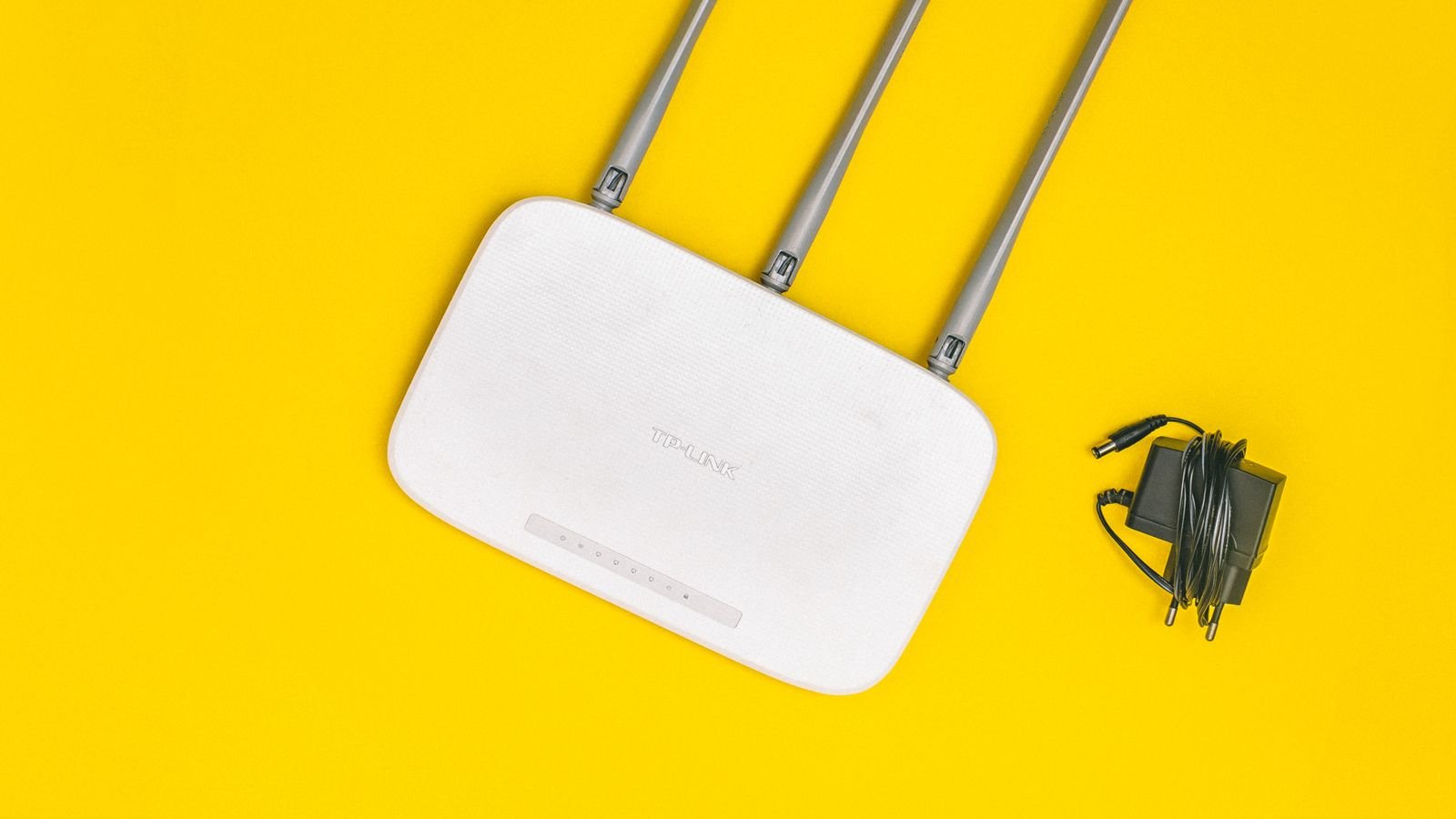
If the router genuinely cannot move because the incoming line is fixed at one end of the property, the answer is reach rather than repositioning, and the best long range routers are designed for exactly that constraint.
Diagnosing the Problem Methodically
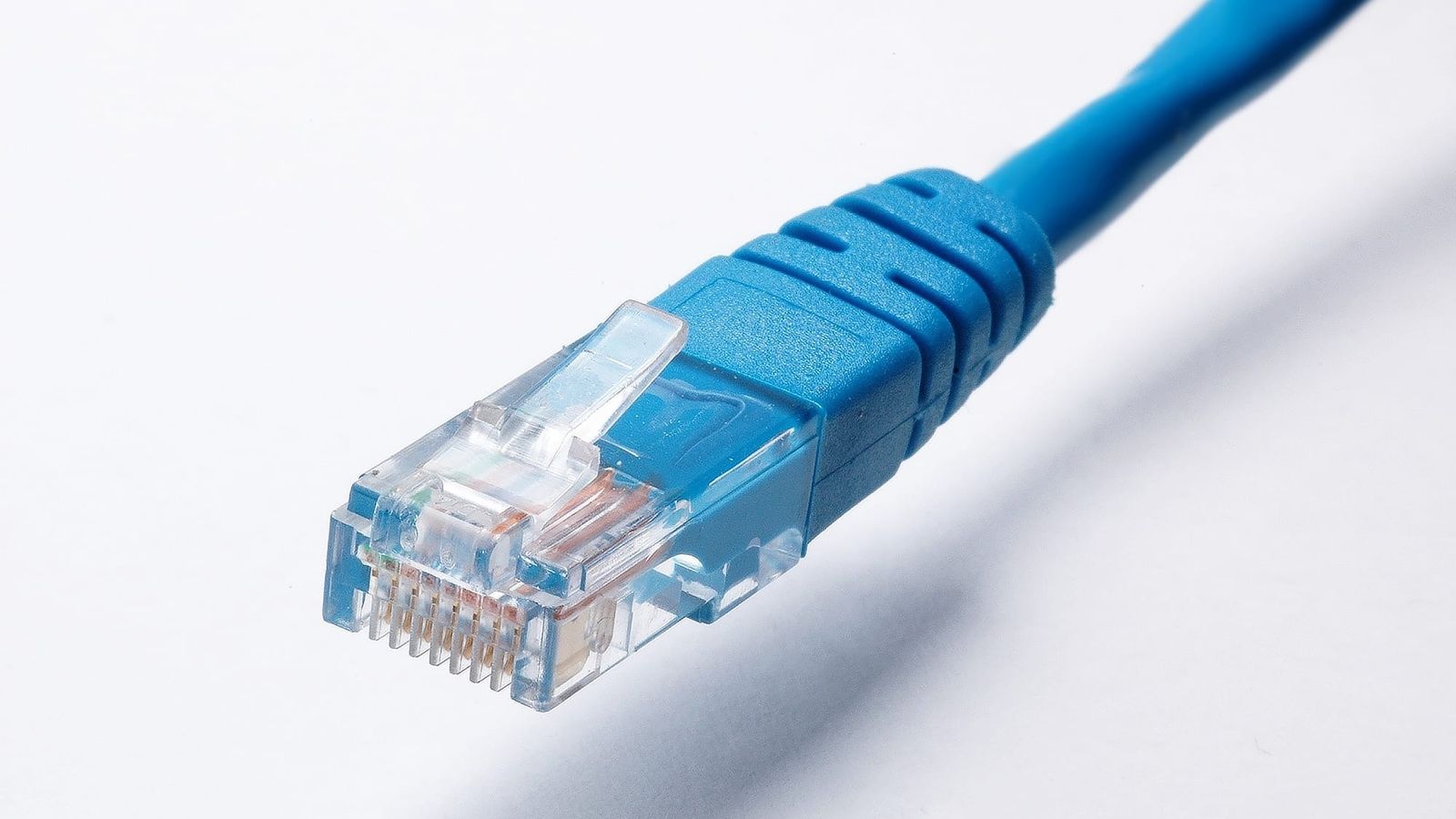
Guessing wastes weekends. Work through it in order instead. Start by running a speed test while wired to the router with an ethernet cable, which tells you whether the fault is Wi-Fi at all or simply your internet service. If wired is fine and wireless is not, run the same test standing next to the router, then in the problem room. A big gap between the two points to coverage or interference; a similar poor result in both points to the router or the connection.
Next, use a Wi-Fi analyser app to list nearby networks and their channels, which reveals co-channel congestion immediately. Non-Wi-Fi interference is invisible to those apps, so identify it by elimination: unplug the suspect device and retest. Finally, test the same device on 5GHz and then on 2.4GHz. If 5GHz is dramatically better in a nearby room, you have a 2.4GHz noise problem rather than a hardware problem.
Fixes Ranked by Effort and Payoff
Once you know the cause, spend your effort where it returns the most. Moving the router and separating it from a microwave or boiler cupboard takes ten minutes and often doubles throughput in the affected room. Splitting your network so that fixed high-bandwidth devices sit on 5GHz and low-bandwidth sensors sit on 2.4GHz costs nothing and permanently reduces contention. Setting 2.4GHz to a clean channel at 20MHz width helps every device in a flat.
After that, running an ethernet cable to a TV or desk removes those devices from the air altogether. Only then does new hardware make sense, targeting the specific weakness you measured.
Common Mistakes People Make
The first mistake is buying a faster router to solve a noise problem. If the airwaves are congested, a higher headline speed changes nothing, because the bottleneck is airtime, not the router’s capability. The second is enabling the widest possible channel width in the belief that bigger is always better; in a dense building it reliably makes things worse. The third is scattering repeaters around the house. A repeater that receives and rebroadcasts on the same band roughly halves throughput and adds another loud transmitter to an already crowded space, so it can turn a slow room into a slow house.
A fourth mistake is judging the network by signal bars. Bars show received strength and say nothing about noise or congestion, which is why a full-bar connection can still stutter. The last is treating every dead spot as interference when it is structure. No channel change will push a signal through a foil-insulated wall, and continuing to fiddle with settings when the answer is a cable or a second access point simply burns time.
Frequently Asked Questions
Does a microwave really break Wi-Fi?
Yes, but only on 2.4GHz and only while it is running. The leakage sits near 2.45GHz, which overlaps the upper Wi-Fi channels. Moving affected devices to 5GHz or setting 2.4GHz to channel 1 usually removes the symptom entirely.
Do neighbours’ networks slow mine down even if they are weak?
Weak, distant networks have little effect. Strong ones on your channel matter a lot, because your router waits for them to finish transmitting. In flats this is often the single largest cause of evening slowdowns.
Is 5GHz always better than 2.4GHz?
It is better wherever the signal reaches comfortably, which covers most rooms in most homes. For distant sheds, garden cameras, and low-power sensors, 2.4GHz still wins on range and wall penetration.
Will a mesh system fix interference?
It fixes coverage and can reduce interference by letting devices connect at short range with lower transmit power. It does not clean up a congested band, so pair it with sensible channel and band settings rather than treating it as a cure-all.
Final Thoughts
Interference is a solvable, physical problem rather than a mystery. Work out whether you are fighting other Wi-Fi networks or a noisy appliance, then apply the matching fix: channel and width changes for congestion, distance and band separation for emitters, and cables or better placement for structural dead zones. Push everything that can move onto 5GHz or 6GHz, leave 2.4GHz for the low-bandwidth devices that genuinely need its range, and keep the router out in the open where it can do its job. Do that first, and if hardware is still the limit afterwards you will know exactly which capability to buy for rather than guessing, which is the difference between a network that improves and one that just costs more.