Owen Bradley
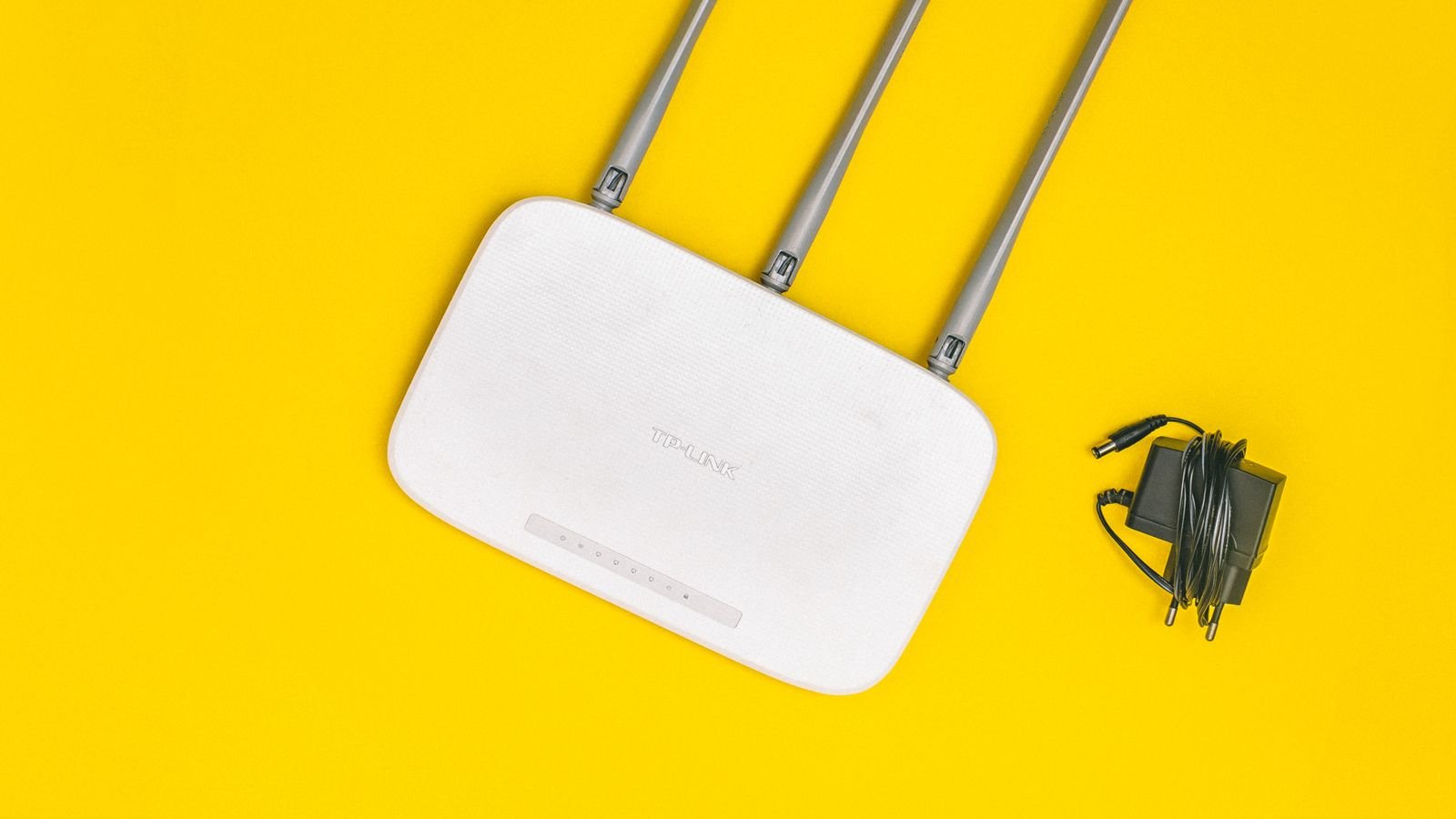
 Almost nobody replaces a router on schedule. It sits in a closet or on a shelf, quietly doing its job, until one day the video calls start freezing and everyone blames the internet provider. Months of troubleshooting later, the actual culprit turns out to be a six-year-old box with an exhausted processor and firmware that stopped receiving updates two years ago. Knowing when to replace your router saves that entire ordeal. This guide walks through eight concrete signs that your hardware has aged out, explains how long routers realistically last, and helps you decide whether a replacement, a mesh system, or simply a firmware update is the right move.
How Long Should a Router Actually Last?
The hardware itself often survives a decade. The useful life is much shorter. A reasonable planning figure is four to six years for a mainstream router, and closer to three for a bargain unit or an ISP-supplied box. That window is not about parts wearing out, it is about three things drifting out of alignment: the security update pipeline drying up, the processor falling behind the number of devices in a modern home, and the Wi-Fi standard aging past what your phones and laptops expect.
Two other clocks matter. If your internet plan speed has gone up significantly since you bought the router, an old unit can silently cap what you receive. And if your household device count has doubled, a router sized for 15 clients will struggle at 40 regardless of how fast its headline number looks.
Sign 1: Devices Drop Off and Have to Reconnect
Random disconnects that resolve themselves are the classic aging symptom. A laptop loses the network for ten seconds, a smart plug goes unresponsive until you power cycle it, a video call drops one participant. Individually these look like device problems, which is why they go unaddressed for so long.
What is usually happening is that the router’s client table or memory is under pressure and it starts shedding connections to stay alive. Older units with modest RAM handle a dozen devices happily and fall apart at thirty. If disconnects cluster around times when the house is busiest, that is the signature.
Sign 2: You Reboot It Regularly
If rebooting the router has become a household ritual, the hardware is telling you something. A healthy router runs for months without intervention. A unit that needs a weekly power cycle is running out of memory, overheating, or hitting firmware bugs that will never be patched.
Some people automate this with a smart plug on a timer, which works but is a bandage over a failing component. A scheduled reboot is a reasonable maintenance habit; a mandatory one is a replacement signal.
Sign 3: Firmware Updates Have Stopped
This is the most important sign and the least visible. Log into the admin interface and check the date of the most recent firmware release. If nothing has shipped in eighteen months or more, the manufacturer has almost certainly moved that model to end of life.
An unpatched router is a genuine security exposure, not a theoretical one. Routers sit directly on the internet, and known vulnerabilities in retired models get scanned for continuously. Botnets have been built almost entirely from abandoned consumer networking gear. Once security updates end, replacement is not optional, however well the device seems to work.
Check the vendor’s support page for your exact model number as well as the admin panel, since some manufacturers post end-of-life notices there long before the device stops functioning. If yours has aged out, current models with active update commitments appear in our roundups of the best new routers and the best new Wi-Fi routers.
Sign 4: Speeds Fall Well Short of Your Plan
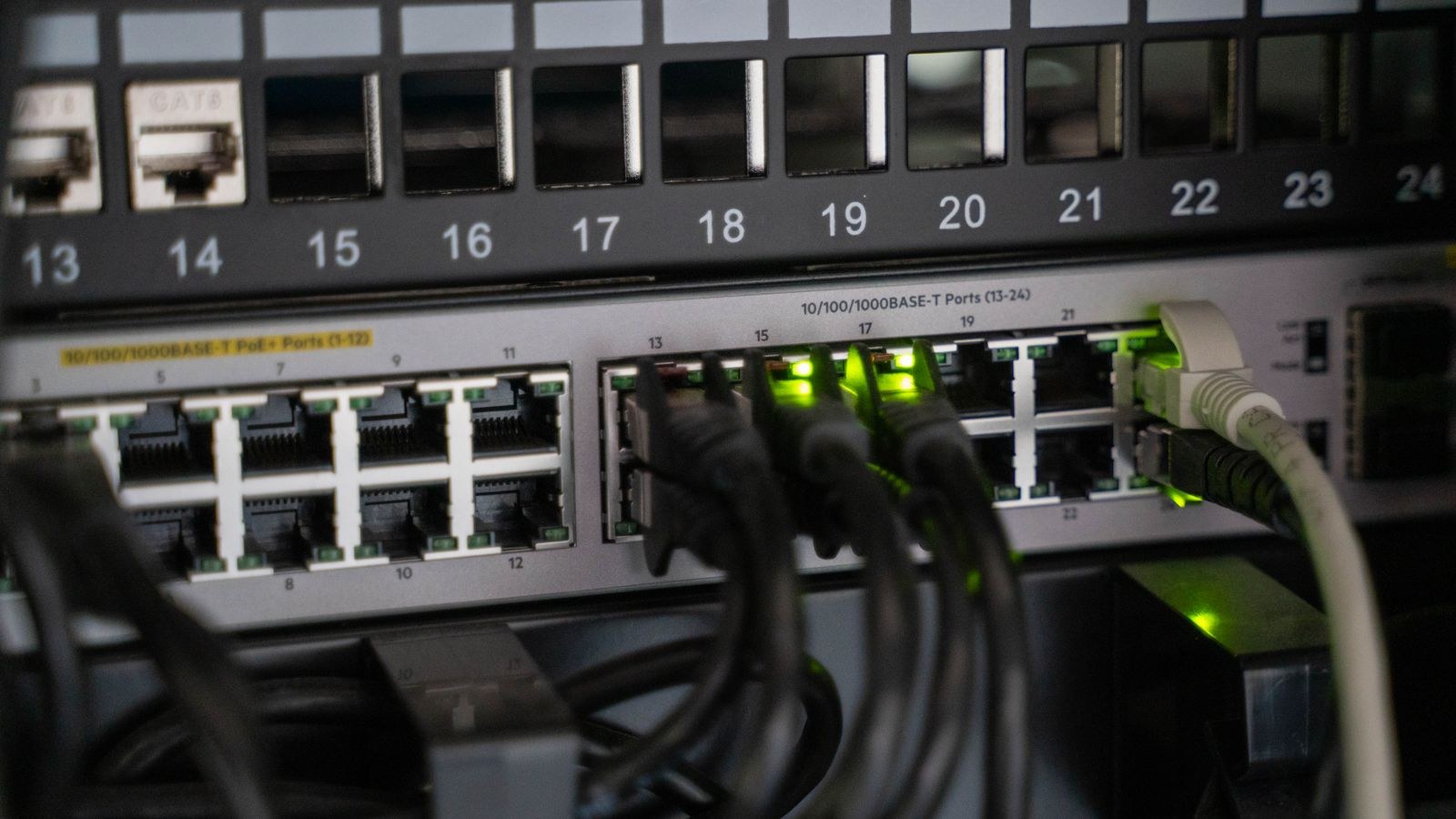
Run a wired speed test first, with a laptop plugged directly into the router by Ethernet. If that result matches your plan but Wi-Fi does not, the router’s radios or its ability to handle load are the limitation. If even the wired test falls short, check the router’s WAN port speed. Many older units have 100 Mbps or gigabit ports that physically cannot pass what a modern plan delivers.
Port speed is one of the most common invisible bottlenecks. Someone upgrades to a faster plan, sees no improvement, and blames the provider, when the router simply cannot forward that much traffic. If you have upgraded your plan and speeds did not change, suspect the router before anything else.

Sign 5: Coverage Has Shrunk
Radios do degrade, but more often the house changed around the router. New furniture, a renovated wall, a relocated desk, or a neighbor’s new network on the same channel can all shrink usable range. Either way, if rooms that used to work reliably now sit at one bar, the current hardware is no longer matched to the space.
Before replacing, try the free fixes: move the router off the floor and out of any cabinet, place it more centrally, set the 2.4 GHz band to channel 1, 6, or 11, and enable DFS channels on 5 GHz. If those changes do not recover the coverage you had, a newer router with better antennas and beamforming, or a multi-node system, is the next step.
Sign 6: It Only Speaks an Old Wi-Fi Standard
Standards matter less for raw speed than for efficiency. Wi-Fi 5 era hardware handles a handful of active devices well and degrades quickly as the count rises, because it largely talks to one device at a time per band. Wi-Fi 6 introduced scheduling that lets a router serve many devices in the same transmission window, which is exactly what a house full of phones, tablets, cameras, and smart plugs needs. Wi-Fi 7 adds wider channels and the ability to use multiple bands simultaneously.
If your router predates Wi-Fi 5, replacement is overdue on capability grounds alone. If it is Wi-Fi 5 and your household is crowded, the upgrade is worth it for stability rather than peak speed. Our comparison of the best Wi-Fi 6 routers covers the value tier most homes should look at, while the best Wi-Fi 7 routers list suits multi-gigabit plans and homes buying for the long haul.
Sign 7: It Runs Hot or Shows Physical Wear
Put a hand on the case after an hour of normal use. Warm is expected; uncomfortably hot is not. Heat accelerates component failure and causes throttling, and dust packed into the vents makes it worse. Bulging cases, discolored plastic near the power jack, a swollen power adapter, or a unit that only works when the cable is held at a certain angle all indicate a device near the end.
Power supplies fail more often than routers do, and a marginal adapter produces symptoms that look exactly like a dying router. If a spare compatible adapter is available, that is a cheap thing to rule out before spending real money.
Sign 8: You Cannot Do What You Need to Do
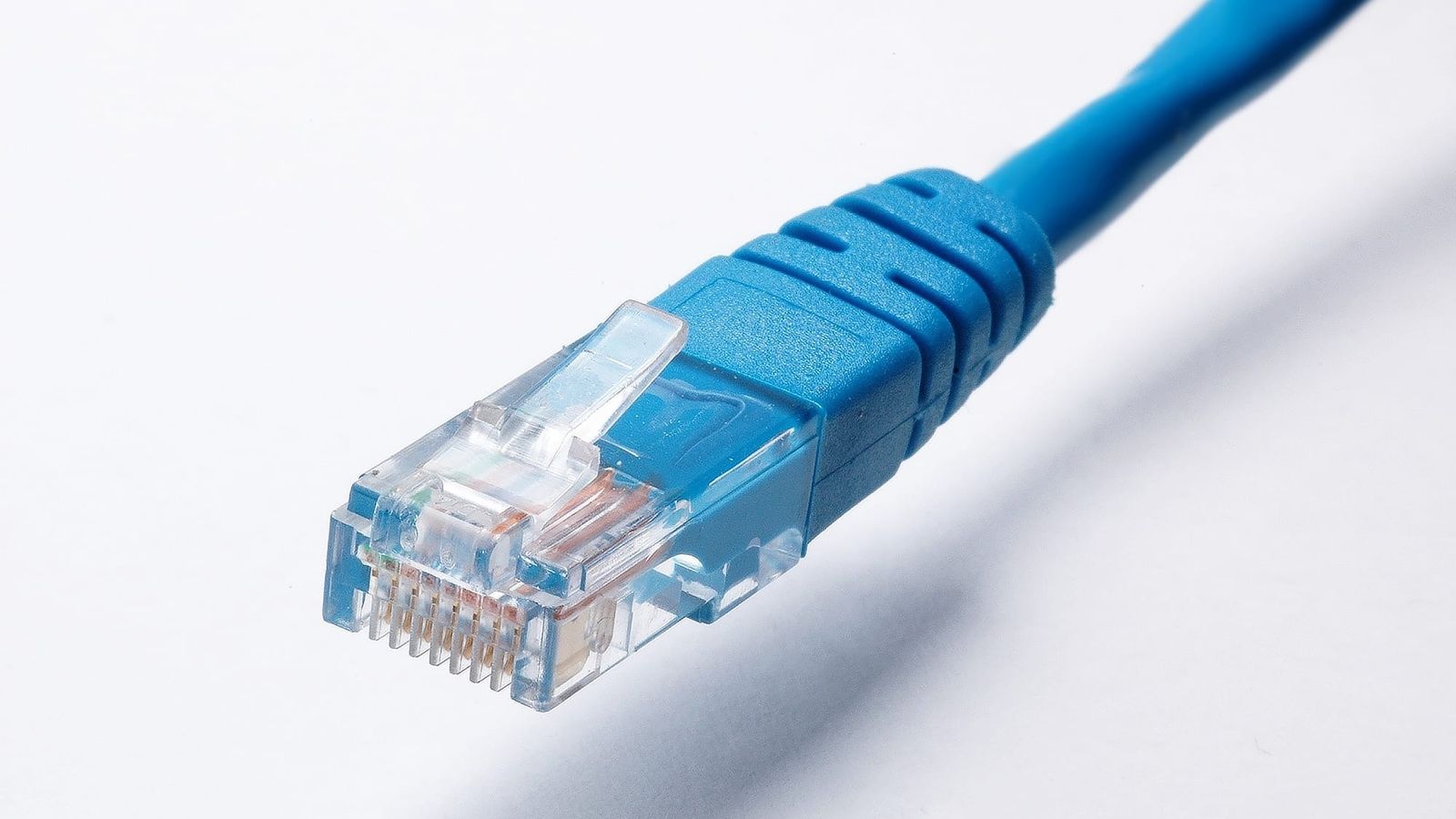
Sometimes the router works fine and simply lacks the features your household now needs. Common triggers include wanting a guest network with proper isolation, per-device parental controls and schedules, a separate network for smart home devices, VPN support, quality-of-service rules that protect video calls, or more than the four Ethernet ports you have.
Feature gaps are a legitimate reason to upgrade even when nothing is broken. A router that cannot segment your network is a meaningful limitation now that the average home has dozens of connected devices of wildly varying trustworthiness.
Rule Out the Cheap Fixes First
Before buying anything, work through this list. Each step takes minutes and any one of them might save you the purchase.
- Update the firmware and reboot the router and the modem, in that order, waiting a full minute between.
- Test wired. Plug a laptop straight into the router with Ethernet and run a speed test to separate Wi-Fi problems from internet problems.
- Move the router off the floor, out of enclosures, away from kitchens, aquariums, and metal panels.
- Fix the channels. Lock 2.4 GHz to 1, 6, or 11 and allow DFS channels on 5 GHz.
- Check the modem. An aging modem produces identical symptoms, and if it is rented from the ISP, replacing it may cost nothing.
- Audit the device list for unknown clients and remove anything that should not be there.
- Factory reset as a last test. Years of accumulated settings can cause odd behavior; a clean configuration sometimes restores normal performance.
If the problems survive all seven steps, the hardware is the problem.
Replace the Router, or Move to Mesh?
The decision comes down to whether your issue is capability or coverage. If speeds and stability are the complaint but coverage is adequate, a single modern router is the cheaper, simpler, faster answer. If entire rooms or floors are weak, more radios are what you need, and a mesh system or a wired access point will outperform any single box regardless of price.
Buying a bigger single router to fix a coverage problem rarely works, because transmit power is capped by regulation and your phone’s return signal is the weak link anyway. Conversely, buying a three-node mesh kit to fix a speed problem in one room wastes money. Diagnose first, then choose. If you want a structured walkthrough of specifications, port counts, band configurations, and price tiers before shopping, our router buying guide covers the full decision in order.
What to Do With the Old One
Do not simply retire a working router to a drawer without wiping it. Perform a factory reset to clear your Wi-Fi passwords, admin credentials, port forwarding rules, and any VPN configuration. After that it may still be useful as a wired access point on the far side of the house, as a dedicated network for smart home devices, or as a switch. If it is genuinely end of life for security updates, do not put it back on the internet; recycle it at an electronics drop-off instead.
Frequently Asked Questions
Should I keep using my ISP’s router?
ISP boxes are usually adequate for basic use and terrible for anything demanding. They tend to have weaker radios, fewer controls, slower update cycles, and a monthly rental fee that pays for a good router within a couple of years. Buying your own is often the highest-value networking purchase available.
Does the router affect my internet speed?
It cannot exceed your plan, but it can absolutely cap it. An old WAN port, a slow processor, or a saturated radio all limit what actually reaches your devices, which is why a wired test at the router is the first diagnostic step.
How do I know if firmware support has ended?
Check the release date of the newest firmware in the admin panel and look up your model number on the manufacturer’s support site. No update in eighteen months is a strong signal; an explicit end-of-life notice is definitive.
Is it worth upgrading if my devices are old?
Yes, more often than people expect. A newer router manages airtime better and handles many simultaneous clients more gracefully, so even older devices benefit from a less congested, better-scheduled network.
Final Thoughts
Routers do not fail loudly. They degrade into a slow, flaky background annoyance that gets blamed on everything else. Use the eight signs above as a checklist: frequent disconnects, mandatory reboots, abandoned firmware, speeds below plan, shrinking coverage, an outdated standard, physical heat or wear, and features you cannot get. If two or three apply, and the free fixes did not help, replacement is the right call. Match the new hardware to the actual problem, plan on roughly a five-year cycle from here, and put a calendar reminder to check firmware support once a year so the next replacement in 2026 and beyond is a decision rather than a rescue.