Owen Bradley
 Few things in consumer technology are named as badly as USB cables. The same physical connector can hide a cable that charges a phone slowly, one that transfers data at storage-drive speeds, and one that drives a 4K monitor while delivering enough power to run a laptop. Nothing on the outside distinguishes them, and the drawer full of black cables in every home is proof of how quickly this becomes unmanageable. This guide decodes the naming, explains what determines speed and power, and gives you a way to identify and label what you already own so that in 2026 you stop guessing which cable to reach for.
Connector Shape Is Not Capability
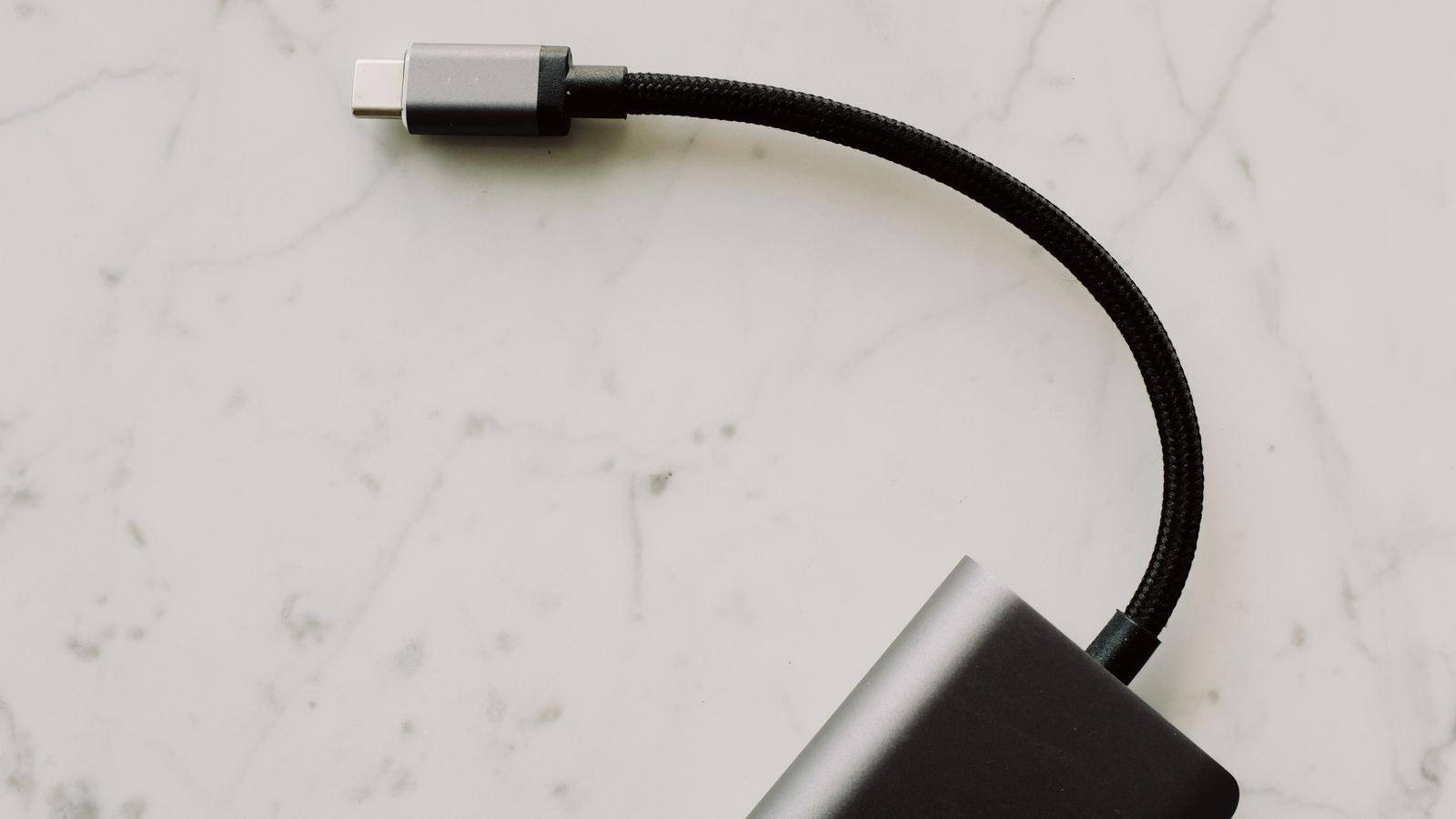
Start with the single most useful idea in this whole topic: the shape of the plug tells you almost nothing about what the cable can do. USB-C is a connector, not a speed, not a power rating and not a feature set. A USB-C cable might run at 480Mbps or at 40Gbps. It might carry 15W or 240W. It might carry video or refuse to.
The older rectangular USB-A connector at least implied a rough performance ceiling, and a blue plastic insert traditionally signalled the faster generation. USB-C swept that away in exchange for reversibility and versatility. The result is convenience at the plug and confusion everywhere else. Everything below is essentially about recovering the information the connector no longer gives you.
Decoding the Speed Names
The specification body has renamed its tiers several times, which is why identical speeds appear under multiple labels depending on when a product was packaged. Here is the practical mapping, ordered by actual throughput.
- 480Mbps is the old high speed tier, still used by keyboards, mice, printers and countless charging cables. Perfectly adequate for peripherals, painfully slow for file transfer.
- 5Gbps is the first fast tier, marketed variously as USB 3.0, 3.1 Gen 1 and 3.2 Gen 1. All three names describe the same rate.
- 10Gbps doubles that, appearing as USB 3.1 Gen 2 or 3.2 Gen 2. This is the sweet spot for external SSD enclosures.
- 20Gbps is USB 3.2 Gen 2×2, which uses both signal lanes in a USB-C cable and is comparatively rare in the wild.
- 40Gbps covers USB4 and Thunderbolt, and is where full docking and multi-display capability lives.
- 80Gbps appears in the newest specifications and is currently limited to premium hardware.
Newer packaging increasingly abandons the generation names in favour of a plain speed figure, which is a genuine improvement. If you see a cable simply labelled with a number of gigabits per second, trust that over any version string.
Why Real Speed Never Matches the Label
Advertised rates describe raw signalling, before protocol overhead. A 10Gbps connection realistically delivers something closer to 900MB/s to 1000MB/s in practice. The device on the other end usually limits things further; a mechanical hard drive will not exceed roughly 150MB/s no matter what cable you use. Match the cable to the fastest device you own, then stop worrying about the difference between the label and the benchmark.
Power Delivery and Charging Wattage
Power runs on a separate track from data, which is why a cable can be fast at one and hopeless at the other. Basic USB-C cables handle 60W, which covers phones, tablets and thin laptops. Cables built with an internal identification chip and heavier conductors handle 100W, and the newest extended range reaches 240W for gaming laptops and larger devices.
Wattage is voltage multiplied by current, and the higher tiers achieve their figures by raising voltage rather than pushing dangerous current through thin wire. The cable’s chip tells the charger what it can safely carry, which is why plugging a high-wattage charger into a basic cable results in slow charging rather than a hazard. The system negotiates down to the weakest link, every time.
- Check your device’s charger wattage, printed on the power brick itself.
- Buy a cable rated at or above that figure, since a 100W cable charging a 30W phone costs nothing in performance.
- Keep one high-wattage cable per desk so you are never tempted to substitute a thin travel cable for a laptop.
- Retire unmarked cables that charge visibly slower than their peers, since they are almost always the low tier.
Peripherals draw power too, and a keyboard with backlighting or a wireless receiver adds up across a shared hub. Devices designed around the newer connector, like the models in our list of the best USB-C keyboards, generally negotiate power cleanly and avoid the brownouts that plague crowded unpowered hubs. The same applies to pointing devices, and our roundup of the best USB-C mouse options covers models that charge quickly enough to survive on a short lunch break.
Which Cables Can Carry a Display Signal
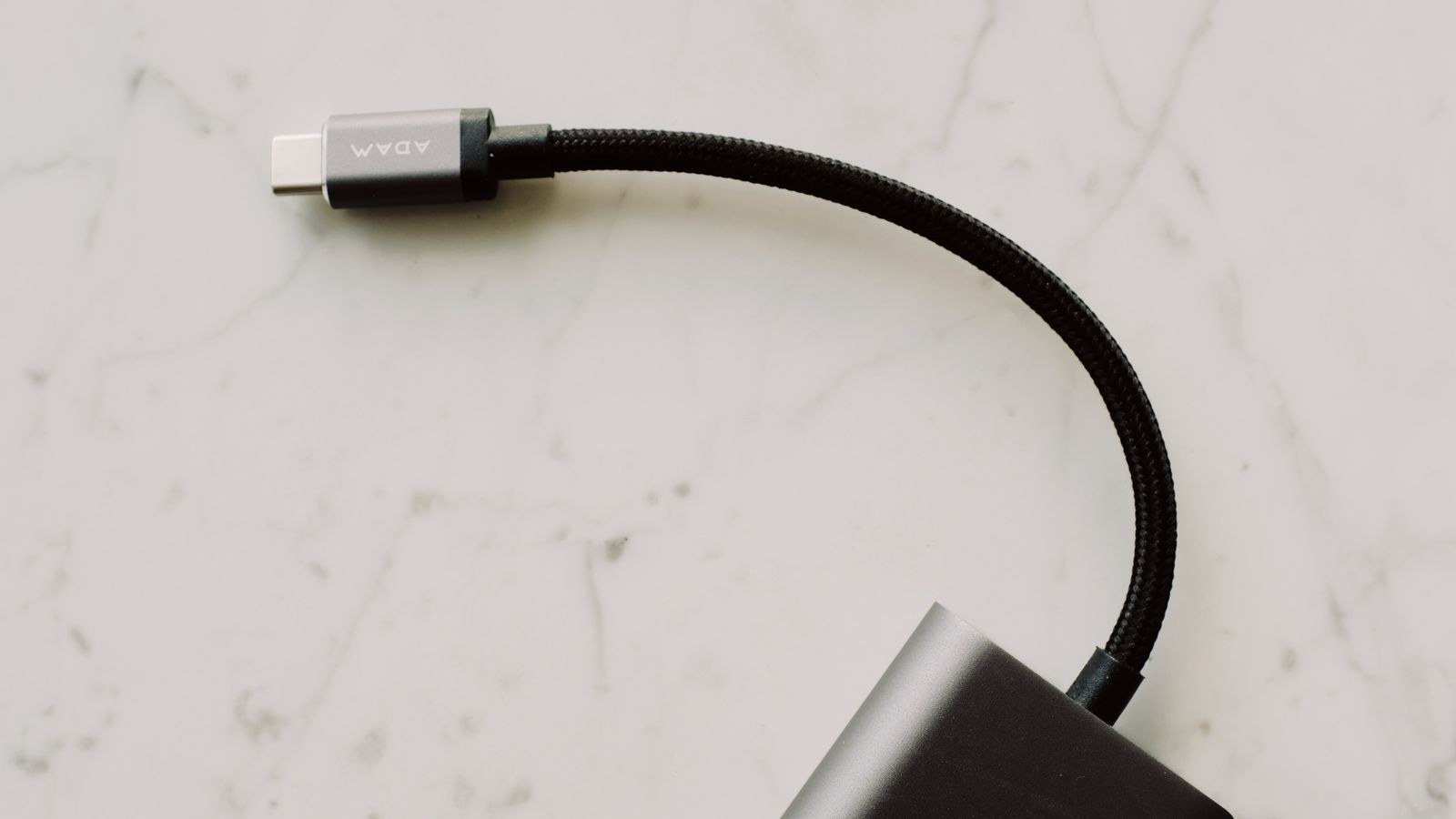
This is the capability that catches people out most often. Sending video over USB-C requires the cable to carry the additional high speed lanes used by DisplayPort alternate mode. Charge-only cables physically omit those conductors, so no configuration change will ever make them work with a monitor.
As a practical rule, any cable rated for 10Gbps or faster carries video, because those speeds require the same wiring that alternate mode uses. Cables rated at 480Mbps generally do not, regardless of what the packaging implies. Thunderbolt and USB4 cables always support video and are the safest choice when you are unsure.
Displays that accept a single USB-C connection for video, data and power are the clearest demonstration of why cable choice matters, since one wrong cable breaks all three functions at once. Our guide to the best USB-C monitors covers panels that handle the full combination, including how much power each returns to a connected laptop. If you are assembling a broader single-cable desk, the compatibility notes in our comparison of graphics cards and docks explain how bandwidth gets divided once several displays share one connection.
Cable Length and Signal Loss
High data rates degrade over distance. Passive cables rated for 40Gbps are typically limited to about 0.8 metres, which surprises people who expected a long cable to behave like a short one. Longer runs at full speed require active cables containing signal-boosting electronics, and those cost considerably more.
Longer passive cables still exist and still work, but they quietly fall back to a lower speed to maintain a stable link. That is why a two-metre cable might charge perfectly while refusing to drive a monitor. When you need both speed and distance, buy an explicitly active cable rather than hoping a passive one stretches.
How to Identify Cables You Already Own
Most cables carry more information than people notice. Look closely at the connector housing and the cable jacket for printed markings, then work through this sequence.
- Look for printed logos on the plug. A lightning bolt with a number indicates Thunderbolt and its generation. A number followed by Gbps states the data rate directly.
- Check the jacket for a printed specification, which better manufacturers include a few centimetres from the connector.
- Judge by thickness. High-wattage, high-speed cables are noticeably thicker and stiffer because they contain more conductors and heavier shielding.
- Test with a monitor. If a display works, the cable carries at least 10Gbps and alternate mode. This single test sorts a drawer quickly.
- Time a large file transfer to a fast external drive and compare against a known-good cable.
- Label the winners with a wrap of tape marked with the speed and wattage, then discard the anonymous ones.
That last step matters more than it sounds. A drawer of unlabelled cables regenerates confusion every few months, whereas five labelled cables and a bin bag solves the problem permanently.
Choosing Cables for Common Situations
For phone charging, a 60W cable at 480Mbps is entirely sufficient and cheap. Buy several and keep them where you charge.
For laptop charging, buy 100W or higher and confirm it is marked. This is the cable most worth spending on, because an underrated one causes the slow battery drain that people mistakenly blame on the laptop.
For external storage, match the drive. A fast portable SSD deserves at least a 10Gbps cable, and the one supplied in the box is often the only guaranteed match.
For monitors and docks, buy Thunderbolt or USB4 rated and keep it short. This eliminates almost every category of display troubleshooting in one purchase.
For desktop front panels, the internal header determines the speed available at the case, not the cable you plug in. Cases with properly wired high speed front connectors are compared in our guide to the best PC cases with USB-C, which is worth checking before assuming a slow front port is the cable’s fault.
Common Mistakes to Avoid
- Assuming every USB-C cable is interchangeable, which is the root cause of most charging and display complaints.
- Using the cable that came with a phone to connect a monitor or dock, since it almost certainly lacks the video conductors.
- Buying the longest cable available without checking whether it is active, then losing speed you paid for.
- Ignoring wattage markings and wondering why a laptop charges slowly on one cable and quickly on another.
- Trusting version numbers like USB 3.2 without the accompanying generation or speed figure, since that name covers three different rates.
- Keeping unmarked spares in a drawer, guaranteeing a repeat of the same guessing game next month.
Frequently Asked Questions
Can a cheap cable damage my device?
Properly built cables negotiate down to safe limits, so mismatched ratings cause slow charging rather than harm. Genuinely counterfeit cables that omit the identification chip while claiming high wattage are the real risk, which is why buying from reputable sellers matters.
Is Thunderbolt the same as USB4?
They overlap heavily and share the 40Gbps ceiling and the connector, but Thunderbolt certification mandates features that USB4 leaves optional. A Thunderbolt cable is always a safe choice for a USB4 device.
Why does my external drive run slower than advertised?
Usually the cable, the port or the drive itself is the limiting factor rather than the specification. Test the same drive with a known 10Gbps cable on a known fast port to isolate which link is holding you back.
Do I need an 80Gbps cable?
Only if you own hardware that supports it, which currently means recent premium laptops and docks. For everything else the extra bandwidth sits unused and 40Gbps remains ample.
Final Thoughts
The fix for cable confusion is not memorising every specification name but owning a small number of known-good cables and labelling them. One high-wattage charging cable per desk, one short Thunderbolt or USB4 cable for displays and docks, and a couple of cheap ones for phones covers almost every household.
When you buy, ignore version strings and look for a plain speed figure in gigabits and a wattage rating in watts. Those two numbers tell you everything the connector no longer can, and a cable that states both is almost always from a manufacturer who built it properly.