
 Owen Bradley
 Undervolting is the tuning trick that feels like cheating. Instead of pushing a graphics card harder, you feed it less voltage at the frequencies it already runs, and the result is a card that draws less power, produces less heat, and spins its fans far more slowly, usually while losing almost none of its performance. On some cards it is actually faster, because a chip that stays inside its power budget holds higher boost clocks for longer. Better still, unlike overclocking, undervolting carries essentially no risk of damaging anything. This guide explains why it works, walks through the curve method step by step, and covers how to test the result properly.
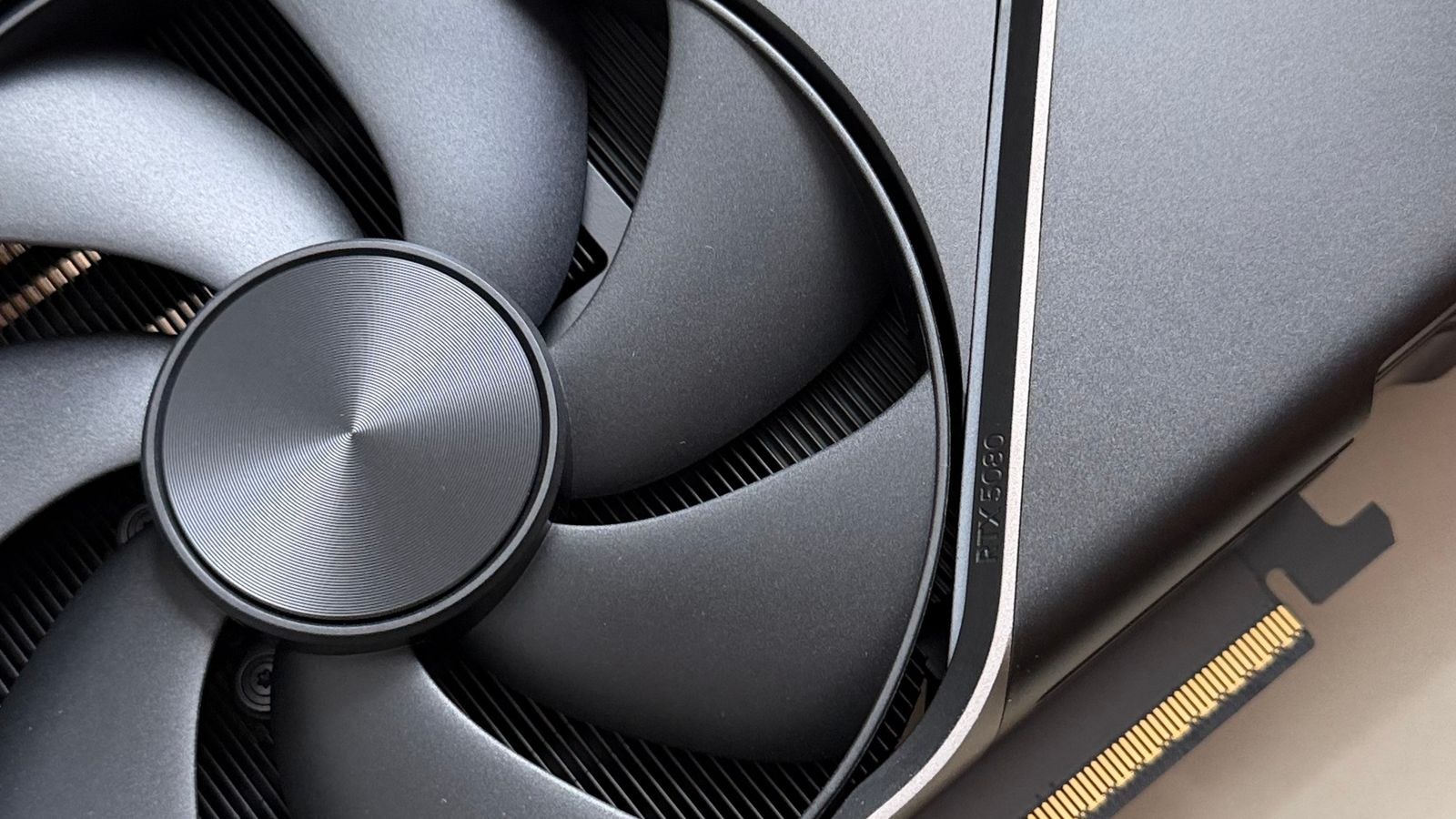
Why Undervolting Works
Graphics cards ship with a voltage curve set conservatively enough that even the weakest chip off the production line stays stable. Most cards beat that worst case, so yours is probably running more voltage than it needs at every frequency point.
The physics make the payoff large. Power consumption scales roughly with the square of voltage, so a reduction that looks small on paper produces a disproportionate drop in watts. Cut voltage by ten percent and power draw can fall by fifteen to twenty percent, with the heat output falling by the same proportion. That is why a modest undervolt often drops temperatures by 10 degrees Celsius or more.
Lower temperature then feeds back into performance. Modern cards boost opportunistically, raising clocks whenever power and thermal headroom allow, so removing that constraint lets a card hold higher sustained clocks than it did at stock.
What You Need
- A GPU tuning utility with a voltage and frequency curve editor. The major vendors provide one, and popular third-party tools expose the same controls.
- A monitoring overlay reporting core clock, core voltage, temperature, power draw as a percentage of limit, and the current limiting factor.
- A graphics stress test plus two or three games you actually play, ideally with different engines.
- A benchmark you can repeat consistently to compare before and after.
- Thirty to sixty minutes of uninterrupted time for the first pass, plus a few days of ordinary use to validate.
You should also know your baseline. Record stock peak temperature, sustained clock speed, peak power draw, fan speed under load, and a benchmark score. Every judgement you make afterwards depends on those five numbers.
Step-by-Step: The Curve Undervolt Method
- Run and record a baseline. Play a demanding game for twenty minutes and note peak temperature, average clock speed, power draw, and fan noise. Run your benchmark three times and average the scores.
- Open the voltage and frequency curve editor. In most utilities this is a keyboard shortcut or a small button beside the core clock slider. You will see a graph with voltage in millivolts along the bottom and frequency up the side.
- Find your card’s current operating point. Load a game, watch the overlay, and note the voltage the card actually uses under sustained load. That is your starting reference, and it is typically somewhere between 900 and 1100 millivolts.
- Choose a target voltage below that. A reasonable first attempt is 50 to 100 millivolts lower than your observed load voltage. Aim for a round figure on the curve, such as 900 or 950 millivolts.
- Pick the frequency for that point. Start with the clock speed your card was already reaching at stock, or slightly below it. Being conservative here means your first test is very likely to pass, which gives you a working reference to refine.
- Drag that curve point up to your chosen frequency. Select the point at your target voltage and raise it so the card runs that clock at that lower voltage.
- Flatten everything to the right. This is the step people miss. Select the point you edited, hold Shift, and drag to flatten every point at higher voltages to the same frequency. Without this, the card will simply climb past your target point and use more voltage anyway.
- Apply the curve. Click apply. The graph should show a rising line up to your target voltage and then a flat plateau. Confirm in your overlay that the card no longer exceeds the target voltage under load.
- Run a short stability test. Ten minutes of a graphics stress test. Watch for artifacts, driver resets, or crashes to desktop. Note the new temperature and power draw, which should already be visibly lower.
- Refine in small steps. If it is stable, either lower the target voltage by another 25 millivolts at the same frequency, or raise the frequency by 15 to 25MHz at the same voltage. Change one at a time and retest after each.
- Back off once you find the edge. When it crashes, return to the last stable setting and then give back one more step. A curve that barely passes a ten-minute test will not survive a long session.
- Validate for days, not minutes. Play several different games across several sessions. Undervolt instability tends to surface at low load or during transitions rather than at full load, so include menus, loading screens, and idle desktop time.
- Save the profile. Store it in your utility, enable apply-on-startup, and write the values down somewhere. Driver updates occasionally clear saved curves.
Choosing Sensible Targets
There is no universal correct value, because silicon quality varies between individual cards of the same model. As a rough guide, most cards accept a reduction of 50 to 100 millivolts while holding stock clocks, and many manage more. Expect a temperature drop of 5 to 15 degrees Celsius and a power reduction of ten to twenty-five percent.
Decide what you are optimizing for. For maximum quiet, target the lowest voltage that holds a clock close to stock, then relax your fan curve to cash in the savings as reduced noise. For performance, target the highest frequency stable at a moderate voltage.
Case and cooler design set the floor on how quiet you can get. A card that is already thermally comfortable in a well-ventilated, insulated chassis benefits most, because the fans can slow right down. Cards with better stock coolers also start quieter, and our list of the best quiet GPUs highlights those designs, while the best quiet PC cases pair with them to keep the whole system inaudible.
Undervolting Versus Power Limit Reduction
Simply lowering the power limit slider also reduces heat and noise, and it takes ten seconds. The difference is what you lose. A power limit cut forces the card to drop both frequency and voltage together whenever it exceeds the budget, which costs performance directly. An undervolt keeps the frequency and only removes the surplus voltage, so you keep almost all your speed. Power limit reduction is the right tool for a guaranteed hard cap on wattage with no testing; undervolting is the better long-term answer.
Safety and Risk
Undervolting cannot damage a graphics card. Reducing voltage reduces electrical stress and heat, both of which extend component life rather than shortening it. The only failure mode is instability, which shows up as a crash or a driver reset, and resetting the curve to default restores everything immediately.
Two cautions are worth noting. Save your work before stress testing, since a driver reset can close applications without warning. And remember that an unstable undervolt can cause a crash that looks like a game bug, so note the date you applied the curve and test at default voltage before chasing unrelated faults.
Troubleshooting
If the card crashes under heavy load, the frequency is too high for the voltage you chose. Lower the plateau frequency by 15 to 25MHz, or raise the target voltage by 25 millivolts, and retest.
Crashes at idle or on the desktop usually come from the low-voltage portion of the curve rather than the plateau. Reset, reapply more carefully, and avoid editing points below about 700 millivolts.
If the card still exceeds your target voltage under load, you did not flatten the curve to the right of your edited point. Redo that step with Shift held down. If your undervolt loses noticeable performance, your plateau frequency is set too low, so raise it while keeping the same voltage. And if temperatures did not improve much, check whether the card was thermally limited by case airflow rather than by its own power draw, in which case improving intake and pairing the card with better chassis fans will do more than any curve. Our roundup of the best cooling fans for PCs covers suitable options.
Occasionally a card runs hot simply because its thermal interface material has dried out, common on cards several years old. Replacing it can restore a lot of headroom, and the best GPU thermal paste options suit the sustained temperatures graphics cards produce.
Common Mistakes
Forgetting to flatten the curve past the target point is by far the most frequent error. The card obeys the highest applicable point, so an unflattened curve simply climbs back to its original voltage and nothing changes. Always verify in your overlay that the actual load voltage now matches your target.
Testing only under full synthetic load is the second. Undervolt failures cluster at transitions and low-load states, so an hour of a stress loop can pass while the desktop crashes an hour later. Include varied real-world use in your validation.
Being too aggressive on the first attempt wastes time. Starting with a 200 millivolt reduction almost guarantees a crash, and you learn nothing except that it was too much. Begin conservatively, confirm stability, then tighten gradually. Finally, do not copy another user’s curve. Cards of the same model differ enough in silicon quality that someone else’s values are a starting hint at best, and comparing against roundups like the best GPUs for gaming is more useful for setting expectations about what your particular tier of card can do.
Frequently Asked Questions
Will undervolting reduce my frame rate?
Usually not measurably, and sometimes it increases it. If your plateau frequency matches or exceeds the clock the card reached at stock, performance holds. Cards that were previously power-limited often gain a few percent because they can now sustain higher clocks.
Is undervolting safe long term?
Yes. Lower voltage means less electrical stress and lower temperatures, both of which are good for longevity. The worst realistic outcome is an occasional crash if your curve is too aggressive, which is fixed by resetting to default.
How much cooler will my card run?
A drop of 5 to 15 degrees Celsius is typical, with the larger figures on cards previously running at their power limit continuously. The noise reduction is often more noticeable, because fans hold much lower speeds.
Final Thoughts
Undervolting is the highest-value hour you can spend on a graphics card. Find the voltage your card actually uses under load, set a point 50 to 100 millivolts below it at your stock clock speed, flatten everything to the right, and test. Refine in small steps, back off from the edge once you find it, and validate across several days of real use rather than a single stress loop.
What you get in return is a card that runs noticeably cooler, draws less power, and is quiet enough that you stop noticing it, with performance that is unchanged or slightly better. There is no meaningful risk and no cost. If you do only one tuning exercise on your system in 2026, make it this one.










