Owen Bradley
 Once you decide you need more screen than a single standard monitor provides, the choice narrows to two paths: one very wide panel, or two ordinary ones sitting side by side. Both give you room to keep a document open next to a browser, a timeline next to a preview window, or a chat window next to your main work. They get there very differently, though, and the right answer depends on how you split your attention, how deep your desk is, and whether you game as much as you work. This comparison of ultrawide versus dual monitors walks through screen area, bezels, ergonomics, gaming behaviour and cost, so you can choose the setup you will still be happy with at the end of 2026.
The Two Setups in Plain Terms
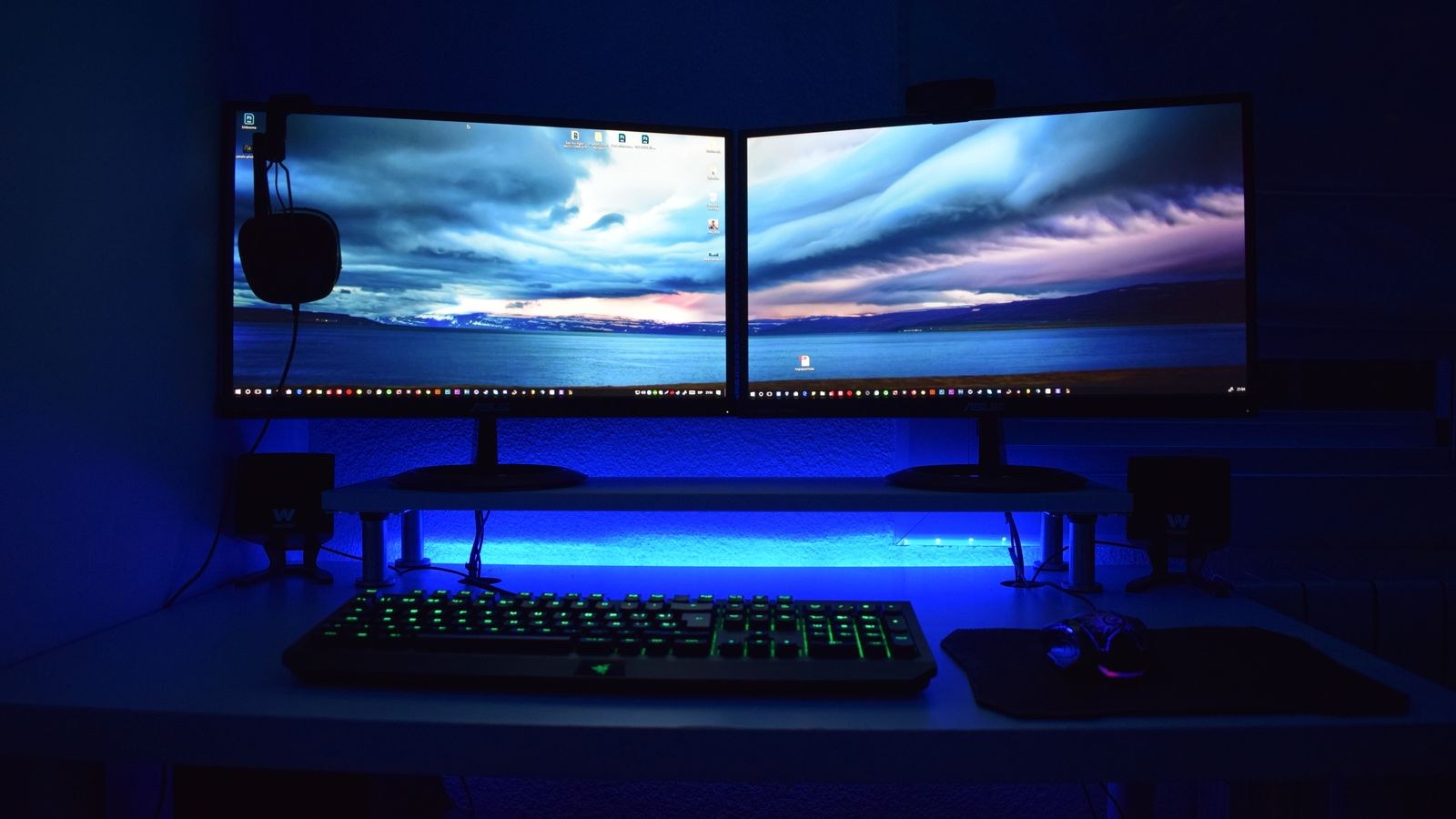
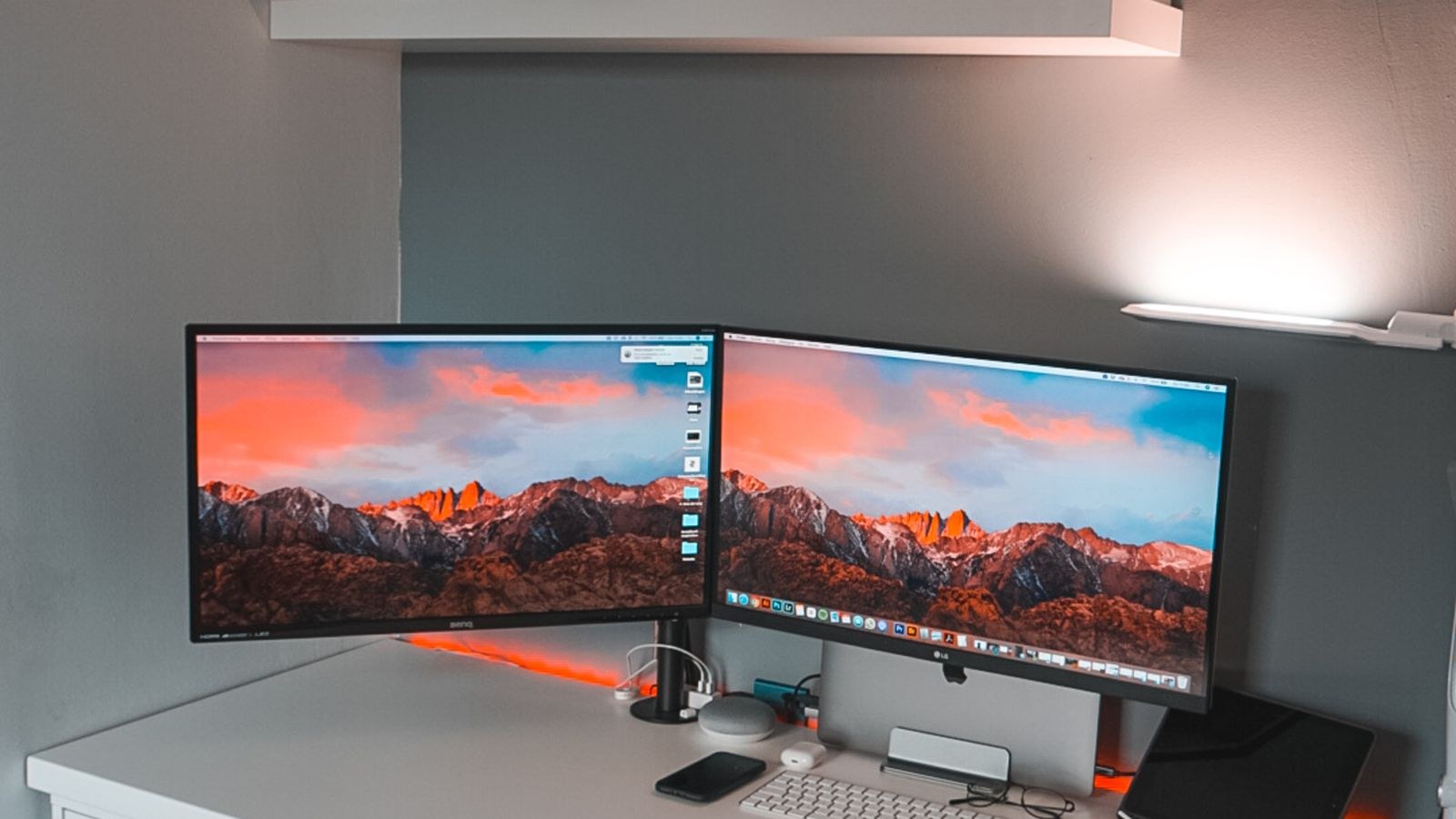
A dual monitor setup means two separate displays, usually identical, placed next to each other or angled slightly inward. The operating system treats them as two distinct screens, each with its own resolution and its own full-screen behaviour. An ultrawide is a single panel with a 21:9 or 32:9 aspect ratio, most commonly 34 inches at 3440 by 1440, presented to the computer as one continuous display.
That distinction, one display versus two, drives almost every practical difference between them. Windows snap differently, full-screen applications behave differently, and the way your eyes travel across the workspace changes. Neither approach is objectively superior; they suit different working habits.
Screen Area: Who Actually Gives You More?
Numbers help here. A 34 inch ultrawide at 3440 by 1440 gives you around 4.95 million pixels. Two 27 inch 1440p panels give you 7.4 million pixels across a much wider physical span. On raw area, dual monitors win comfortably, and they win even more decisively if you use two 4K panels.
But raw area is not the same as useful area. On a dual setup, the second screen usually holds secondary content because the centre of your vision sits on one panel or in the gap between them. On an ultrawide, the whole width is one uninterrupted canvas, so you can place three narrow windows across it and treat the middle as your primary focus. Many people find an ultrawide delivers more usable space per inch of desk even though it has fewer pixels. If you want to compare panel classes before deciding, the best ultrawide monitors guide covers the common 34 and 38 inch sizes and how their footprints differ.
The Bezel Problem
The seam between two monitors is the single most cited reason people switch to an ultrawide. Even thin-bezel panels leave a visible break of half an inch or more where two frames meet. For discrete tasks, that break is harmless and can even help by visually separating contexts. For anything continuous, such as a long video timeline, a wide spreadsheet, or a panoramic image, the seam is genuinely disruptive. Ask yourself whether your work ever spans both screens at once. If it never does, the bezel costs you nothing.
Ergonomics and Desk Footprint
An ultrawide occupies one stand and one cable run, which keeps the desk tidy and simplifies height alignment. Because it is a single panel, everything sits at exactly the same height and tilt automatically. The width does demand desk space, roughly 32 inches for a 34 inch model, and the far edges sit further from your eyes unless the panel is curved.
Dual monitors are more flexible but need more setup care. You can angle each screen inward to keep both roughly equidistant from your eyes, and you can rotate one into portrait orientation for reading long documents or code, which no ultrawide can match. The catch is that two stands eat depth, and matching height between two models with different stands is fiddly. Monitor arms solve both problems at extra cost. Our overview of best dual monitor setups looks at how mounting choices change the practicality of running two screens.
Head Movement and Neck Strain
With two screens placed straight across, your primary window often ends up off-centre, which encourages a slight permanent head turn. Over long days that becomes a genuine ergonomic issue. The fix is straightforward: centre your main screen in front of you and treat the second as a peripheral panel, or angle both symmetrically around your centre line. An ultrawide sidesteps the problem because the centre of the panel naturally aligns with your centre line, though very wide 49 inch models bring back some head movement at the extremes.
Gaming: Immersion Versus Compatibility
Gaming strongly favours the ultrawide, but with caveats. A single wide panel wraps more of your field of view, and modern titles that support 21:9 natively look dramatically more immersive, showing genuine extra scene at the edges rather than a stretched image. Racing, flight and open-world games benefit most.
The caveat is support. Older games and some competitive titles either do not support wide aspect ratios or letterbox them with black bars, and a minority of competitive shooters restrict field of view to keep play fair. Dual monitors, meanwhile, are essentially useless for gaming across both screens, since the bezel sits exactly where your crosshair would be. What they do well is let you game full-screen on one panel while keeping a guide, stream chat or voice app visible on the other, which many players value more than immersion. If immersion is your priority and you want the wrap-around effect, the best curved monitors guide explains which curvature levels suit gaming distances.
Graphics Card Demands
An ultrawide at 3440 by 1440 asks roughly 34 percent more of your graphics card than standard 1440p, which is a meaningful but manageable step. Two monitors add almost no gaming load, because you only render a game on one of them; the second screen costs a small amount of video memory for the desktop. If your card is mid-range and you want high frame rates, dual monitors are the lighter option.
Workflow Fit: Which Suits Your Job?
- Writing and research: Either works. A portrait second monitor is excellent for long documents, which slightly favours dual.
- Coding: Ultrawide shines when you want editor, terminal and documentation across one canvas without window management fuss.
- Video and audio editing: Ultrawide wins clearly, because timelines are inherently horizontal and the bezel would cut them in half.
- Trading and monitoring: Dual, or more, because you want many independent full-screen views at once.
- Design and photo work: Dual often wins, since one panel can be colour-calibrated for the canvas and the other holds palettes.
- Meetings and presentations: Dual is simpler, because sharing one entire screen is cleaner than sharing a huge ultrawide.
If your day involves juggling many applications at once rather than one deep task, look at panels chosen specifically for window-heavy work in our best monitors for multitasking selection.

Cost and Upgrade Path
Price comparisons usually favour dual monitors. Two solid 27 inch 1440p panels typically cost less than one good 34 inch ultrawide with comparable refresh rate and panel quality, and you can buy them one at a time, spreading the cost. Ultrawides also carry a smaller second-hand market and fewer models at each price point, so bargains are rarer.
The upgrade path differs too. With dual monitors, you can replace one screen and keep the other, or add a third later. An ultrawide is a single purchase you replace wholesale. On the other hand, an ultrawide needs only one cable, one power outlet and one input on your computer, which matters if you connect a laptop through a single port. Weigh the flexibility of modular screens against the simplicity of one cable.
Software and Window Management
Modern operating systems snap windows to halves and quarters of a screen, which works naturally on dual monitors. On an ultrawide, a half-screen snap gives you an awkwardly wide window, so most ultrawide owners use window management tools that divide the panel into thirds or custom zones. Many manufacturers bundle such software. Factor a short learning curve into the decision; people who never configure zones often report that an ultrawide feels underused. Practical layout tactics are covered in our guide to dual monitor setup productivity, and most of the principles transfer directly to wide panels.
Common Mistakes When Choosing
The most frequent error is buying an ultrawide for a shallow desk. At 24 inches of depth, the far edges of a 34 inch panel sit well outside comfortable focus, and a curve only partly compensates. Measure before you order. The second mistake is buying two mismatched monitors, with different sizes, resolutions or brightness levels, which produces a jarring difference every time you drag a window across.
Another common misstep is assuming an ultrawide replaces two screens for every purpose. It does not replace the ability to show one full-screen application to a meeting while working on another, and it does not offer portrait orientation. Finally, some buyers underestimate mounting requirements. Large ultrawides are heavy and need a sturdy arm rated for the weight, while cheap dual arms often sag under two panels.
Frequently Asked Questions
Is one ultrawide the same as two monitors?
Not quite. A 34 inch ultrawide roughly matches the width of two 24 inch panels, not two 27 inch ones, and it offers a continuous surface instead of two independent screens. It is best thought of as a different shape rather than a direct replacement.
Can I run an ultrawide alongside a normal monitor?
Yes, and many people do. A common arrangement places the ultrawide centrally with a standard panel to one side, often in portrait, for chat or reference material. Check your graphics card supports both outputs at their full refresh rates.
Which is better for eye strain?
An ultrawide slightly reduces strain because everything sits at one height and there is no bezel to jump across, but only if it is curved and placed far enough away. A well-aligned dual setup with equal heights and inward angles is nearly as comfortable.
Do I need a curved ultrawide?
At 34 inches and above, a curve is strongly recommended, since it keeps the edges roughly the same distance from your eyes. On flat wide panels the corners can appear dimmer and slightly harder to focus on at desk distance.
Final Thoughts
Choose an ultrawide when your work flows horizontally, when you value an uninterrupted canvas, and when your desk has the depth and width to place it properly. Choose dual monitors when you run many independent applications, want the option of portrait orientation, need to share one screen cleanly in meetings, or want to spread the cost across two purchases. Measure your desk, be honest about whether the bezel would actually bother you, and check your graphics card can drive whichever configuration you pick. Do that and either setup will serve you well through 2026 and beyond.