
 Owen Bradley
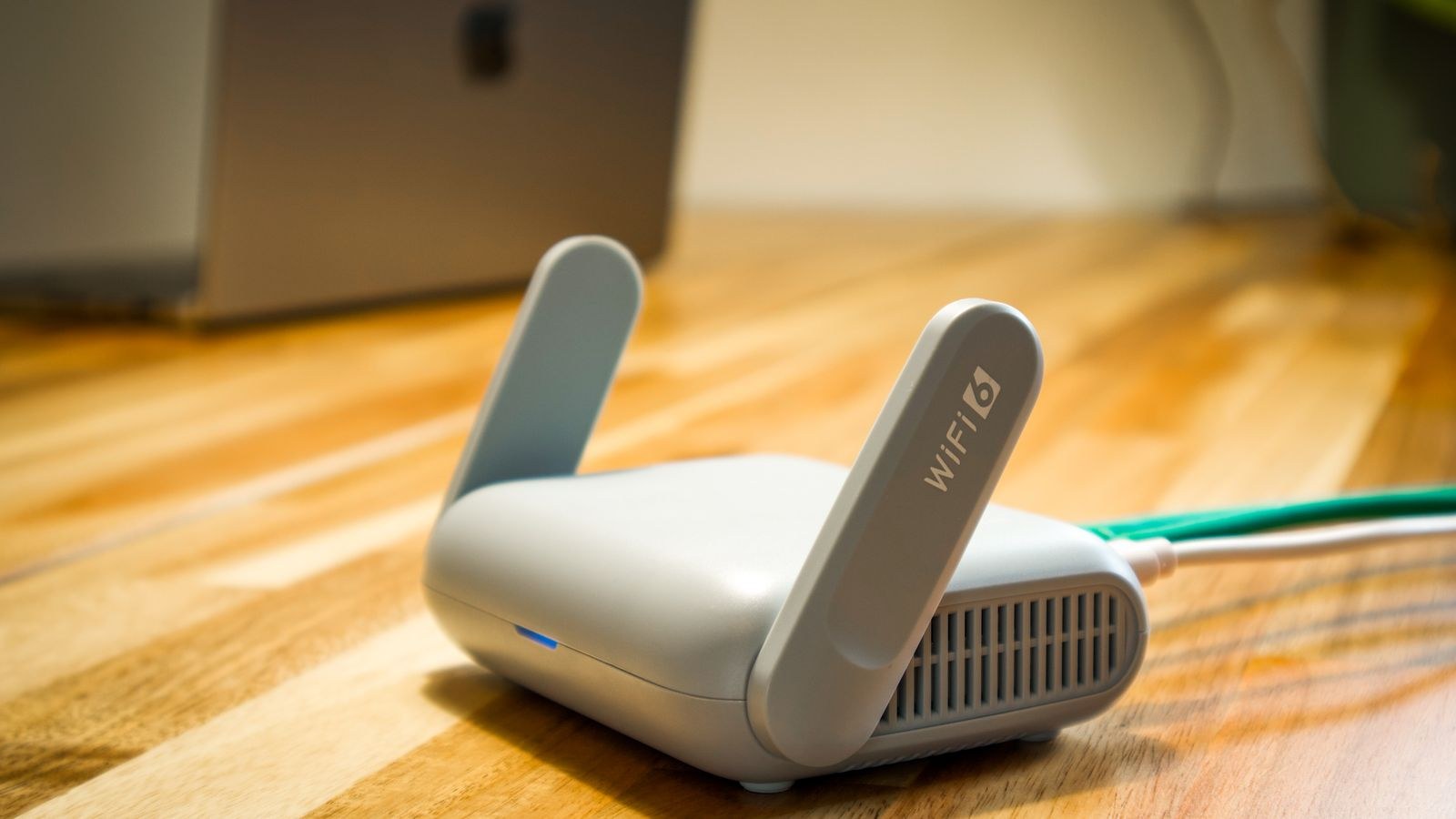
 Wi-Fi that works perfectly in the morning and falls apart every evening is rarely a coincidence. Heat is one of the most common and least suspected causes of router instability, and it builds slowly through the day as the house warms, the family comes home and the device works harder. The good news is that a router overheating fix almost never costs anything. Better airflow, a five-minute vent clean, a change of mounting position and a look at how much work the unit is being asked to do will resolve the majority of cases. This guide explains how to recognise heat-related drops, the practical steps that lower running temperature, and the point at which a router is genuinely failing rather than simply running warm.
How to Tell Heat Is the Problem
Overheating produces a distinctive pattern. Connections degrade gradually rather than cutting out instantly, the 5GHz band usually suffers first because its radio runs hotter, and everything is fine again after the router has been off for ten minutes. If your outages cluster in the late afternoon and evening, or worsen during a heatwave, temperature is a strong suspect.
Other symptoms include throughput that starts fast and sags after a few minutes of heavy transfer, the admin page becoming slow to load, and the unit rebooting itself without any power cut. A case that is too hot to keep your palm on comfortably, roughly above 50C, is worth acting on. Some routers expose an internal temperature reading in the admin interface or system log, which is far more reliable than touch.
Rule Out the Look-Alikes First
Not every evening dropout is thermal. Channel congestion peaks at the same hours because every neighbour is streaming, and ISP congestion follows the same curve. Before you rearrange furniture, check whether wired devices also drop. If Ethernet stays rock solid while Wi-Fi falters, the problem is the radios or the airwaves. If everything drops together, look at the modem, the line and the router’s overall load.
What You Need
- A can of compressed air or a soft brush for the vents.
- A microfibre cloth.
- An infrared thermometer if you have one, or simply the back of your hand.
- A tape measure for checking clearances.
- Optionally, a wall bracket or small shelf to lift the unit off a desk.
Step by Step: Cool a Router That Keeps Dropping
- Power down and unplug. Let the router cool fully before you handle it, and never spray compressed air into a powered device.
- Clean every vent. Dust forms an insulating blanket over the perforations on the base and sides. Use short bursts of compressed air from about 15cm away, or brush gently. Do not open the case, as that voids warranty and rarely helps.
- Clear the surroundings. Give the unit at least 10cm of free space on every side and above. Remove it from bookshelves, cabinets, media units and anywhere a door closes over it. Enclosed spaces are the single most common cause of thermal drops.
- Move it off other equipment. Routers stacked on top of a modem, set-top box, games console or AV receiver absorb their heat. Separate them, ideally onto different surfaces.
- Change the orientation. Most routers are designed to vent upward. If yours is a flat, horizontal box lying on a desk, its base vents are blocked. Standing it vertically or wall-mounting it dramatically improves convection.
- Get it out of direct sun. A router on a windowsill can gain 10C or more of ambient heat on a bright afternoon. Move it to a shaded interior spot.
- Reduce the load. Turn off features you do not use: guest networks that sit idle, USB media sharing, always-on VPN tunnels and traffic analysis engines all add processor work and therefore heat.
- Update the firmware. Manufacturers regularly ship fan curves, power-management and radio-efficiency fixes. An out-of-date unit can run hotter than it needs to.
- Retest under load. Run a large download or several streams for 20 minutes, then check the case temperature and whether the connection held. Compare against your notes from before the changes.
Mounting and Placement That Actually Helps
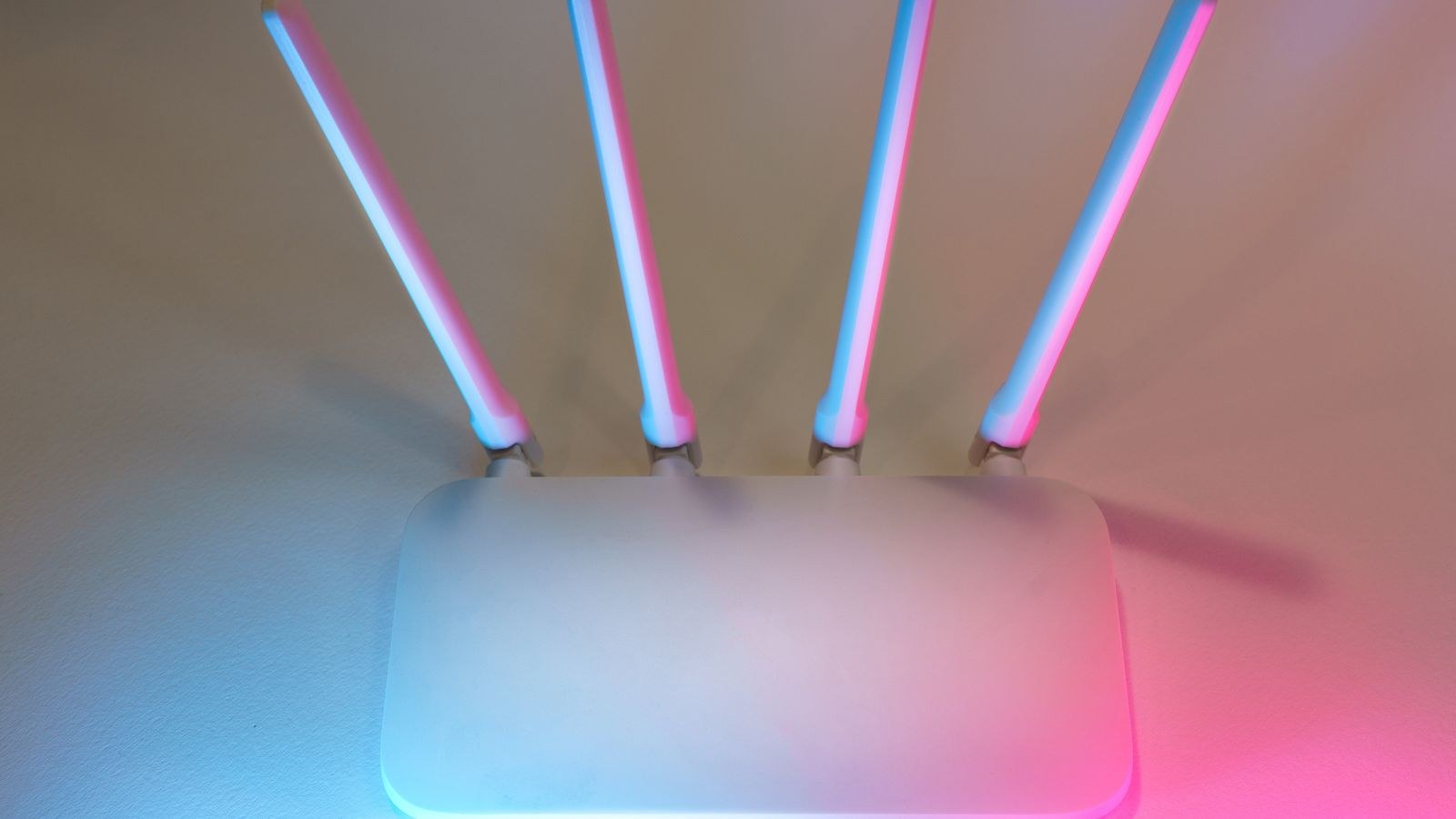
Placement fixes more overheating cases than any setting change. The ideal spot is central, elevated, open on all sides and away from heat sources such as radiators, amplifiers and kitchen appliances. A wall mount achieves all of that at once and has the bonus of improving coverage, since signal radiates outward rather than into a desk.
Avoid the temptation to hide the router in a cupboard for tidiness. Even a ventilated cabinet traps a pocket of warm air around the unit, and closing the door can raise internal temperature by 10 to 15C. If aesthetics matter, look at models designed to sit out in the open. Our guide to the best wall mountable routers covers units with proper keyhole mounts and side-venting cases, while the best quiet routers list is useful if you want a unit that cools passively without an audible fan in a bedroom or study.
Should You Add a Fan?
A small USB fan aimed at the router does work and is a reasonable stopgap in a hot loft or conservatory. Treat it as a temporary measure rather than a solution, though. If a router only stays stable with forced air, its passive cooling is no longer adequate, which usually means the unit is aging, badly placed or being asked to handle more devices than it was designed for. Never rest the fan on the vents themselves and never enclose the router and fan together in a box.
Load Is Heat: Check What the Router Is Doing
Every connected device, every active stream and every security feature costs processor cycles, and processor cycles become heat. A router that coped fine three years ago may now be juggling twice the number of smart plugs, cameras, phones and TVs. Log into the admin page and count active clients. If the number surprises you, that alone can explain a unit running at its thermal limit all evening.
Trim what you can. Remove devices that no longer exist from the DHCP reservation list, disable band steering if it is causing constant reassociation, and set cameras to record locally rather than uploading through the router around the clock. If the household genuinely needs that capacity, the answer is more capable hardware rather than a cooler cupboard, and our roundup of the best high performance routers covers units with larger heatsinks and processors that idle cooler under the same load.
Safety Notes
Do not open the router chassis to add thermal paste or drill extra holes. Consumer routers use mains-connected power supplies, and modifying the case invalidates safety certification as well as warranty. Never place anything on top of a router, never cover it with fabric, and replace any power adapter that hums, smells of hot plastic or has a cracked casing. Persistent burning smells or visible discolouration around the vents mean you should unplug the unit and stop using it.
Troubleshooting Persistent Drops
Still dropping after cleaning and repositioning
Test with the router in a genuinely cool room for a day. If it is stable there and unstable in its normal spot, the location is still too warm. If it drops in both, the fault is elsewhere: try a factory reset, then a different Ethernet cable and modem port.
Only the 5GHz band fails
That radio runs hottest and fails first. Lower its transmit power a step, choose a lower channel, and disable any 160MHz channel width setting, which is unusually power-hungry.
The router reboots itself repeatedly
Random reboots under load often point at a failing power adapter rather than the router itself. A worn adapter sags under demand and browns out the unit. Swapping in a correctly rated replacement is an inexpensive test.
Everything is fine until someone streams 4K
That is a capacity limit, not a cooling one. Sustained high throughput keeps the processor and radios at maximum, and an older unit simply cannot hold it. Prioritise the stream with QoS or move to hardware built for the load.
Common Mistakes to Avoid
- Putting the router in a cabinet for tidiness, which is the leading cause of thermal instability in homes.
- Stacking equipment so the modem or console heats the router from below.
- Blocking base vents by laying a vertical-design unit flat.
- Ignoring dust for years, then blaming the internet provider.
- Leaving unused features on, adding load and heat for no benefit.
- Assuming a warm router is faulty. Many run at 40 to 45C by design and are perfectly healthy.
Frequently Asked Questions
How hot is too hot for a router?
Casing temperatures up to about 45C are normal. Above 50C you should improve airflow, and a case you cannot hold your hand against needs attention immediately.
Does overheating permanently damage a router?
Sustained heat shortens the life of capacitors and flash memory, so a unit that has cooked for years may become unreliable even after you fix the airflow.
Is it safe to leave a router on all the time?
Yes, provided it is well ventilated. Routers are designed for continuous operation, and constant power cycling causes more wear than steady running.
Will a newer router run cooler?
Often yes. Newer chipsets are more efficient per unit of throughput and modern cases use larger heatsinks. Comparing options in our best Wi-Fi routers and best routers for home networks guides is a sensible next step once a unit is past five years old.
Final Thoughts
Heat-related dropouts feel mysterious because they follow the rhythm of the day rather than anything you did. Once you recognise the pattern, the cure is refreshingly low-tech: clean the vents, give the unit space on every side, stand it upright or mount it on a wall, keep it away from sun and other warm electronics, and switch off the features nobody uses. Retest under real load and note whether the evening slump disappears. If the router still overheats in an open, shaded, dust-free position, you have learned something useful, because that points at aging hardware, a tired power adapter or a household that has simply outgrown the device. Either way you will have spent nothing to find out, and a router that runs cool will stay stable and last noticeably longer.










