
 Owen Bradley
 Some rooms are simply out of reach for Wi-Fi. A converted loft, a garden office, a basement with a concrete ceiling, or a bedroom at the far end of a long Victorian terrace will defeat almost any router, and running Ethernet through the walls is not always practical or permitted. Powerline adapters offer a middle path: they carry a network signal over the electrical wiring already in your walls, giving you a wired socket in a room that has no data cabling. Done properly, a powerline adapter setup is one of the most reliable fixes for a distant room. Done carelessly, it delivers a fraction of the advertised speed. This guide covers the whole process and the placement rules that decide which outcome you get.
How Powerline Networking Works
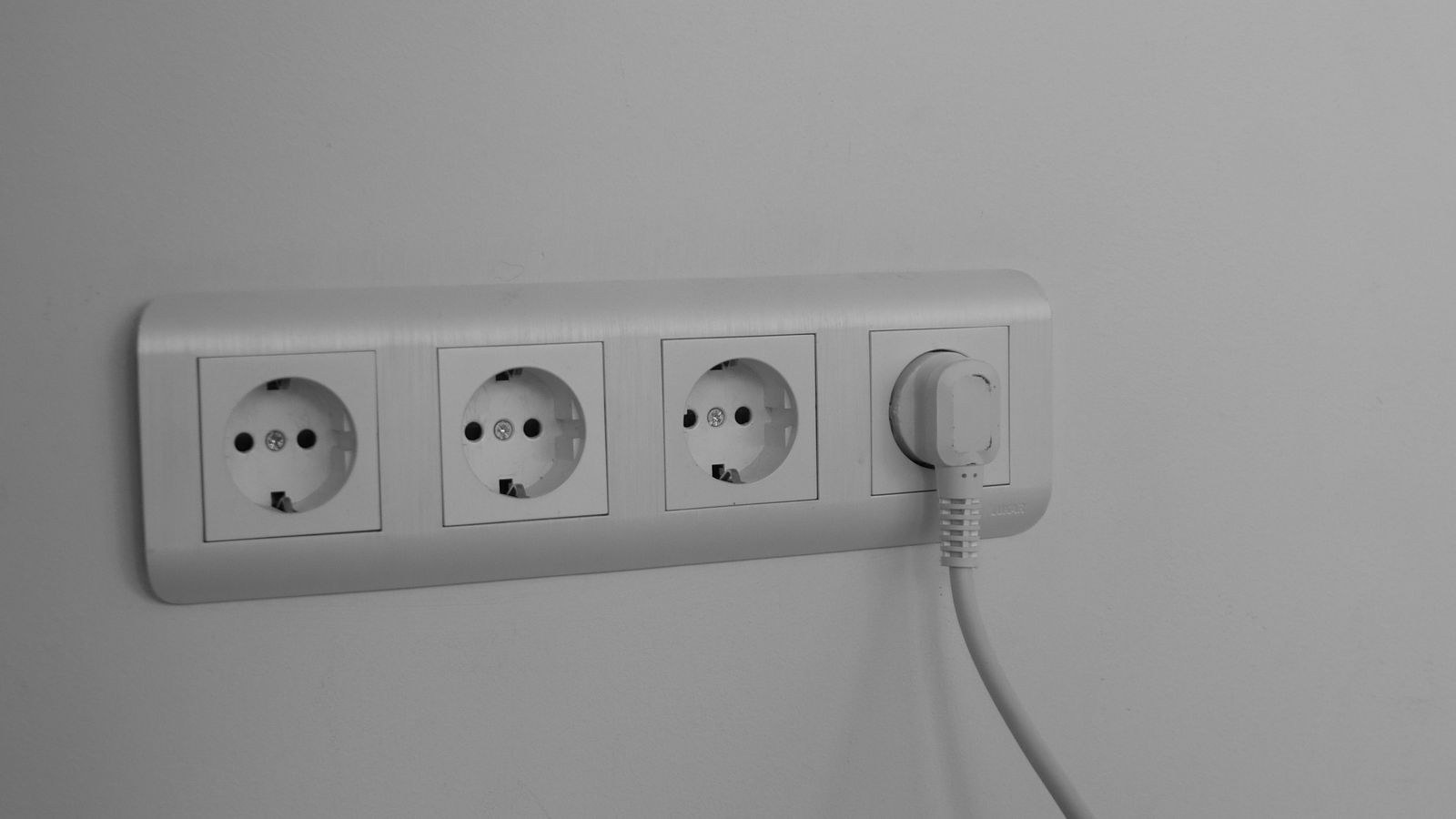
A powerline kit contains at least two adapters. One plugs into a wall outlet near your router and connects to it with an Ethernet cable. The other plugs in wherever you need the connection. The pair modulates network data onto a high-frequency signal that rides along the live and neutral conductors of your household wiring, and each adapter demodulates it back into standard Ethernet at the other end.
That physical layer is the source of both the appeal and the caveats. Electrical wiring was never designed to carry data, so noise from appliances, the age and quality of the cabling, and the route the signal must take all affect throughput. The headline numbers on the box, figures like 1200 or 1800, refer to theoretical combined modulation rates across all conductors. Real-world throughput on a good installation is typically somewhere between a quarter and a half of that, and a well-placed kit rated at 1000 will comfortably carry 4K streaming, video calls and general work traffic.
Before You Start: What You Need
- A powerline kit of at least two adapters, ideally rated 1000 or higher and with a pass-through socket.
- Two Ethernet patch cables, Cat5e or Cat6. Short ones are fine.
- A free wall outlet at each end. Not an extension lead.
- A laptop or phone for speed testing.
- A paperclip or pen tip, since the pair button is often recessed.
Check one thing before buying: both outlets should be on the same electrical consumer unit, ideally the same circuit. Powerline signal crosses between circuits on the same phase reasonably well, but crossing between phases, or between separate meters in a converted flat, usually fails outright.
How to Set Up Powerline Adapters
- Start both adapters in the same room. Plug them into two adjacent wall outlets near the router for the initial pairing. Pairing over a short, clean path is far more reliable than doing it across the house, and you can move them afterwards without losing the link.
- Connect the first adapter to your router. Run an Ethernet cable from any free LAN port on the router to the adapter’s Ethernet socket. Leave the router’s other connections alone.
- Wait for the power LED on both units to go solid. Most adapters take 30 to 60 seconds to boot. Do not press anything while a light is still blinking.
- Press the pair button on the first adapter. Hold it for one to two seconds unless the manual says otherwise. A security or pair LED will begin flashing. You now have a short window, usually about two minutes, to pair the second unit.
- Press the pair button on the second adapter within that window. Both units will negotiate an encrypted link. When the powerline LED on each goes solid, they are paired. This LED is the one to watch for the rest of the setup, because it also indicates link quality.
- Move the second adapter to its destination room. Plug it directly into a wall outlet, then connect its Ethernet port to your device, access point or switch.
- Check the link-quality LED. Most adapters use colour coding: green for a strong link, amber for usable, red for poor. If it is amber or red, try other outlets in the same room before accepting the result. Moving one socket along a wall can change throughput dramatically.
- Test the actual speed. Run a speed test on a device wired to the remote adapter, then compare it against the same test run next to the router. Also test a large local file transfer if you have a NAS, since that measures the powerline link itself rather than your internet connection.
- Secure and tidy. If your kit supports it, set a custom network password via the pair button sequence or the manufacturer’s utility, which stops a neighbour on the same supply from joining. Then dress the Ethernet cables neatly so the adapters are not hanging under tension.
Placement Rules That Decide Your Speed
Powerline performance is dominated by where you plug the adapters in. Four rules matter more than the model you bought.
- Wall outlets only, never extension leads or surge strips. Surge protection filters exactly the high-frequency signal powerline uses, and will often reduce a link to unusable. If you must share the socket, buy an adapter with a filtered pass-through outlet on its face.
- Keep them off shared sockets with noisy loads. Motors, chargers, LED drivers, vacuum cleaners, tumble dryers and dimmer switches all inject electrical noise. An adapter sharing a double socket with a phone charger can measurably lose throughput.
- Prefer outlets on the same circuit. The shorter and more direct the electrical path, the better. A link between two upstairs sockets on the same ring will beat one that travels down to the consumer unit and back up a different circuit.
- Avoid the far side of an RCD or sub-board where possible. Signal attenuates crossing protective devices, and outbuildings fed from a separate supply are usually a dead end.
Spend ten minutes trying three or four different outlets in the destination room. It is common to see throughput double between two sockets in the same room, and that free experiment beats upgrading to a more expensive kit.
Extending the Network at the Far End
A single Ethernet port at the remote adapter is often not enough. Two easy expansions solve that. Plug a small unmanaged switch into the adapter and you gain several ports for a desktop, console, printer and TV, all sharing the powerline link. Our roundup of the best network switches covers compact fanless models suited to a living room or study.
Alternatively, connect an access point or a Wi-Fi powerline adapter to create a strong wireless zone in the far room. This is genuinely different from a wireless repeater, because the backhaul travels over the mains rather than halving your wireless bandwidth. If you are weighing the options, our comparison of the best internet extenders explains where powerline, mesh and repeaters each make sense, and our guide to fixing Wi-Fi dead zones covers the diagnostic steps to run before you spend anything at all.
Troubleshooting a Powerline Link
The adapters will not pair. Return both to sockets in the same room and retry. If they still refuse, hold the pair button for around ten seconds on each to factory reset, wait for a reboot, then pair again from scratch.
The link LED is red or the connection keeps dropping. Almost always noise or a poor electrical path. Move to a different outlet, unplug nearby chargers and appliances one at a time to identify the culprit, and make sure neither adapter is on an extension lead.
Speeds are far below expectations. Confirm you are testing the link and not your internet connection. If your broadband is 100 Mbps and the powerline link carries 300 Mbps, a speed test will report 100 and nothing is wrong. Test with a local file transfer to see the true link rate.
It works but drops every evening. Look for a timed load: a heat pump, immersion heater, EV charger or lighting circuit on a timer. Relocating one adapter away from that circuit usually fixes it.
No connection at all in an outbuilding. Check whether the building is fed from a separate consumer unit or supply. If so, powerline will not bridge it and you need a buried Ethernet run or a point-to-point wireless bridge instead.
Common Mistakes
- Plugging into a surge-protected strip. The most common single mistake, and it can cut throughput to near zero.
- Pairing across the house on the first attempt. Pair adjacent, then relocate.
- Leaving the default network password. On shared supplies, an unpaired neighbour’s kit can occasionally join. Set a custom key.
- Judging the kit by the number on the box. Advertised rates are theoretical maximums, not achievable throughput.
- Buying a kit when the router is the real problem. If Wi-Fi is weak everywhere rather than in one room, a better router will help more. Our lists of the best routers for home and the best Ethernet routers are the place to check that first.
- Ignoring the link LED. It is the fastest diagnostic you have and most people never look at it after the first day.
Frequently Asked Questions
How many powerline adapters can I use on one network?
Most kits support up to eight or sixteen units on the same powerline network, but they share the available bandwidth. Three or four is a practical limit before performance suffers noticeably.
Do powerline adapters work in older houses?
Often yes, sometimes better than expected, because older ring circuits are electrically simple. Very old rubber-insulated wiring and heavily subdivided flats are the situations most likely to disappoint.
Will a powerline adapter give me full gigabit speeds?
No consumer kit delivers a sustained gigabit over mains wiring. Expect roughly 100 to 400 Mbps of real throughput on a good link, which is ample for streaming, gaming and video calls.
Are powerline adapters secure?
They use AES encryption once paired, which is adequate for home use. Set a custom network key rather than relying on the default if you share a building supply.
Should I use powerline or mesh Wi-Fi?
Use powerline when you need a wired connection in one specific distant room, or when walls block wireless entirely. Use mesh when you need good coverage everywhere. Combining the two, with powerline as the backhaul to a mesh node, works very well in awkward buildings.
Final Thoughts
Powerline networking rewards careful placement more than expensive hardware. Pair the adapters side by side, plug them straight into wall sockets, keep them away from surge strips and noisy appliances, and test several outlets in the destination room before settling. Watch the link LED, verify throughput with a local transfer rather than a speed test, and add a small switch or access point at the far end if you need more than one device connected. Get those basics right and a room that has never held a stable connection becomes as dependable as one wired directly to the router.










