
 Owen Bradley
 Cloud gaming shifts the hard work to a remote server, which sounds like it should make your home network’s job easier. In practice it makes the network the entire experience. Every button press has to travel to a data center and every frame has to travel back, so latency, jitter and packet loss matter far more than raw bandwidth. A connection that streams 4K movies flawlessly can still feel like mush in a shooter. This walkthrough shows how to set up your network for cloud gaming properly, with realistic targets, a tuning order that works, and the settings that actually move the needle in 2026.

The Numbers You Are Actually Aiming For
Before changing anything, understand the targets. Bandwidth requirements are modest by modern standards: roughly 15 Mbps for 1080p60 and around 35 Mbps for 4K on most services. Almost any current broadband plan clears that. What separates a great session from an unplayable one is the quality of that bandwidth.
- Latency to the nearest data center: under 40 ms feels excellent, 40 to 60 ms is comfortable for most genres, and above 80 ms becomes obvious in fast-paced play.
- Jitter: keep variation under 5 ms. Jitter causes the stutter and rubber-banding people mistake for lag.
- Packet loss: anything above 0.5 percent produces visible artifacts and audio dropouts. Zero is the goal.
- Latency under load: this is the one most people never measure and the one that ruins evenings. Your idle ping means little if it triples when someone starts a download.
What You Need
Have your router login ready, an Ethernet cable if wiring is feasible, a device that can run a browser-based latency and bufferbloat test, and the cloud gaming client you plan to use. Set aside about 45 minutes, most of it spent testing between changes rather than making them.
Step-by-Step Network Setup
-
Find your nearest data center and measure baseline latency. Most cloud gaming services show a network test inside the app that reports ping, jitter and estimated quality. Run it three times across the day and record the results. If your service does not offer one, ping the nearest major cloud region from a command line. This baseline tells you whether your problem is local or geographic.
-
Wire the client device if you possibly can. Ethernet eliminates wireless retransmission, interference and airtime contention in one move, and it typically cuts jitter to near zero. Run a cable from the PC, console, or TV device straight to the router. Verify the link came up at gigabit speed rather than 100 Mbps, which usually means a damaged cable.
-
If you must go wireless, use 5 GHz or 6 GHz only. Lock the gaming device to the higher band rather than letting band steering move it around mid-session. The 2.4 GHz band is crowded, slow to recover from interference, and shared with microwaves, Bluetooth peripherals and neighbors. Also disable any battery-saving or power-management setting on the wireless adapter, since those introduce microsleeps that show up as periodic hitching.
-
Choose a clean channel and sensible width. Scan for the least congested 5 GHz channel and set it manually instead of trusting auto-select, which can rescan and switch channels mid-game. Use an 80 MHz channel width for a good balance of throughput and resilience; 160 MHz sounds better but is more vulnerable to interference and radar-driven channel changes.
-
Test for bufferbloat and enable smart queueing. Run a latency-under-load test. If ping climbs from 25 ms idle to 200 ms or more while a download runs, bufferbloat is your dominant problem. Enable SQM, Adaptive QoS, or Smart Queue Management in the router, setting the download and upload limits to about 90 percent of your measured speeds. Retest. A properly configured queue holds latency nearly flat under full load, and the difference in a cloud gaming session is dramatic.
-
Give the gaming device a static lease and a QoS priority. Reserve a fixed IP for the device in the router’s DHCP table, then create a QoS rule prioritizing that address. Prioritizing by device is more reliable than prioritizing by application, because cloud gaming traffic often looks like ordinary video to a router’s classifier.
-
Reduce competing traffic on a schedule. Move cloud backups, console and PC updates, and security camera uploads to overnight windows. On the gaming device itself, close background downloads and pause any sync clients. These are the single most common cause of a session that was perfect yesterday and unplayable today.
-
Tune the client’s own settings. Most cloud gaming apps let you cap resolution and frame rate or choose a bitrate. Counterintuitively, setting a fixed moderate bitrate often feels better than letting the service chase the maximum, because adaptive algorithms overshoot and then correct, and every correction is a visible hitch. Enable any “prefer low latency” or reduced-buffer option the client offers.
-
Fix the last few milliseconds at the display. Turn on game mode on the TV or monitor to bypass image processing, which can add 30 ms or more all by itself. Use a wired or low-latency wireless controller connected directly to the client device rather than through a hub. These changes do not touch the network but they change how the network feels.
-
Retest everything and record the result. Run the service’s network test again, then play a real session for twenty minutes while someone else streams video in another room. That combined test is the honest one. Note your final numbers so you have a reference if things degrade later.
When You Need Better Hardware
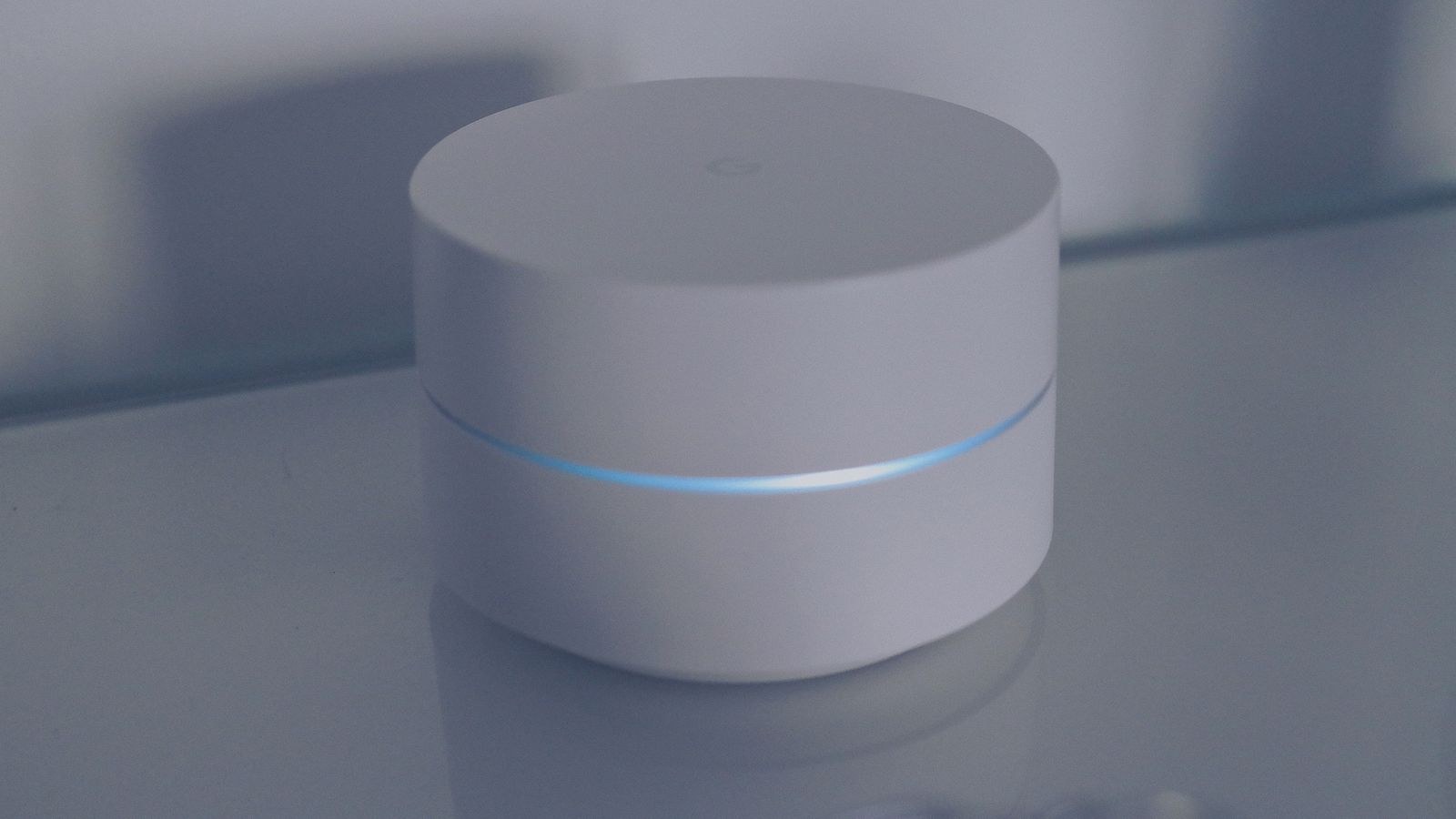
Routers that shipped with older firmware often lack any real queue management, and their QoS implementations can cap throughput badly when enabled. If turning on QoS halves your speed, the processor cannot keep up, and no amount of tuning will fix that.
Look for hardware with a competent shaping engine and stable wireless. Our roundup of the best gaming routers covers models built around latency rather than headline speed figures, while the best QoS routers guide focuses specifically on units whose traffic prioritization holds up when the network is busy. Competitive players who care about the last few milliseconds should compare the best routers for esports, and anyone streaming at maximum quality can check the best routers for 4K gaming list for models with the throughput headroom to sustain high-bitrate sessions. For the reasoning behind why certain hardware helps at all, our explainer on how a gaming router reduces lag is worth reading before you spend anything.
Mesh Systems and Cloud Gaming
Mesh networks are convenient but every wireless hop adds latency, typically 5 to 15 ms per jump. If your gaming device connects through a satellite node, you are paying that cost on every frame. Where possible, connect the gaming device to the main router, or use a wired backhaul between nodes so the mesh link itself is not wireless. A wired backhaul mesh performs nearly as well as a single router for this purpose.
Stability and Safety Notes
Back up your router configuration before enabling QoS or changing channels, so a bad result is one restore away from undone. If you update firmware, do it over a wired connection and never interrupt the process. Keep the router in open air rather than a closed cabinet, because a throttling router produces intermittent latency spikes that look exactly like ISP problems and are far harder to trace.
Troubleshooting Guide
- Smooth then suddenly stuttery. Another device started uploading, or wireless band steering moved you to 2.4 GHz. Check both.
- Constant soft blur but no stutter. The service dropped bitrate because it detected loss. Look for interference or a marginal cable.
- Input feels delayed but video looks perfect. Display processing or controller connection, not the network. Enable game mode first.
- Great in the morning, poor after 8pm. Neighborhood or ISP congestion. Queue management helps; a plan change may not.
- Everything is fine except one game. That title’s own server region, not your home network.
Common Mistakes
The most expensive mistake is upgrading to a faster internet plan to fix latency. Cloud gaming needs consistency, not capacity, and doubling a plan you were never saturating changes nothing. Measure latency under load before you spend a cent.
The second is enabling every optimization at once, which makes it impossible to know what helped. Change one thing, test, record, move on. The third is trusting a standard speed test, which reports idle ping and ignores the loaded latency that actually determines how a session feels. The fourth, and the one that catches careful people, is leaving the gaming device on a mesh satellite because the signal bars look full. Signal strength and latency are different things, and cloud gaming only cares about the second one.
Frequently Asked Questions
How much internet speed do I really need?
About 15 Mbps for 1080p60 and around 35 Mbps for 4K. Beyond that, extra speed brings no benefit. Spend your attention on jitter and latency instead.
Is Wi-Fi 6 or 6E worth it for cloud gaming?
Yes, if you cannot run Ethernet. Both handle congestion far better and 6 GHz in particular is usually empty, which means dramatically lower jitter. Wired still wins, but the gap narrows considerably.
Does a VPN help or hurt?
Nearly always hurts. A VPN adds a detour and extra encryption overhead, raising latency. The rare exception is when an ISP routes badly to a specific data center, and that is worth testing before assuming.
Why does my ping look fine but gameplay feels bad?
Because idle ping is not the number that matters. Test latency while the connection is loaded, and check jitter. A connection averaging 30 ms with 40 ms of jitter feels worse than a steady 60 ms.
Final Thoughts
A network built for cloud gaming is one that stays boring under pressure. Wire the client, keep it on a clean high band if you cannot, turn on real queue management so latency does not balloon when the house gets busy, and give the device a reserved address with priority. Those four steps deliver most of the benefit for free. If your router collapses whenever you ask it to shape traffic, that is the piece to replace, and it will improve every other connected device at the same time.










