
 Owen Bradley
 Code is a tall, narrow thing. Documentation is a tall, narrow thing. Log files, terminal output, code review diffs, chat threads and pull request comments are all tall, narrow things, and yet almost every developer stares at them through a wide, short window. Rotating a display ninety degrees fixes that mismatch instantly. A vertical monitor setup can show roughly twice as many lines of code at the same font size, which means less scrolling, fewer lost mental threads and a much better view of how a function is actually structured. This guide walks through choosing the right panel, mounting and rotating it safely, fixing the orientation in Windows and macOS, and arranging it beside your main display so the whole desk works as one surface.
Why Developers Rotate a Screen
The practical gain is line count. A 27-inch 1440p display shows around 45 to 55 lines of code in landscape at a comfortable font size. Rotate it and the same panel shows 90 to 110. Whole classes, entire config files and long stack traces fit on one screen, so you stop scrolling to hold context in your head.
The secondary gain is separation of concerns. Most developers end up with a natural division: the wide primary screen holds the editor and its side panels, while the vertical screen holds whatever they need to read rather than edit. Documentation, API references, a running terminal, the browser console, a Slack channel and a long CI log all suit a tall column far better than a wide one. That split reduces window shuffling more than raw pixel count does.
There is an ergonomic upside too. A vertical panel is narrow, so your eyes travel less horizontally than they do across a very wide screen, and the top of the panel sits higher, which discourages the slumped posture that comes from looking down all day.
Choosing a Panel That Works Vertically
Not every monitor is a good candidate. Four things decide it.
Panel Type Matters More Than Usual
Rotating a screen turns its horizontal viewing angle into its vertical one, and vice versa. On a VA or TN panel, that swap is brutal: the narrow vertical angle becomes the horizontal one, so colours and brightness shift noticeably from the top of the column to the bottom when you sit close. IPS panels have wide angles in both axes and handle rotation with almost no visible shift, which is why they dominate the shortlist for this job. Purpose-built options in the roundup of the best vertical monitors are overwhelmingly IPS for exactly this reason.
Size and Aspect Ratio
Bigger is not automatically better here. A 32-inch panel turned on its side becomes a tower over 27 inches tall, which forces constant neck movement to read the top and bottom. The sweet spot for most desks is 24 to 27 inches at 16:9, which gives a portrait column roughly 21 to 24 inches tall. Ultrawide monitors make poor vertical screens because the resulting column is absurdly tall and very narrow. Many of the 27-inch panels listed among the best monitors for home office desks land right in this range.
Resolution and Text Clarity
Text sharpness is the whole point, so pixel density matters. A 24-inch 1080p panel in portrait is usable but the characters are visibly coarse. A 27-inch 1440p panel is the practical minimum for crisp code, and 4K at 27 inches is excellent if your machine drives it comfortably. Displays covered in guides to the best monitors for developers tend to cluster in that density range for exactly this reason.
Bezels and the Stand
Thin bezels matter more in a multi-screen arrangement, because the gap between panels sits right in your working line of sight. Check the stand specification for pivot support, sometimes listed as rotation or portrait mode, plus height adjustment. A stand that pivots but does not raise is nearly useless, because a rotated panel needs to be dropped low for its centre to line up with your eyes.
How to Set Up a Vertical Monitor Step by Step
- Check the mounting options first. Confirm the stand pivots, or that the back of the monitor has a VESA pattern, usually 75x75mm or 100x100mm. If it has neither, a rotating desk mount is not an option and you will need a different panel.
- Clear the desk and lower the stand. Drop the monitor to its lowest height before rotating. Many stands physically collide with the desk if you try to pivot at full extension, and forcing it is how arms get bent.
- Rotate the panel. Hold the display by its edges, not the screen face, and turn it ninety degrees in the direction the stand allows. Some stands rotate one way only, and there is usually an arrow or a stop. It should move with steady, even resistance and never require force.
- Route the cables before you finalise position. Rotation changes where the ports point, and a video cable that was comfortably slack in landscape can end up stretched or sharply bent. Give it a gentle loop and secure it so the plug is not carrying the cable’s weight.
- Set the orientation in the operating system. In Windows, open Settings, go to System then Display, click the monitor you rotated, and change Display orientation to Portrait or Portrait (flipped) depending on which way you turned it. On macOS, open System Settings, choose Displays, select the panel and pick the matching rotation. On most Linux desktops the same setting lives in the display panel, or you can use xrandr with the –rotate flag.
- Fix the arrangement diagram. In the same display settings, drag the on-screen rectangles so they match the physical layout on your desk. Align the vertical panel’s centre with the primary display’s centre so the mouse crosses between them without jumping.
- Adjust scaling for readability. A high-density portrait panel often needs a different scaling percentage than your main screen. Set each display independently and pick the level where code is comfortable at arm’s length rather than the level that fits the most text.
- Set the physical height and tilt. The top of the vertical panel should sit no higher than a few inches above eye level, and the whole column should tilt back slightly at the top so the surface stays roughly perpendicular to your line of sight from top to bottom.
- Recalibrate colour if you do visual work. Rotation does not change the panel, but it does change how uniformity reads to your eye. If you design as well as code, run through the monitor’s picture settings again after mounting.
Arranging It Next to Your Main Display
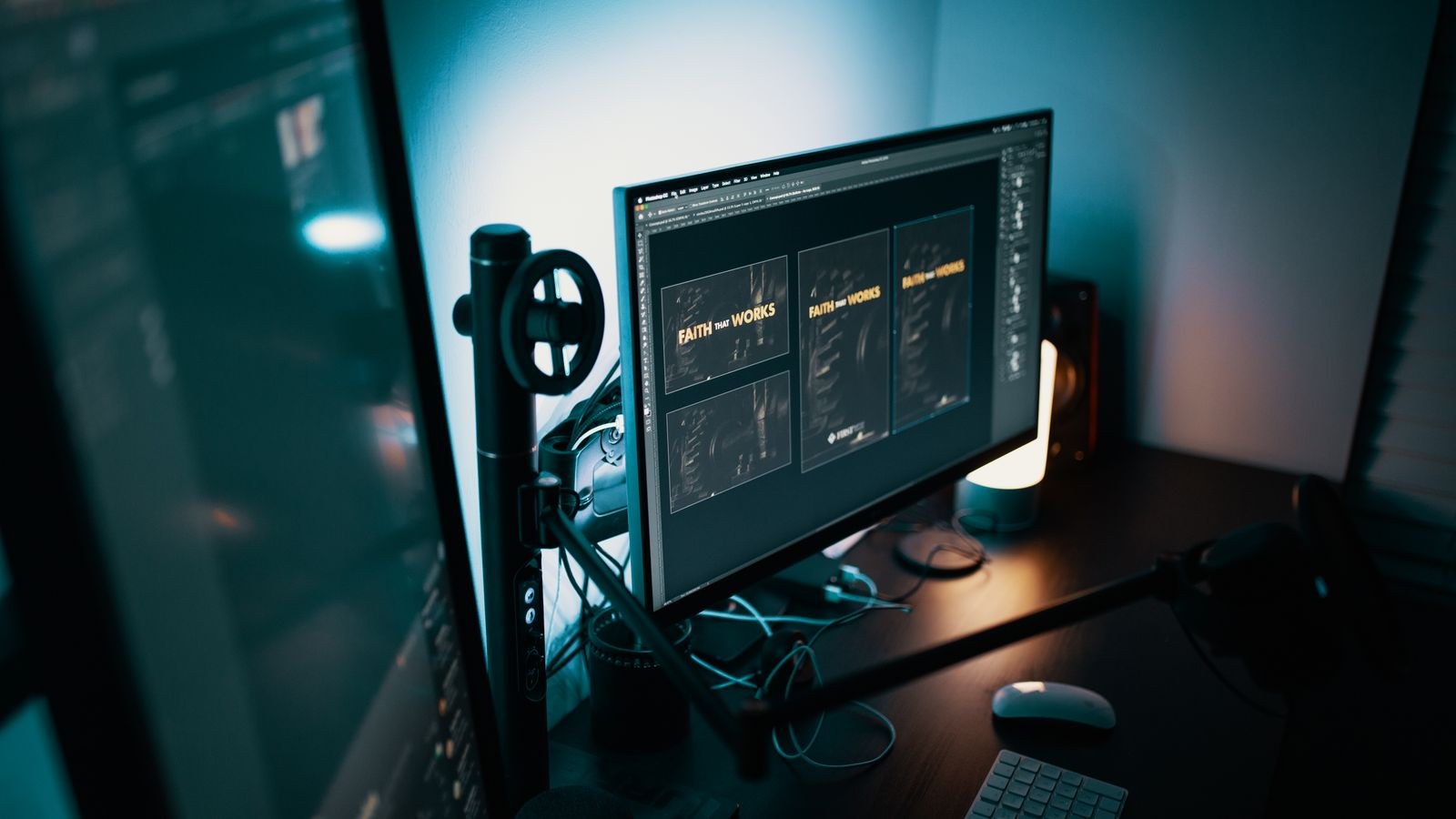
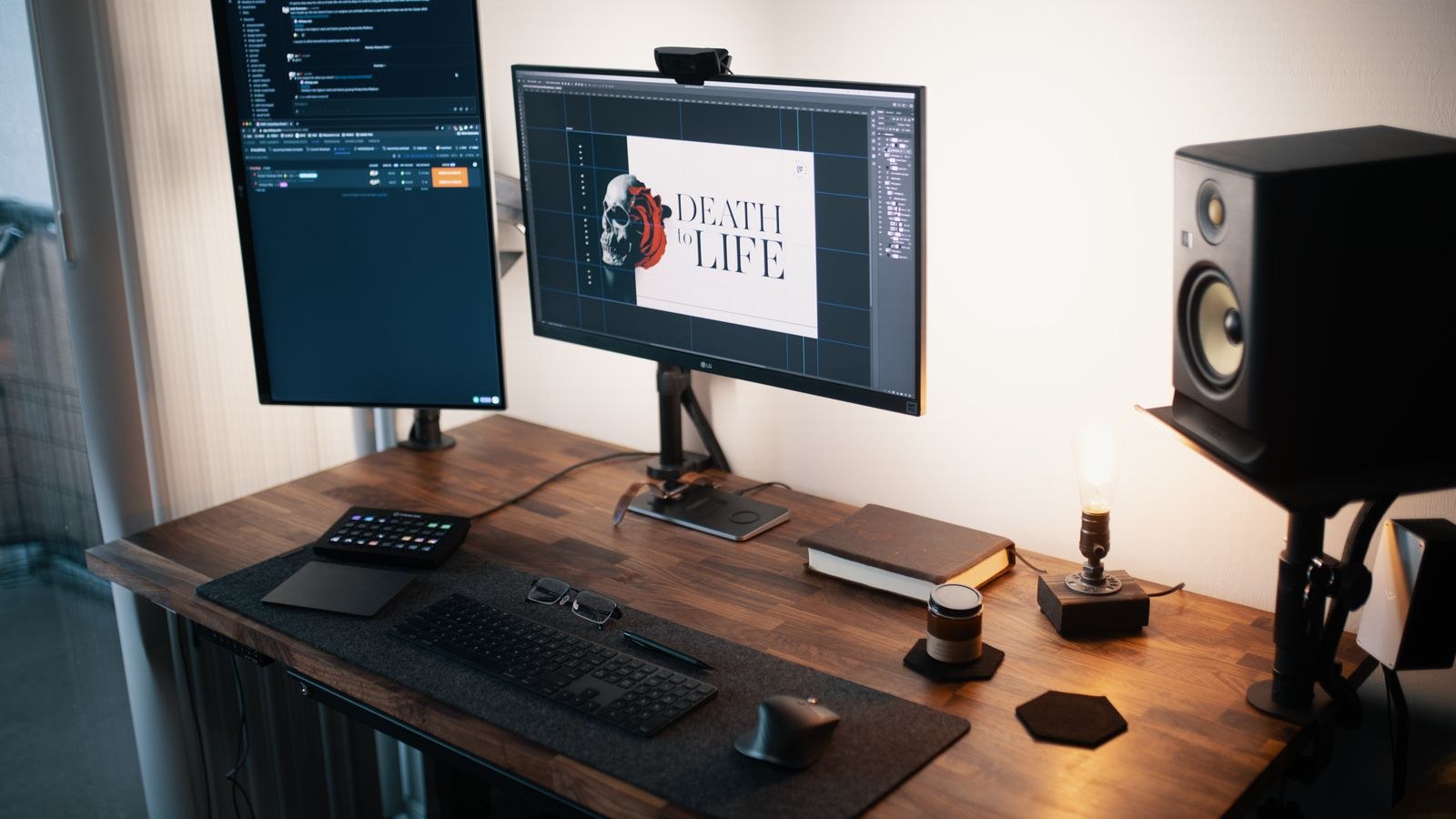
The standard arrangement puts the wide primary display directly in front of you and the vertical panel to one side, angled inward by fifteen to thirty degrees so it faces you rather than the wall. Which side depends on handedness and habit; most right-handed developers park it on the right, next to the mouse hand, but if the vertical screen holds reference material you glance at constantly, the left side matches natural reading direction better.
Height alignment is where most setups go wrong. Because the rotated panel is so tall, matching the tops of both monitors pushes the vertical screen’s bottom third below the desk edge sightline. Align the vertical centres instead. If your stand cannot go low enough, a monitor arm solves it in a way no stand can, and it also frees the desk space underneath. Broader arrangement advice in guides to the best dual monitor setups applies equally here, since a landscape-plus-portrait pair is just an asymmetric dual configuration.
Do not neglect what actually goes on the screen. The setup only pays off if you assign it consistent jobs. Common choices include a permanently open terminal on the bottom half with documentation on top, a full-height file tree and diff view during code review, or logs streaming on one side while you work. Tiling window managers and the built-in snap layouts in Windows make this trivial. If you routinely juggle many contexts at once, the panels featured in roundups of the best monitors for multitasking pair well with a portrait screen for reading.
Troubleshooting Common Problems
- The rotation option is greyed out. This is almost always a graphics driver issue. Install the current driver from the GPU manufacturer rather than relying on the generic display adapter Windows installs by default.
- Text looks blurry after rotating. Subpixel rendering assumes a horizontal RGB stripe, which rotation breaks. On Windows, run the ClearType tuner again after rotating. On macOS, the effect is milder but a higher-density panel hides it entirely.
- Colours shift from top to bottom. That is the panel’s viewing angle limitation showing, and it means you have a VA or TN screen. Sitting further back reduces it, but only an IPS panel truly fixes it.
- Games or full-screen apps open sideways. Set the landscape monitor as the primary display in your OS settings so full-screen software defaults there.
- The mouse snags at the screen edge. The arrangement diagram does not match reality. Drag the rectangles until the shared edge lines up with where the panels actually meet.
- The stand sags over time. A rotated panel shifts the centre of mass, and some tension springs are not rated for it. Tighten the adjustment screw or move to a gas-spring arm.
Mistakes to Avoid
The most common error is rotating a screen that is simply too large, ending up with a column that forces you to move your head vertically all day. The second is leaving the panel at landscape height, so half of it is uncomfortably high. The third is choosing portrait mode for work that does not benefit; spreadsheets, video timelines and wide diff views are all worse in portrait, so keep those on the landscape screen. Finally, do not rotate a monitor by twisting it while it is still at full stand height, which is the single most reliable way to crack a hinge.
Frequently Asked Questions
Does a vertical monitor need special hardware?
No. Any monitor with a pivoting stand or a VESA mount plus a rotating arm will work, and the operating system handles the rest in software. The only real requirement is a panel whose viewing angles survive the rotation.
Will rotating a monitor damage it?
Not if the stand is designed to pivot. Rotating a panel by hand on a fixed stand puts stress on the mount and the hinge, so use a VESA arm instead of forcing it.
Should the vertical screen be my primary display?
Usually not. Keep the landscape monitor as primary so full-screen applications, games and system dialogs open in the orientation they expect.
Final Thoughts
A vertical monitor is one of the cheapest meaningful upgrades a developer can make, because it does not need a faster machine or a new graphics card, just a panel that pivots and five minutes in display settings. Pick an IPS screen between 24 and 27 inches, mount it low enough that its centre meets your eye line, align it in software so the cursor flows naturally, and give it a consistent job such as documentation, terminal or logs. Do that and the extra fifty lines of visible code stop being a novelty and become the part of the setup you miss most when you work anywhere else.










