Owen Bradley
 There are few desk annoyances quite like a dock that drops out. Your monitors blink to black, every window stampedes onto the laptop screen, the external drive dismounts with a warning, and ten seconds later everything comes back exactly where it should not be. Do that five times a day and the single-cable desk stops feeling like an upgrade. The good news is that a USB-C dock that keeps disconnecting almost always fails for one of a handful of reasons: power delivery, firmware, cabling, port negotiation, or heat. This guide works through them in the order most likely to find your fault fastest, starting with the checks that cost nothing.

First, Identify What Is Actually Dropping
Before changing anything, watch carefully during the next disconnect and note what fails. The pattern narrows the cause dramatically.
- Everything drops at once, including charging. Points at the dock’s own power supply or the USB-C connection itself.
- Only the displays drop. Suggests a video negotiation or bandwidth issue rather than a whole-dock failure.
- Only USB devices drop. Often a power draw problem from bus-powered peripherals, or a controller power-saving setting.
- Only network drops. Usually the dock’s ethernet adapter driver or its own power management.
- It happens when you move or touch the desk. Almost certainly a physical connector or cable fault.
- It starts after twenty or thirty minutes. Points strongly at heat.
Start With Power Delivery
Insufficient power is the leading cause of intermittent docks, and it produces exactly the symptom people report: everything works fine until you do something demanding, then the whole dock resets.
- Use the dock’s own mains adapter. If your dock shipped with a power brick, it needs it. A bus-powered hub driving displays and drives will disconnect under load sooner or later.
- Check the adapter wattage against the load. A dock that charges your laptop and runs peripherals needs enough headroom for both. A 65W supply feeding a laptop that wants 90W leaves nothing for the rest.
- Plug the dock into the wall. Remove extension leads and surge strips from the equation while testing, since a marginal outlet or overloaded strip can cause resets.
- Unplug bus-powered peripherals. Portable drives, unpowered hubs and charging phones all draw from the same budget. Disconnect them and see whether stability returns.
- Watch for charging that stops and starts. If your laptop repeatedly announces it is charging then not charging, the power negotiation itself is failing rather than the data connection.
- Test with the laptop already fully charged. A depleted battery demands maximum power delivery and can push a marginal supply over its limit.
Then Check the Cable and the Port
USB-C cables look identical and are not. A cable rated for charging alone may carry power perfectly while failing to sustain the high-speed lanes video and data need, and it will often work briefly before dropping.
- Use the cable the dock came with. Manufacturers supply a cable rated for their dock’s full bandwidth. Swap back to it before blaming the hardware.
- Keep it short. Beyond about 1 metre, passive high-speed USB-C cables become unreliable. Longer runs need certified active cables.
- Inspect both connectors. Look for bent shells, discoloured pins or grit in the port. Lint compacted in a laptop port is a genuinely common cause of intermittent contact.
- Clean the port carefully. With the machine powered off, use a wooden or plastic pick and gentle compressed air. Never use anything metal.
- Wiggle test. With the dock connected, gently move the cable at each end. If the connection drops, you have found a physical fault in the cable or the port.
- Try the other USB-C port. Ports on the same laptop can behave differently, and one may be data-only or wired to a different controller.
- Check the strain. A cable pulled taut across a desk edge slowly damages the connector. Route it with slack.
Because a whole desk’s worth of peripherals depends on this one connection, cable quality matters throughout the chain. Roundups such as the best USB-C keyboards and the best USB-C mouse options are useful when replacing devices whose own cables have become suspect.

Update Firmware and Drivers
Docks are small computers, and their firmware handles the negotiation that decides how much power, video and data flow across the link. Buggy negotiation is common on new hardware and is fixed quietly through updates that nobody tells you about.
- Update the dock firmware. Find your exact model on the manufacturer’s support page and run their updater. Do this on mains power and do not disconnect midway.
- Update graphics drivers. Display dropouts are frequently a graphics driver issue rather than a dock issue, particularly after an operating system upgrade.
- Update chipset and USB controller drivers. On Windows laptops these come from the laptop manufacturer, not the operating system update service.
- Reinstall DisplayLink software if applicable. If your dock uses DisplayLink, a clean reinstall of the current driver resolves a large share of dropout complaints.
- Install pending system updates. USB-C and Thunderbolt handling is patched regularly at the operating system level.
- Reboot properly. A full shutdown rather than a sleep and wake clears a stuck controller state that a restart may not.
Turn Off Power Saving on USB Controllers
Operating systems aggressively suspend USB devices to save battery, and a dock that gets suspended mid-session looks exactly like a hardware failure. On Windows, open Device Manager, expand Universal Serial Bus controllers, and for each USB Root Hub and Generic USB Hub open Properties, go to Power Management, and clear the option allowing the computer to turn the device off. Do the same for the network adapter the dock provides. Then open your power plan’s advanced settings and disable USB selective suspend. On a laptop it is worth setting this for both battery and plugged-in profiles while you diagnose, since a dock that only misbehaves on battery has told you exactly what the problem is.
Rule Out Heat
A dock that works perfectly for the first half hour and then starts dropping is almost certainly overheating. These units pack a controller, a power stage and often an ethernet chip into a small aluminium shell with no fan, and they rely entirely on that shell radiating heat away.
Give it air. Move the dock off a soft surface, out from under a laptop, and away from the back of a monitor. Do not stack it under books or wedge it between the desk and the wall. If it sits inside a cable tray or a closed drawer, bring it out. Aluminium docks are designed to run warm to the touch, but a unit hot enough to be uncomfortable is throttling or resetting. Vertical placement on a small stand, with air on both faces, often solves an intermittent fault outright.
Reduce What the Dock Is Being Asked to Do
Sometimes nothing is broken and the dock is simply beyond its limit. Two high-resolution monitors, a fast external drive, ethernet and laptop charging together can exceed what a single USB-C connection provides, and the dock responds by resetting the link.
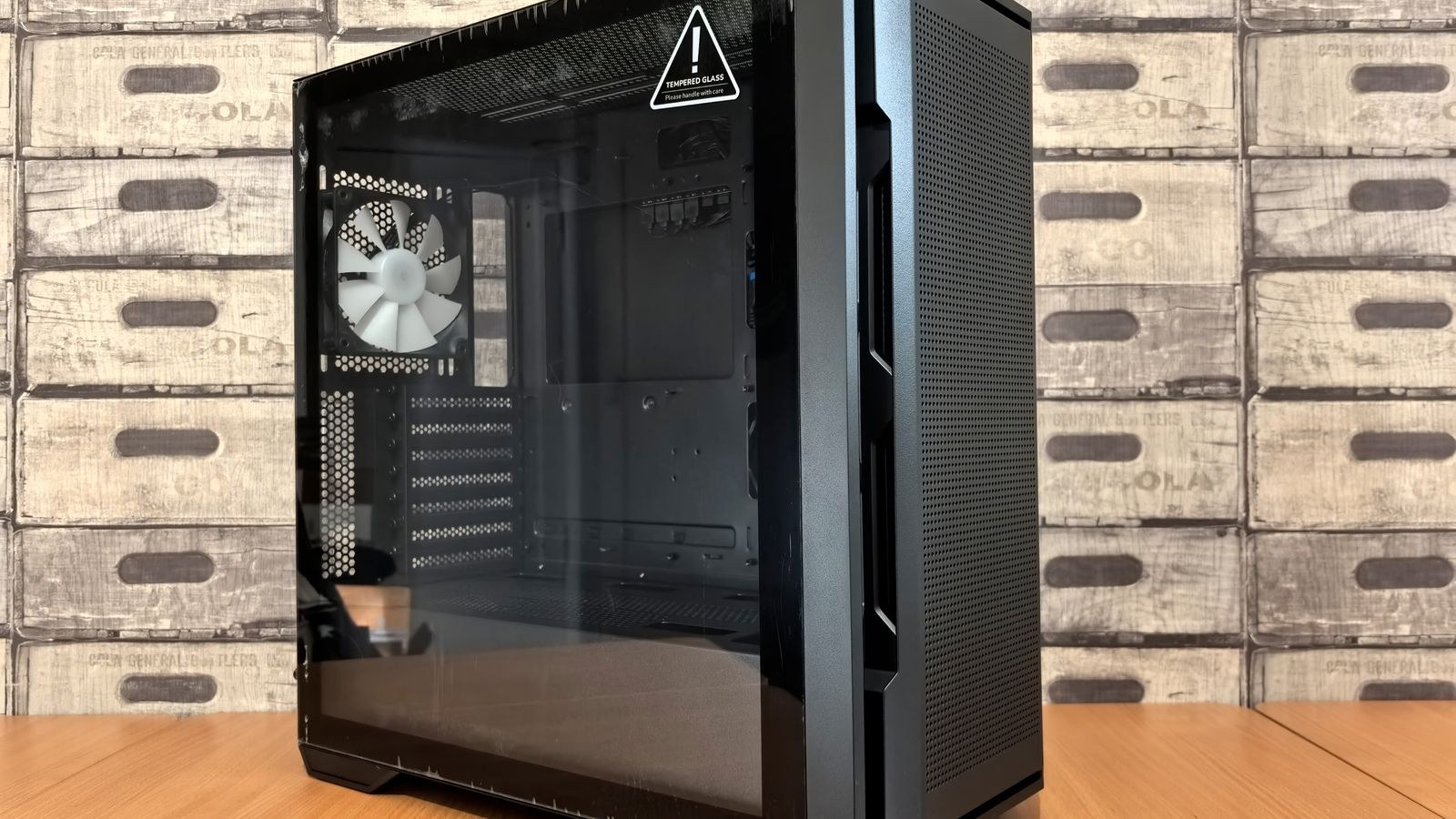
Test this deliberately. Disconnect everything, then reconnect one device at a time, leaving several minutes between each. When the disconnects return, you have identified the load that tips it over. From there you can lower a monitor’s resolution or refresh rate, move a high-draw drive to a directly connected port, or accept that a more capable dock is required. Displays that accept a USB-C input can take some strain off the chain by handling their own power, and the best USB-C monitors covers panels built for that arrangement. If your desktop is the anchor of the setup, the best PC cases with USB-C lists chassis with properly wired front-panel ports that avoid the marginal internal headers common on cheaper cases.

Common Mistakes to Avoid
- Blaming the dock immediately. The cable and the port fail more often than the dock itself.
- Using a charging cable for a dock. It may power the link while failing the data lanes.
- Daisy-chaining hubs. Adding another hub behind the dock multiplies power and negotiation problems.
- Skipping the firmware update. It is the single highest-yield fix and the one most often ignored.
- Ignoring where the dock sits. Buried under a laptop, it will overheat.
- Changing several things at once. You will never learn which one mattered, and the fault will return.
When to Replace the Dock
If you have used the supplied cable on mains power, updated firmware and drivers, disabled USB power saving, given the unit airflow and reduced the load, and it still drops, the hardware is either faulty or genuinely under-specified for your desk. Before buying a replacement, confirm the dock is the variable by testing it on another laptop; if it misbehaves there too, that is your answer. When choosing the next one, match the specification to your real load rather than the headline port count, and prefer Thunderbolt if your laptop supports it, since the extra bandwidth removes most of the contention that causes these faults. The best graphics cards and docks roundup is a useful starting point for matching a dock to what your machine can actually drive.
Frequently Asked Questions
Why does my dock disconnect only when I open a video call?
That is a load spike. The camera, encoder and displays all draw more at once, exposing a marginal power supply or a bandwidth limit. Remove other peripherals and test again.
Can a bad cable really cause random disconnects?
Yes, and it is one of the most common causes. Cables rated only for charging, or longer than about 1 metre without active circuitry, drop high-speed lanes intermittently.
Does the dock need its own power supply?
If it shipped with one, always use it. Bus-powered docks are fine for a single peripheral but become unstable with displays, drives and charging combined.
Why does it only happen on battery power?
Power management is suspending USB controllers to save energy. Disable USB selective suspend and the per-device power saving options in Device Manager.
Will a firmware update really fix this?
Often, yes. Docks negotiate power and video in software, and manufacturers ship fixes for those handshakes regularly. Check for an update before replacing anything.
Final Thoughts
A USB-C dock that keeps disconnecting is rarely mysterious once you stop guessing and work through the causes in order. Watch what drops to narrow the field, confirm the dock is properly powered from mains, swap back to the supplied cable and inspect both connectors, update firmware and drivers, disable USB power saving, and make sure the unit can breathe. Change one thing at a time so you learn which fix mattered. Nine times out of ten the culprit turns out to be power or a cable, both of which cost far less to resolve than the replacement dock you were about to order.