
 Owen Bradley
 Wrist ache that starts after lunch, a forearm that feels tight by Friday, a numb ring finger during long spreadsheet sessions — these are the complaints that push people toward an ergonomic mouse. The trouble is that “ergonomic” covers wildly different shapes: tall vertical grips, stationary trackballs, gently sculpted right-hand shells, and low flat ambidextrous bodies. Each one solves a different problem, and picking the wrong category can leave you just as sore as before. This ergonomic mouse guide explains what each design actually changes about your posture, who benefits from it, how to judge fit before you buy, and how to switch without wrecking your productivity for a week. By the end of the guide you should be able to walk into any purchase in 2026 knowing which shape belongs under your hand.
What an Ergonomic Mouse Actually Fixes
A conventional flat mouse forces two things at once. First, it makes you rotate your forearm so the palm faces down — a position called pronation, which twists the radius bone across the ulna and keeps the forearm muscles under constant low-level tension. Second, it usually sits low and small enough that the wrist rests on the desk while the fingers do the work, bending the wrist upward and compressing the carpal tunnel.
Ergonomic designs attack one or both of those problems. Vertical shapes reduce pronation by rotating the hand toward a handshake position. Trackballs remove the arm movement entirely so the whole limb can stay still. Contoured shells raise the palm so the wrist stays neutral instead of hinging. None of them are medical devices, and none of them will undo bad desk height or a chair that is too low — but paired with a sensible workstation they take real load off the tissue that hurts.
It is worth saying plainly: if you already have persistent numbness, tingling, or night pain, see a clinician before you shop. A mouse is a good preventative and a good comfort upgrade. It is not a treatment plan.
Vertical Mice: The Handshake Position
A vertical mouse stands the sensor body on its edge, usually somewhere between 55 and 90 degrees, so your hand grips it the way you would shake hands. The buttons sit on the inner face where your thumb-side fingers naturally fall, and a thumb rest or wing supports the base of the hand.
The main benefit is reduced pronation. For people whose discomfort sits in the forearm — that dull rope of tension running from the elbow to the wrist — this is often the single most noticeable change. Many users also report less shoulder hitching, because a vertical grip encourages moving from the elbow rather than fine-tuning with a cocked wrist.
The trade-offs are real. Vertical mice tend to be tall and wide, so they need more desk clearance and travel a little more awkwardly in a bag. Precision work such as photo retouching or CAD can feel clumsy at first because the fine control muscles you have trained for years are not the ones doing the work. Angles matter too: a very steep 90-degree design is not automatically better, and many people find a moderate 57–70 degree slope more comfortable for all-day use. If a forearm-first fix sounds like what you need, start by comparing options in a roundup of the best vertical mouse designs for wrist and forearm relief before committing.
Trackballs: Move the Ball, Not the Arm
A trackball keeps the body of the mouse planted on the desk and puts a rolling ball under your thumb or fingers. Because the device never moves, your shoulder, elbow, and wrist stay in one place for the whole session.
That makes trackballs the strongest choice in three situations. If your pain is in the shoulder or elbow rather than the wrist, eliminating repeated arm sweeps helps enormously. If your desk is cramped — a corner of a kitchen table, a train tray, a standing desk shared with paperwork — a trackball needs roughly the footprint of the device itself and nothing more. And if you already have a diagnosed repetitive strain issue, many occupational therapists suggest a trackball precisely because it distributes work differently.
Two sub-types exist. Thumb-operated trackballs put a small ball on the left side and feel closest to a normal mouse, so the learning curve is short. Finger-operated trackballs use a larger ball driven by the index and middle fingers, which gives better precision but takes longer to master and can load the fingers if you overdo it. Expect one to two weeks before a trackball feels natural; the first three days genuinely feel worse. Browsing the best trackball mouse options for stationary desk setups is the fastest way to see how the two ball placements differ in practice.
Contoured and Sculpted Shells: The Gentle Option
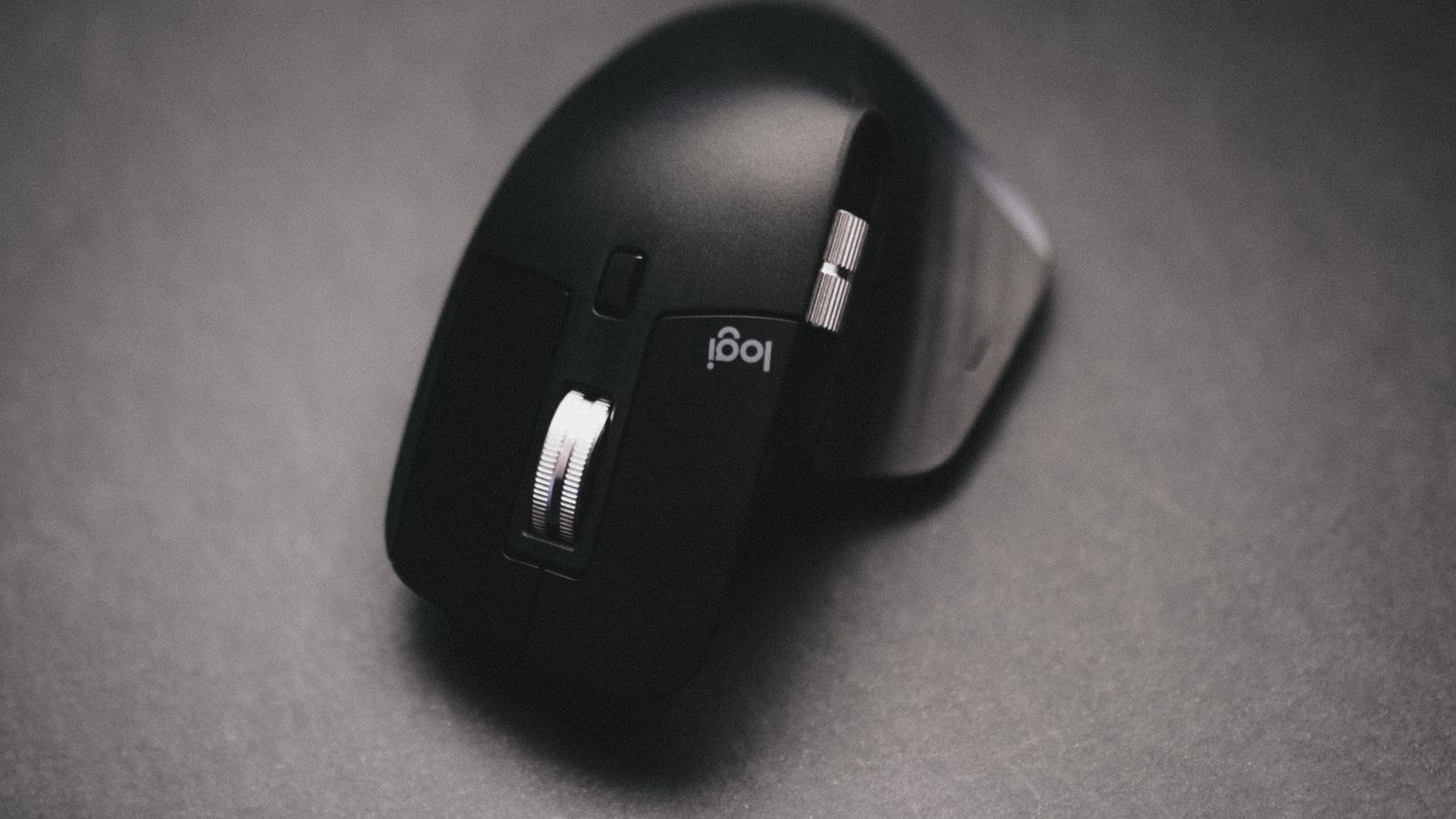
Not everyone needs a radical shape change. A well-sculpted right-hand mouse raises the palm, fills the hollow under the hand, and provides a thumb shelf so the thumb is not dragging on the mousepad. The wrist stays flatter and the fingers rest rather than hover, which alone removes a surprising amount of static tension.
This category is the right starting point if your discomfort is mild, if you do precision work you cannot afford to relearn, or if you share the machine with colleagues who would revolt at a vertical grip. It is also the easiest sell in an office: nothing about the workflow changes. Most general-purpose recommendations in the best ergonomic mouse guide for everyday comfort live in this category because it suits the widest range of hands.
Ambidextrous and Left-Handed Considerations
Roughly one in ten people is left-handed, and a much larger group mouses with the non-dominant hand deliberately to spread the load. Both groups hit the same wall: most sculpted and vertical mice are right-hand only.
Ambidextrous shells solve this by staying symmetrical, which means a shallower contour and less palm support — a fair trade for usability. A second strategy is alternating: keep a sculpted mouse on the right and a simple symmetrical one on the left, and swap sides every few days. Windows and macOS both let you flip button assignments in a couple of clicks. If you are buying for a shared workstation, symmetry is worth prioritising over aggressive contouring.
Buttons, Sensitivity, and Software
Shape gets the attention, but three settings do a lot of quiet ergonomic work.
- DPI and pointer speed. A higher DPI means less physical movement to cross the screen. For office work on a single monitor, 1200–1600 DPI usually lets you traverse the display with a small forearm motion rather than several repositioning sweeps. On a large or multi-monitor setup, going higher helps further.
- Programmable buttons. Mapping copy, paste, back, and forward to thumb buttons removes dozens of keyboard reaches per hour. Fewer reaches means less shoulder abduction, which is where a lot of end-of-day ache actually comes from.
- Scroll behaviour. A free-spin or high-speed scroll wheel replaces long ratchet grinding on documents. Index finger tendon irritation is common in people who scroll constantly, and this one feature genuinely reduces it.
Button force matters too. Very light switches feel great for gaming but can encourage a hovering, tense finger; slightly firmer clicks let the finger rest on the button between actions.
Fit: Measure Before You Buy
Ergonomics fails when the shape is right and the size is wrong. Measure your hand from the base of the palm to the tip of the middle finger, and across the palm at the knuckles. As a rough guide, hands under 17 cm long suit compact bodies, 17–19 cm covers the medium mainstream, and over 19 cm needs a full-size shell — including in the vertical category, where an undersized body forces the fingers to curl painfully.
Then check your grip. Palm grippers rest the whole hand on the shell and need length and back-hump support. Claw grippers arch the fingers and prefer a shorter body with a defined rear rise. Fingertip users hold only the front and want something small and light. A vertical mouse suits palm and relaxed claw grips well but frustrates dedicated fingertip users.
Budget Tiers: What More Money Buys
Under $30 you can find basic vertical mice and simple contoured shells. Sensors are adequate for office work, but expect noisier clicks, cheaper scroll wheels, and a shorter service life. This tier is a legitimate way to test whether a vertical shape helps you before spending more.
Between $40 and $70 sits the sweet spot: better switches rated for tens of millions of clicks, quieter buttons, multi-device pairing, rechargeable batteries, and software that actually remembers your button mapping. Most people should shop here.
Above $80 you get premium materials, magnetic free-spin wheels, flow features that move the cursor between two computers, and the best trackball bearings. Worth it if you mouse for six or more hours a day; unnecessary otherwise. If the machine is a work laptop that travels, weigh those features against portability in a roundup of the best mouse picks for a home office setup.
How to Switch Without Losing a Week
Every unfamiliar ergonomic shape feels slower on day one, and most returns happen in the first 48 hours for exactly that reason. Give the transition structure instead.
- Set the new mouse up on a day with no deadline-critical precision work.
- Drop the pointer speed slightly below your usual setting for the first two days, then raise it back once the shape feels familiar.
- Use the new device for four hours, then swap back to the old one for the rest of the day. Extend by two hours each day.
- Reprogram only two buttons at first. Adding six shortcuts on day one guarantees mis-clicks and frustration.
- Judge it at the two-week mark, not the two-day mark. Speed returns; if pain has not improved by then, the shape is probably wrong for you.
Common Mistakes That Undo the Benefit
- Fixing the mouse but ignoring the desk. If the desk surface is above elbow height, every mouse will make you shrug. Sort chair and desk height first.
- Parking the mouse far to the right of a full-size keyboard. That long reach abducts the shoulder all day. A compact or tenkeyless board brings the mouse back toward the body and is often a bigger win than the mouse itself — the same logic behind most ergonomic keyboard recommendations for reducing wrist strain.
- Anchoring the wrist on the desk edge. Ergonomic shapes assume the forearm moves. Pivoting on a planted wrist concentrates pressure exactly where you do not want it.
- Gripping too hard. A light hold is the goal. If your knuckles blanch, the mouse is too small, too heavy, or the pointer speed is too low.
- Expecting hardware to replace breaks. A short stand-and-stretch every 45 minutes still outperforms any peripheral.
Frequently Asked Questions
Is a vertical mouse better than a trackball?
Neither is universally better. Vertical mice target forearm rotation; trackballs target shoulder and elbow movement plus limited desk space. Match the design to where your discomfort actually is.
Will an ergonomic mouse cure carpal tunnel syndrome?
No. It can reduce aggravating factors — wrist extension, pressure on the palm, repetitive reaching — but genuine nerve compression needs medical assessment.
How long does it take to adapt?
Contoured shells feel normal almost immediately. Vertical mice take three to five days. Finger-operated trackballs commonly take two weeks before speed matches your old setup.
Can I game with an ergonomic mouse?
Casual and strategy gaming, yes. Competitive shooters generally still favour lighter conventional shapes, so many people keep two mice and swap for gaming sessions.
Do I still need a wrist rest?
Only as a place to rest between actions, not as a pivot during movement. With a tall vertical mouse a rest is often unnecessary and can even force the wrist upward.
Final Thoughts
Choosing an ergonomic mouse comes down to a short diagnostic. Forearm tension points toward a vertical shape. Shoulder and elbow fatigue, or a tiny desk, point toward a trackball. Mild general discomfort with precision work to protect points toward a well-sculpted conventional shell. Layer on the right size for your hand, a sensible DPI, two or three useful button shortcuts, and a keyboard that does not push the mouse out to arm’s length, and you have addressed most of what a peripheral can address. Take the switch slowly, judge it after two weeks rather than two days, and remember that the best ergonomic setup in 2026 is still the one you get up and walk away from regularly.









