
 Owen Bradley
 Modem, router, and gateway are terms that get used interchangeably, but they refer to different pieces of hardware with different jobs. Understanding the difference is the first step to building a home network that actually performs well, and it can also save you money by helping you avoid buying equipment you don’t need. This guide breaks down each device in plain language so you can set up your home network with confidence.

What a Modem Does
A modem is the device that connects your home to your internet service provider’s network, translating the signal coming through your cable line, phone line, or fiber connection into a format your home devices can use. Without a modem, you have no internet connection at all — it’s the bridge between your home and the outside world. A modem alone, however, doesn’t create Wi-Fi or allow multiple devices to share the connection.
The word modem comes from “modulator-demodulator,” reflecting its job of converting signals between the format your provider uses on their lines and the digital data your devices understand. A standalone modem typically has just one or two ports and no wireless capability of its own.
What a Router Does
A router takes the single internet connection from the modem and distributes it to multiple devices in your home, both wired and wireless. It creates your home network, assigns local addresses to each device, manages traffic between them, and provides the Wi-Fi signal your phone and laptop connect to. A router doesn’t provide internet access on its own; it needs a modem’s connection to distribute.
Beyond simply sharing the connection, a modern router also handles security features like a firewall, guest networks, parental controls, and Quality of Service settings that prioritize certain traffic. This is the device most responsible for how good your Wi-Fi feels day to day.
What a Gateway Does
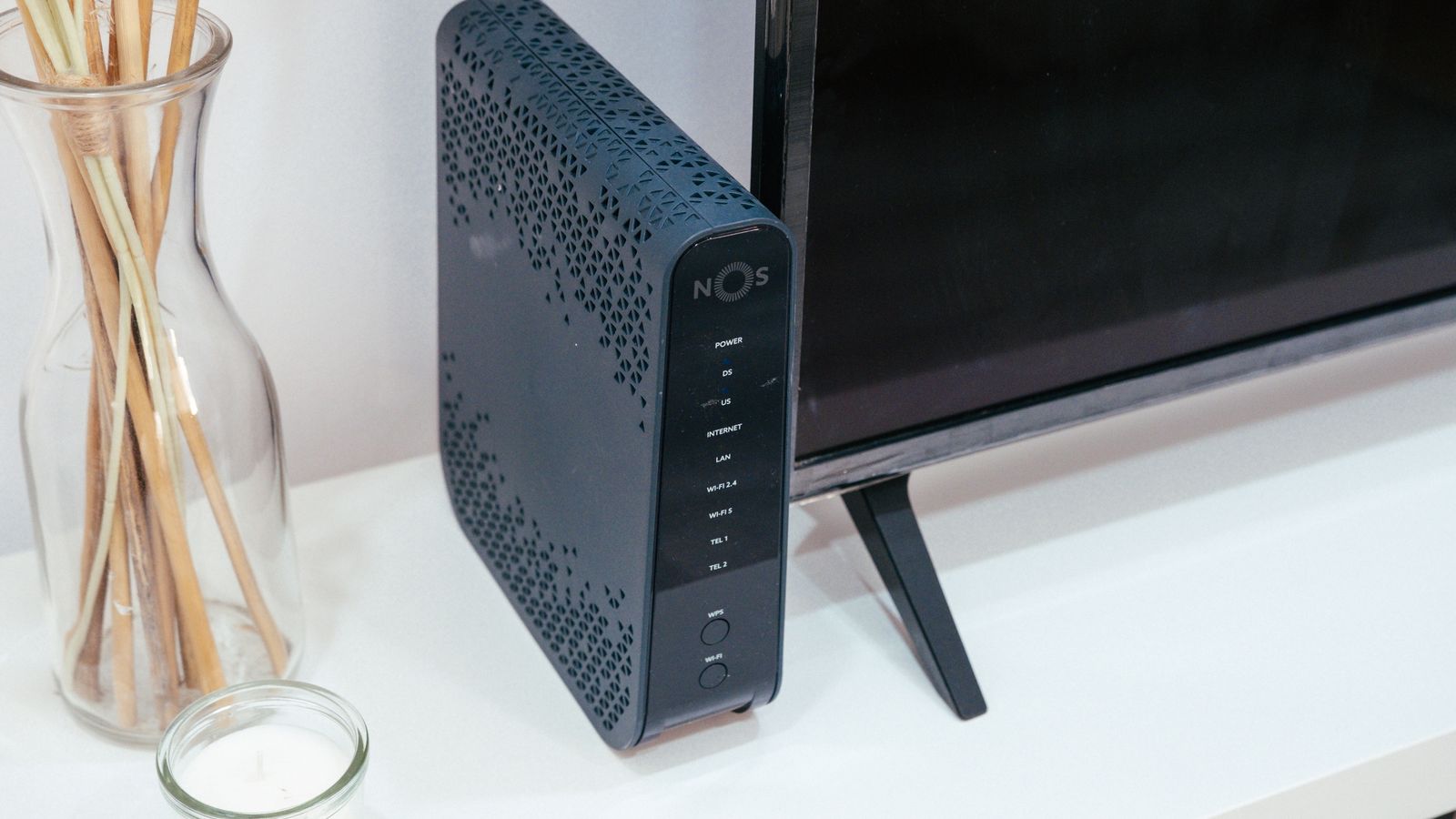
A gateway combines a modem and router into a single device, handling both the connection to your ISP and the distribution of that connection throughout your home. Many providers offer gateways as rental equipment because they’re simple to install and manage. The trade-off is flexibility — if either the modem or router portion becomes outdated or underpowered, you have to replace the entire unit rather than just one component.
Gateways are convenient for people who want a single box and minimal setup, but they often use middle-of-the-road router hardware, which is why enthusiasts and larger households frequently prefer separate components for better performance.

Separate Devices vs. All-in-One Gateway
Choosing between separate modem and router versus a combined gateway depends on your priorities. Separate devices typically offer stronger Wi-Fi performance, more advanced features, and the ability to upgrade one component without replacing the other — for example, upgrading just your router for better coverage while keeping a perfectly good modem. All-in-one gateways are simpler, take up less space, and reduce cable clutter, making them appealing for smaller homes or less technical users. If you want a solid modem-router combo, the best modem routers balance convenience with solid performance.
For most people, the decision comes down to how much they value simplicity versus flexibility. If you rarely think about your network and just want it to work, a gateway or combo unit is fine. If you want the best possible coverage and the ability to upgrade piece by piece, separate devices win.
When You Only Need a Modem
If you already own a capable router or mesh system and simply need to connect it to your internet service, a standalone modem is all you need. This setup gives you the most flexibility, since you can upgrade your router independently as your needs change or as new wireless standards emerge. For this scenario, reviewing the best modems for internet helps you find a reliable, provider-compatible option without paying for router features you won’t use.
This is a common upgrade path: many people start with a provider gateway, then buy their own modem and a quality router to eliminate rental fees and improve performance, keeping the two components separate for future flexibility.
Cellular Routers: A Different Category
Cellular routers connect to the internet through a mobile network rather than a cable, DSL, or fiber line, making them useful for rural areas without traditional broadband, as backup connections during outages, or for mobile setups like RVs. These devices essentially combine a cellular modem function with router capabilities. If this fits your situation, the best cellular routers are built specifically to handle mobile network connections reliably.
Cellular routers are increasingly popular as a failover option, automatically switching to mobile data if your primary wired connection goes down, which is valuable for remote workers who can’t afford unexpected outages.
How to Identify What You Currently Have
If you’re unsure whether your current equipment is a modem, router, or gateway, check the model number printed on the device and search it online, or look at your provider’s account portal, which usually lists your equipment type. A single box with both a coaxial or fiber port and multiple Ethernet ports plus Wi-Fi is almost always a gateway, while two separate boxes connected by an Ethernet cable indicates a modem and router setup.
Renting vs. Buying Your Own Equipment
Providers typically charge a monthly rental fee for gateway equipment, which adds up significantly over time. Buying your own modem, router, or gateway usually pays for itself within a year, and it also gives you more control over performance, security updates, and replacement timing rather than being stuck with whatever equipment your provider issues. Just be sure to confirm compatibility with your provider before purchasing.
Understanding IP Addresses and Your Network
One of the router’s key jobs is assigning local IP addresses to each device on your network while presenting a single public IP address to the outside world. This process, called NAT, is part of why a router provides a basic layer of security — devices on the internet can’t directly reach your individual home devices without passing through the router first. A standalone modem doesn’t perform this function, which is one reason a router is essential for a safe home network.
Setting Up a New Network
- Confirm your internet connection type — cable, fiber, or DSL — and check your provider’s approved equipment requirements.
- Choose either a combined gateway or a separate modem and router based on your priorities for flexibility versus simplicity.
- Connect the modem (or gateway) to the provider’s line and activate it through your provider’s app or website.
- If using a separate router, connect it to the modem via Ethernet and configure your Wi-Fi network name and password.
- Update the router firmware and set a strong administrator password before connecting your devices.
- Test your connection speed and adjust router placement if coverage feels weak in certain rooms.
Common Connection Ports Explained
Understanding the ports on each device helps you set up your network correctly. A cable modem has a coaxial port that connects to your wall outlet, while a fiber setup uses an ONT with a fiber or Ethernet connection. Both connect to a router through an Ethernet WAN port. The router then provides several LAN ports for wired devices like desktops, game consoles, and smart TVs, plus the wireless signal for everything else. Knowing which port does what prevents the common mistake of plugging the modem into a LAN port instead of the WAN port, which is a frequent cause of setup failures for first-time users.
Wi-Fi Bands on a Router
Most modern routers broadcast on at least two bands: 2.4GHz and 5GHz. The 2.4GHz band travels further and penetrates walls better but is slower and more prone to interference, making it ideal for distant, low-demand devices. The 5GHz band is faster and cleaner but has shorter range, making it best for nearby devices that need speed, like laptops and streaming boxes. Many routers combine these under a single network name and automatically steer each device to the most appropriate band, simplifying the experience for beginners while still delivering good performance.
Security Basics for a New Network
When setting up any new modem, router, or gateway, a few security steps protect your home network from day one. Change the default administrator password immediately, since default credentials are widely known and easily exploited. Set a strong, unique Wi-Fi password and choose the WPA3 security setting if your router supports it, or WPA2 otherwise. Keep the firmware updated so security patches are applied, and consider setting up a separate guest network for visitors so they never touch your main network. These simple habits dramatically reduce the risk of unauthorized access.
When to Upgrade Your Equipment
Even reliable equipment eventually shows its age. Signs it’s time to upgrade include frequent reboots, an inability to reach the speeds your plan provides, poor coverage in rooms that were once fine, or a lack of support for newer devices and security standards. A modem may also become obsolete when you upgrade to a faster internet plan it can’t fully support. Recognizing these signs helps you replace the right component at the right time, rather than replacing everything at once or living with degraded performance longer than necessary.
Frequently Asked Questions
Can I use just a router without a modem?
No, a router needs an internet connection to distribute, which normally comes from a modem or gateway connected to your provider’s network.
Is a gateway better than separate modem and router?
Gateways are simpler and more compact, but separate devices generally offer better performance and more flexibility for future upgrades.
Do I need a new modem for faster internet plans?
Often yes, since older modems may not support the speed tiers of newer, faster internet plans, particularly gigabit-level service.
What’s the difference between a gateway and a modem-router combo?
They’re essentially the same thing — both combine modem and router functions in one device. Providers usually call their rental units gateways, while retail versions are often labeled modem-routers.
Does a router improve my internet speed?
A router can’t exceed the speed your plan provides, but a better router can help you actually reach that speed across more of your home and handle many devices without slowdown.
Final Thoughts
Understanding the difference between a modem, router, and gateway makes it much easier to diagnose problems and choose the right equipment for your home. Whether you opt for the simplicity of an all-in-one gateway or the flexibility of separate devices, matching your choice to your household’s needs will give you a more reliable and cost-effective network for years to come.










Comments are closed.
No reviews yet. Be the first to share your experience!