Owen Bradley
 Every PC eventually starts to feel slow, but the reason it feels slow is not always the part people rush to replace. Spending on the wrong upgrade is one of the most common ways to waste money on a computer: a shiny new component that barely moves the needle because a different bottleneck was holding everything back. The smart approach is to diagnose what is actually limiting you, then upgrade in the order that buys the most speed for the least spend. This priority guide ranks the four upgrades that matter most, graphics, processor, memory, and storage, so you know what to fix first and what to leave alone.
First, Diagnose the Bottleneck
Before buying anything, figure out what your computer is waiting on, because the right upgrade depends entirely on how you use the machine and where it struggles. The quickest way is to watch resource usage while doing the thing that feels slow. If a component sits pinned at full usage while others idle, you have found your bottleneck, and that is where your money should go first.
Different tasks stress different parts. Gaming leans hardest on the graphics card, heavy multitasking and content creation lean on the processor and memory, and slow boot times or sluggish file loading point straight at storage. A general feeling of the whole system being unresponsive often traces back to an old mechanical hard drive or too little memory rather than a weak processor. Match the symptom to the part, and you avoid the classic mistake of upgrading something that was never the problem.
Upgrade Priority 1: Storage (If You’re Still on a Hard Drive)
If your system still boots from a mechanical hard drive, this is almost certainly your highest-impact upgrade, and it usually costs the least. Moving to a solid state drive transforms everyday responsiveness: boot times shrink, applications open almost instantly, and the general lag that makes a computer feel old largely disappears. No other single upgrade so dramatically changes how fast a machine feels for such a modest sum.
The reason it ranks first is that storage speed touches everything you do, from starting the system to loading files to opening a browser. A fast NVMe drive is many times quicker than a hard drive for these tasks. If your PC feels generally sluggish rather than weak in one specific game or application, start here. Our picks for the best NVMe SSDs and a walkthrough on how to upgrade a desktop computer’s RAM and storage make this the easiest, most satisfying place to begin.
Upgrade Priority 2: Memory
Memory is the next thing to check, especially if you notice slowdowns when many programs or browser tabs are open at once. When a system runs short on memory, it starts shuffling data to much slower storage, and everything grinds. Adding capacity so your typical workload fits comfortably in memory removes that stutter and keeps multitasking smooth.
There is a catch worth understanding: more memory only helps if you were actually running out. If your usage sits well within what you have, buying more delivers little benefit, which is exactly the kind of misspent upgrade this guide exists to prevent. Check your memory usage under a normal workload first. If it is consistently near full, an upgrade will help a lot; if it rarely climbs high, your money belongs elsewhere. For gamers and multitaskers who genuinely need more, the best RAM for gaming options offer capacity and speed that keep a busy system fluid.
Upgrade Priority 3: Graphics Card
For gamers, the graphics card is often the single most impactful upgrade for in-game performance, once storage and memory are not holding things back. If your frame rates are low, settings feel limited, or newer titles struggle, and you have confirmed the GPU is the part running at full load, this is where a bigger investment pays off. A stronger card directly translates to higher frame rates, smoother play, and the ability to raise resolution and detail.
The important qualifier is balance. A powerful graphics card paired with a weak processor or too little memory can be held back, unable to show its full potential because another part cannot keep up. This is why the GPU sits third rather than first for most people: it delivers huge gains for gaming, but only when the rest of the system can feed it. If gaming is your priority and the foundation is solid, a card from the best GPUs under 500 lineup usually offers the most noticeable leap in experience of any upgrade you can make.
Upgrade Priority 4: The Processor
The processor lands last for most people, not because it is unimportant, but because it is the most involved and expensive upgrade and the one that helps a narrower set of users. A CPU upgrade shines for heavy multitasking, content creation, streaming, and certain simulation-heavy or competitive games where the processor genuinely limits frame rates. For everyday use and much of gaming, a modern mid-range processor is rarely the thing holding you back.
The other reason it ranks last is practical: upgrading the processor often means a new motherboard and sometimes new memory too, turning a single purchase into a partial rebuild. That cost and complexity mean it only makes sense once you have confirmed the CPU is the real limit and the cheaper upgrades have been exhausted. If you have reached that point, a well-chosen chip from the best CPUs under 300 range delivers strong all-round performance without pushing into flagship pricing that most users never need.
How the Priorities Shift by User
This ranking is a sensible default, but your own use should bend it. A gamer with a fast drive and enough memory should jump straight to the graphics card. A video editor or streamer may find the processor and memory matter more than the GPU. Someone whose old office PC just feels tired will get the biggest lift from an SSD and a memory top-up, and may never need to touch the graphics card at all.
The unifying principle across every user is the same: upgrade the part that is actually limiting you, in the order of best value first. Fix the cheap, high-impact bottlenecks like storage and memory before spending big on a graphics card or processor. Following that sequence means each dollar you spend produces a change you can feel, rather than a benchmark number that never shows up in real use.
Don’t Overlook the Foundations
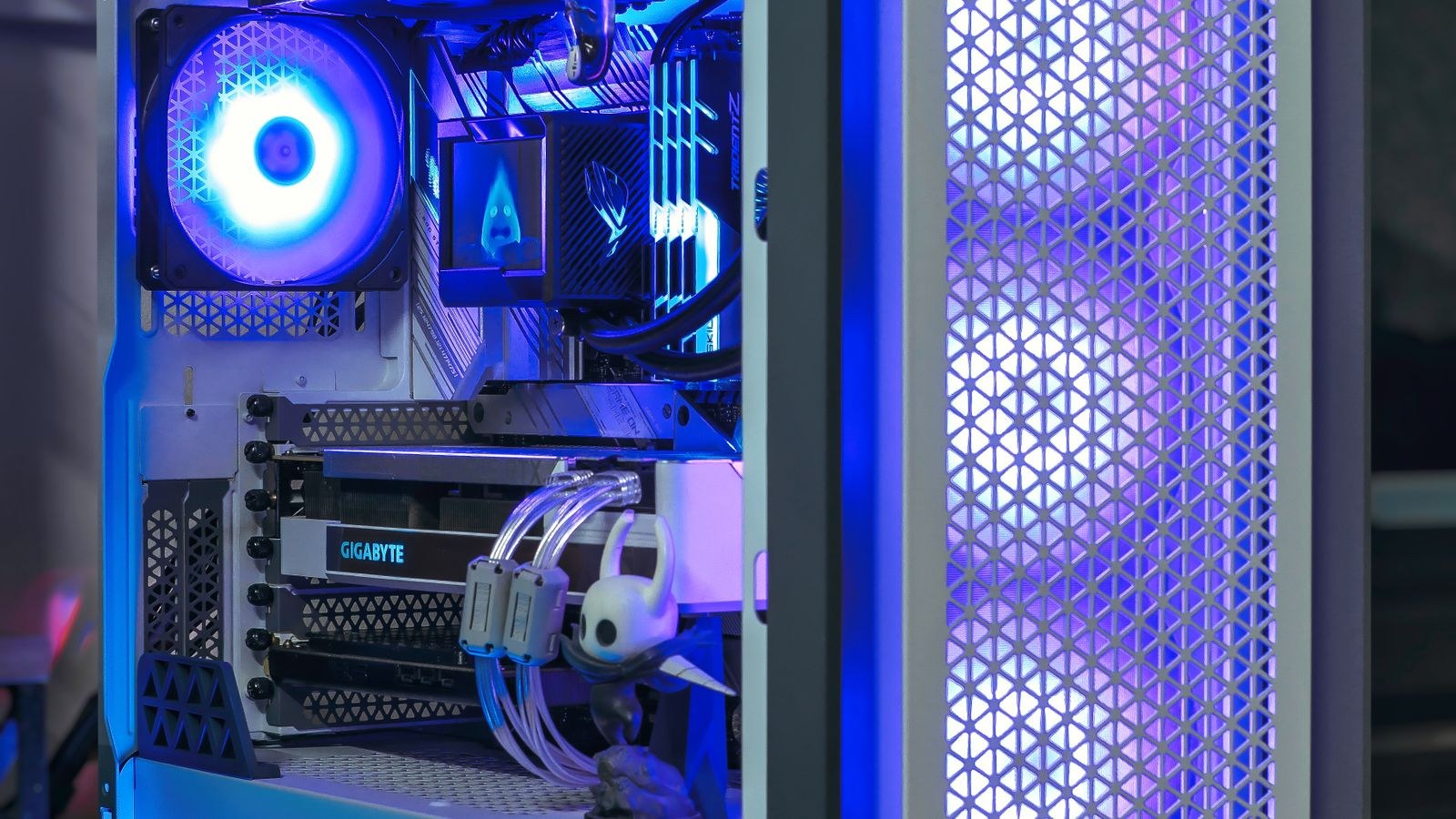
One more thing worth checking before any major upgrade: whether your existing power supply and cooling can support the new part. A more powerful graphics card or processor draws more power and produces more heat, and an aging or undersized power supply can cause instability that gets blamed on the new component. It is frustrating to buy an upgrade only to have the system crash because the supporting parts cannot keep up.
Before committing to a big GPU or CPU upgrade, confirm your power supply has enough capacity and that your case has adequate airflow. Sometimes the cheapest way to make a system feel better is not a new headline part at all, but a clean-out, fresh thermal paste, or a modest power supply that finally lets the existing hardware run at its full potential without throttling or shutting down.
Frequently Asked Questions
What is the single best upgrade for an old, slow PC?
For a computer still running on a mechanical hard drive, switching to a solid state drive is almost always the best first move. It slashes boot and load times and removes the general sluggishness that makes a machine feel old, all for a relatively low cost and effort compared to other upgrades.
Should I add more memory or upgrade my graphics card?
It depends on your symptoms. If you slow down with many tabs or programs open, add memory. If your frame rates are low in games and your memory is not maxed out, the graphics card is the better spend. Check which part is actually running at its limit before deciding.
Will a new graphics card help if my processor is old?
It can, but only up to a point. A very weak processor can hold back a powerful graphics card, so you may not see the full benefit. Balance matters: aim for parts that roughly match in capability so neither one starves the other of performance.
Is upgrading the CPU worth the hassle?
Only when it is genuinely your bottleneck and the cheaper upgrades are done, because a processor swap often means a new motherboard and sometimes new memory. For heavy multitasking, creation, or streaming it can be very worthwhile; for general use and much of gaming, it is usually the last thing to touch.
Final Thoughts
Knowing what to upgrade first is really about resisting the urge to buy the most exciting part and instead fixing the one that is actually slowing you down. For most people that means storage before memory, memory before graphics, and graphics before the processor, always guided by which component is running at its limit for the tasks you care about. Diagnose first, spend on the real bottleneck, and keep the supporting parts in mind, and every upgrade you make will translate into speed you can genuinely feel rather than money quietly wasted.