Owen Bradley
 Two USB-C cables can look identical, cost wildly different amounts, and behave nothing alike. One charges a laptop at full speed and carries a 4K display signal; the other tops out at a trickle and cannot move data faster than a decade-old flash drive. Nothing on the outside tells you which is which. This USB-C cable guide explains the two independent specifications hiding inside every cord, charging watts and data speed, along with e-marker chips, video support, length limits, and the labels worth trusting. Learn to read them and you will stop buying cords that quietly throttle your hardware, and you will stop overpaying for capability your devices cannot use. Everything here stays true regardless of what changes in 2026.
The Connector Is Not the Standard
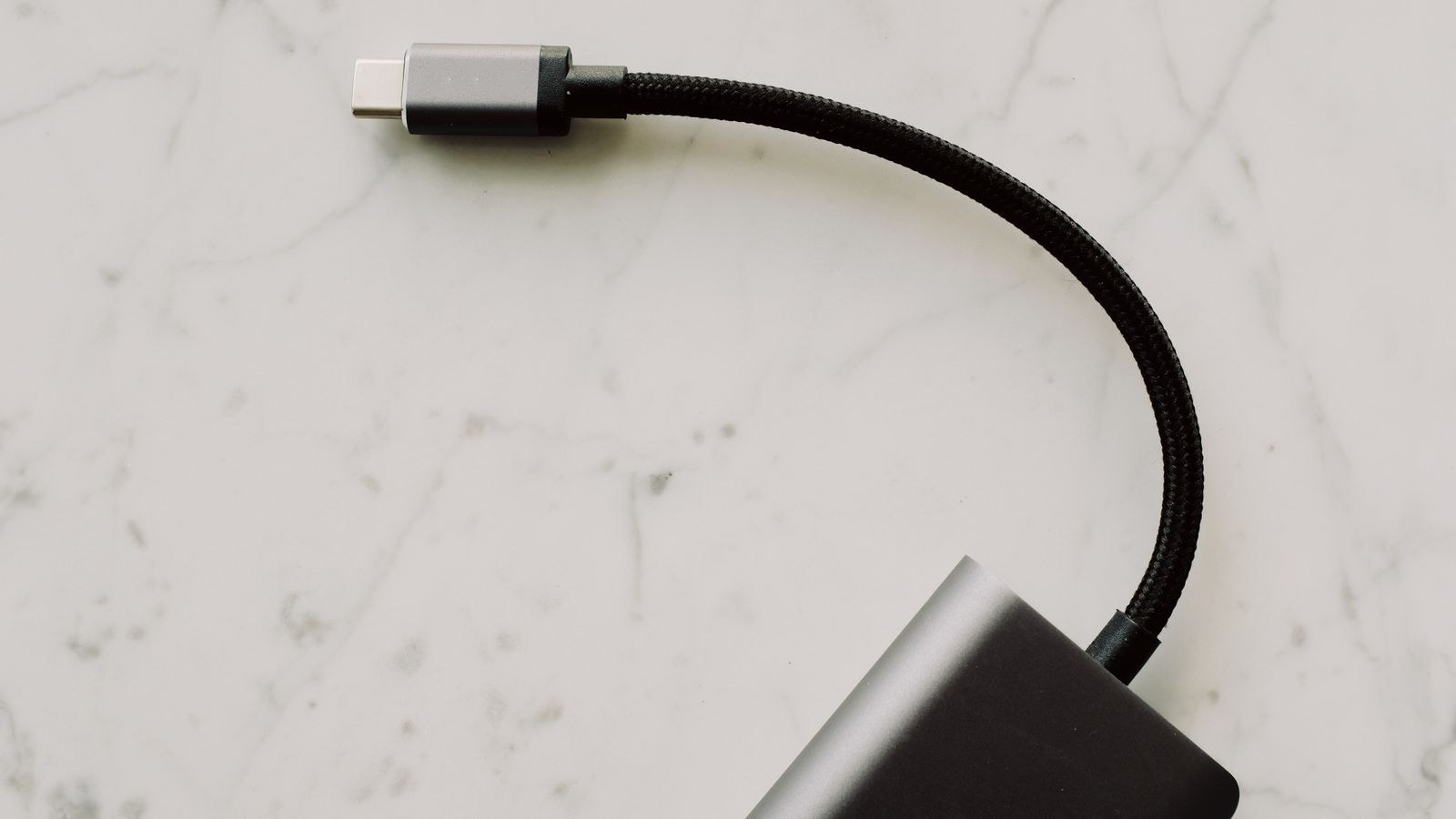
The single most useful thing to understand is that USB-C describes only the physical plug: the small reversible oval on both ends. It says nothing about what the cable can do. Inside that identical shell, manufacturers build very different cords, and the specification governing power is completely separate from the one governing data.
That separation explains the confusion. A charge-only cable may deliver 100W of power while moving data at USB 2.0 speeds because it simply lacks the extra wire pairs high-speed transfer requires. A thin cable bundled with earbuds may handle data fine yet be rated for only 60W. Neither is defective; each was built for a purpose. Your job as a buyer is to identify which purpose you need, then confirm the cable states both numbers.
Charging Watts: Reading the Power Rating
Power over USB-C is negotiated between the charger and the device using USB Power Delivery, but the cable sets a ceiling neither can exceed. There are effectively three tiers you will encounter.
- 60W (3A): the default for a basic passive cable. Enough for phones, tablets, handhelds, and many small laptops.
- 100W (5A): requires an e-marker chip. Covers most thin-and-light and mid-size laptops at full speed.
- 240W (5A at 48V): the Extended Power Range tier, aimed at large creative and gaming laptops and some monitors.
If you connect a 100W charger to a 60W cable, you get 60W. The charger is not faulty and neither is the laptop; the cable simply refuses to certify itself for more current. This is the most common cause of the complaint that a new fast charger seems no quicker than the old one. Before blaming hardware, check the cord’s printed rating.
What an E-Marker Chip Does
An e-marker is a tiny controller embedded in the cable that reports its capabilities: maximum current, maximum voltage, and data speed. Any cable rated above 60W must contain one, because the charger will not deliver 5A to a cord that cannot identify itself. E-markers are also how a computer knows whether to attempt high-speed transfer or video output over that cable.
Practically, this means a cable without an e-marker is capped at 60W no matter how thick or expensive it looks. Braided sleeving, metal housings, and premium packaging tell you nothing about the chip inside. Look for an explicit wattage claim on the product listing or printed on the connector shell.
Data Speeds Explained Without the Jargon
USB naming has been revised repeatedly, which is why the same speed appears under several labels. The industry now encourages marketing by raw speed instead, and that is the number worth looking for.
- 480Mbps (USB 2.0): the floor. Fine for charging, keyboards, mice, and audio interfaces. Painfully slow for external drives.
- 5Gbps: the practical minimum for external storage, roughly ten times faster than USB 2.0.
- 10Gbps: a comfortable step up for SSD enclosures and docks.
- 20Gbps: found on higher-end cables and hubs handling multiple devices.
- 40Gbps and above: Thunderbolt and USB4 territory, needed for multiple displays and fast external SSDs.
A cable cannot be faster than its wiring. High-speed cords contain additional shielded pairs, which is why they are thicker and stiffer than a charge-only cable of the same length. If a listing does not state a data speed at all, assume 480Mbps.
Video Output and Alt Mode
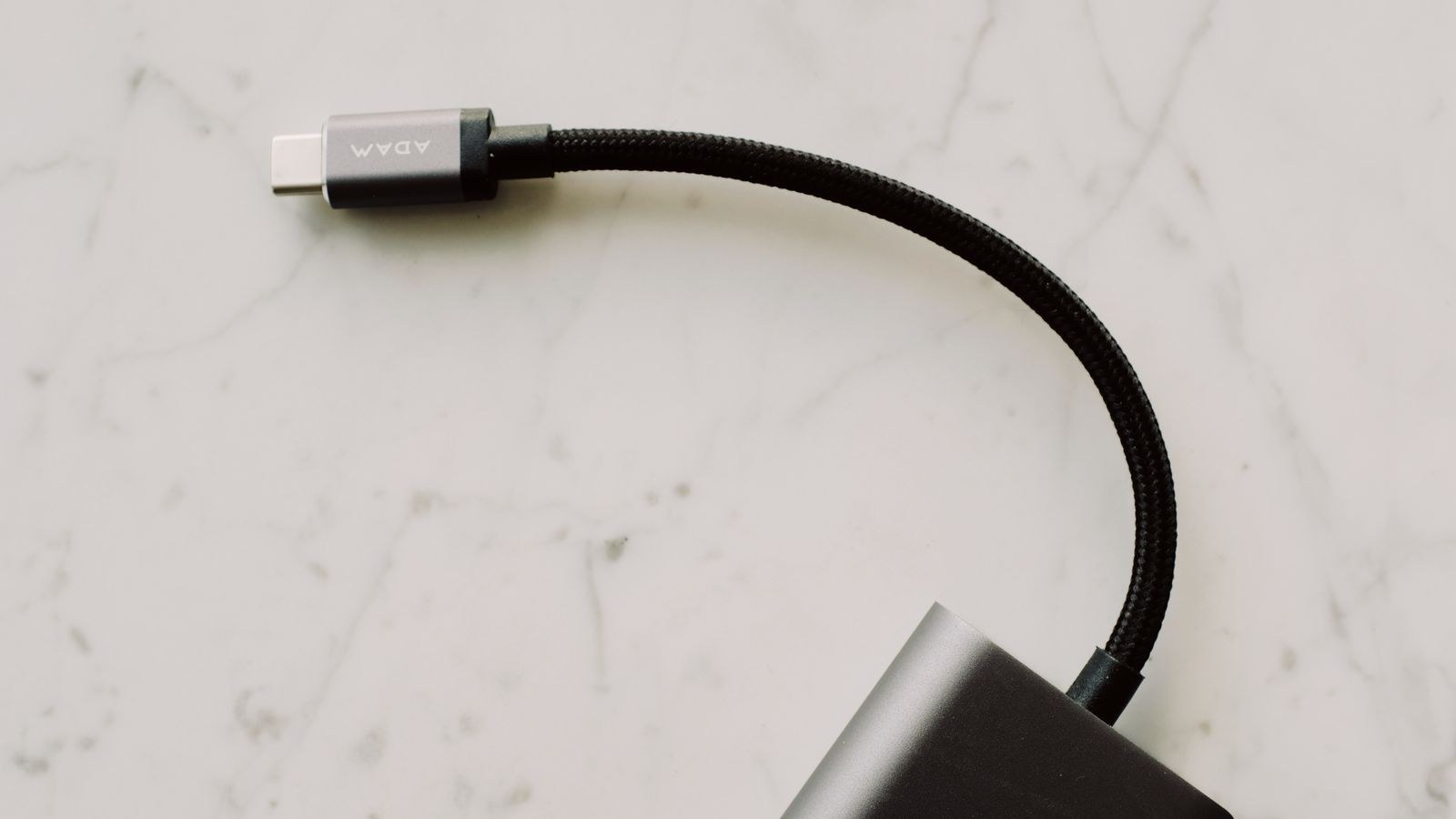
Driving a monitor over USB-C uses DisplayPort Alternate Mode, which reassigns some of the cable’s high-speed pairs to carry a video signal. This is why a cheap charging cable will not run a display even though it fits the port perfectly, and why some cables run a single 1080p screen but fail at 4K.
Bandwidth requirements scale with resolution and refresh rate. A single 4K display at 60Hz is comfortable on a 10Gbps-class cable with Alt Mode support; two 4K displays or a high-refresh panel generally needs a 40Gbps Thunderbolt or USB4 cable. If you are building a single-cable desk setup where one cord carries video, data, and laptop power at once, buy the highest tier you can and confirm the monitor itself supports power delivery upstream. Anyone planning that kind of workstation should check compatibility notes in roundups of the best USB-C monitors, since the display’s own port often sets the real limit.
Cable Length and Why It Matters
Signal integrity degrades with distance, so length is a genuine specification rather than a convenience choice. Passive high-speed cables are physically limited: 40Gbps passive cords are generally reliable only up to about 0.8 metres, while 10Gbps passive cables typically stretch to around one metre. Beyond that, manufacturers use active cables containing signal-boosting electronics, which cost more and sometimes support power but not full bidirectional data.
Charging is far more tolerant. A two-metre 100W charging cable works fine because power does not suffer the same timing constraints, though very long thin cords can cause a small voltage drop that slows charging slightly. The practical rule is simple: buy short for data and video, and buy the length you actually need for charging. Excess cable on a desk is clutter and adds nothing.
Matching Cables to Peripherals
Different accessories care about different specs. A keyboard needs almost no bandwidth, so a slim 480Mbps cable is ideal and stays flexible. Reviews of the best USB-C keyboards show most connect happily over the cable in the box. External SSDs, by contrast, waste most of their speed on anything under 10Gbps. Cameras, audio interfaces, and docks each have their own requirement, so check the device manual rather than assuming one premium cable is right everywhere.
Build Quality and What Actually Fails
Cables almost never fail in the middle. They fail at the strain relief, the short section where the cord meets the connector, because that is where repeated bending concentrates stress. Good cables use a moulded or reinforced strain relief and a flexible jacket; nylon braiding helps abrasion resistance but does nothing for bend stress if the neck is rigid.
Connector housings matter too. A loose-fitting plug that wobbles in the port wears both the cable and the device receptacle, and port repairs cost far more than cords. Look for firm insertion with a slight click, tidy moulding, and no visible gaps. Certified cables carry a compliance logo indicating they were tested against the specification, which is the closest thing to a guarantee that the printed numbers are honest.
Budget Tiers and What to Buy
Basic cords, cheap and widely available, cover 60W charging at 480Mbps and are the right choice for phones, earbuds, and bedside use. Buy several and stop worrying about them. The mid tier adds a 100W e-marker and 10Gbps data, and this is the everyday sweet spot for a laptop that also connects to a drive or a dock.
Premium 40Gbps Thunderbolt or USB4 cables cost several times more and should be bought only where the bandwidth is genuinely used: multi-monitor docks, fast external SSDs, or eGPU enclosures. Buying one premium cable for the desk and cheap reliable cords everywhere else is far better value than replacing every cable in the house with the top tier.
Charging habits shape the cable count too. If most of your cords exist to charge devices at the wall, permanent charging points reduce cable sprawl entirely. Comparisons of the best USB-C outlets and general best USB outlets cover fixed receptacles, and a dedicated USB outlet buying guide explains the wattage those built-in ports realistically deliver.
Common Mistakes That Waste Money
- Judging a cable by its jacket. Braiding and thickness say nothing about watts or speed.
- Assuming the bundled cable is best. Many in-box cords are charge-only 480Mbps cables.
- Buying long high-speed cables. Passive 40Gbps cords lose reliability past roughly 0.8 metres.
- Blaming the charger. A 60W cable caps a 140W charger, and the symptom looks identical.
- Overbuying everywhere. A Thunderbolt cable charging a toothbrush is money burnt.
Frequently Asked Questions
Why is my laptop charging slowly with a new charger?
The cable is the usual culprit. Without an e-marker chip it is limited to 60W regardless of what the charger can supply, so check the cord’s printed wattage rating first.
Can any USB-C cable carry video to a monitor?
No. The cable must support DisplayPort Alt Mode and have enough bandwidth for your resolution and refresh rate. Charge-only cables will fit the port but show nothing.
Is Thunderbolt the same as USB-C?
Thunderbolt uses the USB-C connector but is a higher-performance standard, typically 40Gbps with guaranteed video and power support. All Thunderbolt cables fit USB-C ports; the reverse is not true in capability.
Does cable length affect charging speed?
Slightly, through voltage drop on long thin cords, but charging tolerates length far better than data does. Keep data and video cables short and choose charging length freely.
How many cables do I actually need?
Usually one high-spec cable per demanding device, such as a dock or external drive, plus several inexpensive charging cords for everything else. Buying top-tier cables universally is wasted money.
Final Thoughts
USB-C simplified the connector and complicated everything behind it, so the only reliable approach is to read two numbers before every purchase: maximum watts and maximum data speed. Above 60W you need an e-marker; for external storage you need at least 5Gbps and ideally 10Gbps; for multiple or high-refresh displays you need a 40Gbps cable kept short. Match those figures to the device at each end rather than to the price tag, keep a few honest cheap cords for charging, and reserve one premium cable for the desk where bandwidth is genuinely used. That approach ends the guessing and keeps every device running at the speed you paid for.