Owen Bradley
 Sticking a scrap of tape over a camera lens has become the universal symbol of caution, but webcam privacy in 2026 is a broader problem than one piece of adhesive can solve. A camera is only half of the exposure; the microphone beside it, the software permissions that reach both, and the network the device talks to all matter just as much. This guide explains what a camera indicator light actually proves, where physical shutters genuinely help, which operating system settings deserve a proper audit on a work machine, and how to think about hardware choices without buying into fear. The goal is a setup you trust enough to leave plugged in permanently.
What You Are Actually Protecting Against
Threats to camera privacy fall into three very different buckets, and conflating them leads to bad spending. The first is accidental exposure: joining a meeting with video already on, an app defaulting to camera access, or a colleague seeing a room you did not intend to share. This is by far the most common category and it is almost entirely solved by habits and settings.
The second is application overreach, where legitimate software requests camera and microphone access it does not need, then holds that permission indefinitely. Nothing malicious is happening in the usual sense, but the access surface grows quietly over months of installing tools. The third and rarest is malware that captures video without any indication. It is genuinely uncommon on a patched, modern machine, but it is the only category where a physical barrier does work a software toggle cannot.
Once you separate these, the response gets clearer. Habits fix the first, a permissions audit fixes the second, and a shutter plus current security updates covers the third.
Do Indicator Lights Really Prove Anything?
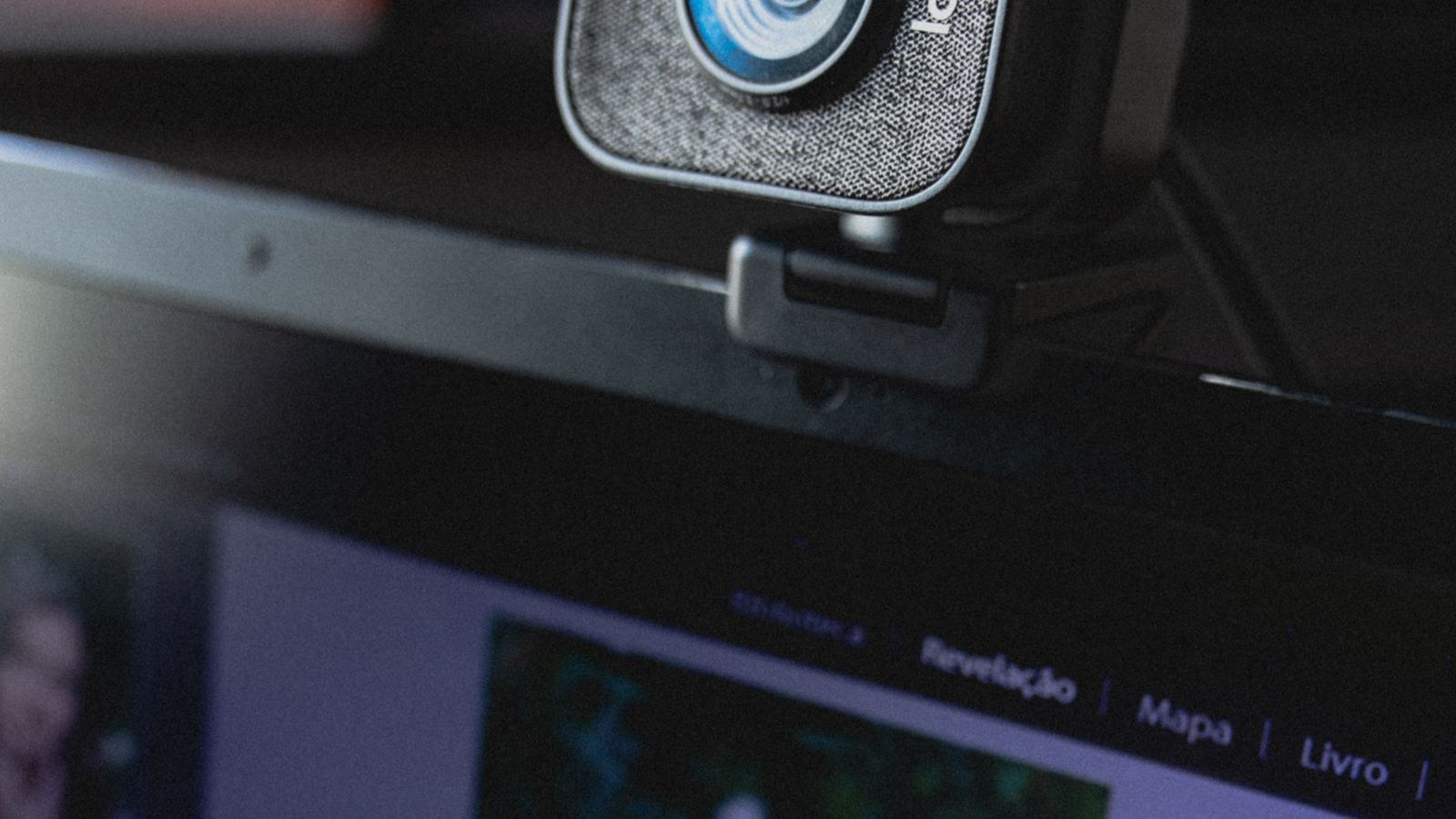
On most current hardware, the answer is a qualified yes. Modern laptops and many external cameras wire the activity LED to the same power rail as the image sensor, meaning the sensor physically cannot draw power without the light illuminating. On such designs, a dark LED is meaningful evidence that no video is being captured. This is a hardware interlock, not a software promise, and that distinction is the whole point.
The qualification matters, though. Older webcams and some inexpensive modules drive the LED through firmware, which means code decides whether it lights up. On those devices the indicator is a courtesy, not a guarantee. Manufacturers rarely advertise which approach they use, so unless the spec sheet explicitly mentions a hardware-linked indicator, treat the light as a helpful signal rather than proof.
The Light Also Fails in the Other Direction
An indicator that stays lit after a call ends usually means an application never released the device, not that something sinister is happening. Video conferencing tools, browser tabs, and background camera-based features such as presence detection all hold the handle open. Before assuming the worst, close browser tabs and quit conferencing apps, then watch whether the light goes out. If it does, you have found an app that simply does not clean up after itself.
Physical Shutters: What They Solve and What They Do Not
A shutter is a mechanical slider or hinged cover that blocks the lens. Its value is absolute certainty about one specific thing: no usable image leaves that lens while the cover is closed. No software update, permission change, or compromised driver alters that. For anyone who works from a bedroom, shares a space, or takes calls in a room where a stray shot would be awkward, that certainty is worth more than any settings menu.
The limits are equally important. A shutter does nothing for the microphone, which for most people carries more sensitive information than the video ever would. It also does nothing for screen sharing accidents, notification popups on a shared display, or the contents of your desk visible in a photo. Treat the shutter as one layer, not a solution. Cameras designed with the cover integrated into the housing are far easier to live with than stick-on covers, which peel off, misalign, and on thin laptop lids can press against the screen when closed. Integrated designs are worth seeking out, and our roundup of the best webcams with a privacy shutter covers models where the mechanism is built in properly rather than bolted on.
Shutter Styles Compared
- Sliding covers integrated into the camera body are the most durable and least likely to get lost.
- Hinged flaps are easy to operate one-handed but can be knocked open accidentally.
- Adhesive slide covers are cheap and universal but the weakest option, since repeated use loosens the glue.
Auditing Operating System Permissions
This is the step most people skip and the one with the biggest payoff. Both major desktop platforms maintain a central list of which applications have been granted camera and microphone access, and both let you revoke access per app without uninstalling anything. Set a reminder to review these lists quarterly, and after any burst of new software installs.
- Open the privacy settings for camera and microphone in your system preferences. Read the full list, not just the top few entries.
- Revoke anything you do not recognise or no longer use. Nothing breaks permanently; the app simply asks again if it genuinely needs access.
- Check browser permissions separately, since browsers manage their own per-site grants. Sites you visited once should not retain standing camera access.
- Review which apps launch at startup. A conferencing tool that starts with the machine has all day to hold the camera open.
- Confirm system updates are current. Camera-related isolation and permission enforcement have improved substantially in recent releases, and those protections only apply if you install them.
On a managed work machine, some of these toggles may be locked by policy. That is not a reason to skip the audit; it tells you which controls are yours and which belong to your employer, which is useful information on its own.
Application Settings Worth Changing Once
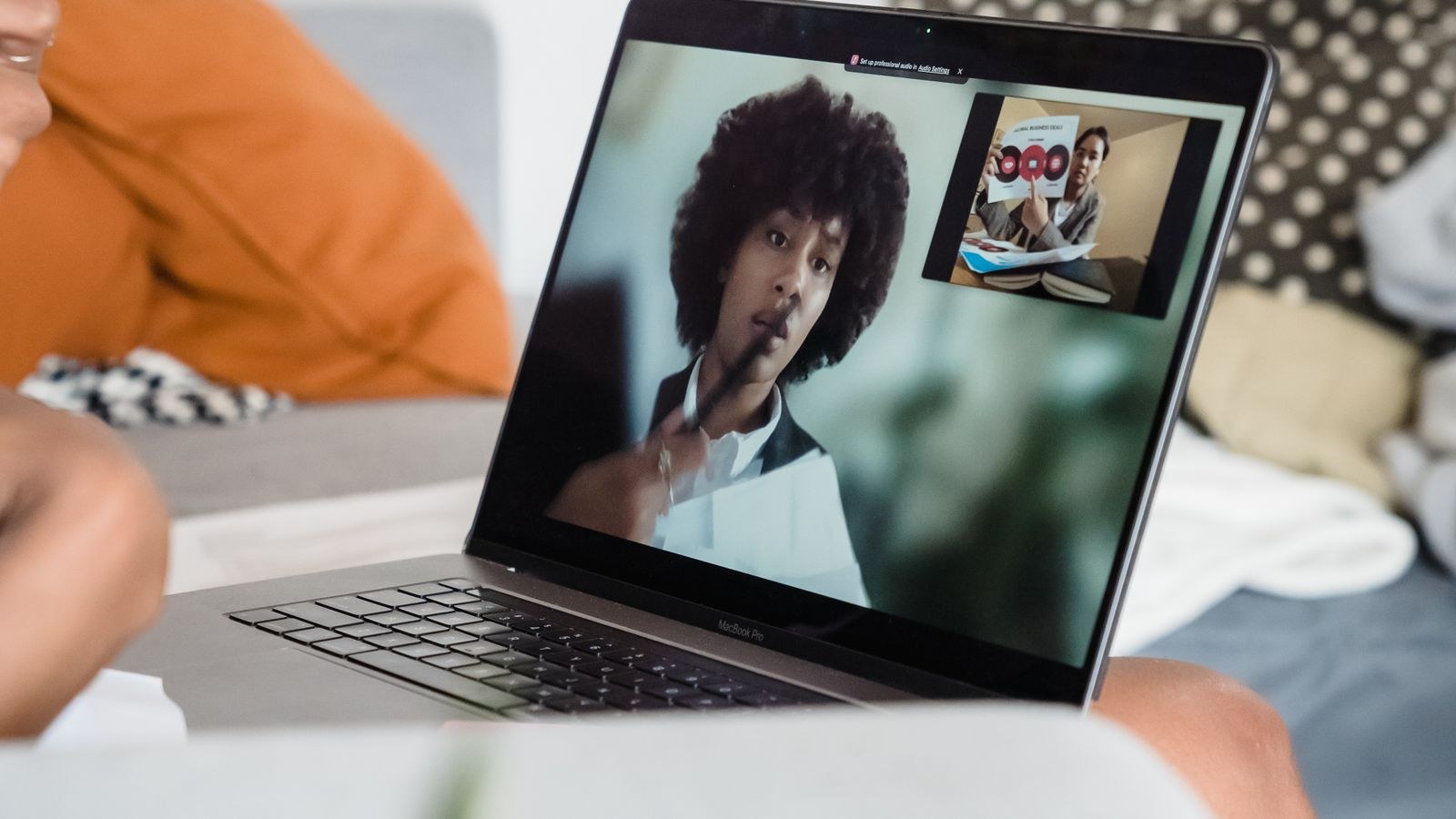
Most conferencing platforms default to joining meetings with camera and microphone active. Changing that single default eliminates the majority of embarrassing moments. Look for options along the lines of joining with video off and muting on entry, and enable both. Add a habit of using the preview window before joining anything scheduled with people outside your team.
Beyond the join defaults, a few settings pay off. Disable automatic recording features unless you need them. Turn off any background presence or attention-tracking option, which keeps the camera active far longer than the call itself. If a platform offers a virtual background or blur, treat it as a convenience rather than a privacy control, since processing failures occasionally reveal the real room for a frame or two. A physical tidy-up behind you is more reliable than a software filter.
Choosing Hardware With Privacy in Mind
An external camera has a structural advantage over a built-in one: you can unplug it. That is the strongest privacy control available, and it costs nothing. For a desk that is used for work all day, a dedicated camera that lives on a monitor and can be pulled from the port at the end of the day removes an entire category of worry. If you are equipping a permanent workspace, the models covered in our guide to the best webcams for a home office prioritise the mounting stability and consistent exposure that make a fixed setup pleasant to use.
Image quality still matters, because a camera you dislike is a camera you fight with. Look for a sensor that handles a backlit window without turning you into a silhouette, and a fixed-focus or reliable autofocus system that does not hunt every time you move. Frame rate at your chosen resolution matters more than the headline resolution number; smooth 1080p usually looks better on a call than stuttering 4K, since most platforms downscale anyway. Options weighed for on-camera appearance are gathered in our list of the best webcams for video calls.
Connection Type and Placement
Most desk cameras connect over USB and draw all their power from the port, which keeps the cable count down and makes unplugging trivial. Cable length decides where the camera can actually sit, so measure the run from your machine to the top of your monitor before ordering. A camera tethered by a cable too short to reach the intended mount ends up balanced somewhere unflattering. Practical connection and mounting considerations are covered across our shortlist of the best USB webcams.
Placement itself is a privacy decision. A camera aimed slightly downward from the top of a monitor captures your face and a wall, while one on a low tripod captures the whole room behind you. Choose the angle that shows the least.
Microphone Privacy Deserves Equal Attention
Audio is the neglected half of this topic. A muted call still means a live microphone in most software, since platform mute is a software state rather than a hardware cut. If a conversation genuinely must not be captured, use a hardware mute switch on the device, unplug it, or leave the room. Many desk cameras and headsets now include an inline hardware mute, and it is worth prioritising when comparing models.
Audit microphone permissions with the same rigour as camera permissions. Voice assistants, dictation tools, and meeting transcription services all request standing access and rarely give it back. Meeting recording and transcription in particular are worth an explicit decision rather than a default, because they create a durable record that outlives the call. Setups chosen with call reliability in mind are compared in our guide to the best webcams for Zoom meetings.
Common Mistakes to Avoid
- Trusting tape as a complete answer. It handles one lens and nothing else, and adhesive residue on a lens degrades image quality permanently once you peel it off.
- Never reviewing permissions. Access granted once persists for years across updates and reinstalls unless you revoke it deliberately.
- Assuming a dark indicator light is a guarantee on hardware where the LED is firmware-driven rather than wired to the sensor.
- Ignoring the microphone while obsessing over the camera, despite audio usually carrying more sensitive content.
- Leaving conferencing software running at startup, which keeps the device claimed all day for no benefit.
A Practical Setup Checklist
- Choose a camera with an integrated shutter or plan to unplug an external unit at the end of each day.
- Audit camera and microphone permissions at the operating system level, then again inside your browser.
- Set conferencing apps to join with video off and audio muted by default.
- Confirm your machine is running current system updates before trusting any privacy toggle.
- Position the camera so the frame shows the least of your room, and check the preview once in daylight and once at night.
- Prefer a device with a hardware microphone mute, and re-run the permissions audit quarterly.
Frequently Asked Questions
Can a webcam record without the light turning on?
On hardware where the LED is wired to the sensor power, no. On devices where firmware controls the light, it is technically possible, which is why a physical cover remains the only absolute answer.
Is a built-in laptop camera less secure than an external one?
Not inherently, but an external camera can be unplugged, which is a control a built-in camera cannot offer. Many laptops now include their own sliding cover or an electronic kill switch to close that gap.
Do virtual backgrounds protect my privacy?
Only partially. They are processed in software and occasionally fail for a frame, briefly revealing the real room. Use them for polish, not for concealing something you truly need hidden.
How often should I review camera permissions?
Quarterly is a reasonable rhythm for most people, plus an extra pass after any period of installing several new applications or after a major operating system upgrade.
Final Thoughts
Good webcam privacy comes from layering cheap, boring measures rather than buying one dramatic product. A hardware shutter handles the worst case, a permissions audit handles the quiet accumulation of access, sensible app defaults handle the everyday accidents, and hardware mute handles the audio half that most people forget. None of these is expensive, and together they let you stop thinking about the camera altogether.
Choose hardware where the privacy feature is built into the design rather than added afterwards, position it to show as little of your space as possible, and set a calendar reminder to revisit permissions a few times a year. That combination gives you a workspace you can leave assembled and powered on without a second thought.