Owen Bradley
 You pay for 500 Mbps. You run a speed test on your phone in the kitchen, it reports 90 Mbps, and you draft an angry email to your provider. Then you test again from a laptop next to the router and get 480 Mbps. Nothing changed on the line. What changed was the measurement. Speed tests are genuinely useful tools, but they measure the entire chain from a test server all the way to one device, and the weakest link in that chain is almost never the part you are trying to evaluate. This guide covers Wi-Fi speed test accuracy: why the numbers mislead, how to test in a way that produces meaningful results, and how to tell a router bottleneck apart from a real shortfall from your ISP in 2026.

What a Speed Test Actually Measures
A speed test opens several connections to a nearby server, pushes and pulls data for a few seconds, and reports the peak sustained rate. That figure describes the slowest point along the whole path: the test server, the wider internet, your provider’s network, your modem, your router, the wireless link, and finally the device running the test.
Your ISP is responsible for exactly one segment of that. Everything from the router onward is yours, and in most homes that is where the number gets lost. Treating a single result as a verdict on your provider is the fundamental mistake.
The Device Is Often the Limit
Phones and tablets have small antennas and limited radio capability. Many devices still in daily use top out well below gigabit speeds on wireless regardless of what the network offers. Older laptops may have two-stream wireless adapters or, worse, a 100 Mbps Ethernet port that caps everything at around 94 Mbps no matter what you plug it into.
Browser-based tests add their own ceiling. A busy phone with a full memory and a dozen background apps simply cannot process data fast enough to report a gigabit result. This is why testing a fast connection on a five-year-old phone tells you almost nothing about the connection.
Why Wi-Fi Numbers Fall So Far Short
Wireless throughput is not a fixed value; it is a negotiation that happens continuously and depends on conditions.
Band matters most. The 2.4 GHz band travels further but is narrow, crowded and shared with microwaves, baby monitors, Bluetooth and every neighbour’s network. Real throughput there rarely exceeds 100 Mbps and is often far lower. The 5 GHz band is much wider and cleaner but does not pass through walls as well. The 6 GHz band, on newer hardware, is wider still and largely empty, but its range is shortest of all.
Distance and obstacles cut speed sharply. Wireless rates step down as signal quality degrades, so a device two rooms away might connect at a quarter of the rate it achieves in the same room. Brick, concrete, foil-backed insulation, mirrors and water tanks are all effective blockers.
Airtime is shared. Wi-Fi is half duplex and only one device transmits at a time on a channel. A slow device connected at a low rate occupies airtime disproportionately, dragging down everyone else. Ten idle devices are fine; three active ones will visibly affect your test.
How to Test Properly
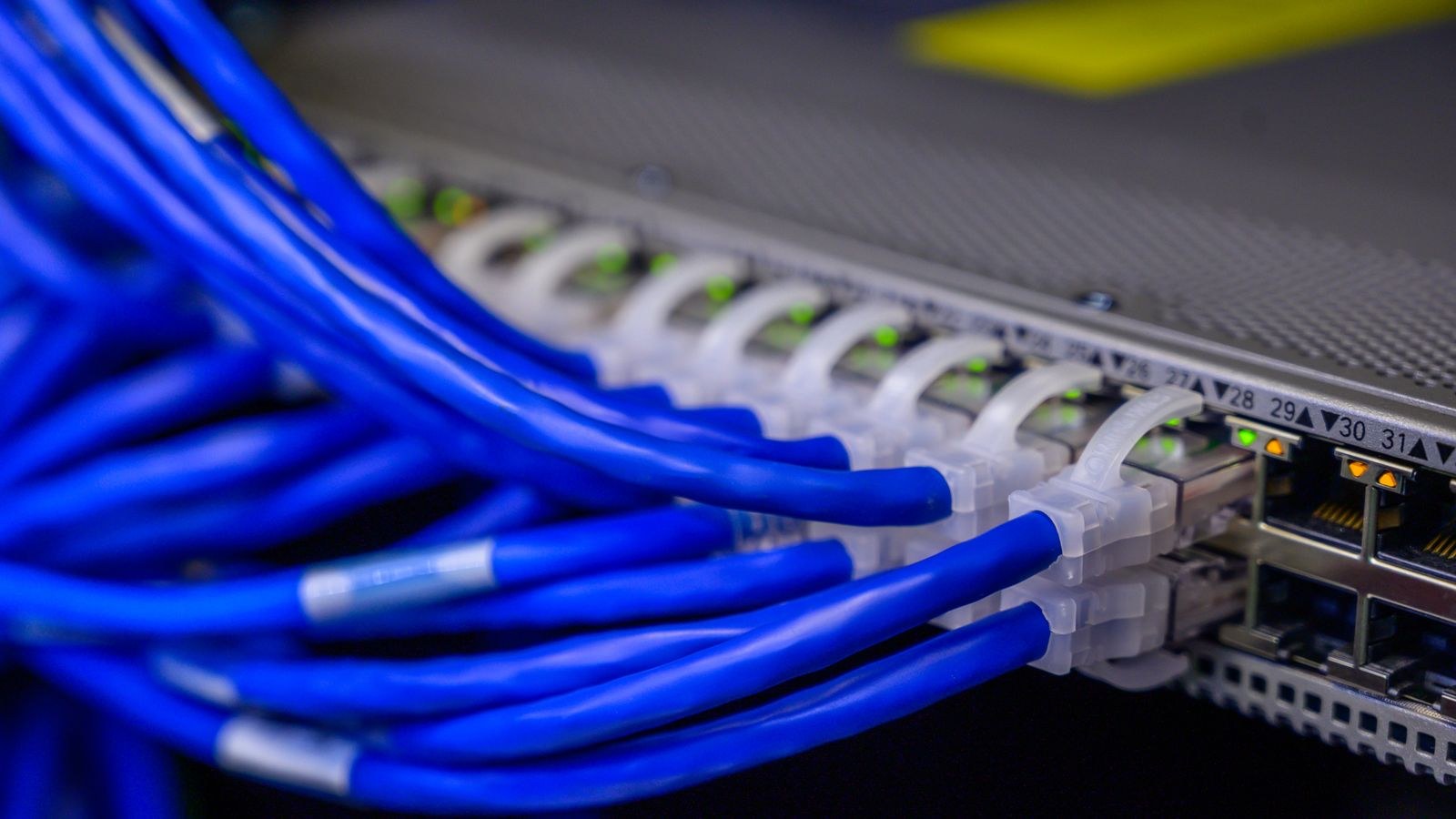
- Start wired. Connect a computer to the router with Ethernet, confirm the link negotiated at gigabit rather than 100 Mbps, and test. This gives you the true ceiling of your line and router.
- Close everything else. Pause cloud sync, streaming, downloads and console updates. Ask the household to stop for two minutes.
- Use a current device. A modern laptop with a recent wireless adapter, not the oldest tablet in the drawer.
- Pick a nearby test server and keep using the same one so results are comparable over time.
- Run three tests and take the middle result. Single tests fluctuate.
- Repeat at peak hours, typically weekday evenings, because congestion only shows up then.
- Then test wirelessly at the same spot, then in the rooms that matter, comparing each against the wired baseline.
That wired-versus-wireless comparison is the diagnostic. If wired hits your plan speed and wireless does not, the line is fine and your wireless setup is the problem. If wired also falls short, the issue is the router, the modem or the provider. Our walkthrough on how to test home Wi-Fi speed and interpret the results goes through the full sequence with the specific figures to record at each step.
The Numbers Beyond Download Speed
Most people read one figure and ignore three more useful ones.
Upload determines video call quality, cloud backup speed and file sharing. On cable connections it is often a small fraction of the download figure and is far more likely to be the thing actually limiting you.
Latency, or ping, measures round-trip delay. Below 30 ms feels instant, and above 100 ms is noticeable in calls and gaming. Latency is independent of bandwidth: a slow connection can have excellent latency and a fast one can be poor.
Jitter is the variation in latency and is the best single predictor of whether video calls will stutter. A connection averaging 40 ms but swinging wildly performs worse in a meeting than a steady 70 ms link.
Loaded latency, sometimes called buffer bloat, is measured while the connection is saturated. Many home connections show latency climbing from 20 ms to several hundred under load, which is why everything feels broken while a large download runs. Good queue management in the router fixes this, and it is one of the most noticeable improvements available.
Telling a Router Problem From an ISP Problem
Work through the evidence in order. Wired speed matching your plan means the provider is delivering, full stop. Wired speed far below the plan at all hours points at the modem, the router or the line, and is worth raising with the provider with logged figures and timestamps.
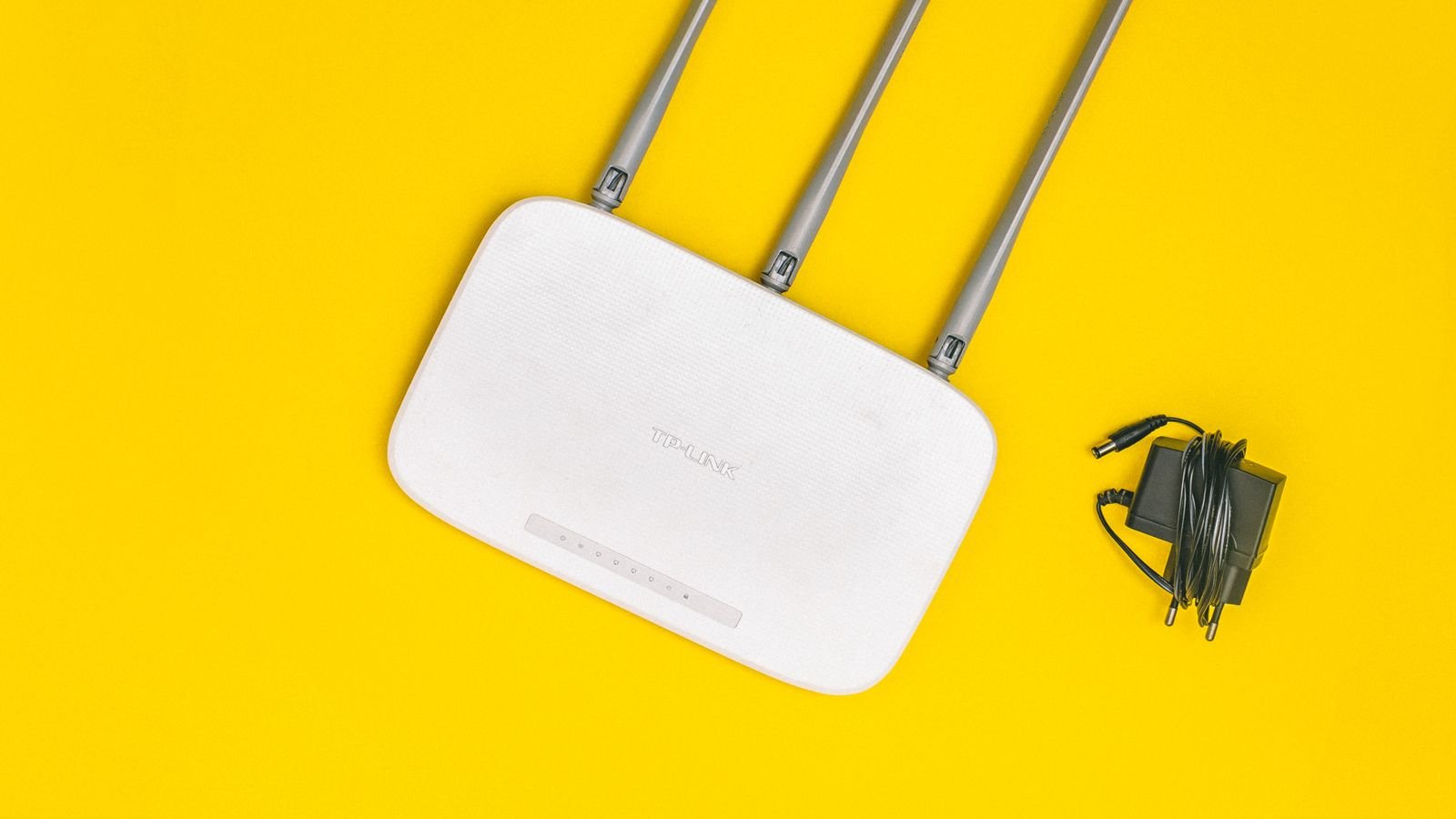
Wired speed fine but wireless poor everywhere suggests the router’s radios are the limit. Older units simply cannot pass modern plan speeds over wireless, and no configuration change alters that. If you are on a multi-hundred-megabit plan with a router supplied years ago, that mismatch alone explains most complaints; our roundup of the best routers for speed compares models on real-world throughput rather than the theoretical figures on the box.
Wireless fine near the router but poor in distant rooms is a coverage problem, solved by better placement, a mesh node or a wired access point, not by a faster plan. And speeds that are fine at midday but collapse every evening indicate congestion, either in your neighbourhood on a shared cable segment or from household devices you have not accounted for.
When the Hardware Is Genuinely Too Old
There is a hard ceiling here worth naming. Routers from earlier wireless generations cannot deliver several hundred megabits wirelessly even in ideal conditions, and many older models have processors that cannot route gigabit traffic at all once firewall and QoS features are enabled. If your plan has been upgraded twice since you got the router, replacement is the fix. Guides to the best high speed routers and the best Wi-Fi 6 routers cover models with the radio capability and processing headroom to actually pass modern plan speeds, while the best gigabit routers comparison is the right starting point if your wired ports are the bottleneck.

Quick Wins Before You Buy Anything
- Move the router. Central, elevated, out in the open. Not in a cupboard, not on the floor, not behind a television.
- Split or steer the bands so capable devices use 5 GHz or 6 GHz and only low-bandwidth sensors sit on 2.4 GHz.
- Change the channel. Scan for the least crowded option instead of leaving the default in a dense building.
- Update the firmware. Throughput and stability fixes are common and free.
- Check your cables. An old Cat 5 patch lead or a damaged connector can silently negotiate at 100 Mbps.
- Enable smart queue management if available, which fixes loaded latency dramatically.
Common Testing Mistakes
- Testing on a phone and blaming the ISP. The phone is frequently the limiting factor.
- Testing over Wi-Fi only. Without a wired baseline you cannot separate the two problems.
- Testing once. Results vary; take a median and repeat at busy times.
- Ignoring upload, jitter and loaded latency. These explain most call and gaming complaints.
- Using a distant test server, which measures internet routing rather than your connection.
- Testing through a VPN, which adds encryption overhead and an extra hop.
Frequently Asked Questions
Why is my Wi-Fi speed so much lower than my plan?
Wireless overhead, band choice, distance, interference and shared airtime all reduce throughput. Achieving roughly half your plan speed over Wi-Fi at a moderate distance is normal, not a fault.
Are speed test websites accurate?
They accurately measure the whole path to your device under those conditions. They are not a measurement of your ISP alone, which is what people usually assume they are reading.
Should I test wired or wireless?
Both, in that order. Wired establishes what your line and router can deliver; wireless shows what your devices actually receive. The gap between them is the useful information.
Why does my connection feel slow despite a good test result?
Usually high loaded latency or jitter rather than lack of bandwidth. Test latency while a large download runs, and enable queue management on the router if the figure climbs sharply.
Does the time of day matter?
Considerably, especially on shared cable networks. Test at midday and again during weekday evenings; a large gap points to congestion rather than a faulty connection.
Final Thoughts
A speed test is a thermometer, not a diagnosis. The number it returns depends on the device you held, the band it used, the room you stood in, the other traffic on the network and the moment you pressed start. Test wired first to find your true ceiling, then test wirelessly to measure what your devices actually get, and pay as much attention to upload, jitter and loaded latency as to the headline figure. Do that and you will know within ten minutes whether the fix is moving the router, replacing it, or finally making that call to your provider with evidence in hand.