Owen Bradley
 A docking station is supposed to make one cable do the work of six, turning a laptop into a full desktop the moment you sit down. When it works, it feels like magic. When it does not, you get a monitor that refuses to wake, a laptop that slowly drains while plugged in, or an ethernet port that drops every time a webcam starts. Nearly all of those failures trace back to a mismatch between what the dock offers and what the laptop can actually negotiate. This USB-C dock buying guide walks through bandwidth, charging wattage, display limits and port selection so you can pick a dock in 2026 that simply works on day one.
Start With What Your Laptop Supports
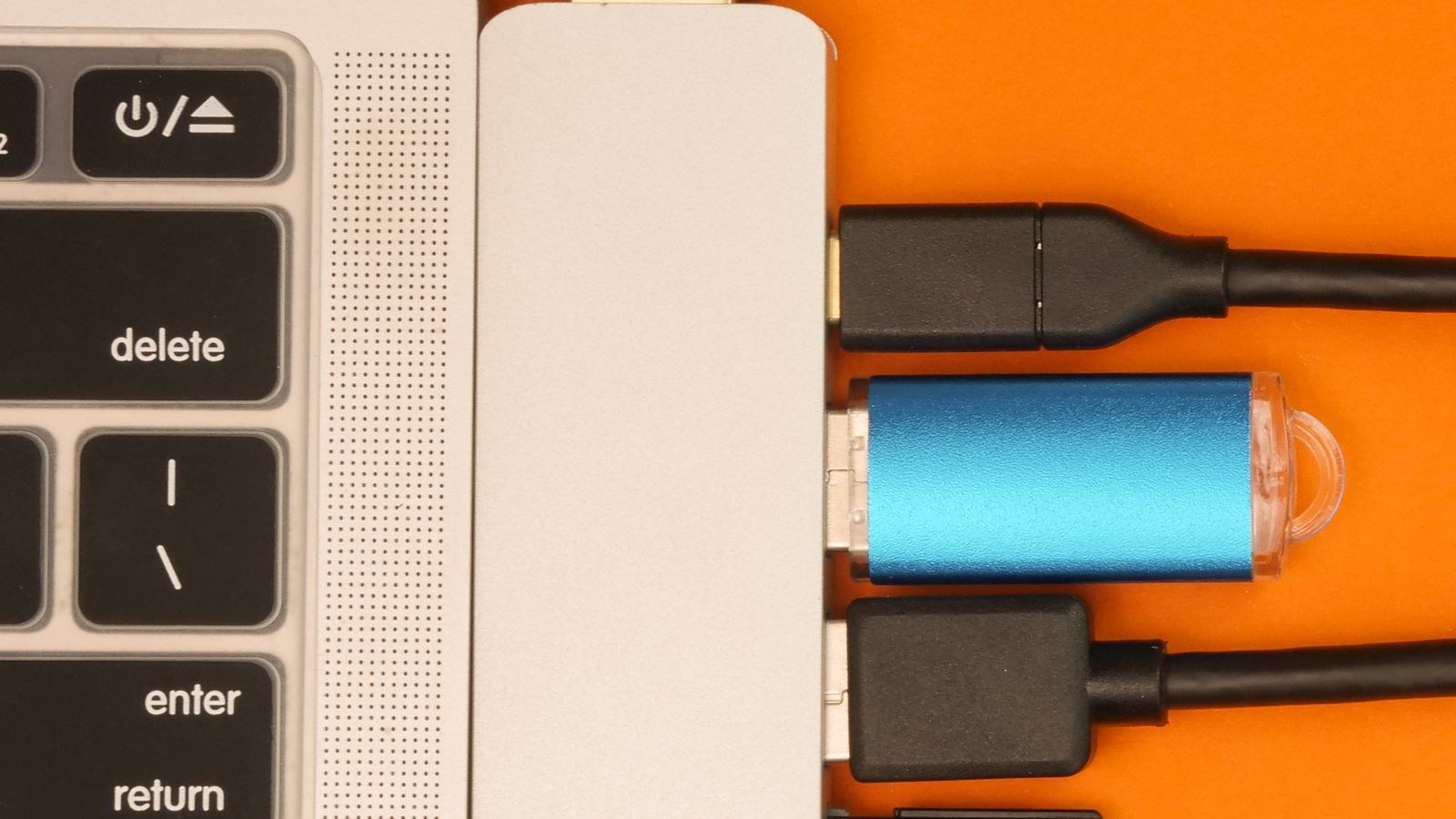
The dock is the easy half of this equation. The hard half is the port on your machine, because a USB-C connector is a shape, not a capability. Two laptops with identical-looking ports can differ enormously in what they will do when a dock is plugged in.
Three things must be true for a single-cable desk to work. The port must carry DisplayPort alternate mode or Thunderbolt to send video. It must support USB Power Delivery to charge the laptop back down the same cable. And it needs enough underlying bandwidth for the number of displays you intend to run. Check your laptop’s specification page for the exact port capabilities before shopping. A small icon beside the port often helps: a lightning bolt usually indicates Thunderbolt, a display glyph indicates video output, and a plain USB logo may mean data only.
If your machine’s ports are data-only, a dock can still add hubs and ethernet, but external displays will need either an HDMI port on the laptop itself or a dock that drives screens through a software display driver instead of a native video signal. That software route works but costs CPU and can stutter on video playback, so treat it as a fallback rather than a plan.
Thunderbolt Versus USB-C Alt Mode
This is the single biggest fork in the road. Thunderbolt docks carry far more total bandwidth over the same connector, and they share it intelligently between video, storage and networking. That headroom is what allows two high-resolution displays to run simultaneously alongside fast external storage without anything degrading. Thunderbolt docks also tend to include better internal controllers, which shows up as fewer wake-from-sleep problems.
Standard USB-C alt mode docks are cheaper and perfectly good for a single external display plus peripherals. The compromise is that video and data compete for a smaller pool of bandwidth. Attach a second display and the dock frequently reduces refresh rate or colour depth to fit everything through. For a single 1080p or 1440p screen with a keyboard, mouse and headset, that ceiling is never reached and the money saved is real.
The rule of thumb is straightforward: one display means an alt mode dock is likely enough, while two displays or any serious external storage justifies Thunderbolt. Compatibility runs downhill, so a Thunderbolt dock generally still works on a plain USB-C laptop, just with reduced capability. The reverse is not true.
Where a Dock Beats a Graphics Solution
Docks handle display output but do not add rendering power. If your bottleneck is graphics performance rather than connectivity, a dock will not solve it. Enthusiasts sometimes conflate the two categories, and our comparison of graphics cards and docks is a useful reference for deciding which problem you actually have before spending.
Charging Wattage: The Spec People Get Wrong
A dock’s advertised wattage and the wattage it delivers to your laptop are two different numbers. Manufacturers often quote the total power the internal supply produces, then subtract what the dock itself consumes and what the downstream ports need. A dock advertising 100W frequently delivers 85W or 90W to the host, and that difference decides whether your laptop charges under load or slowly loses ground.
Look specifically for a figure described as power delivered to the host or upstream power. Then compare it against the wattage of the charger that shipped with your laptop. Matching that number is ideal, and coming within about 15W is usually acceptable for ordinary office work. Fall much below it and the machine will charge when idle but discharge during video calls or compilation, which is a frustrating way to discover the problem.
- Thin ultraportables typically need 45W to 65W and are easy to satisfy with almost any dock.
- Mainstream 14 to 16 inch laptops usually want 65W to 96W delivered.
- Mobile workstations and gaming laptops often require 130W or more and may need their original charger connected alongside the dock.
Also confirm the dock ships with a power brick sized for the claim. Some inexpensive units advertise a high wattage but include an undersized adapter, capping real-world delivery well below the number on the box.
Display Support and Real Resolution Limits
Display specifications on dock packaging describe a best case that assumes an ideal host, current cabling and no competing traffic. A dock claiming dual 4K at 60Hz will deliver that only on a Thunderbolt laptop with the bandwidth to spare. On an alt mode machine the same dock may manage dual 4K at 30Hz, which looks unpleasantly choppy for pointer movement, or drop the second screen entirely.
Decide your display target first. A single 4K screen at 60Hz is comfortable for most work and is well within reach of a good alt mode dock. Dual 1440p at 60Hz is a similar load and equally achievable. Dual 4K at 60Hz, or anything above 60Hz, is Thunderbolt territory. Also check which output types the dock provides, since some offer two HDMI ports, others a mix of HDMI and DisplayPort, and a few pass video through downstream USB-C ports.
Monitors that accept a single USB-C connection can simplify this considerably, because the display itself handles power and data alongside video, sometimes removing the need for a separate dock. Our roundup of the best USB-C monitors covers panels that do this well, including which ones supply enough wattage to charge a laptop on their own. For a second screen that travels, the models in our guide to the best portable monitors mostly run from the dock’s power without an extra adapter.
Choosing the Right Port Mix
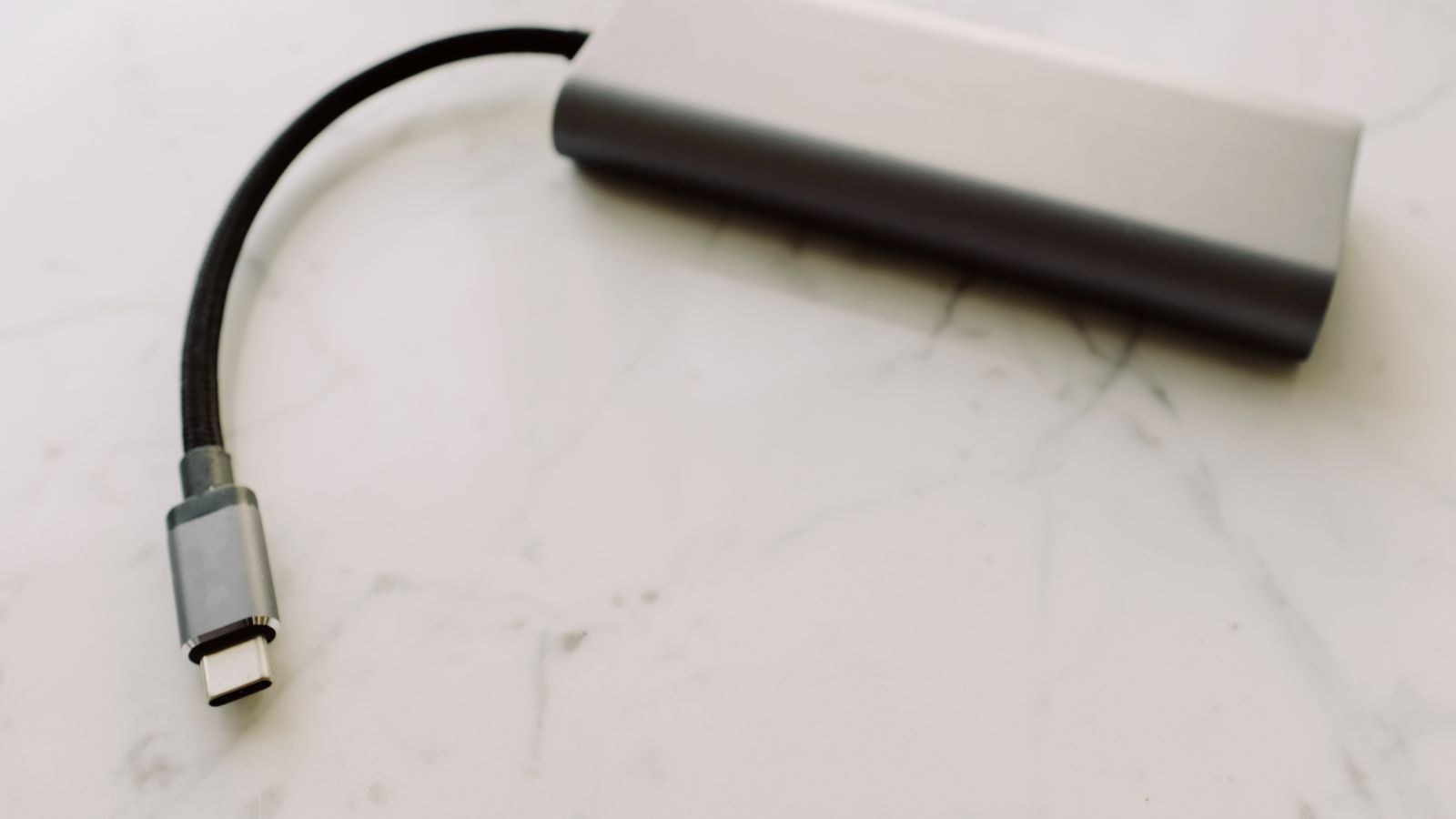
Count what you plug in today, then add two. Desks accumulate devices, and a dock that is exactly full on the day it arrives becomes a bottleneck within months. Prioritise these:
- USB-A ports remain essential for keyboards, mice, receivers and older peripherals. Three or four is a comfortable number.
- Downstream USB-C ports for newer devices and phone charging. At least one should support meaningful power output.
- Gigabit ethernet, which is worth having even on a good wireless network for calls and large file transfers.
- A combined audio jack so a wired headset does not occupy a data port.
- An SD or microSD reader if you work with cameras, since a built-in reader is faster and tidier than a dangling adapter.
- Front-facing ports for things you plug in temporarily, which saves reaching behind the unit daily.
Bandwidth is shared across those ports, so a dock crowded with high-speed connectors will not run them all at full rate simultaneously. That is fine in practice, since keyboards and mice use almost nothing. It matters only if you plan to run several fast drives at once.
Peripherals That Simplify the Cable Count
Modern peripherals that connect over USB-C reduce the number of adapters cluttering a desk and free up USB-A ports for legacy hardware. Keyboards designed around the newer connector are compared in our list of the best USB-C keyboards, and if your desktop tower is part of the setup, cases with front-panel USB-C access are covered in our guide to the best PC cases with USB-C. Both reduce the number of times you reach behind furniture.
Build Quality, Heat and Reliability
Docks run continuously and generate real heat, particularly the higher-wattage models. An aluminium housing acts as a heatsink and stays noticeably cooler than a plastic shell, which matters because sustained heat is the most common cause of intermittent dropouts after a year of use. Give any dock a few centimetres of clearance and avoid burying it under paperwork.
Firmware updates are an underrated buying criterion. Reputable manufacturers publish updates that fix wake-from-sleep issues, display detection quirks and compatibility with new laptop models. Before buying, check whether the maker has a support page with dated firmware releases. A dock with no update history is a dock whose bugs are permanent. Weight helps too: a heavier unit stays put when you unplug a stiff cable rather than sliding across the desk.
Budget Tiers and What Each Gets You
Entry-level hubs in the lowest tier are bus-powered dongles rather than true docks. They add a few ports and often one display output, but they draw power from the laptop instead of supplying it. They are excellent travel companions and poor permanent desk hardware.
The middle tier is where most people should shop. These are powered alt mode docks with a proper external supply, a solid port selection, ethernet and support for one or two displays. They handle a mainstream laptop and a typical office workload without complaint.
The top tier is Thunderbolt, where you pay for bandwidth headroom, higher host charging wattage, better thermal design and generally more reliable firmware. If you run dual high-resolution displays, fast external storage, or simply want the dock to outlast two laptop replacements, the premium is defensible. If you run one screen and a handful of peripherals, it is not.
Common Mistakes to Avoid
- Buying on port count alone without confirming the host laptop supports video output over its USB-C port.
- Reading total wattage as host charging wattage, then wondering why the battery drains during meetings.
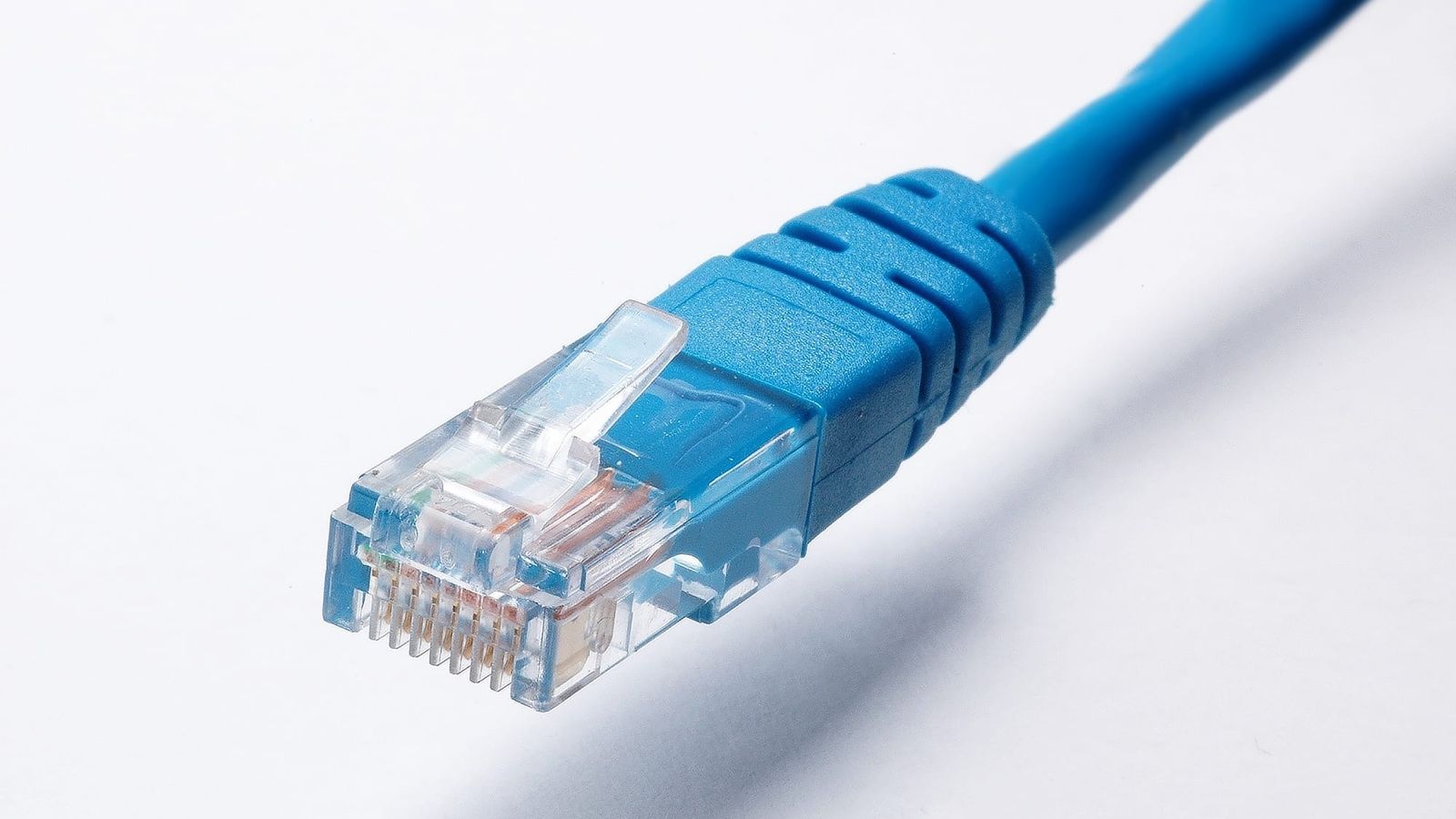
- Reusing a random USB-C cable. The cable between dock and laptop must support the required data rate and power; a charge-only cable will not carry video.
- Assuming dual 4K at 60Hz works on any laptop because the dock box says so.
- Ignoring firmware support, which is what separates a dock that improves over time from one that quietly gets worse.
- Placing the dock in an enclosed space where heat accumulates and triggers intermittent disconnections.
Frequently Asked Questions
Will a Thunderbolt dock work with a regular USB-C laptop?
Usually yes, in a reduced mode. You typically get the USB ports, ethernet and one display, but not the full dual-display bandwidth. Check the manufacturer’s compatibility notes, since a few models require Thunderbolt outright.
Why does my external monitor flicker or drop out?
The most frequent causes are an inadequate cable between laptop and dock, an overloaded bandwidth budget from too many displays, or heat. Swap in a certified cable first, since that resolves the majority of cases.
Do I still need my laptop charger?
Not if the dock delivers wattage close to your original adapter. Keep the charger for travel, and for high-power laptops that a dock cannot fully sustain under heavy load.
Can one dock serve two different laptops?
Yes, by unplugging and reconnecting the single cable, though each machine needs its own display arrangement configured. Switching automatically between two always-connected computers requires a KVM instead.
Final Thoughts
The right dock is the one that matches your laptop’s actual port capability, delivers enough wattage to keep it charged under load, and drives your intended displays without compromise. Work through those three in order and the port selection becomes a simple preference question rather than a gamble.
Spend a little more than feels necessary on power delivery and build quality, since both determine whether the dock is still reliable in three years. Then buy a certified cable to go with it, because the cheapest component in the chain is the one most likely to make an expensive dock look faulty.