Owen Bradley
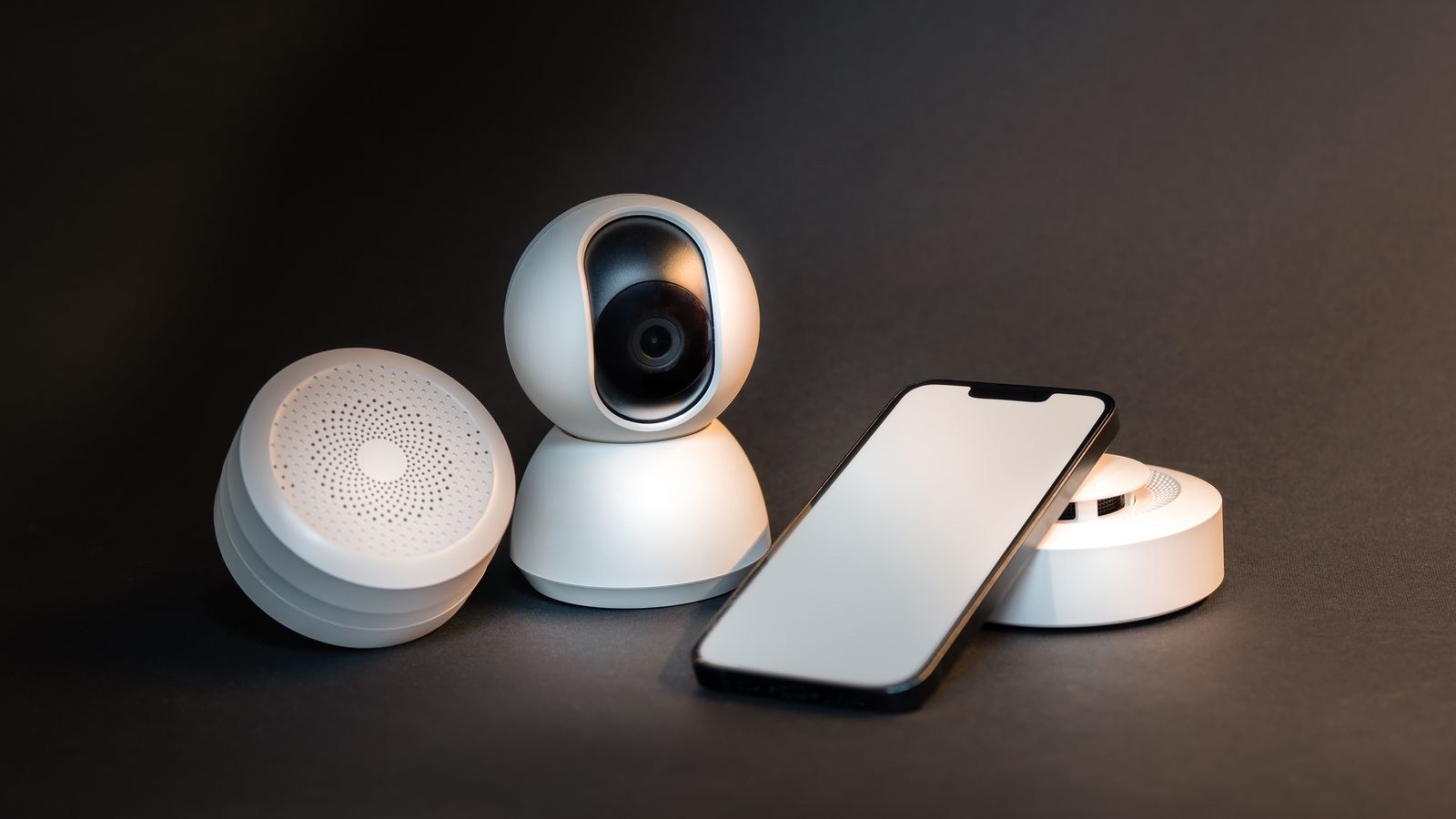
 Almost every smart plug, bulb, sensor and older camera on the market is a 2.4GHz-only device. Your router, meanwhile, probably broadcasts 2.4GHz and 5GHz under one shared network name and quietly decides which band each client should use. That works beautifully for laptops and phones and terribly for cheap IoT hardware, which frequently refuses to pair at all when it cannot find a 2.4GHz signal on the SSID you typed into the app. Splitting the bands into two separate network names solves it permanently. This tutorial covers how to split 2.4GHz and 5GHz bands on a typical home router, how to migrate your existing devices without chaos, and the cases where leaving band steering switched on is genuinely the smarter call.
Why Smart Devices Struggle With a Merged Network
When both radios share one SSID, the pairing process breaks in two ways. First, the setup app on your phone often passes along whatever network the phone is currently joined to. If your phone is sitting on 5GHz, the smart plug receives credentials for a network its radio cannot see, and setup times out with a vague error. Second, some devices scan for the SSID, find the 5GHz beacon, try to associate and fail, then give up rather than retrying on 2.4GHz.
Splitting the bands makes the whole thing deterministic. The 2.4GHz network gets its own name, you join your phone to it during setup, and the device pairs on the first attempt. It also lets you keep your phones and laptops parked on 5GHz where there is more spectrum and far less interference from microwaves, baby monitors and neighbouring networks.
What You Need Before You Start
- Router admin access. The web interface address is usually on the router label. The admin password is separate from the Wi-Fi password.
- A wired connection if possible. Saving band settings restarts both radios, so a laptop on Ethernet avoids losing the admin session mid-change.
- An inventory of your devices. List everything that will need rejoining: plugs, bulbs, cameras, doorbells, robot vacuums, printers, TVs.
- Twenty to forty minutes. The router change takes five minutes. Re-pairing stubborn smart devices takes the rest.
- The apps for your smart devices, logged in and ready, since some require a full delete and re-add rather than a network change.
Step-by-Step: Splitting the Bands Into Separate SSIDs
- Log in to the router’s admin interface. Enter the gateway address in a browser, or open the manufacturer app if it exposes full wireless settings. Many apps hide band controls, so the browser interface is usually the safer route.
- Find the wireless settings. Look for Wireless, Wi-Fi, or Wireless Settings. You should see either two sections labelled 2.4GHz and 5GHz, or a single section with a Smart Connect, Band Steering, OneMesh or Dual-Band toggle above it.
- Disable Smart Connect or band steering. This is the switch that merges the radios. Turning it off reveals separate configuration blocks for each band. On some firmware the option is called Enable SSID sharing, or simply a checkbox for use same name for both bands.
- Name the 2.4GHz network clearly. Keep your existing SSID for the band your devices already use, then append a suffix to the other. A common scheme is HomeNet for 5GHz and HomeNet-2G for 2.4GHz. Avoid spaces, apostrophes and emoji, which some IoT firmware cannot parse.
- Name the 5GHz network. Give it its own suffix such as -5G if you did not keep the original name there. Consistent naming makes it obvious which band a device is on later.
- Use the same password on both bands. Different passwords create confusion with no benefit. Set WPA2-PSK (AES) or WPA2/WPA3 mixed mode. Pure WPA3 will lock out a lot of older IoT hardware, so mixed mode is the pragmatic choice.
- Set the 2.4GHz channel and width. Choose channel 1, 6 or 11 rather than auto, since those three do not overlap. Set the channel width to 20MHz, which is more reliable and better behaved with neighbours than 40MHz on a crowded band.
- Save and apply. Both radios restart and every wireless client drops for roughly thirty seconds. Wait for the router to settle before doing anything else.
- Join your phone to the 2.4GHz SSID. Do this before opening any smart device app. Forget the old merged network on the phone so it cannot silently jump back.
- Pair or re-pair your smart devices. Work through them one at a time. Many will reconnect automatically if you kept the original SSID name on 2.4GHz. Anything that does not should be reset and added again through its app.
- Move phones, laptops and TVs to 5GHz. Once the IoT gear is settled, join your high-bandwidth devices to the 5GHz SSID and forget the 2.4GHz one on them so they stop drifting down.
- Document the setup. Write both SSIDs and the password somewhere the household can find them. Future you will be grateful.
What to Do If Your Router Will Not Split the Bands
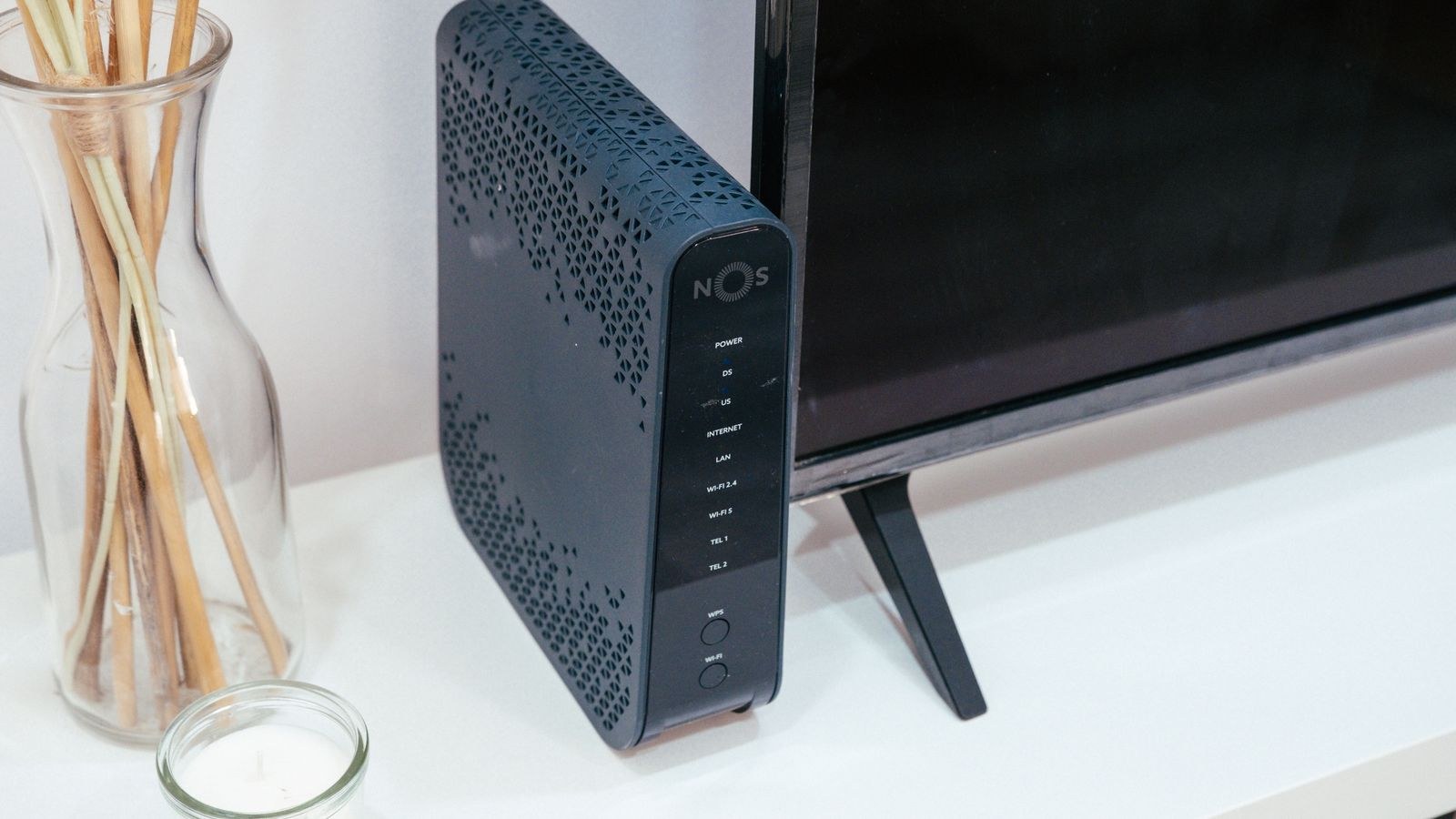
Some ISP-supplied gateways and most mesh systems deliberately hide band controls because their steering logic is designed to be left alone. If you cannot separate the SSIDs, you still have options.
- Look for an IoT network option. Several mesh platforms now offer a dedicated 2.4GHz-only guest or IoT SSID, which is exactly what you want without disabling steering for everything else.
- Temporarily disable the 5GHz radio. Turn it off, pair the smart device on the remaining 2.4GHz signal, then turn 5GHz back on. The paired device remembers the network name and keeps working.
- Move away from the router. Standing in a far corner of the house during pairing pushes your phone onto 2.4GHz naturally, because the 5GHz signal fades faster through walls.
- Replace the gateway. If you run more than a handful of smart devices, a router with proper per-band control pays for itself in saved frustration. Our list of the best routers for smart home setups focuses on models that expose these settings.
When Band Steering Is Actually the Better Choice
Splitting is not universally correct. Band steering exists because it genuinely helps in some homes, and turning it off has real costs.
If your household is mostly phones, laptops and tablets that move around the house, steering keeps them on the fastest usable band automatically and hands them back to 2.4GHz when they wander to the garden. Manage that by hand with two SSIDs and you will find devices clinging to a weak 5GHz signal in a far bedroom because you told them to prefer it. Mesh systems in particular rely on unified SSIDs for smooth roaming between nodes, and forcing separate names can cause a laptop to stay glued to a distant node instead of switching.
The best of both worlds is a router that supports steering for your main network plus a separate 2.4GHz IoT SSID alongside it. Failing that, split the bands if smart devices dominate your network, and keep steering if the household is mostly mobile computing. Homes with dozens of clients across both categories usually benefit from more radios rather than more SSIDs, which is where the best tri-band routers earn their price by giving 5GHz clients a second lane. If the client count is the real issue, our guide to the best routers for lots of devices compares platforms built for high client density.
Troubleshooting Common Problems
Smart devices went offline after the change. They are looking for the old SSID. If you renamed the 2.4GHz network, they need re-pairing. This is why keeping the original name on 2.4GHz saves so much work.
The phone keeps jumping back to 5GHz during setup. Forget the 5GHz network on the phone temporarily, or disable the phone’s auto-join for it. Re-enable afterwards.
Pairing fails with a strong signal. Check the 2.4GHz band is not set to WPA3-only and is not running in a mode the device cannot use. Also confirm the SSID has no special characters.
5GHz speeds dropped after splitting. Verify the 5GHz channel width is 80MHz and that the router did not reset to a low-power channel when the radios restarted.
Devices roam badly between floors. This is the classic side effect of manual band assignment. Either accept it, or move the mobile devices back to a steered SSID and keep the split network purely for IoT.
Common Mistakes to Avoid
The most expensive mistake is renaming both bands at once. Change only the band your devices are not using and you avoid re-pairing everything you own. The second is using different passwords per band, which guarantees that someone in the house enters the wrong one and blames the router. The third is setting the 2.4GHz channel width to 40MHz to chase speed. That band has only three clean channels; taking two of them makes life worse for you and everyone nearby, and 2.4GHz clients are almost never bandwidth-limited anyway. Finally, do not hide the SSID as a security measure. Hidden networks confuse IoT pairing routinely and provide no meaningful protection. If your goal is simply a solid two-band foundation for a modest household, the best dual-band routers handle this well without the complexity of extra radios, and the broader best Wi-Fi routers for home roundup covers all-round picks.
Frequently Asked Questions
Will splitting the bands slow down my Wi-Fi?
No. The radios always ran separately; you are only changing how they are labelled. In practice most people see slightly better performance because devices stop bouncing between bands.
Should the two networks use the same password?
Yes. Use one strong passphrase across both bands. Separate passwords add confusion without adding security.
Can I keep my old network name?
Absolutely, and you should. Assign the original SSID to 2.4GHz so existing smart devices reconnect on their own, then give the 5GHz network a new suffix.
Do I need to split bands on a mesh system?
Usually not, and often you cannot. Look instead for a built-in IoT or guest network limited to 2.4GHz, which gives you the pairing benefit without breaking roaming between nodes.
Why is 2.4GHz so slow if it reaches further?
It uses narrower channels and shares the band with Bluetooth, microwaves and cordless phones. The longer range comes from lower frequency penetrating walls better, not from more capacity.
Final Thoughts
Splitting 2.4GHz and 5GHz into separate SSIDs is a fifteen-minute change that removes an entire category of smart home frustration. Turn off Smart Connect, keep your existing name on 2.4GHz so nothing needs re-pairing, add a clear suffix to 5GHz, set matching WPA2 passwords, and pin the 2.4GHz band to channel 1, 6 or 11 at 20MHz. Then move your phones and laptops up to 5GHz and leave the slow band to the plugs and sensors that need it. If your home is mostly mobile devices rather than IoT gear, leave steering on instead, and revisit the decision as your device list grows through 2026.