
 Owen Bradley
 Adding a second screen is one of the cheapest productivity upgrades you can make, and one of the fastest ways to wreck your neck. The problem is rarely the monitors themselves. It is that most people bolt a second panel onto an existing setup and then spend eight hours a day rotating their head thirty degrees to the left. Do that for months and the muscles on one side of your neck shorten while the other side stays permanently stretched. This guide covers dual monitor ergonomics step by step, from choosing your primary screen to setting the height, tilt, angle and spacing that keep your head balanced over your shoulders.
What Actually Causes Neck Strain With Two Screens
Your head weighs roughly ten to twelve pounds. Held over your spine it costs almost nothing to support. Tip it forward fifteen degrees and the load on your neck muscles roughly doubles. Rotate it sideways and hold it there, and one set of muscles works continuously while the opposing set never contracts at all. Static loading is far more fatiguing than movement, which is why you can walk all day without neck ache but seize up after four hours of spreadsheet work.
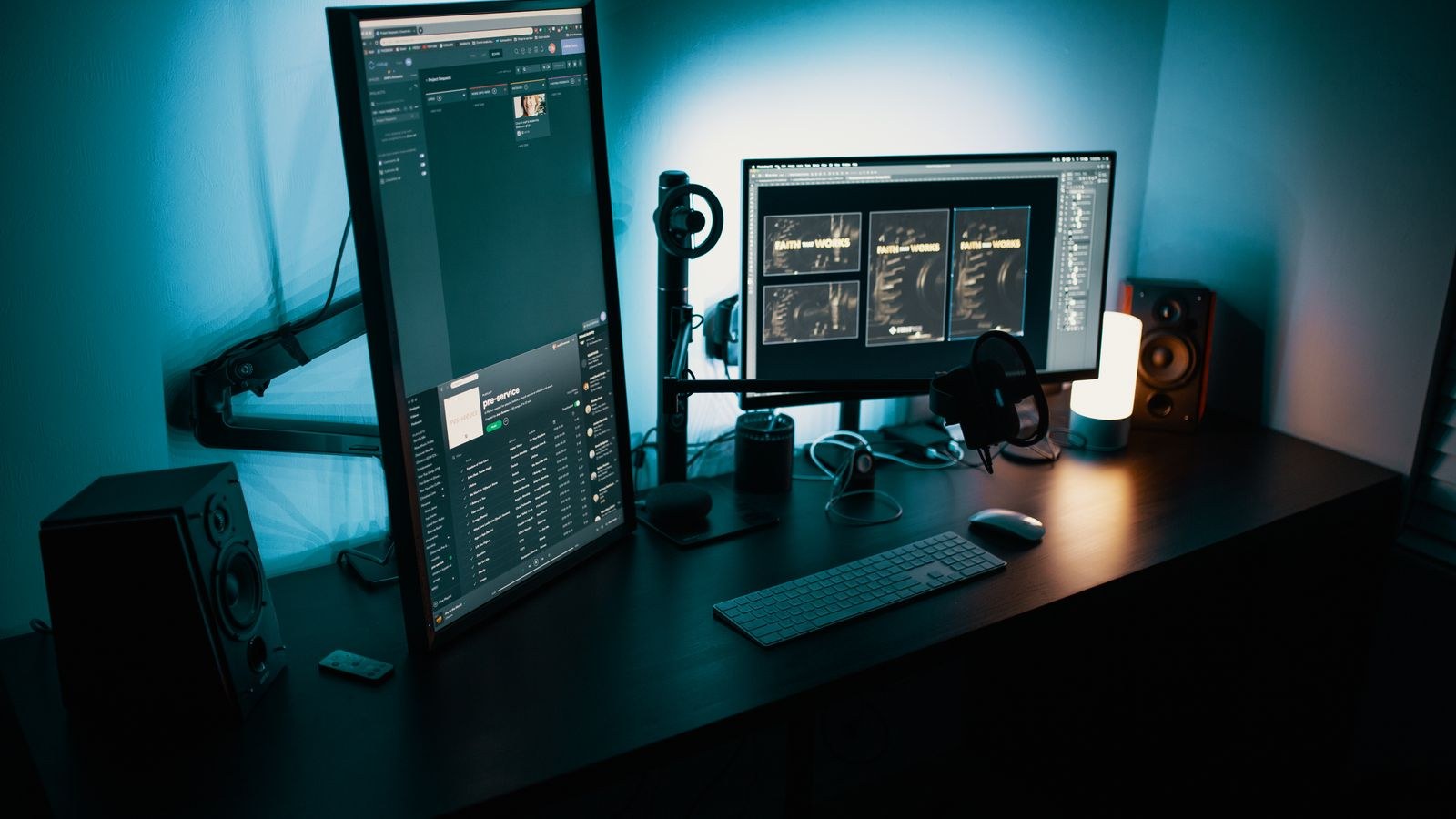
With dual monitors, three geometry errors do almost all the damage. The first is a screen positioned too low, forcing a downward head tilt. The second is a primary screen sitting off to one side, forcing sustained rotation. The third is a gap or bezel line sitting exactly where your eyes want to rest, which makes you shift constantly. Fix those three and the vast majority of setup-related neck pain simply stops appearing.
Before You Start: Tools and Prep
- A tape measure or ruler for checking screen height and viewing distance.
- A screwdriver and hex keys if you plan to fit a monitor arm or mount.
- Something to raise screens temporarily: a stack of books or reams of paper works for testing.
- A chair you can actually adjust, because seat height sets your eye level and everything follows from that.
- Optional but ideal: a desk deep enough to put both screens at arm’s length. Shallow desks force screens too close, which pushes you into a chin-forward posture.
Set aside about thirty minutes. Do the setup at the time of day you normally work, wearing whatever glasses you normally wear, because bifocals and progressive lenses change the correct screen height significantly.
Step by Step: Positioning Dual Monitors
- Set your chair first, not the screens. Sit back fully, feet flat on the floor or a footrest, thighs roughly parallel to the ground, elbows at about ninety degrees when your hands rest on the keyboard. Your eye level is now fixed. Every monitor measurement follows from this point, so never adjust screens while perched on the front edge of the seat.
- Decide which screen is primary. This is the single most important decision. Be honest: whichever screen holds the document, code or spreadsheet you look at most is your primary. The other is secondary, for reference material, chat, email or monitoring. If you genuinely split time fifty-fifty, treat both as primary and use the symmetric layout described below.
- Center the primary screen on your nose. With an obvious primary screen, put it directly in front of you, centered on your body midline, and place the secondary screen at an angle beside it. Your head stays neutral for most of the day and only turns occasionally. This is the layout most people need and almost nobody uses.
- Or split the bezels for a true fifty-fifty setup. If both screens carry equal work, center the join between them on your midline and angle each screen inward so they form a shallow arc. You now turn your head a small amount in each direction rather than a large amount in one, which balances the muscle load.
- Set the height so the top of the screen is at or slightly below eye level. Sit up straight and look forward. Your natural gaze lands slightly below horizontal, so the top edge of the display should sit level with your eyes, putting the middle of the screen around ten to twenty degrees below eye level. If you wear progressive or bifocal lenses, drop the screens further so you can read through the correct part of the lens without tipping your head back.
- Match the heights of both screens exactly. Mismatched heights are a classic cause of one-sided neck ache because your head tips slightly every time you switch. Measure from the desk surface to the bottom bezel of each screen and make them identical, even if the monitors are different sizes.
- Set viewing distance at roughly an arm’s length. Reach out; your fingertips should just about brush the screen. Larger panels need more distance, so a 27 inch display often sits comfortably at 28 to 32 inches while a 24 inch panel can come slightly closer. If you cannot get far enough away, the desk is too shallow, and that is a bigger ergonomic problem than the monitors.
- Angle each screen so it faces your eyes. Both panels should be square to your line of sight. Toe the secondary screen inward until an imaginary line from its center points at your head. A slight backward tilt of the top edge, around ten to fifteen degrees, keeps the whole surface at a consistent distance.
- Close the gap between panels. Push the screens together so the bezels nearly touch. Wide gaps make your eyes and head jump further with every switch, and they break up windows that span both displays.
- Kill the glare. Position the screens perpendicular to windows rather than facing or backing onto them. Glare makes you lean, squint and crane forward without noticing, which undoes all the geometry work you just did.
Getting the Hardware Right
Factory stands are the usual bottleneck. Most raise a screen only two or three inches and offer no swivel, which makes proper positioning impossible on a standard desk. A dual monitor arm solves height, tilt, swivel, depth and gap in one purchase, and it frees up the desk surface underneath. If you are mounting to a height-adjustable desk, our walkthrough on how to mount a standing desk monitor arm covers clamp placement and cable routing so the screens stay stable when the desk moves.
If you prefer not to drill or clamp, a desk with a built-in riser is the simplest fix. Options among the best desks with a monitor stand give you the extra few inches of height without extra hardware. For deeper surfaces that let two large panels sit at a true arm’s length, compare the best computer desks for a home office, and if you are running two large high-refresh panels for gaming, the best desks for dual monitor gaming focus on width and cable management.
Do Your Two Screens Need to Match?
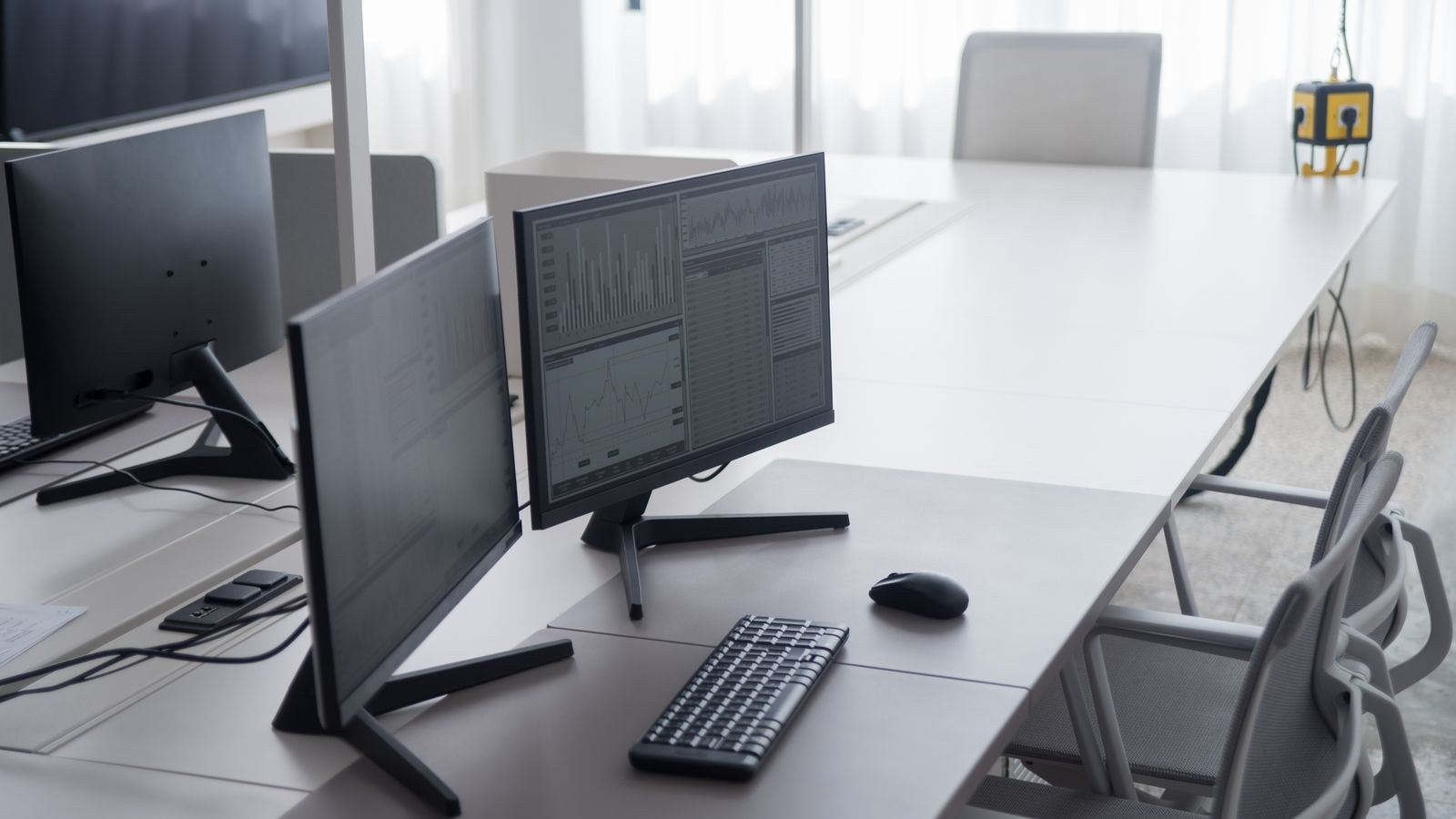
Ideally yes. Two identical panels make height matching trivial and keep colour, brightness and scaling consistent, so your eyes are not constantly re-adjusting. Mismatched resolutions are the sneakiest problem: text that renders crisply on one screen and slightly blurry on the other pulls you forward toward the worse panel, and that forward lean is exactly the posture you are trying to avoid.
If you are replacing one screen to create a matched pair, resolution and physical size matter more than refresh rate for office work. A pair of the best 1440p monitors hits a useful sweet spot, offering enough desktop space to keep two windows readable at a comfortable arm’s length without the scaling headaches that come with very high pixel density.
Habits That Matter as Much as Geometry
Perfect positioning still fails if you never move. Neck tissue relies on movement for circulation, so change posture every twenty to thirty minutes. Stand, roll your shoulders, look at something distant for twenty seconds, then sit back down. Keep your keyboard and mouse close to the near edge of the desk, because a reaching arm drags the shoulder blade forward and loads the neck.
Common Mistakes to Avoid
- Both screens off to one side. The most common error, usually because a desk was pushed into a corner. Your midline should align with a screen or with the join between two.
- Screens too high. Overcorrecting is real. A screen above eye level tips your head back, compresses the neck joints and dries your eyes because you blink less.
- Uneven heights or tilts. Even a one inch difference produces a repeated micro-tilt thousands of times a day.
- Sitting too close. A cramped desk forces you to sit near the screen, which widens your eye movement range and encourages the chin-forward posture.
- Ignoring the chair. If the seat is too low or the backrest unsupportive, you will slump, and slumping drops your eye level and undoes the screen height you just set.
Troubleshooting Persistent Neck Ache
If the strain continues after a week of the new layout, work through the likely causes in order. Check screen height while you are actually working rather than while sitting deliberately upright, since most people sink an inch or two once they concentrate. Look at whether you turn to the same side repeatedly, which points to a primary screen still off-centre. Consider brightness and text size, because squinting draws the head forward more than any stand height. Finally, review your break pattern, since static posture alone can produce symptoms even in a technically correct setup.
Pain that radiates into the arm, comes with numbness or tingling, or wakes you at night is worth a professional assessment rather than another round of desk tweaks.
Frequently Asked Questions
Should my second monitor be on the left or the right?
Put it on the side you naturally turn toward more easily and away from your main light source to reduce glare. Handedness matters less than glare and mouse position. What matters most is that the secondary screen is the one you turn to, not the one you stare at.
How high should dual monitors be exactly?
Top of the screen level with your eyes when you sit properly, with the centre falling about ten to twenty degrees below horizontal. Lower both screens further if you wear progressive lenses.
Is a curved monitor better for neck strain?
A curved panel keeps the edges closer to a consistent distance from your eyes, which can reduce head turning on very wide screens. For two standard sized panels the benefit is modest compared with simply angling flat screens inward.
Final Thoughts
Dual monitor ergonomics is mostly one decision followed by a handful of measurements. Choose your primary screen honestly, put it directly in front of your nose, match both screens for height, set the top edge at eye level, place them an arm’s length away and angle them toward your face. Then give yourself the hardware that makes those positions possible, whether that is a monitor arm, a deeper desk or a riser. Spend the half hour once, revisit it whenever you change chairs or screens, and get up regularly, and a two screen workspace becomes the productivity gain it was supposed to be rather than a slow-building source of neck pain.










