Owen Bradley
 A memory card is the cheapest part of a camera system and the part most likely to fail. Cards get pulled while recording, formatted on a laptop with the wrong file system, or bought as a bargain 512GB card that turns out to hold 32GB. The result is the same: gaps in the timeline, a camera that reports a read error, or footage that will not play back when you need it. Learning to format an SD card for a security camera correctly takes ten minutes and eliminates most of those problems permanently. Here is the right way to do it, and how to choose a card worth formatting in the first place.

Why Formatting in the Camera Matters
Every camera writes video using its own directory structure, cluster size, and index files. When you format inside the camera or its app, the firmware lays down exactly the layout it expects, aligns the clusters to the way it writes video, and builds the index that playback and search depend on. Format the same card on a computer and you get a generic file system that technically mounts but may produce slow writes, fragmented recordings, or an index the camera cannot rebuild.
There is a second reason. Formatting clears the wear-levelling confusion left by mixed use. A card that previously lived in a phone or a drone carries thousands of small files and a fragmented allocation table. A clean in-camera format gives the controller a fresh map and noticeably improves sustained write performance, which is exactly what continuous video recording demands.
Choosing the Right Card Before You Format
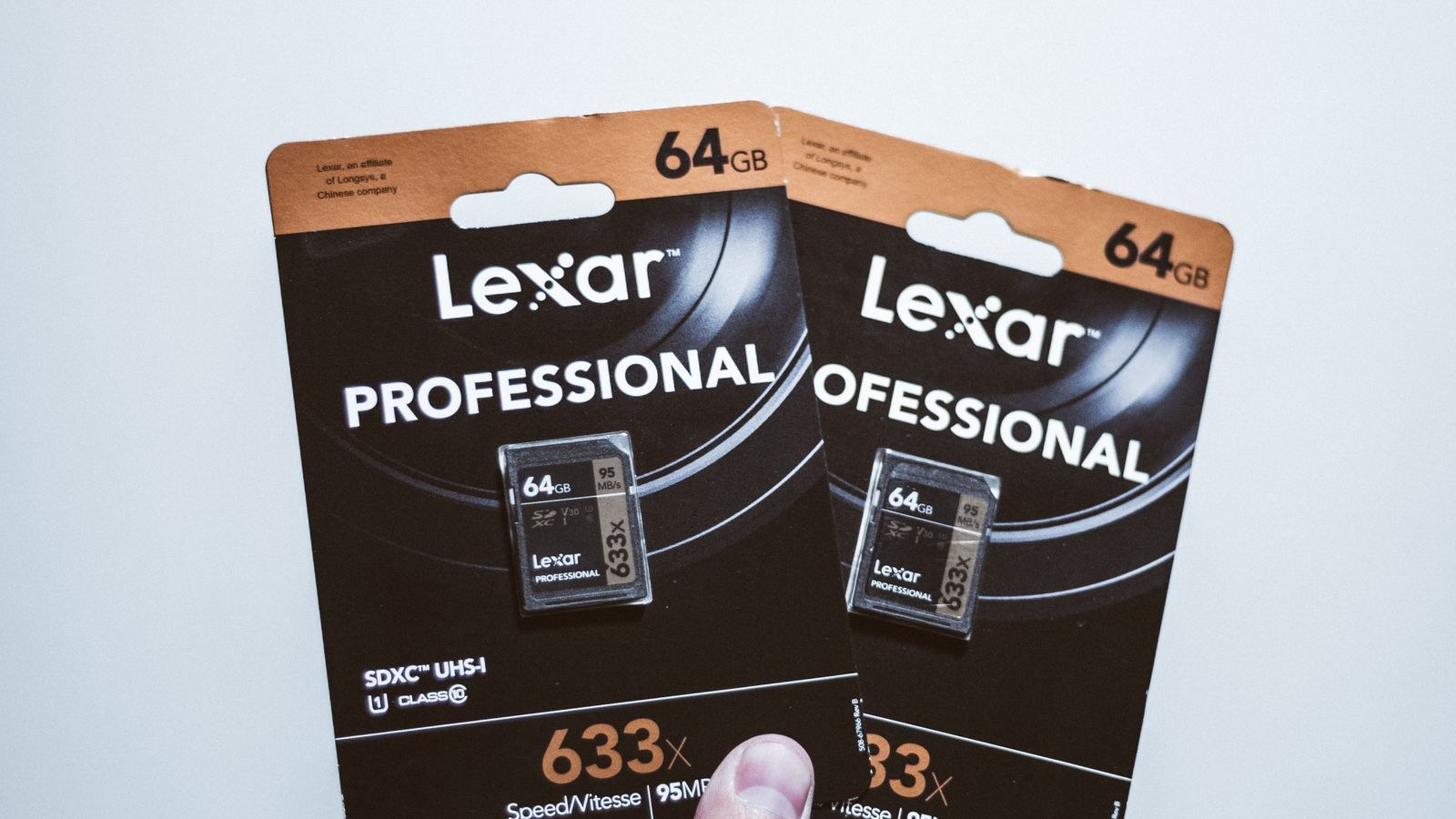
- Endurance rating: Buy a high-endurance or surveillance-rated card. Standard cards are designed for occasional photo bursts, not for being rewritten continuously every few days, and they typically fail within months in a camera.
- Speed class: Look for UHS Speed Class U1 or U3 and Video Speed Class V10 or better. The sustained write speed matters far more than the headline read speed printed in large type.
- Capacity: Check the maximum your camera supports, commonly 128GB or 256GB. A larger card will often mount and then fail to record correctly, or record only up to the supported limit.
- Genuine stock: Counterfeit cards are common. Buy from a reputable seller, and verify real capacity with a card-testing utility before trusting it with footage.
- Temperature range: Outdoor cameras get very cold and very hot. Surveillance-grade cards specify an operating range that consumer cards often do not.
Card choice is inseparable from camera choice. If your camera insists on a cloud subscription and only writes a few clips locally, a premium card is wasted money. Our roundup of the best local storage security cameras highlights models that record fully to card without a subscription, and the broader security camera storage guide explains how card, network, and cloud storage compare in real use.
Understanding File Systems and Capacities
The file system your camera wants depends almost entirely on the card size. Cards up to 32GB usually take FAT32. Cards from 64GB upward are sold as exFAT, which most modern cameras handle, though a few older models still demand FAT32 and require a third-party tool to force it onto a large card. Some Linux-based cameras and recorders use their own proprietary format entirely, which is why the card looks empty or unreadable when you put it in a computer.
That last point causes real panic. A card showing as unformatted on a laptop is not necessarily broken; it may simply be using a format Windows cannot read. Never accept the prompt to format when a computer offers it, because that erases the recordings you were trying to retrieve. Pull footage through the camera app or the recorder export function instead.
Step-by-Step: Formatting the Card
- Back up anything you still need. Formatting is irreversible. Export any clips you want to keep through the camera app first, and copy them to a computer or cloud folder before going further.
- Stop recording and power down the camera. Disable continuous recording in the app, then remove power. Inserting or removing a card while the camera is writing is the single most common cause of corrupted cards.
- Insert the card fully and correctly. Check the orientation marked on the slot, push until it clicks where the slot is spring-loaded, and reseat the weather gasket on outdoor cameras so moisture cannot reach the contacts.
- Power the camera back up and let it settle. Wait a minute for the firmware to mount the card. Many cameras report storage status in the app only after a full boot cycle.
- Open the storage settings in the camera app. Look under storage, SD card, memory, or device settings. The card should appear with a capacity figure. If it reports the wrong size, suspect a counterfeit card before anything else.
- Choose format, not erase. Erase or delete-all options only remove file entries and leave the underlying structure untouched. Format rebuilds the file system, which is what you want for a fresh start or to fix errors.
- Confirm and wait for completion. Do not close the app or cut power during the process. A large card can take a few minutes, and interrupting it leaves the card in a half-formatted state that is much harder to recover.
- Verify the card reports full free space. After formatting, the app should show close to the card capacity as available, allowing for a small overhead. Anything significantly lower suggests a fake card or a lingering hidden partition.
- Re-enable your recording schedule. Turn continuous or motion recording back on, set the overwrite-when-full option so the camera loops rather than stopping, and check the retention estimate the app displays.
- Record a test clip and play it back. Trigger motion in front of the camera, wait a minute, then play the recording from the app. Confirm the timestamp is correct and the video plays without stuttering.
- Check again after 24 hours. Look for gaps in the timeline. A card that records fine for a minute but drops frames overnight is failing its sustained write test and should be replaced rather than reformatted again.
Formatting on a Computer When You Have To
Occasionally a card is so confused that the camera refuses to format it. In that case, a computer format can rescue it, but do it carefully. On Windows, use the Disk Management tool to delete any existing partitions, create a single primary partition, and format it as exFAT for cards above 32GB or FAT32 below. On macOS, use Disk Utility with the MS-DOS FAT or ExFAT option and the master boot record scheme.
Always choose a full format rather than a quick format when recovering a problem card, because the full pass writes to every block and reveals bad sectors that a quick format hides. Then return the card to the camera and format it once more in the device so the firmware can apply its own layout. Treat the computer step as first aid, never as the final configuration.
Troubleshooting Card Errors
If the camera reports the card as read-only, check the physical lock switch on a full-size SD adapter, which is easy to nudge during handling. If it reports the card as unrecognised, clean the contacts gently with isopropyl alcohol, reseat it, and try the card in another device to determine whether the fault lies with the card or the slot.
Recording gaps with no error message usually mean the card cannot sustain the write rate, especially at higher resolutions and frame rates. Lower the bitrate, switch from continuous to motion recording, or move to a faster endurance-rated card. Repeated corruption on a card that tests fine points instead at power interruptions, so check whether the camera loses power during network outages or scheduled reboots. Cameras that behave badly with cards are worth replacing outright, and the models in our best home indoor security cameras and best WiFi home security cameras lists have consistently reliable local recording.

Common Mistakes to Avoid
The most damaging habit is pulling the card while the camera is powered. Always shut the camera down first. The second is formatting the card on a computer and stopping there, leaving the camera to work with a layout it did not create. The third is buying capacity instead of endurance; a 256GB consumer card will fail long before a 64GB high-endurance card in the same slot.
Other frequent errors include ignoring the camera maximum supported capacity, reusing a card that has already thrown errors in another device, and treating the card as a permanent archive. Local storage is a rolling buffer, not a backup. Anything you genuinely need to keep should be exported the same week. Finally, do not format on a schedule out of habit; unnecessary formatting adds write cycles without benefit. Format when you install a card, when you change cameras, or when errors appear.
Frequently Asked Questions
How often should I reformat the card?
Once or twice a year is plenty for a healthy card, plus any time the camera reports errors or after a firmware update that changes the storage layout. Formatting more often simply consumes write cycles.
Can I read camera footage directly on my laptop?
Sometimes. If the camera uses exFAT you will see standard video files. If it uses a proprietary format the card will appear empty or unreadable, and you must export through the app. Never let the computer format it in that situation.
How long will a card actually last?
A high-endurance card in a camera recording continuously typically lasts two to three years. A standard card in the same role often fails within six months. Check the card health indicator in the app if your camera offers one.
Is a card enough, or do I need cloud backup too?
A card alone is vulnerable, because anyone who takes the camera takes the footage with it. Pair local recording with a cloud or network backup for the entry points that matter, and see our comparison of the best security cameras for models that do both without a heavy subscription.
Final Thoughts
Formatting is a small task that quietly determines whether your footage exists when you go looking for it. Buy an endurance-rated card within your camera supported capacity, format it inside the camera rather than on a laptop, verify the free space and a test recording, then check the timeline a day later for gaps. Replace any card that shows errors instead of formatting it repeatedly in hope. Follow that routine each time you install or service a camera in 2026 and local storage becomes the dependable part of your system rather than the weak link.