Owen Bradley
 Hybrid working has quietly created a hardware problem on millions of desks: two computers, one good monitor, and one keyboard and mouse you actually like. A work laptop arrives with locked-down software, a personal desktop handles everything else, and swapping cables between them a few times a day gets old within a week. A KVM switch solves this by letting both machines share the same peripherals, with a button press or a keyboard shortcut moving control between them. This guide explains how KVM switches work, which type suits which desk, what to check before buying, and when a monitor with a built-in KVM makes the separate box unnecessary in 2026.
What a KVM Switch Actually Does
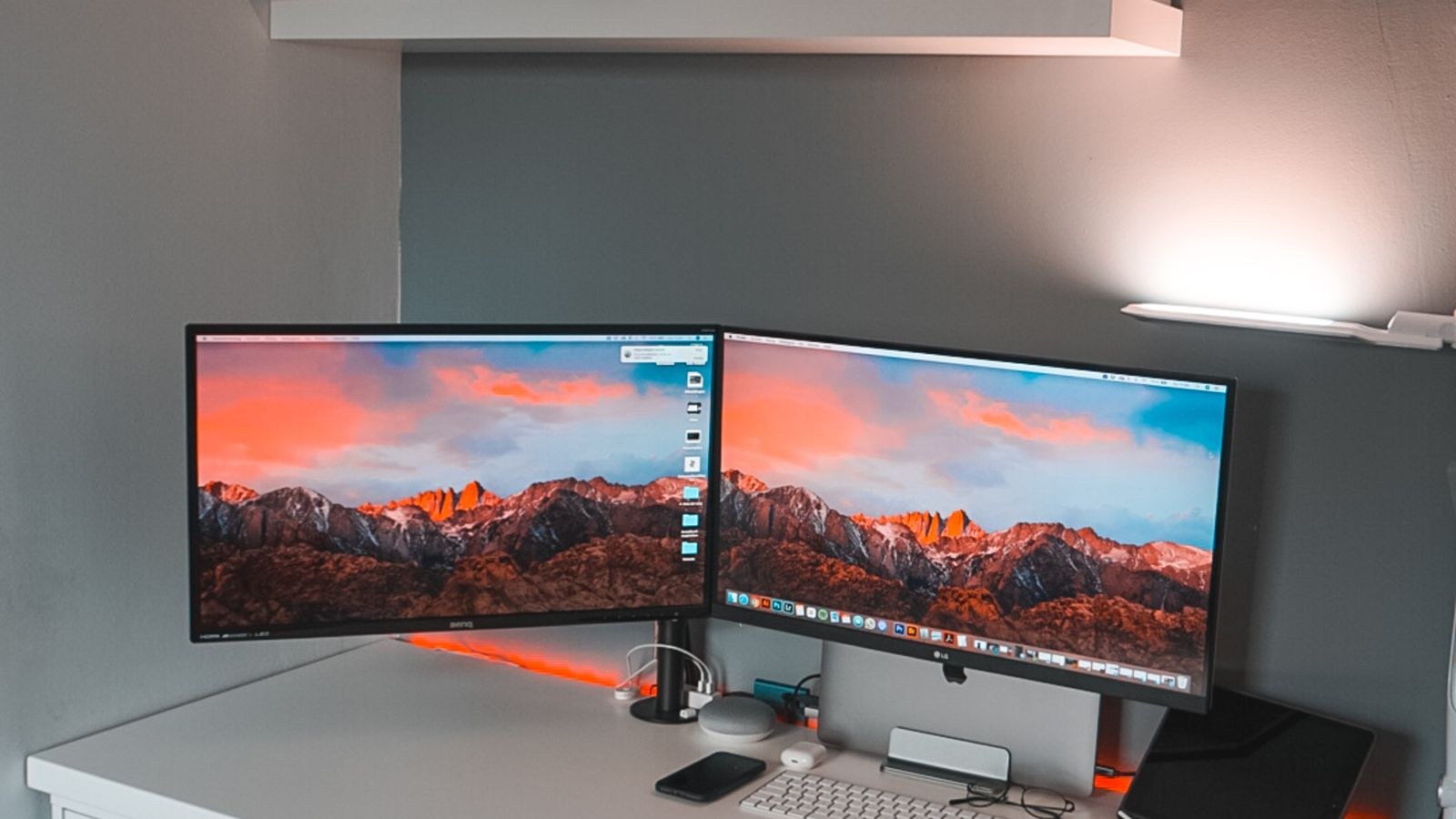
KVM stands for keyboard, video and mouse, the three things the device shares. Both computers connect to the switch, and your peripherals plug into the switch rather than into either machine. At any moment the switch routes the keyboard, mouse and display signals to whichever computer is currently selected. Both machines stay powered and running; only the connection to your desk changes.
The important consequence is that the inactive computer keeps working. Downloads continue, meetings you have already joined keep recording, and background tasks run undisturbed. This is what separates a KVM from simply putting a machine to sleep, and it is why the arrangement suits people who need a work machine reachable while they use a personal one.
Modern switches usually share more than the original three signals. Most also route audio, ethernet, and any USB devices you attach, which means a headset, webcam and external drive follow you between machines along with the keyboard.
The Three Ways to Share a Desk
Before buying hardware, understand the three approaches, because one of them is free.
- A dedicated KVM switch is a separate box. It is the most capable and most flexible option, handles any operating system combination, and works even before either computer boots. It costs money and adds a device and cabling to your desk.
- A monitor with a built-in KVM puts the same function inside the display. You connect two video inputs and one USB upstream cable per machine, and the monitor routes peripherals to whichever input is active. Fewer boxes, no extra cost if you were buying a monitor anyway.
- Software switching uses a program that shares one keyboard and mouse across machines over the network, letting the pointer travel between screens. It costs nothing but does not share the display, requires both machines to be booted and connected, and cannot help you reach a machine that will not start.
Software is the right answer when both computers have their own screen and you simply want one keyboard. A hardware KVM is the right answer when the point is sharing a single good display.
Matching the Switch to Your Display Setup
Video is where most KVM purchases go wrong, because a switch must support your monitor’s full resolution and refresh rate, not just a resolution it can technically pass. A switch rated for 4K at 30Hz connected to a 4K 144Hz panel will work and feel dreadful, with visibly laggy pointer movement.
Check three things against the switch specification: your resolution, your refresh rate, and whether you need variable refresh or high dynamic range passed through. Many inexpensive switches drop adaptive sync entirely, which matters if the personal machine is used for gaming. Also confirm the connector type, since a switch with only HDMI ports is awkward if your monitor’s best input is DisplayPort.
Single-monitor setups are far simpler and cheaper to switch than dual-monitor ones, because a dual-head switch must route two video signals in perfect step. If you are still choosing displays, our guide to the best dual monitor setups covers arrangements that stay manageable when two computers are involved, and our roundup of the best monitors for multitasking makes the case for one large panel instead, which is often the cheaper and tidier way to solve the same problem.
The Ultrawide Alternative
A single wide display with a built-in picture-by-picture mode can show both computers side by side simultaneously, with the KVM feature moving keyboard control between the halves. For anyone who needs to watch a work chat while doing something else, this beats switching entirely, since nothing is ever hidden. The trade-off is that each machine gets only half the screen width. Large, high-resolution panels handle this best, and our comparison of the best workstation monitors highlights displays with the resolution and input flexibility to make split-screen dual-machine work genuinely comfortable.
USB-C Docking as a KVM
If both machines connect over USB-C, a monitor that accepts USB-C video can act as a very elegant KVM. One cable per laptop carries video, peripherals and charging, and switching inputs on the monitor moves everything at once. There is no separate box, no adapter clutter, and the laptops charge while docked.
The limitation is that both machines need USB-C video output, and the monitor needs two upstream connections or one USB-C plus a conventional input paired with a USB-B upstream cable. Check the monitor’s manual for exactly how its KVM binds each video input to each USB upstream port, since this mapping is often configurable and occasionally counterintuitive. Displays that handle this cleanly are covered in our list of the best USB-C monitors, including which models supply enough wattage to keep a working laptop charged all day.
Switching Methods and Why They Matter
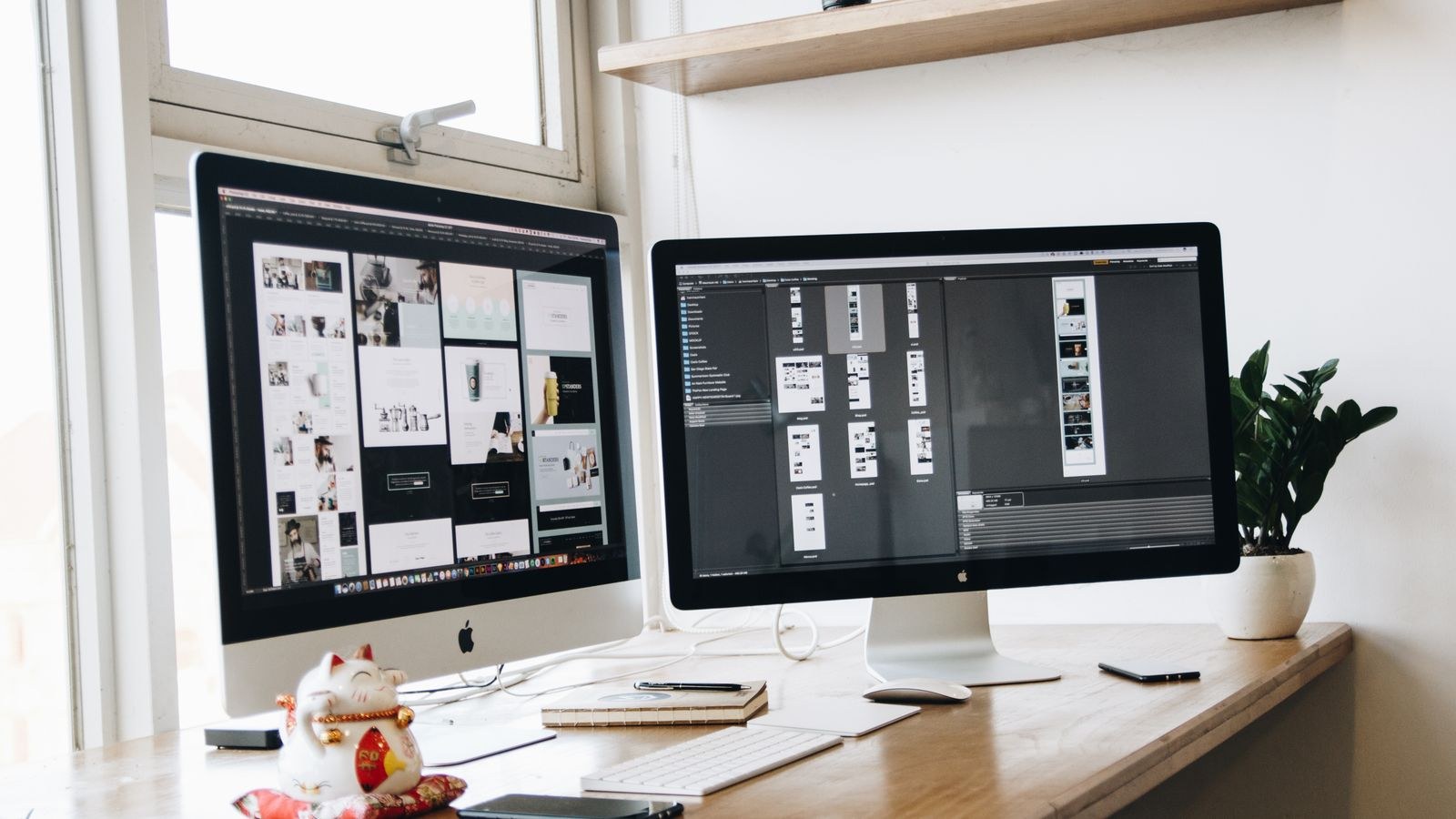
How you trigger the switch shapes the daily experience more than any specification. There are three common methods and most switches offer at least two.
- A physical button on the switch is the most reliable and works regardless of what either computer is doing. The downside is reaching for it, which argues for placing the unit within arm’s reach rather than behind the monitor.
- A wired remote puts that button on your desk on a short cable, which is the best of both worlds and worth prioritising.
- A keyboard shortcut, typically a double tap of a modifier key, is fastest but depends on the switch recognising your keyboard. Mechanical keyboards with their own onboard processors sometimes fail to trigger it.
Switching speed also varies. Some units re-enumerate every USB device on each switch, producing a two or three second pause and the familiar connection sound. Better switches maintain emulation so peripherals stay recognised, cutting the delay to under a second. If you switch dozens of times a day, that difference is the whole product.
Peripheral Compatibility Pitfalls
KVM switches were designed around simple keyboards and mice, and modern peripherals sometimes exceed what a basic switch expects. Gaming keyboards with custom software, mice with high polling rates, and headsets with their own control software are the usual troublemakers.
Look for a switch that advertises full USB device emulation rather than simple pass-through. Emulation keeps a stub of each device present on both computers, which prevents the inactive machine from thinking the keyboard vanished, and stops driver software from reinitialising every time you switch. Without it, expect lighting settings to reset and macro software to complain.
Wireless receivers deserve special attention. A unified receiver for a keyboard and mouse works well through a KVM because only one device switches, but some receivers dislike being re-enumerated and stop responding until unplugged. If you rely on wireless peripherals, prefer a switch with emulation and dedicated ports labelled for keyboard and mouse, which usually receive better handling than generic USB ports.
Budget Tiers and What to Expect
Entry-level switches handle one display at moderate resolution with basic pass-through USB. They are fine for two office machines driving a 1080p or 1440p screen at 60Hz, and they are cheap enough to try without much risk.
The middle tier adds higher resolution and refresh support, USB device emulation, a wired remote and usually a small hub with audio. This is the sensible target for most hybrid desks, since emulation and the remote are the two features that determine whether you keep using the switch after the novelty fades.
The top tier covers dual-display switching, high refresh with adaptive sync intact, and higher-bandwidth USB ports for external storage. Prices climb steeply here, which is exactly why a monitor with a built-in KVM often makes more financial sense than a separate dual-head switch. If your desktop drives multiple outputs, our comparison of graphics cards and docks is useful for confirming which outputs to route through the switch and which to leave connected directly.
Setting Up Without Frustration
- Connect one computer first and confirm video, keyboard and mouse all work before adding the second. This isolates faults immediately.
- Use the cables supplied where possible, since bandwidth-marginal cables cause exactly the intermittent blackouts people blame on the switch.
- Plug the keyboard and mouse into the dedicated labelled ports rather than the general hub ports.
- Set both computers to the same display resolution initially, then adjust, since mismatched settings can confuse the display’s input detection.
- Disable aggressive USB power saving in your operating system’s power settings, a frequent cause of devices failing to reappear after a switch.
- Position the remote or button somewhere you can reach without looking, because a switch you have to hunt for gets abandoned.
Common Mistakes to Avoid
- Buying on resolution alone and discovering the switch caps your refresh rate at 60Hz.
- Choosing pass-through instead of emulation, then fighting peripherals that reset on every switch.
- Hiding the unit behind the monitor with no remote, making the button unreachable.
- Assuming adaptive sync survives the switch, which many models silently drop.
- Overlooking a monitor’s built-in KVM and buying a separate box you did not need.
- Ignoring cable length, since a switch sits between your machines and needs runs to both plus the display.
Frequently Asked Questions
Will a KVM work with a work laptop that has locked-down security software?
Usually yes, because a hardware KVM appears to the machine as an ordinary keyboard, mouse and monitor and needs no drivers. Software switching tools are far more likely to be blocked by managed security policies.
Can I use a KVM with two different operating systems?
Yes. Hardware switches are operating system agnostic, which is one of their main advantages over software approaches. Keyboard layout differences between systems remain, but the switching itself works fine.
Does switching interrupt what the other computer is doing?
No. Both machines stay awake and continue running tasks; only your peripherals and display move. Some applications may pause video capture if they detect the display disappearing, so test anything critical first.
Is a monitor KVM as good as a dedicated switch?
For two machines and one display, usually yes, and it saves a box and several cables. Dedicated switches remain better for more than two computers, dual displays, or when you want a physical button on the desk.
Final Thoughts
A KVM is one of the highest-value additions to a hybrid desk because it removes a daily annoyance rather than adding a capability you have to learn. Two machines, one excellent monitor, and the keyboard and mouse you actually chose is a better arrangement than two mediocre setups side by side.
Check your monitor’s manual before buying anything, since a built-in KVM may already be waiting unused. If you do need a separate switch, prioritise full resolution and refresh support, USB device emulation and a wired remote. Those three features decide whether the switch becomes part of your routine or ends up in a drawer.