
 Owen Bradley
 Few things are more frustrating than unboxing a shiny new gadget and watching the setup app spin forever on “connecting to network.” When a smart device wont connect, the fault almost never lies with the device itself. It lies in the handshake between the device, your phone, and your router, and that handshake has become surprisingly fragile as home networks moved to dual-band and tri-band radios, WPA3 encryption, and privacy features that were never designed with cheap wireless chips in mind. This walkthrough takes you from the fastest fixes to the deepest ones, in the order a professional installer would try them, so you stop guessing and start pairing.
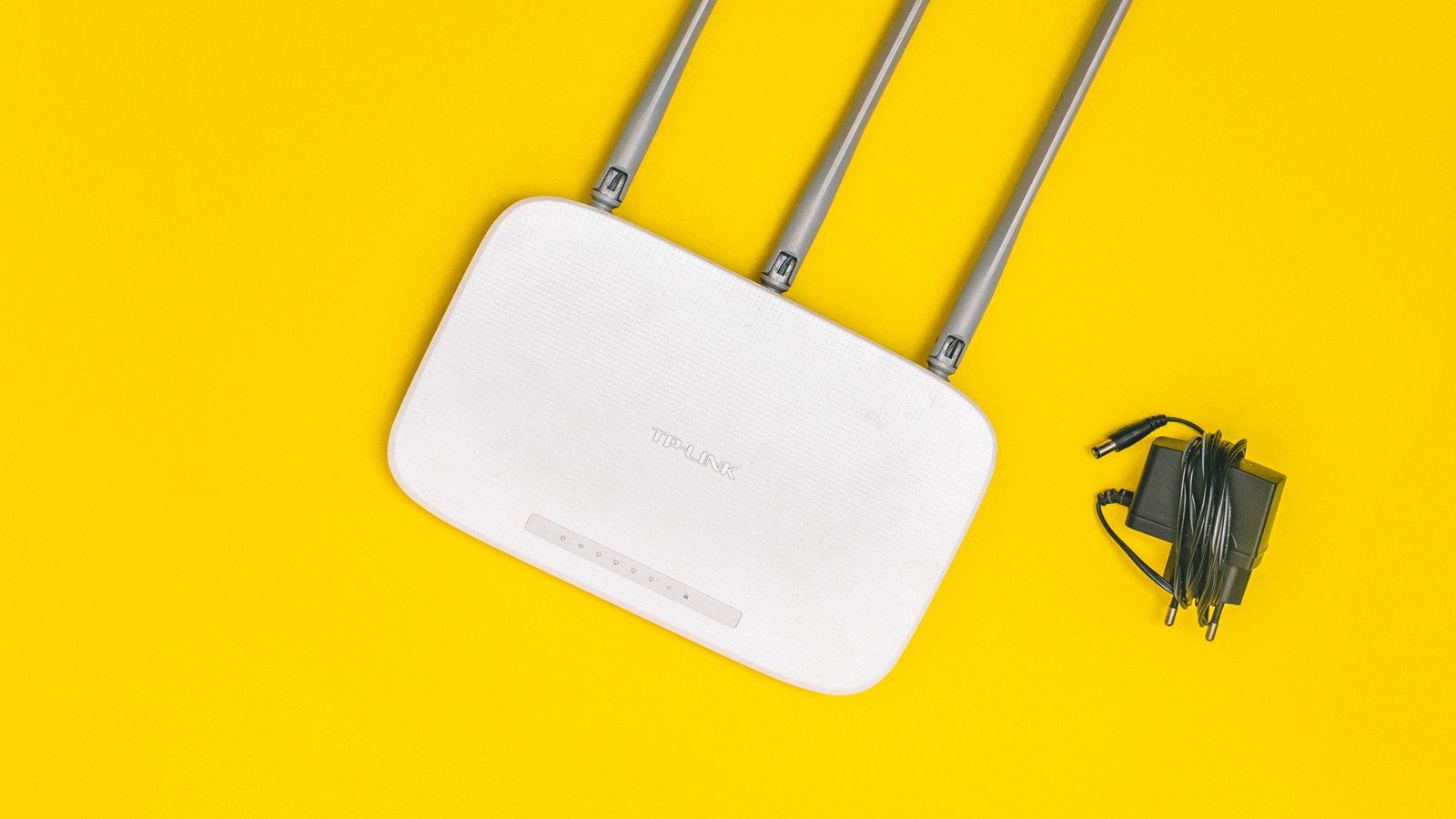
Why Smart Devices Fail to Pair in the First Place
Most smart plugs, bulbs, sensors, doorbells, and budget cameras use a low-cost wireless chip that only speaks 802.11b/g/n on the 2.4GHz band. They cannot see a 5GHz or 6GHz network at all. During setup, the device also has to run a temporary access point of its own, or listen to a burst of specially shaped packets from your phone, and both methods break if your phone is sitting on a different band or a different network than the one you are trying to join.
On top of that, modern routers add features that quietly interfere: band steering that hides the 2.4GHz name, client isolation that blocks device-to-device chatter, WPA3-only security, MAC address randomization on your phone, and mesh nodes that hand a half-configured device between access points mid-setup. Understanding those five culprits solves the overwhelming majority of pairing failures before you ever contact support.
What to Gather Before You Start
Setting up in a rush is why most attempts fail twice. Spend two minutes assembling the following so you never have to abandon a half-finished pairing session:
- Your exact network name and password, typed out somewhere you can copy from. Case matters, and so does that stray trailing space.
- Router admin access, either the app or the web page at the gateway address printed on the router label.
- The device manual or quick-start card, specifically the reset procedure and what each LED colour means.
- A phone with Bluetooth on, location permission granted to the setup app, and any VPN switched off.
- A power outlet within a few metres of the router for the initial pairing, even if the device will live elsewhere later.
If your network is old or overloaded, no amount of troubleshooting will hold a stable connection for a dozen chatty devices. Upgrading the foundation first is often cheaper than replacing gadgets one by one, and our roundups of the best WiFi routers and the best routers for smart home setups focus on models that handle high client counts without dropping low-power devices.
Step-by-Step: Getting a Stubborn Device to Pair
- Move the device within three metres of the router. Pairing needs a far stronger signal than normal operation because the device transmits at low power while it negotiates. Complete setup close to the router, then relocate it and confirm it stays online.
- Confirm your phone is on the 2.4GHz network. Open your phone WiFi settings and check which band it is joined to. If your router publishes one merged name, temporarily disable band steering or “smart connect” so the 2.4GHz radio broadcasts its own name, then join that.
- Split the bands if merging is the problem. In router settings, give the 2.4GHz radio a distinct name such as HomeNet-24. Setup apps then see the correct network in the list, and you can merge the bands again afterwards once the device has stored the credentials.
- Set security to WPA2 or mixed WPA2/WPA3. WPA3-only networks lock out nearly every budget IoT chip. Mixed mode keeps modern laptops on WPA3 while letting older devices join with WPA2. Avoid open or WEP networks entirely.
- Check the channel width and channel number. Set the 2.4GHz radio to 20MHz width and pin it to channel 1, 6, or 11 rather than auto. Wide 40MHz channels and unusual channel numbers confuse simple radios and worsen interference from neighbours.
- Disable client isolation and AP isolation. These settings, sometimes labelled guest mode or wireless separation, prevent your phone from talking to the new device. They are the single most overlooked blocker on routers supplied by internet providers.
- Turn off MAC address randomization for that network. On your phone, open the network details and switch the private or randomized address setting to use the device address instead. Some setup protocols verify that your phone and the device sit on the same subnet using that address.
- Reset the device properly and wait for the right LED. Hold the reset button for the full duration in the manual, usually five to ten seconds, then release and wait. A rapid blink normally means pairing mode; a slow blink often means it is already connected and will refuse to pair. Reset again if you see the wrong pattern.
- Watch for a captive portal. If your network shows a login page, or the device app times out at ninety percent, your router may be intercepting traffic. Check for parental controls, ad-blocking DNS filters, or a pending firmware notice that forces a redirect, and clear it before retrying.
- Retry with mobile data disabled. Phones sometimes route setup traffic over cellular when the WiFi network has no internet during pairing. Turning mobile data off for sixty seconds forces the app to use the local connection it actually needs.
- Reboot in the right order. Power-cycle the router, wait two minutes for it to fully come up, then reboot your phone, then power the device. Rebooting everything at once causes the device to search before the network is ready.
Mesh Networks Need Extra Care
Mesh systems introduce a specific failure: the device begins pairing on the node nearest to it, then the system steers it to another node mid-handshake and the process collapses. The reliable workaround is to pair beside your main router unit rather than a satellite, and to temporarily power down satellites if the setup keeps failing at the same point.
Some mesh apps also expose a dedicated IoT network toggle that publishes a separate 2.4GHz name with legacy security. That is the cleanest long-term answer because you never have to split bands again. If your current system lacks that option or drops devices when they roam between rooms, a modern system from our list of the best mesh WiFi systems will handle a device-heavy home far more gracefully.
When Only One Device Refuses to Join
If every other gadget is online and only one stubbornly refuses, suspect either the client limit or a DHCP problem. Cheap routers cap the number of simultaneous wireless clients, and the ceiling can be as low as 32, which a modest smart home passes quickly. Check the connected-devices list in your router app and remove stale entries for hardware you no longer own.
DHCP exhaustion produces the same symptom. If your address pool only covers a small range, a new device gets no address and the app reports a network error even though the radio link succeeded. Widen the pool, or shorten the lease time so abandoned addresses return faster. Plugs are the most common casualty here simply because people own so many, and our tutorials on how to troubleshoot a smart plug and how to pair a smart hub cover the device-specific quirks that a general network fix will not reach.
Safety and Security Notes
Resist the temptation to disable encryption to force a pairing. An open network exposes every camera feed and lock in your home, and most devices will refuse to store credentials for an unsecured network anyway. Likewise, do not park smart devices on your guest network unless the router explicitly supports IoT isolation with app access, because guest networks usually block exactly the local traffic the app requires.
Give your smart devices a strong, unique WiFi password separate from any password reused elsewhere. Enable automatic firmware updates on the router, and check the manufacturer app for device firmware updates immediately after pairing, since many pairing bugs are fixed in the first update. Finally, if a device has been sold or given to you second-hand, always perform a factory reset before setup so it is not still bound to a previous owner account.

Common Mistakes That Waste an Afternoon
The most frequent error is typing the password from memory. Copy it from the router label or your password manager, and watch for characters that look alike such as capital I, lowercase l, and the digit one. The second is pairing while standing in the room where the device will eventually live, then blaming the app when it fails at the final step. The third is pressing reset repeatedly during the process, which cancels a handshake that was actually progressing; give each attempt a full two minutes before intervening.
Another quiet killer is a VPN or a custom DNS profile on the phone. Both reroute the local discovery traffic that setup depends on. Turn them off, complete the pairing, then switch them back on. Finally, do not run two setup apps at once or let a family member attempt the same device from another phone; simultaneous attempts collide and both fail.
Frequently Asked Questions
Does it matter that my router only shows one network name?
Yes, when a device cannot pair. Merged names hide which band your phone is using. Splitting them temporarily is harmless and can be undone after setup, because the device stores the credentials and reconnects to whichever radio carries that name afterwards.
My device paired but goes offline every night. What changed?
That is usually a signal or address problem rather than a pairing problem. Check the signal strength at the final location, assign the device a reserved IP address in the router so its address never changes, and confirm no scheduled router reboot or overnight power saving mode is cutting the radio.
Should I buy a separate router just for smart devices?
Rarely. A single capable router with a dedicated IoT network handles a typical home, and a second router adds a subnet boundary that breaks app discovery. Adding an inexpensive, well-supported plug from a mainstream ecosystem is a better first step, and our guide to the best smart plugs flags which models pair most reliably on crowded networks.
How long should pairing actually take?
Between thirty seconds and two minutes for most devices. Anything beyond three minutes means the handshake stalled, and continuing to wait will not help. Cancel, confirm the LED is still in pairing mode, and restart from step one rather than letting the app time out repeatedly.
Final Thoughts
Pairing failures feel random, but they follow a short and predictable list of causes: wrong band, wrong security mode, isolation enabled, randomized addresses, or a device that was never truly in pairing mode. Work down the steps in order, change one variable at a time, and give each attempt a clean reset instead of stacking half-finished tries on top of one another. Do that and even the most stubborn gadget usually joins within a few minutes. Once you have a network that is friendly to low-power devices, every future gadget you add in 2026 will connect on the first attempt instead of the fifth.









