
 Owen Bradley
 Few PC terms get thrown around as loosely as bottleneck. Any time frame rates disappoint, someone blames a bottleneck, but the word only means one thing precisely: one component is limiting another, so the faster part sits partly idle waiting on the slower one. In a gaming PC the tug of war is almost always between the processor and the graphics card. Knowing which of the two is holding you back is the whole game, because the fix for a processor limit and the fix for a graphics limit are opposite purchases. This guide explains what bottlenecks really are, how to tell which part is limiting your frame rate, and which upgrade actually solves it.
What a Bottleneck Actually Means
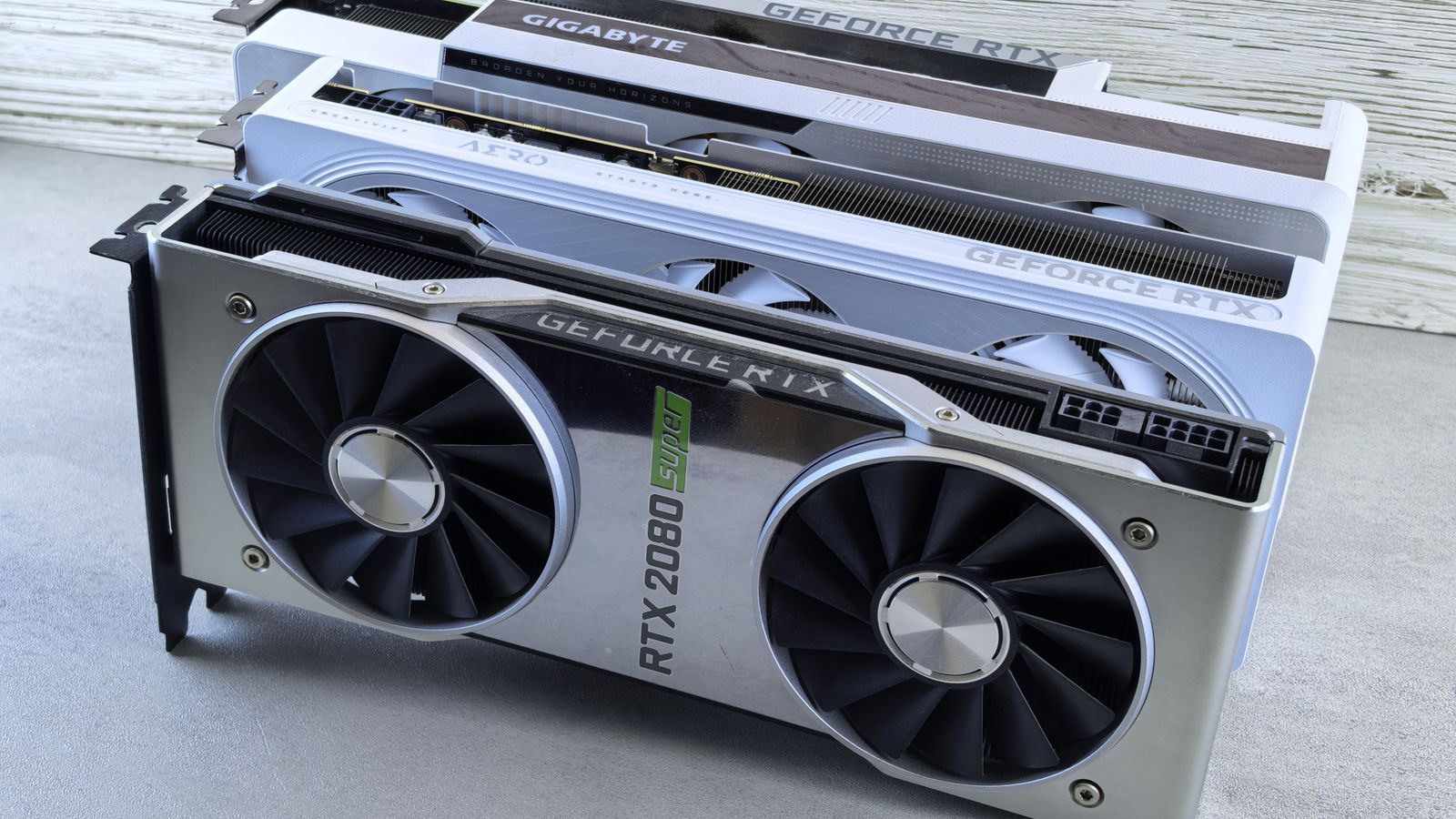
Rendering a frame is teamwork. The processor prepares the frame, handling game logic, physics, and draw instructions, then hands it to the graphics card, which does the heavy work of drawing it. The two run in a pipeline, and the slower stage sets the pace. If the processor cannot prepare frames fast enough, the graphics card finishes early and waits; that is a processor bottleneck. If the graphics card cannot draw frames fast enough, the processor sits ready with nothing to do; that is a graphics bottleneck.
Crucially, some bottleneck always exists. In any working system one part is the current limit, and that is normal, not a defect. The goal is not to eliminate bottlenecks, which is impossible, but to make sure the limiting part is the one you want to be limited by for your resolution and settings, and to know which part it is before you spend money.
Reading the Telltale Signs
The most reliable way to identify a bottleneck is to watch component usage while you play. Bring up a monitoring overlay that shows processor and graphics card utilization at the same time, then play normally and observe.
Signs of a Graphics Card Bottleneck
If the graphics card sits near full utilization while the processor is well below its limit, the graphics card is your bottleneck. This is the healthy situation for most gaming, because it means you are using the expensive graphics hardware fully. To go faster you either lower graphics settings or upgrade the card. Graphics bottlenecks dominate at higher resolutions and higher visual settings, where drawing each frame is the hard part.
Signs of a Processor Bottleneck
If the graphics card is well below full utilization while a processor thread is pinned near its limit, the processor is holding you back. The card could draw more frames but is not being fed fast enough. Processor bottlenecks show up most at lower resolutions and high frame rate targets, in simulation-heavy or strategy games, and in titles with lots of on-screen activity, because those lean hard on frame preparation rather than drawing.
Resolution Changes Everything
One idea untangles most bottleneck confusion: the same pair of parts can be processor-limited or graphics-limited depending on resolution. At low resolution each frame is easy to draw, so the graphics card races ahead and the processor becomes the limit. At high resolution each frame is expensive to draw, so the graphics card becomes the limit and the processor has room to spare.
This is why generic bottleneck calculators are misleading. A pairing that looks processor-limited on paper may be perfectly balanced at the resolution you actually play. Always evaluate a bottleneck at your real settings, not in the abstract, because the answer literally changes with the picture on screen.
Which Upgrade Actually Fixes It
Once you know which part limits you, the fix is direct, and buying the other part is wasted money.
Fixing a Graphics Bottleneck
If the graphics card is the limit, a stronger card is the answer, and it is one of the most satisfying upgrades because it drops into almost any recent system and lifts frame rates immediately. Aim for a card matched to your resolution and target frame rate. The best GPUs for gaming performance guide is a good starting point for matching a card to the resolution you play at. If your priority is very high refresh rates, the best GPUs for high FPS gaming roundup focuses on the cards built to push frame counts rather than just resolution.
Fixing a Processor Bottleneck
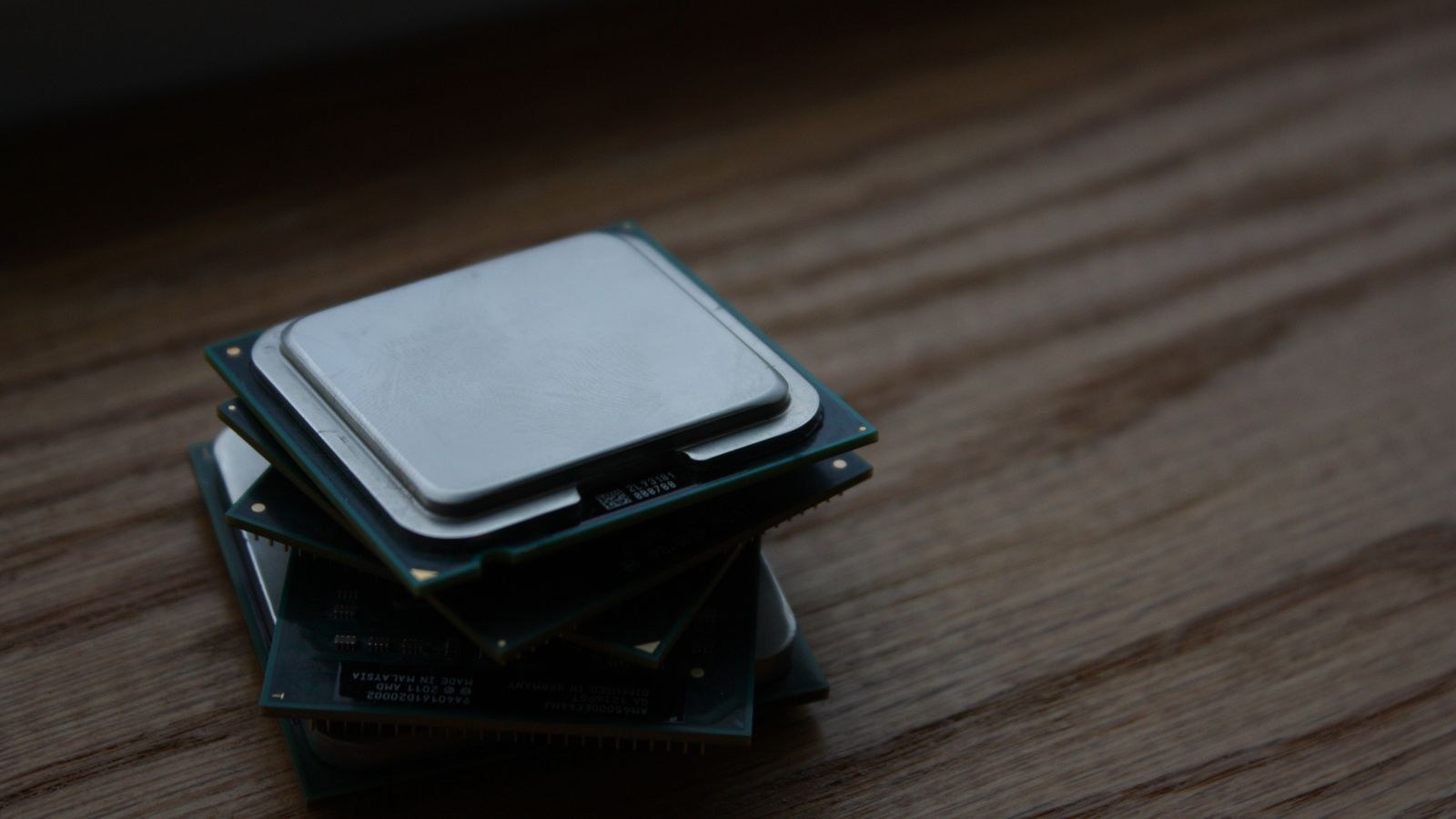
If the processor is the limit, a faster processor is the fix, but check first whether it drops into your existing board, since a new socket can cascade into a new board and memory. For gaming, single-thread speed and clock rate often matter more than sheer core count, because many games lean on a few fast threads. The best CPUs for gaming guide covers processors tuned for exactly this, and if you specifically need to break a frame-preparation limit, the best CPUs with high clock speeds roundup targets the high-frequency chips that relieve processor bottlenecks most directly.
Fixes That Cost Nothing
Not every bottleneck needs a purchase. If you are graphics-limited, lowering the heaviest visual settings or resolution frees the card to produce more frames instantly. If you are processor-limited, reducing settings that hammer frame preparation, such as draw distance, crowd density, or simulation detail, can lift frame rates without new hardware. Closing background applications that steal processor time helps too. And making sure memory runs at its rated speed matters more than people expect, because slow memory can throttle the processor and mimic a processor bottleneck. Try these before assuming you need to buy anything.
The Role of Memory and the Rest of the System
Processor and graphics card get the attention, but memory quietly shapes the balance. Insufficient or slow memory forces the processor to wait, which looks exactly like a processor bottleneck even when the chip itself is capable. Before blaming the processor, confirm you have enough memory for your games and that it runs at the speed your platform supports. For a fuller picture of how these three parts interact, the overview of a gaming PC’s CPU, GPU, and RAM working together explains why balance across all three, not just a duel between two, is what produces smooth frame rates.
How to Diagnose Yours Step by Step
Put it into a repeatable process. First, install a monitoring overlay that shows processor and graphics card utilization together. Second, play the game you care about at your normal settings and resolution. Third, read the utilization: a maxed graphics card with headroom on the processor means graphics-limited, while a pinned processor thread with an underused card means processor-limited. Fourth, apply the matching fix, either the right upgrade or a free settings adjustment. Test at the settings you actually play, because a change in resolution can flip the entire diagnosis.
Common Misconceptions Worth Clearing Up
A few stubborn myths lead people to spend badly. The first is that a bottleneck means something is broken or mismatched. It does not; it simply names the current limit, and even a perfectly balanced flagship system has one. The second is that you should always pair the most expensive processor with the most expensive card. Balance depends on resolution and workload, and an overkill processor paired with a modest card at high resolution spends money that never turns into frames. The third is that a graphics card at full utilization is a problem. In gaming, a fully used card is usually the ideal state, because it means you are extracting everything from the part you paid the most for.
Another misconception is that background software does not matter. Streaming, recording, browser tabs, and overlays all consume processor time, and on a system already near a processor limit they can be the difference between smooth and stuttering. Treat a clean background as part of your baseline before concluding you need new hardware, because it is the cheapest fix of all.
Bottlenecks Beyond Gaming
The processor-versus-graphics balance matters outside of games too, and the same diagnostic logic applies. In video editing and rendering, a strong card accelerates export and preview while the processor handles timeline logic, so a weak card can bottleneck a capable processor during heavy effects work. In everyday productivity, neither part is usually the limit; memory and storage speed matter more. Knowing this keeps you from buying a powerful card for a machine whose real constraint is elsewhere. The principle is constant: measure which part is actually waiting, then spend on the part that is holding everything else back rather than the part that happens to be easiest to upgrade.
Frequently Asked Questions
Is having a bottleneck bad?
No. Every system has one part that is the current limit; that is normal. The only bad bottleneck is one you did not intend, such as a weak processor holding back an expensive card at low resolution. The aim is a bottleneck that fits your resolution and goals.
Are online bottleneck calculators accurate?
Not very. They ignore the resolution and settings you actually play at, which is what determines whether you are processor or graphics limited. Watching real utilization in your own games is far more reliable than any calculator.
Should I upgrade the CPU or GPU first?
Upgrade whichever one your monitoring shows is the limit. If the graphics card is maxed and the processor has headroom, upgrade the card. If a processor thread is pinned while the card idles, upgrade the processor, checking board compatibility first.
Can more RAM fix a bottleneck?
It can, if the real problem is too little or too slow memory forcing the processor to wait. That often looks like a processor bottleneck. Ensuring adequate memory at rated speed sometimes resolves the issue without touching the processor or card.
Final Thoughts
A bottleneck is not a flaw to fear, it is simply the part currently setting your pace, and the entire skill is identifying which part that is before you buy. Watch processor and graphics utilization together at the settings you truly play, let the maxed component tell you the answer, and then fix the right thing: a stronger card for a graphics limit, a faster processor for a processor limit, or free settings and memory adjustments when a purchase is not warranted. Diagnose first, spend second, and every dollar you put into the machine will land where it actually raises your frame rate.









