Owen Bradley
 If your video calls freeze the instant someone in the house starts a big download, or your ping spikes to the moon during online matches, the culprit is usually bufferbloat rather than a slow internet plan. Bufferbloat happens when your router or modem queues up far too much data before sending it, adding delay even when your raw download speed looks perfectly fine. It is one of the most common yet least understood causes of laggy calls and stuttering gameplay, and the best news is that you can almost always fix it with configuration changes rather than a new internet package.

What Bufferbloat Actually Is
Every router and modem contains memory buffers that temporarily hold outgoing packets when the network gets busy. In theory these buffers smooth out short bursts of traffic. In practice, oversized buffers let data pile up for whole seconds at a time, and that delay shows up as lag, choppy audio, dropped frames, and stuttering video, even though your connection is not actually losing packets. Standard speed tests miss this entirely because they only measure raw throughput, not latency while the line is under load.
The classic symptom is a network that feels fast when idle but falls apart the moment two activities happen at once. A single 4K stream might be flawless, but add a cloud backup or a game download and suddenly your video call becomes a slideshow. That gap between idle performance and loaded performance is the signature of bufferbloat.
How to Tell If Bufferbloat Is Your Problem
Before changing anything, confirm bufferbloat is actually to blame. Run an online latency-under-load test that measures your ping while it saturates your connection with upload and download traffic. Watch what happens to your ping. If it sits at 15 to 20ms when idle but jumps to 200ms or higher during the test, you have significant bufferbloat. A well-behaved connection keeps that increase under about 30ms in both directions. Many tests assign a simple letter grade, which makes it easy to measure improvement later.
Tools You Need Before You Start
- A router that supports Smart Queue Management (SQM) or active queue management, such as one running capable stock firmware or third-party firmware
- Access to your router’s admin panel, usually reached by typing its local IP address into a browser
- A bufferbloat test tool, specifically one that measures latency under load rather than plain speed
- Your ISP’s real upload and download speeds, taken from a wired speed test rather than the advertised numbers
- A few minutes to test, adjust, and retest until the numbers stabilize
Step-by-Step: How to Fix Bufferbloat
- Run a baseline bufferbloat test. Use an online latency-under-load tester and record the grade plus the millisecond increase in ping during both the upload and download phases. This is your reference point.
- Run a wired speed test to learn your true throughput. Connect a computer directly to the modem or router with Ethernet and note the real download and upload speeds, since QoS needs accurate numbers to work.
- Log in to your router’s admin panel. Enter the router’s IP address in a browser and sign in with your admin credentials.
- Find the QoS or bandwidth management section. Look for settings labeled Quality of Service, Smart Queue Management, Traffic Control, or Bandwidth Control, often under an Advanced menu.
- Enable Smart Queue Management if it is available. SQM actively controls queue depth and is by far the single most effective fix for bufferbloat, frequently cutting latency spikes by 90 percent or more.
- Set manual bandwidth limits slightly below your real speed. If your line delivers 300 Mbps down and 20 Mbps up, set the QoS caps to roughly 90 to 95 percent of those figures. Deliberately claiming slightly less bandwidth forces your router, not your ISP’s equipment, to manage the queue where you have control.
- Prioritize latency-sensitive traffic. Assign higher priority to video calls, gaming, and voice, and lower priority to bulk downloads, cloud backups, and software updates.
- Reboot the router and retest. Run the bufferbloat test again and compare the new latency-under-load figures to your baseline grade.
- Fine-tune the caps. If bufferbloat is still present, lower the upload and download caps by another 5 to 10 percent and retest until latency stays flat under load.
- Lock in the settings. Once your ping stays low even during heavy transfers, save the configuration and note the values in case you ever need to restore them.
Why Upload Bufferbloat Deserves Special Attention
Most people focus on download speed, but upload bufferbloat is often the real villain behind bad video calls. Cable connections in particular tend to have modest upload speeds, and it takes very little upstream traffic to saturate that channel and back up the queue. When your upload buffer floods, your outgoing voice and video stall, which is why others in a call hear you break up even when your screen looks fine to you. Setting a conservative upload cap in QoS is frequently the change that makes the biggest difference.

Choosing Hardware That Makes This Easier
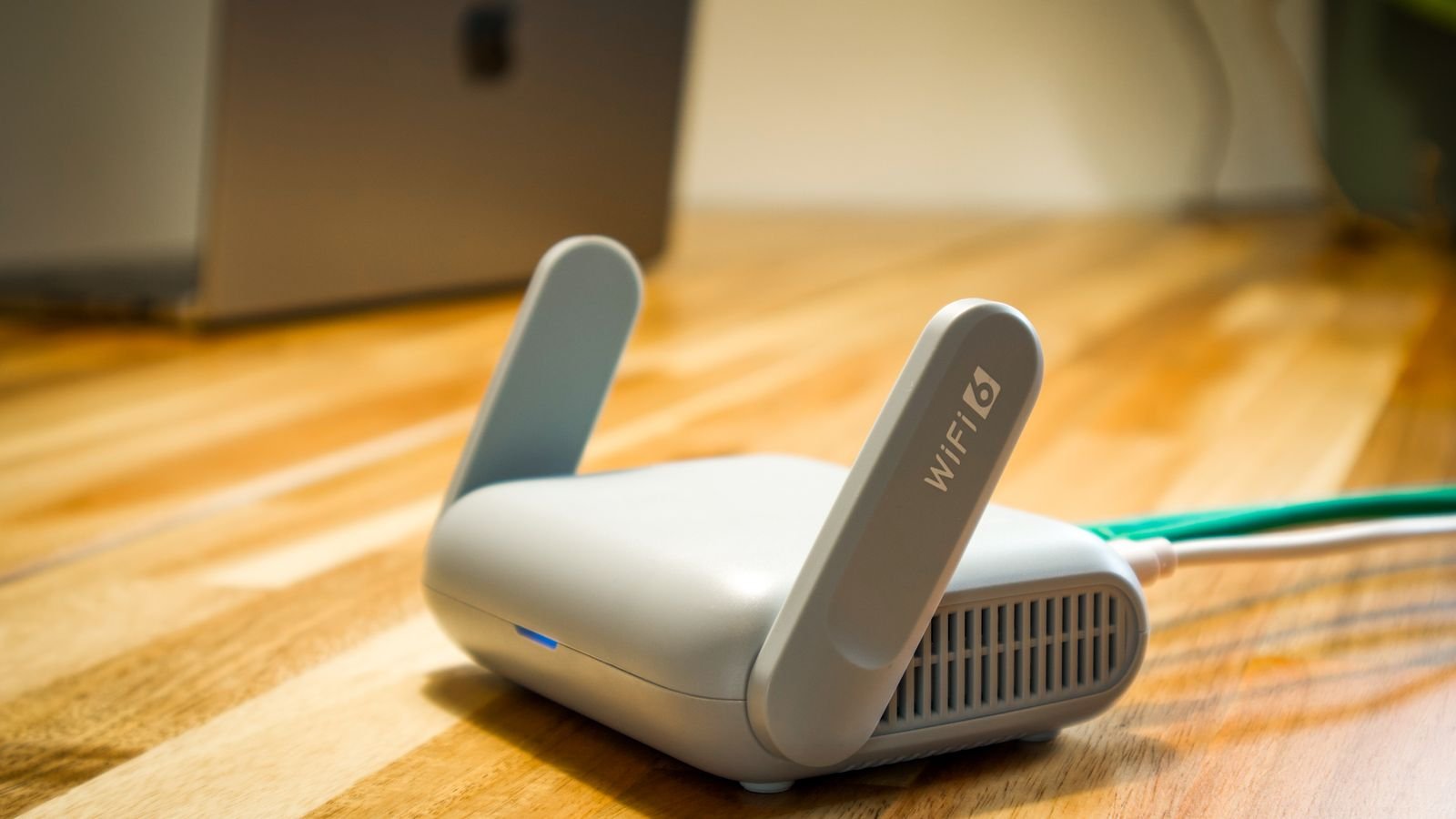
Not every router handles queue management well out of the box. Many ISP-issued gateways offer only crude bandwidth controls, or none at all, which makes manual tuning frustrating or impossible. If your current router lacks SQM entirely, or if hours of tweaking still leave calls choppy, upgrading to a purpose-built model can save enormous frustration. Several of the best routers for bufferbloat ship with active queue management enabled by default and require far less manual tuning than a stock router, delivering low latency under load with almost no configuration.
Common Mistakes to Avoid
- Setting bandwidth caps too close to your real speed. Without enough headroom the queue still backs up, so leave a safety margin.
- Ignoring the upload direction. Upload bufferbloat causes just as much call trouble as download bufferbloat and is often worse on asymmetric cable plans.
- Skipping the retest. Always confirm the fix worked with a fresh latency-under-load test rather than assuming your changes took effect.
- Running outdated firmware. Old firmware frequently lacks proper queue management, so update before troubleshooting further.
- Changing several settings at once. Adjust one thing at a time so you can identify exactly what improved the result.
Safety and Stability Notes
Changing QoS settings will not damage your router or violate your internet service agreement, but writing down your original configuration before you start makes it trivial to revert if anything behaves unexpectedly. Apply changes gradually, and remember that a slightly lower maximum download speed is a perfectly acceptable trade for consistently low latency. In real-world use, a connection that holds steady under load feels dramatically faster than one with a higher peak speed that collapses whenever the network gets busy.
Frequently Asked Questions
How do I know if bufferbloat is my actual problem?
Run a latency-under-load test. If your ping jumps from under 20ms while idle to over 200ms while a transfer is running, bufferbloat is very likely the cause of your call and gaming issues rather than slow speed.
Will fixing bufferbloat slow down my internet?
No. Enabling SQM changes how traffic is queued, not how much total bandwidth you receive. Your download speed may cap slightly below the absolute maximum, but latency and stability improve dramatically, which is what you actually feel day to day.
Does this work on Wi-Fi or only wired connections?
Router-level bufferbloat fixes help both, but wired Ethernet will always show more consistent results because Wi-Fi introduces its own variability from interference and distance. Test with Ethernet first to isolate the router’s queue behavior.
Do I need special firmware to fix bufferbloat?
Not always. Many modern routers include SQM or active queue management in their standard firmware. Third-party firmware is only necessary if your router lacks these controls entirely.
Final Thoughts
Bufferbloat is one of the most overlooked causes of laggy video calls and gaming, and it is almost always fixable without upgrading your internet plan. Enable Smart Queue Management, set realistic bandwidth caps with headroom, prioritize real-time traffic, and pay special attention to your upload direction. Most households see a dramatic improvement within minutes. If your current router simply cannot manage queues effectively, moving to hardware built for the job is the fastest and most reliable long-term fix.