Owen Bradley
 A fully connected house can carry sixty or seventy networked devices without anyone consciously deciding to build a network. Bulbs, plugs, sensors, speakers, thermostats, doorbells, cameras and appliances arrive one at a time, each one small, each one apparently harmless. Then a video call breaks up during dinner and nobody can explain why. Understanding smart home bandwidth usage is what turns that guesswork into planning. The truth is reassuring in one respect and alarming in another: most smart devices use astonishingly little data, but a small subset use an enormous amount, and the difference between the two categories is several thousand times over. This guide breaks down what each class of device actually consumes, how to size an internet plan and router around it, and where the real pressure points sit in a connected home in 2026.
Two Very Different Kinds of Smart Device
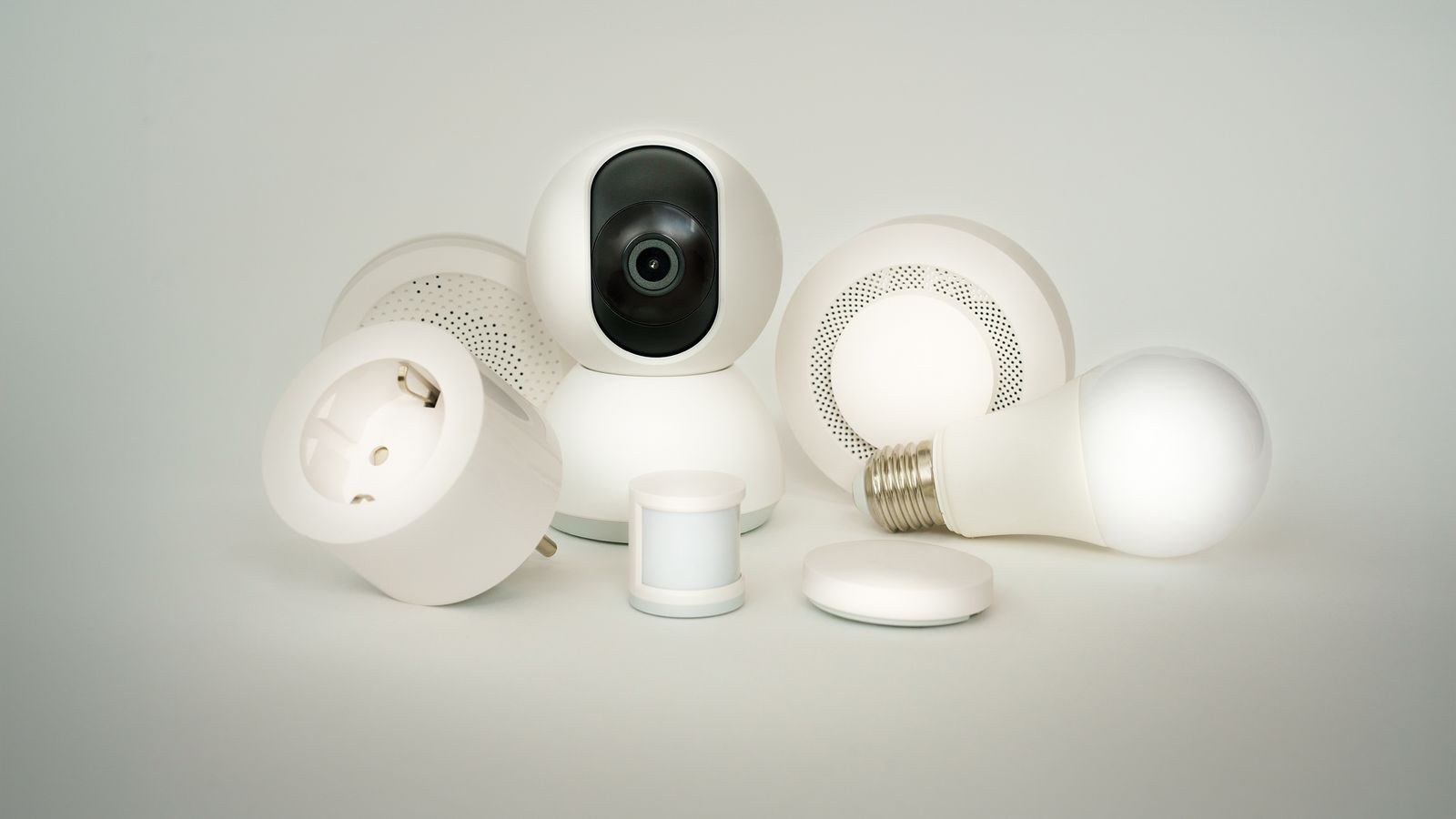
Every connected device in a home falls into one of two groups, and the distinction matters more than any other detail. Control devices exchange tiny status messages: a switch reporting that it is on, a sensor reporting a temperature, a lock confirming it is engaged. These messages are measured in bytes and occur seconds or minutes apart. Their bandwidth demand is close to negligible.
Media devices, by contrast, move continuous audio or video. Cameras, doorbells with video, baby monitors and streaming speakers generate steady streams measured in megabits per second. One video camera uploading continuously can use more bandwidth in an hour than a hundred sensors use in a week. When people say their smart home overloaded the network, a media device is almost always the cause.
The planning implication is straightforward. Count your media devices carefully and precisely. Count your control devices loosely, because their aggregate demand rarely matters for bandwidth even though it does affect the number of connections your router tracks.
Typical Bandwidth by Device Category
- Smart plugs, switches and bulbs. A few kilobits per second at most, and often nothing at all between state changes. Even dozens of these are effectively free in bandwidth terms.
- Sensors, thermostats and locks. Similarly minimal. Motion, contact and climate sensors send short reports and then go quiet.
- Voice assistants and smart displays. Idle demand is tiny, but a music stream runs roughly 0.1 to 0.5 megabits per second, and a display showing video behaves like a small television.
- Video doorbells. Idle most of the time, then 1 to 3 megabits per second of upload during an event, with higher-resolution models at the top of that range.
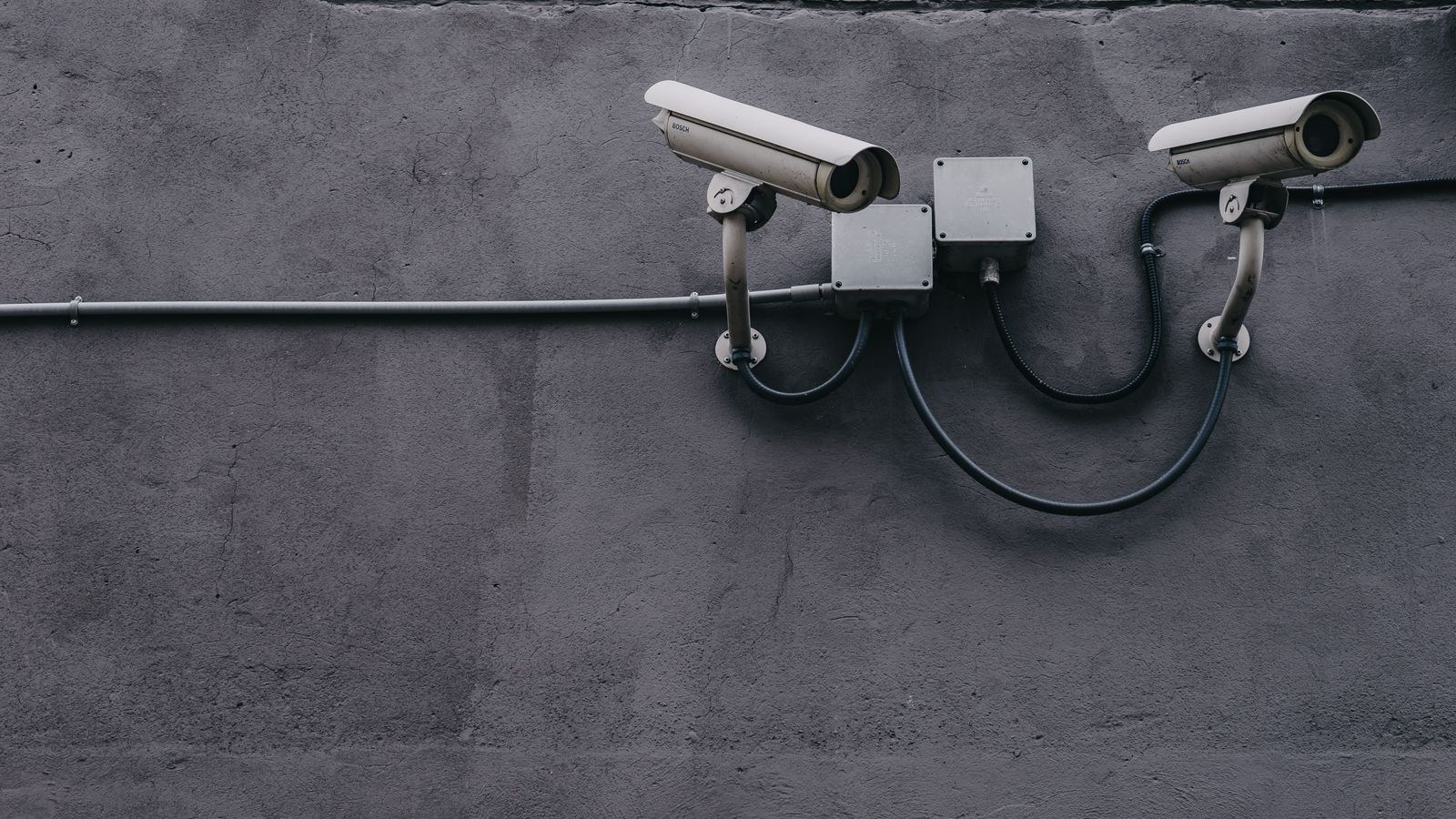
- Indoor and outdoor cameras. The heavy hitters. Roughly 1 to 2 megabits per second at 1080p and 4 to 8 megabits per second at higher resolutions, sustained if the camera records continuously to the cloud.
- Robot vacuums and appliances. Low most of the time, with brief bursts when uploading maps, logs or firmware.
Note that camera and doorbell figures represent upload, which is where most home internet plans are weakest. A plan with plenty of download capacity can still be swamped by four cameras streaming upward at once.
Why Upload Speed Deserves Your Attention
Home internet plans advertise download speed because that is what most consumers notice. Smart homes invert that assumption. Cameras push video out, doorbells push clips out, backups push files out, and video calls push your own picture out constantly. On an asymmetric connection where download vastly exceeds upload, the upload channel becomes the household’s true bottleneck.
Calculate your worst case rather than your average. Add the sustained upload of every camera that records continuously, add a couple of megabits for doorbell events, add three to four megabits for a video call, and add headroom for cloud backups. If that total approaches or exceeds your plan’s upload figure, you will experience exactly the symptoms people blame on their router: choppy calls and delayed camera notifications, usually at the same time.
Local Recording Changes the Equation
Cameras that record to local storage rather than the cloud remove their upload demand almost entirely, sending video over the internet only when you view a stream remotely. If your upload budget is tight, choosing local storage is the single most effective change available, and it usually improves privacy and reduces subscription costs as well.

Sizing an Internet Plan for a Connected Home
Build the estimate in layers. Start with the household’s entertainment and work usage, since that dominates: video streams, gaming, calls and general browsing. Then add the smart home layer on top. For most homes, the smart home layer adds only a few megabits of download but can add ten or more megabits of upload once several cameras are involved.
A useful rule is to size for simultaneous peak, not for monthly total. Data caps are rarely the issue; contention at 8pm is. If the household regularly runs two 4K streams, a video call and three recording cameras at once, add those figures together and choose a plan with meaningful headroom above the sum. Headroom matters because real traffic is bursty, and a connection running at ninety percent of capacity feels far worse than the numbers suggest.
The Router Side of the Equation
Bandwidth is only half of the story. A smart home stresses a router in a second way: connection count. Every device holds an address, occupies a slot in the connection tracking table and consumes a little memory and processing. Sixty devices doing almost nothing still impose real work on the hardware, and budget routers with modest processors can become sluggish long before the internet connection is saturated.
Look for a router with a capable processor and generous memory, support for the modern scheduling features that let many low-power devices share airtime efficiently, and enough radios that heavy clients are not competing with sensors. Models chosen with this workload in mind are gathered in our roundup of the best routers for smart home setups, and households with especially high device counts should also see the best routers for lots of devices.
Put Smart Devices on 2.4GHz Deliberately
Most smart home hardware only supports 2.4GHz anyway, and that is fine: the band travels further through walls and the devices need almost no throughput. The mistake is letting phones, laptops and televisions drift onto that same crowded band. Separate the network names for the two bands, or use band steering carefully, so light devices stay on 2.4GHz and demanding clients live on 5GHz where there is room to work.
Hubs, Protocols and the Devices That Never Touch Wi-Fi
Not every smart device needs to be a Wi-Fi client. Low-power mesh protocols allow sensors, bulbs and switches to communicate with a hub over their own radio network, and only the hub connects to your router. Twenty bulbs on such a protocol occupy exactly one slot on your Wi-Fi network instead of twenty.
For anyone building out a large installation, this is the most effective architectural decision available. It reduces connection count dramatically, improves battery life on sensors and keeps your wireless network free for devices that genuinely need throughput. The trade-off is the hub itself and a slightly more considered purchasing path, since you must check protocol compatibility before buying accessories. Our comparison of the best hubs for smart homes explains how the main ecosystems differ.
Managing the Heavy Devices
Since a handful of devices generate most of the load, targeted management beats blanket upgrades. For cameras and doorbells, lower the resolution or frame rate of feeds you rarely review closely, switch from continuous recording to motion-triggered clips where the coverage still meets your needs, and stagger any scheduled cloud uploads away from peak household hours. Each change reclaims upload capacity immediately and costs nothing.
For doorbells in particular, the burst pattern matters more than the average. A doorbell that idles all day and then uploads a high-resolution clip while someone is on a call will cause a noticeable hiccup on a tight connection. Quality-of-service rules that prioritise real-time traffic such as calls and gaming over bulk uploads solve this cleanly, and most modern routers include the capability. Buyers still choosing hardware can compare options among the best Wi-Fi doorbell cameras, several of which offer adjustable bitrates.
A Practical Audit of Your Own Home
Spend twenty minutes building an inventory. Open your router’s client list and write down every connected device, then tag each as control or media. Add up the sustained upload of the media group using the ranges above. Compare that total against your plan’s upload speed, and compare the device count against what your router’s processor can comfortably serve.
The audit almost always reveals two things: several devices nobody remembers connecting, which can be removed outright, and one or two media devices responsible for the overwhelming majority of traffic. Fixing those two findings resolves most smart home network complaints without any purchase at all. Where a purchase is warranted, energy-monitoring accessories such as the best Wi-Fi plugs add negligible bandwidth while giving useful visibility into which appliances are running.
Common Mistakes in Smart Home Networking
The first is assuming device count equals bandwidth demand. Fifty sensors are trivial; four continuously recording cameras are not. Planning by headcount leads people to over-buy internet plans while under-buying routers, when the reverse is usually correct.
The second is ignoring upload entirely when choosing a plan. It is the constraint that bites in camera-heavy homes, and it is the figure providers advertise least prominently. The third is putting every device on the main network with no segmentation. A separate network for smart devices limits what a compromised gadget can reach and keeps the connection list manageable. The fourth is neglecting firmware on the devices themselves, since cameras and hubs are internet-facing and benefit from patching just as routers do.
Frequently Asked Questions
Do smart bulbs and plugs really use no bandwidth?
Effectively none. Their traffic is a few small messages per hour. Their meaningful cost is the connection slot they occupy on your router, which is why hub-based protocols are attractive at scale.
How much data does a security camera use per month?
A single 1080p camera recording continuously to the cloud can move well over a hundred gigabytes in a month. Motion-triggered recording or local storage reduces that by an order of magnitude.
Should smart devices go on a separate network?
Yes where practical. A guest or dedicated network isolates devices that receive infrequent security updates from computers holding personal data, and it makes troubleshooting far easier.
Will faster internet fix my smart home problems?
Only if the connection is genuinely saturated. If symptoms appear with modest usage, the router’s processing capacity or wireless congestion is more likely at fault, and a plan upgrade will change nothing.
Final Thoughts
Smart home bandwidth planning comes down to separating the trivial from the significant. Sensors, plugs, bulbs and locks cost almost nothing in bandwidth and matter mainly as connection count, best managed by moving them onto a hub protocol. Cameras, doorbells and streaming media devices carry nearly all the real load, and they load the upload direction where most plans are weakest. Audit what you own, add up the media layer honestly, choose a router with enough processing headroom for the total device count, and prioritise real-time traffic over bulk uploads. Handle those four things and a house with seventy connected devices will feel calmer than a house with twenty that nobody planned for.