
 Owen Bradley
 A network for five people can be a single consumer router and a bit of luck. A network for twenty cannot. Somewhere in that range, the home-grade setup that worked when the business started begins to drop video calls, choke on cloud backups, and take the whole office offline when one device misbehaves. This small office network setup guide covers the middle ground properly: how to size a router for real concurrent users, when to add a managed switch, where wired drops still beat wireless, how to separate guest and staff traffic, and what a sensible failover plan looks like when your phones, payments, and CRM all live in the cloud. The aim is a network you configure once and forget, rather than one you restart every Monday morning.

Start by Counting Devices, Not People
The first mistake in small office networking is sizing for headcount. Twenty staff is rarely twenty devices. Each person typically brings a laptop and a phone, and the office adds printers, a network-attached storage box, VoIP handsets, access points, cameras, a smart TV in the meeting room, and a card terminal. Twenty staff commonly means fifty to seventy connected devices.
Then estimate load. Heavy devices run video calls or large file transfers continuously, medium devices browse and use web applications, and light devices such as printers check in occasionally. A ten-person design agency with constant uploads needs far more capacity than a twenty-person telesales team on a browser dialler.
Finally, work out your peak. Networks are designed for the worst fifteen minutes of the week, usually Monday morning when everyone logs in, backups finish, and three video calls start at once. If the network holds then, it holds always.
Sizing the Router
Consumer routers fail in small offices for predictable reasons. They run out of NAT session capacity when dozens of devices open hundreds of cloud connections each, they lack VLAN support so you cannot separate guests properly, and their processors cannot sustain full throughput once firewall and VPN features are enabled. They also tend to have weak management: no useful logs, no scheduled reboots, no configuration backup.
What to look for instead is straightforward. Pick a device rated for at least double your expected device count, with a firewall throughput figure equal to or greater than your internet speed, and native support for VLANs and multiple SSIDs. Check that the processor is rated for the number of concurrent sessions you expect, and confirm it supports a site-to-site or client VPN if remote workers need internal access. Firmware update cadence matters more than headline speed, because a business router that has not been patched in two years is a liability rather than an asset.
For a five to twenty user office, this usually means stepping up from a home unit to something built for the job. Our comparison of the best wireless routers for small business covers models in that class, and the more capable best commercial routers list suits offices expecting to grow past twenty or needing serious VPN throughput. If you are still weighing whether the upgrade is justified at all, our overview of business router buying for small offices lays out the decision in plain terms.
Switches: Where the Wired Network Really Lives
The router handles the boundary between your office and the internet. Switches handle everything inside. Even a heavily wireless office needs them, because access points, printers, servers, and desk drops all terminate somewhere.
Unmanaged, Smart, or Managed?
Unmanaged switches are plug-and-play and fine as a small extension under a desk. They offer no visibility and no segmentation, so they should never be the backbone of an office network. Smart or web-managed switches add VLANs, port statistics, and basic quality-of-service through a browser interface, and for most offices of this size they are the sweet spot on price and capability. Fully managed switches add advanced routing, link aggregation, and detailed monitoring, which matters if you run servers or expect rapid growth.
Port Count and PoE
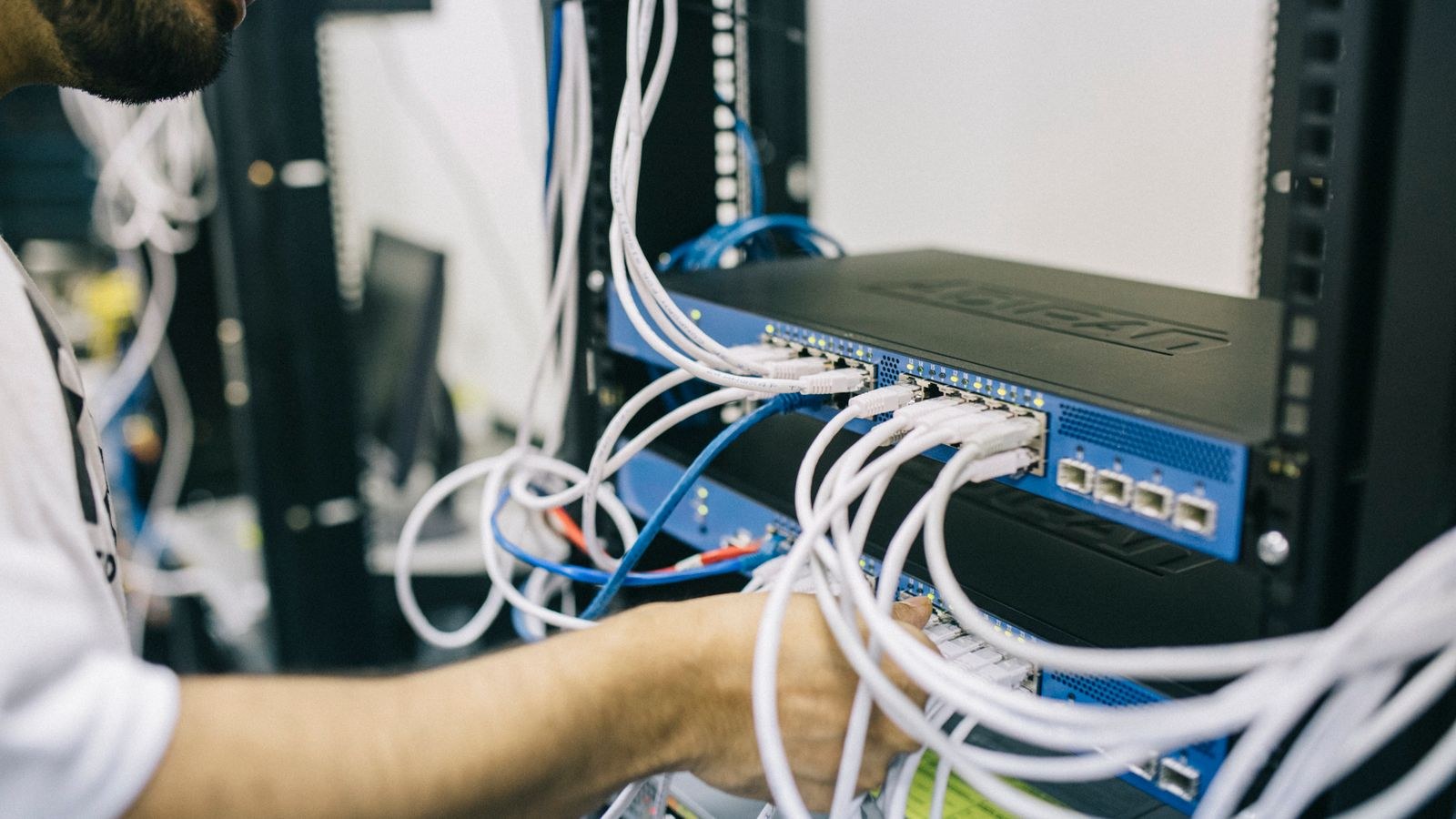
Count every wired device, add the access points and cameras, then add fifty percent for growth. A twenty-person office typically lands on a 24-port switch rather than two 8-ports daisy-chained together, which is both tidier and faster. Power over Ethernet is the feature people underestimate: it powers access points, IP phones, and cameras over the same cable that carries data, removing the need for a socket at every ceiling mount. Check the total power budget of the switch, not just whether ports are PoE-capable, since a full complement of cameras can exceed it. Our roundup of the best network switches covers both managed and PoE options at this scale.

Wired Drops Still Win Where It Counts
Wireless is convenient, but it is a shared medium, and in an open-plan office every laptop competes for the same airtime. Running cable to fixed positions frees that airtime for the devices that genuinely need to roam.
Prioritise wired connections for desktop workstations that never move, printers and copiers, network storage and servers, meeting room displays and video conferencing hardware, VoIP desk phones, and the access points themselves. Use quality cable rated for at least gigabit speeds throughout, and consider a higher category if you are opening walls anyway, since labour costs far more than cable.
Label both ends of every run. It takes minutes during installation and saves hours during every fault afterwards. Terminate runs into a patch panel rather than leaving loose cables hanging into the switch, and keep a simple document mapping port numbers to desks and rooms.
Wi-Fi Design for an Office
A single router in a corner cupboard will not cover a twenty-person office well. Plan coverage rather than hoping for it. As a rough rule, one access point comfortably serves twenty to thirty active devices across roughly 1,500 square feet of open office, with more needed where walls, glass partitions, or plasterboard with metal studs get in the way.
Mount access points on ceilings near the centre of work areas rather than on walls in corridors. Use the same network name across all of them so devices roam seamlessly, and set transmit power moderately rather than at maximum, because overpowered access points cause devices to cling to a distant one instead of switching to the nearer one. Push laptops and phones onto 5GHz and leave 2.4GHz for the few devices that need range. If you support many devices at once, a router or system rated for high client counts matters more than headline speed, which is where the best Wi-Fi routers for business comparison is useful.
Segmenting the Network
Every office of this size should run at least three separate networks, implemented as VLANs with matching SSIDs on the wireless side.
- Staff network. Company laptops and phones, with access to internal resources such as file storage and printers.
- Guest network. Internet access only, isolated from everything internal, with client isolation enabled so guests cannot see each other. Give it a bandwidth cap so a visitor streaming video cannot degrade a sales call.
- Device or IoT network. Cameras, smart TVs, sensors, and card terminals. These devices are rarely patched and are the most common entry point into a small business network, so they belong nowhere near your file server.
Segmentation is not just security theatre. It also contains failures: a misbehaving device that floods its own VLAN cannot take down the staff network with it. If you run VoIP handsets, a fourth voice VLAN with priority quality-of-service keeps calls clear when someone starts a large upload.
Internet Connection and Failover
Speed matters less than most offices assume, but upload speed and reliability matter far more. Video calls, cloud backups, and file sharing are upload-heavy, and a connection advertised on its download figure can still cripple a team if the upload is a fraction of it. Ask about the upload rate and the service level agreement before the headline number.
Then plan for the day the line dies. When phones, payments, and core applications are cloud-hosted, an outage stops the business, not just the browsing. A practical failover plan for this size of office has three parts. First, a secondary connection: ideally a different technology and a different provider, since a second line in the same duct fails at the same moment. A business-grade cellular connection is the usual choice. Second, a router that supports automatic failover, so the switch happens without anyone touching a cable. Third, a tested procedure, because failover that has never been tested is a guess. Pull the primary cable during a quiet hour once a quarter and confirm that phones and payments keep working.
Protect the equipment too. A small uninterruptible power supply for the router, switch, and modem keeps the network alive through short cuts and, just as importantly, protects the hardware from the surges that follow them.
Security Essentials Without an IT Department
Small offices are targeted precisely because they are assumed to be unprotected. A handful of measures covers most realistic risk. Change every default administrator password and store the new ones in a shared password manager rather than a spreadsheet. Keep router, switch, and access point firmware current, and set a calendar reminder if automatic updates are unavailable. Disable remote administration from the internet unless you genuinely need it, and if you do, restrict it by IP address or place it behind a VPN.
Use WPA3 where devices support it and WPA2 with a strong passphrase elsewhere. Turn off features you are not using, particularly universal plug and play. Finally, back up your network configuration after any change.
A Practical Build Order
- Audit. Count devices, note bandwidth-heavy users, and measure your current internet upload and download speeds.
- Choose the router. Size for double the device count, with VLAN and VPN support.
- Choose the switch. Web-managed, PoE where you need it, port count plus fifty percent.
- Run cable. Fixed desks, printers, storage, meeting rooms, and access point locations. Label everything.
- Place access points. Ceiling mounted, one per work zone, moderate transmit power, single network name.
- Configure VLANs. Staff, guest, and devices at minimum, plus voice if you run handsets.
- Add failover. Secondary connection, automatic switching, and a UPS on the core equipment.
- Document and test. Port map, passwords, configuration backups, and a quarterly failover test.
Common Mistakes in Small Office Networks
The most expensive mistake is scaling by addition. Adding another consumer router when coverage is poor creates a second network, double NAT, and a support problem that grows every month. Design the network once for the size you expect to be, not the size you are today.
The second is treating Wi-Fi as a substitute for cable. Wireless capacity is finite and shared, and offices that wire nothing consistently struggle at peak. The third is leaving guests on the staff network because segmentation seemed complicated, which is both a security and a performance failure. The fourth is skipping documentation, which turns every future change into an archaeology exercise. And the last is buying purely on price: the difference between a home router and a business one is roughly the cost of a single afternoon of downtime.
Frequently Asked Questions
Can a good consumer router handle twenty users?
Sometimes, briefly. It usually fails on session capacity, VLAN support, and firmware maintenance rather than raw speed, which is why offices that try it end up rebooting hardware regularly.
Do I need a managed switch?
If you want guest isolation, voice priority, or any visibility into which port is causing a problem, yes. A web-managed switch delivers that at a modest premium over an unmanaged one.
How many access points does a twenty-person office need?
Typically two or three, depending on layout and construction. Open-plan spaces need fewer; offices divided into rooms or with glass partitions need more.
Is cellular failover worth the monthly cost?
If cloud phones, card payments, or booking systems are essential, it usually costs less per month than a single hour of lost trading.
Final Thoughts
A network for five to twenty users is not a scaled-up home setup, and it is not enterprise infrastructure either. It is a small, deliberate design: one properly sized router at the edge, a managed switch as the backbone, wired drops to everything that does not move, two or three well-placed access points, and clean separation between staff, guests, and devices. Add a failover connection and a UPS, document what you built, and test it before you need it. Do that once and the network stops being a recurring problem, which is exactly what a growing business needs it to be.









