
 Owen Bradley
 Hotel Wi-Fi is notoriously slow, unreliable, and often insecure, especially when dozens of guests are sharing the same network. A travel router solves all three problems at once: it creates your own private, password-protected network from the hotel’s existing connection, lets you connect multiple devices even when the hotel limits you to one, and adds a layer of security between you and everyone else on that shared network. Setting one up takes only a few minutes once you know the steps, and this guide walks you through the entire process from unboxing to streaming on your laptop, tablet, and phone at the same time.
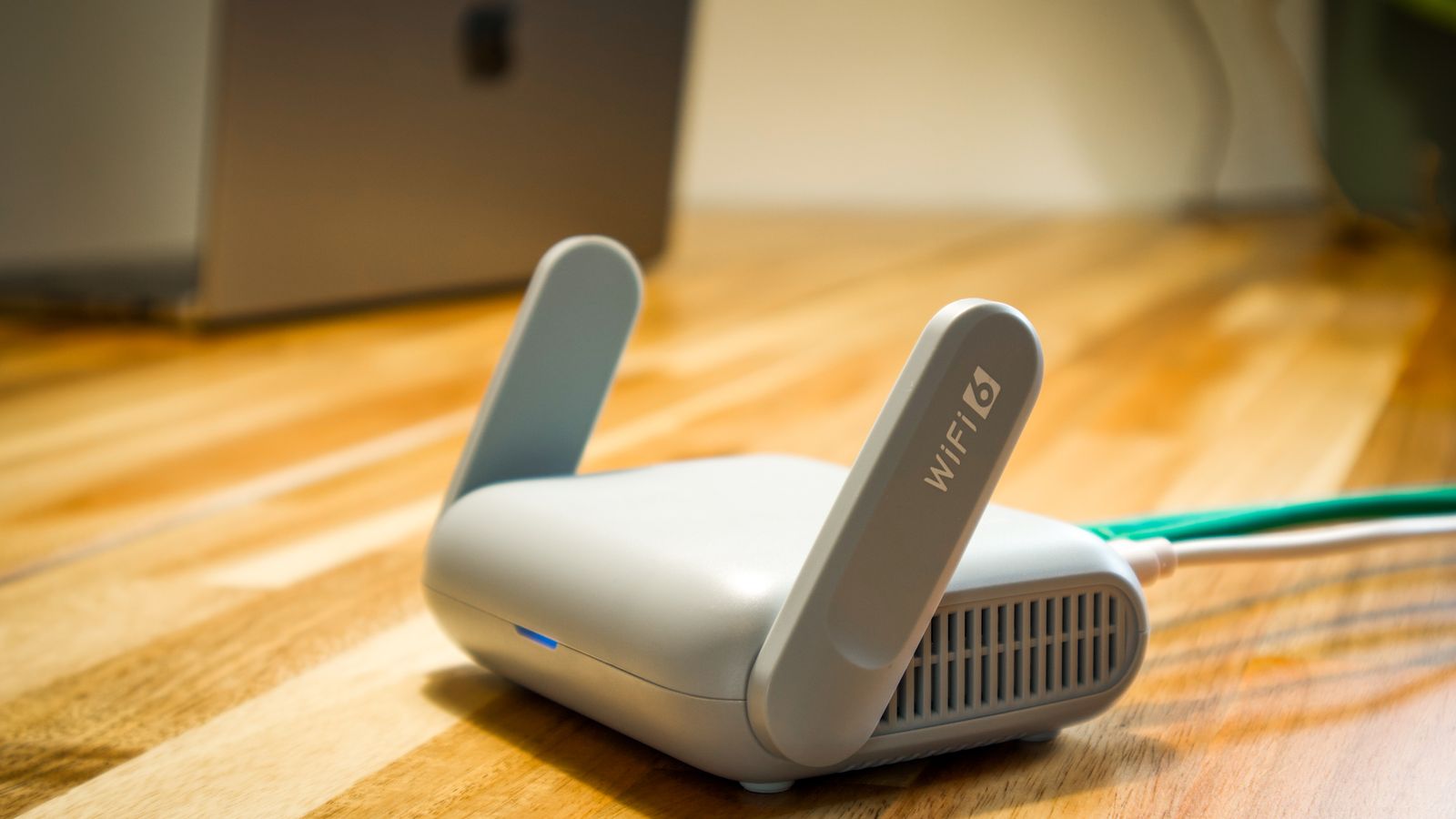
What You’ll Need
- A compact travel router (with either Wi-Fi or Ethernet WAN input)
- A power source or USB cable/adapter
- The hotel’s Wi-Fi network name and password, or a wired Ethernet port in your room
- A smartphone or laptop to access the router’s setup page
If you are shopping for a device before your next trip, take a look at some of the best travel routers designed specifically for hotel and Airbnb use, since they are smaller, lighter, and easier to configure than standard home routers.
Step-by-Step Setup Instructions
- Choose the right mode. Most travel routers offer a few connection modes: Wi-Fi repeater/client mode (connects to the hotel’s wireless signal) or router/WAN mode (connects via an Ethernet cable if the room has a wired port). Check the hotel’s in-room instructions to see which is available, then set the switch or software mode on your travel router accordingly.
- Power on the device. Plug the router into a wall outlet or a USB port. Wait about 30-60 seconds for it to fully boot; most units show a solid status light when ready.
- Connect to the router’s default network. On your phone or laptop, open Wi-Fi settings and join the router’s factory network, usually named something like GL-XXXX or TravelRouter-Setup. The default password is printed on a label on the device.
- Open the admin panel. Launch a browser and go to the router’s setup address (commonly 192.168.8.1 or a custom URL noted in the manual). Log in with the default admin credentials.
- Scan for the hotel’s Wi-Fi network. In the setup wizard, choose Wi-Fi as WAN or Repeater Mode, scan for nearby networks, and select the hotel’s SSID from the list.
- Enter the hotel’s login details. Type in the Wi-Fi password if one is required. Some hotels use a captive portal (a browser login page) instead of a password; in that case, connect the travel router first, then open a browser on your phone to complete the hotel’s login screen.
- Create your own private network name and password. In the wizard, set a new SSID and a strong password (at least 12 characters, mixing letters, numbers, and symbols). This is the network your devices will actually use.
- Save and reboot. Apply the settings and let the router restart. This usually takes under a minute.
- Connect all your devices to your new network. Join your laptop, phone, tablet, or smart TV to the new SSID you just created. Every device now shares the single hotel connection through your private, secured router.
- Test your connection. Run a quick speed test and confirm you can browse normally. If the connection drops, log back into the admin panel and re-scan for the hotel network, as some captive portals require re-authentication every 24 hours.

Tips for a Smoother Setup
- Update your travel router’s firmware before you leave home; hotel Wi-Fi is not a great place to download a large update.
- Enable the built-in VPN client if your router supports one, since hotel networks are common targets for snooping.
- Label your router’s cables or use a small pouch so setup takes seconds instead of minutes on future trips.
- If the hotel requires a MAC address registration or limits one device per room, register your travel router’s MAC address instead of your personal devices, since all your traffic will appear to come from the router.
Common Mistakes to Avoid
- Skipping the captive portal step. If you forget to open a browser and accept the hotel’s terms after connecting, your travel router will show internet access but nothing will load.
- Using default admin passwords. Always change the router’s admin login, not just the Wi-Fi password, to prevent unauthorized access to your settings.
- Forgetting to reset the router between hotels. Some setup wizards remember the previous hotel’s network; if you have trouble connecting at a new location, do a quick factory reset or manually re-scan for networks.
- Placing the router too far from the room’s best signal spot. Move it near a window or the wall closest to the hotel’s own access point for a stronger connection.
Do I need a travel router if my phone already has a hotspot?
A personal hotspot works in a pinch, but it relies on cellular data, which can be slow or expensive internationally. A travel router uses the hotel’s existing broadband, so it is typically faster and does not consume your data plan.
Will a travel router work with hotel networks that require room number and last name login?
Yes. Connect the travel router to the hotel Wi-Fi first, then open a browser on any connected device to complete the login form exactly as you would on your own phone.
Can I use a travel router with an Ethernet cable instead of Wi-Fi?
Most travel routers include a WAN port for exactly this situation. Simply plug an Ethernet cable from the wall into the router’s WAN port, switch the mode to Ethernet/WAN in the admin panel, and skip the wireless scanning step entirely.
How many devices can a travel router support at once?
Most travel routers comfortably handle 5 to 10 devices, which is far more than the typical hotel policy of one device per room. Keep in mind that the shared bandwidth still comes from the hotel’s connection, so streaming on several devices simultaneously may feel slower than at home even though the router itself has no trouble managing the connections.
Is it legal to use a travel router on hotel Wi-Fi?
Using a travel router to share a single connection you have legitimately paid for or been granted is standard practice and generally allowed, since your traffic still passes through the hotel’s network. Avoid attempting to bypass paid access tiers or reselling the connection, which may violate the hotel’s terms of service.
Understanding the Security Benefits
The biggest advantage of a travel router is not just convenience but privacy. On an open hotel network, every device connected to the same access point can potentially see traffic from others, and public networks are a common environment for man-in-the-middle attacks. When your devices connect through your own travel router, they form an isolated private subnet that other guests cannot directly reach. This means your laptop, phone, and tablet talk to each other and to the router securely, and only the router communicates outward to the hotel network.
For an added layer of protection, many travel routers include a built-in VPN client or server. A VPN client encrypts all outbound traffic before it ever touches the hotel network, so even if someone were monitoring the shared connection, they would only see scrambled data. If you regularly handle sensitive work such as banking, client files, or company logins while traveling, configuring the VPN feature during setup is well worth the extra few minutes.
Troubleshooting Common Connection Problems
- The router connects but no websites load. This almost always means the hotel’s captive portal has not been completed. Open a browser on a connected device, navigate to any non-secure website, and the login page should appear.
- The connection drops after a day. Many hotels expire guest sessions every 24 hours. Simply re-open the captive portal and log in again, or reconnect the router to the hotel network from the admin panel.
- Weak or intermittent signal. Move the travel router closer to a window or the hallway-facing wall, where the hotel’s access point signal is usually stronger, then let your own devices connect to the router from anywhere in the room.
- Cannot find the hotel network in the scan. Some hotels hide their SSID or broadcast only on the 5GHz band. Check whether your travel router supports the same band, and try entering the network name manually if the scan comes up empty.
Final Thoughts
A travel router turns unpredictable hotel Wi-Fi into a private, reliable network you control, and once you have gone through the setup once, repeating it at your next hotel takes only a couple of minutes. Investing in one of the best travel routers pays off quickly for anyone who travels regularly and needs dependable internet for work or streaming on the road.









