
 Owen Bradley
 Two features separate a smart lock you actively operate from one that simply takes care of the door for you. Auto-lock secures the deadbolt on its own after a set delay, so nobody has to remember. Auto-unlock uses your phone’s location to open the door as you arrive, so you walk in without touching anything. Both are genuinely useful, and both are the settings most likely to lock you out of your own house or leave the door open when you thought it was secured. Getting smart lock auto lock behaviour right is less about finding a hidden setting and more about choosing timings that match how your household actually uses the door. This guide covers how each feature works, how to configure them safely, and how to fix the failures people run into most.
What Auto-Lock Actually Does
Auto-lock is a timer inside the lock. Once the bolt is retracted, the lock counts down and then drives the bolt back out. Most models let you choose anything from about 30 seconds to 30 minutes, and better ones let you disable it during set hours or when a door sensor reports the door standing open.
The important detail is what triggers the countdown. On a basic lock, the timer starts the moment the bolt retracts, regardless of whether anyone actually went through the door. On a lock paired with a door position sensor, the timer starts when the door closes, which is far more sensible. If your lock supports a sensor, use it, because it eliminates the most common auto-lock complaint: the bolt firing while the door is still propped open, which either jams against the frame or leaves you with a bolt sticking out that you then slam into the strike.
What Auto-Unlock Actually Does
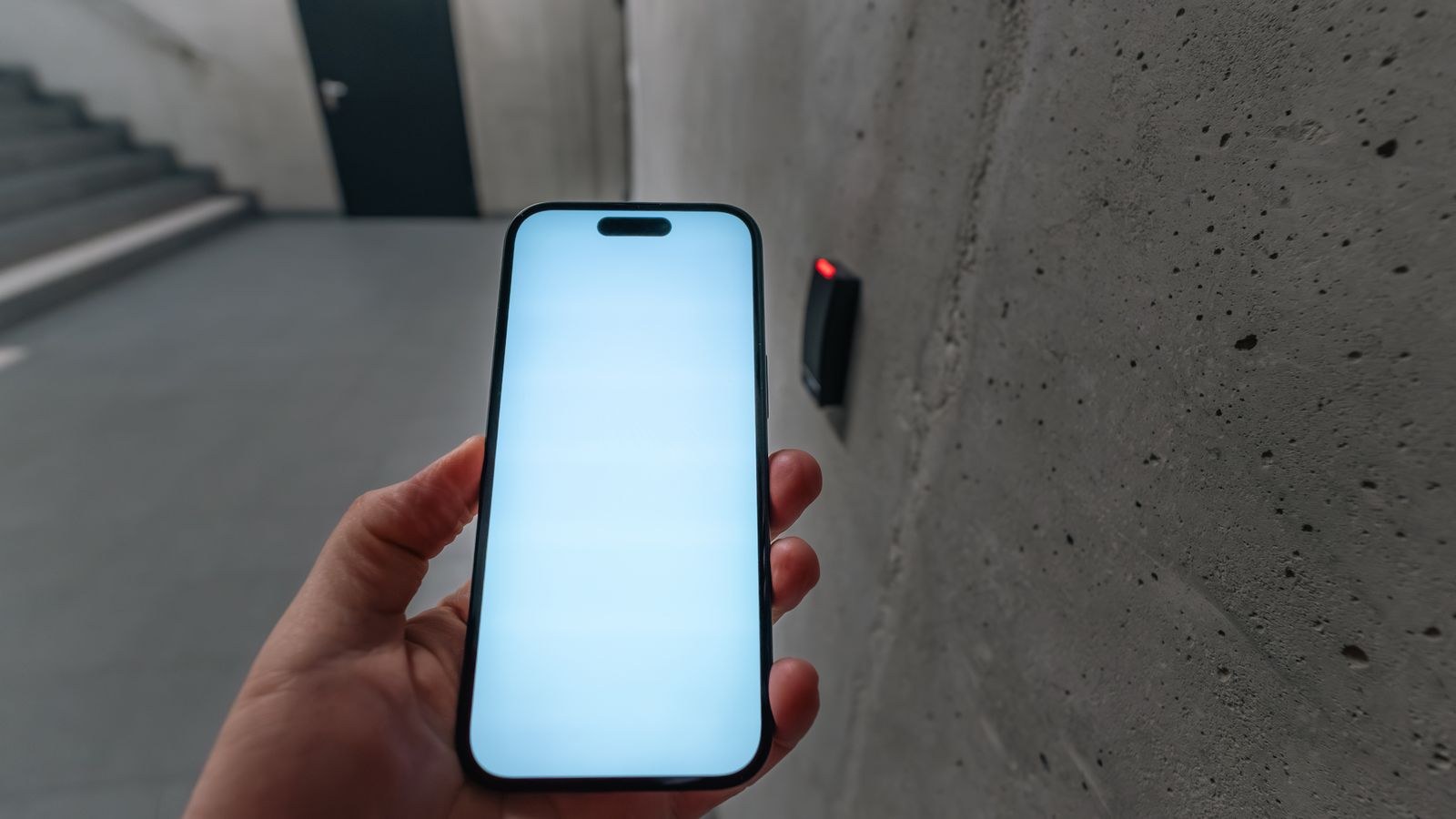
Auto-unlock is geofencing plus proximity. Your phone reports leaving a defined radius around the house, which arms the feature. When you return and cross back into that radius, the app wakes up, then waits until your phone is close enough to reach the lock over Bluetooth before sending the unlock command. The two-stage design exists precisely so the door does not open the moment you turn into your street.
Because it depends on your phone’s location services, Bluetooth radio, and background app permissions all working together, auto-unlock is the least reliable feature on any smart lock. It works beautifully when it works and does nothing at all when your phone has decided to save battery. Treat it as a convenience, never as your only way in.
Before You Enable Either Feature
Run these checks first. Almost every auto-lock horror story traces back to skipping one of them.
- Confirm the bolt throws cleanly. Close the door and throw the bolt ten times. If it catches at all, fix the alignment before automating it. A motor that struggles when you are watching will fail when you are not.
- Check battery level. Both features increase motor cycles and radio activity. Start above 50 percent.
- Make sure everyone has a way in. Every household member needs a keypad code, an app account, or a physical key before the door starts locking itself.
- Test the door sensor if you have one. Open and close the door and confirm the app reports the change within a second or two.
- Update firmware. Auto-lock timing bugs are common in older firmware and usually already fixed.
Setting Up Auto-Lock, Step by Step
- Open the lock’s settings in the app. Look for Auto-Lock, Auto Relock, or Timers. Standalone keypad models sometimes hold this setting on the lock itself via a programming sequence in the manual.
- Turn the feature on and choose a delay. Start long. Five minutes is a good first setting for a front door, because it gives you time to unload a car or hold the door for someone without the bolt firing behind you.
- Enable door sensor mode if available. Choosing “lock after door closes” rather than “lock after unlocking” is the single most valuable option in this menu.
- Set a jam response. Some locks let you decide what happens when the bolt meets resistance. Choose retract and alert rather than repeated retries, which drains batteries and can damage the motor.
- Add schedule exceptions. If your household is in and out constantly between 3pm and 6pm, many locks let you disable auto-lock during that window and re-enable it overnight.
- Turn on lock notifications. You want a confirmation that the door locked, especially in the first two weeks.
- Test with the door open. Retract the bolt, wait out the delay, and watch what happens. Confirm the behaviour matches what you selected.
- Test with the door closed. Repeat and confirm the bolt fully enters the strike without grinding.
- Shorten the delay gradually. After a week without complaints, reduce it if you want to. Most households settle between one and five minutes.
Setting Up Auto-Unlock, Step by Step
- Grant location permission set to “always”. Auto-unlock cannot work on “while using the app”, because the app needs to detect your return in the background.
- Disable battery optimisation for the app. On Android this is a per-app setting; on iOS make sure Background App Refresh is on. Aggressive power saving is the number one cause of auto-unlock silently failing.
- Keep Bluetooth on permanently. The final unlock command travels over Bluetooth, not WiFi.
- Set the geofence radius. A radius of a few hundred metres is typical. Too small and the app has no time to wake up before you reach the door; too large and it arms every time you walk to the end of the street.
- Choose per-user settings. Auto-unlock should be enabled per person, not per lock. Enable it only for adults who want it.
- Decide whether it unlocks or just prepares. Some apps offer a confirmation tap on arrival instead of an automatic unlock, which is a good middle ground for security-conscious households.
- Test the full cycle properly. Leave the house, travel well beyond the geofence, spend at least ten minutes away, then return. Short trips to the end of the drive do not arm the feature and produce misleading results.
- Repeat the test three times on different days. Auto-unlock reliability varies with phone state, so one successful test proves very little.
Safety Considerations Worth Thinking Through
Automation removes decisions, which is the point and also the risk. A few situations deserve deliberate thought before you switch these features on.
Auto-lock and children or older relatives. Anyone who might step outside briefly without a code or key can be shut out by a short timer. If that describes your household, use a longer delay and make sure a spare credential exists somewhere accessible.
Auto-lock and pets or deliveries. A bolt firing while a door is propped for a delivery can damage the strike or leave the door unable to close. Door sensor mode prevents this.
Auto-unlock and phone loss. A lost or stolen phone with auto-unlock configured is effectively a key to your house. Remove the device from your account immediately if that happens, and use a phone lock screen with biometrics as a matter of course.
Auto-unlock and false triggers. If your driveway or a shared hallway is within the Bluetooth range of the lock, the door can unlock while you are still outside and you may not notice. Confirmation-tap mode solves this cleanly.
Fire safety. A motorised deadbolt on a primary escape route should always be operable from inside without a code, phone, or key. Verify the interior turn works when the batteries are low.
Troubleshooting the Failures People Hit Most
- The bolt jams when auto-lock fires. The strike is misaligned or the door is sagging. Tighten the frame-side hinge screws and check the bolt slides freely with the door closed before blaming the lock.
- Auto-lock fires while the door is open. The lock is timing from unlock rather than from door close. Enable the door sensor or extend the delay.
- Auto-unlock never triggers. Check location permission is “always”, background refresh is on, battery optimisation is disabled for the app, and Bluetooth is enabled. Fixing these four resolves the large majority of cases.
- Auto-unlock triggers too early. Shrink the geofence and confirm the app is not unlocking on geofence crossing alone.
- It works for one person but not another. The settings are per-user and per-phone. Check permissions on the phone that fails, not the one that works.
- Batteries drain quickly after enabling both. This is normal to a degree. Lengthen the auto-lock delay and disable proximity features you do not use.
- The lock reports success but the door is unlocked. The bolt extended into the door frame edge rather than the strike hole, which usually means the door was not fully closed. A door sensor catches this.
Choosing Hardware That Handles Automation Well
Not every lock automates equally well. The features that matter are a door position sensor, adjustable jam handling, per-user auto-unlock, and a motor with enough torque to drive a bolt reliably on an exterior door that swells in wet weather. Locks designed for exterior entries, such as those in our roundup of the best smart locks for front doors, tend to include the sensor and the stronger drive. If you want automation controlled remotely rather than only at close range, compare the connected options among the best WiFi smart locks, and for a full replacement deadbolt the best smart deadbolts list covers the mechanical side. Households built around Apple’s ecosystem should look at the best HomeKit smart locks, where automation can run locally through a home hub rather than depending on a cloud service.
Frequently Asked Questions
What is a good auto-lock delay?
Start at five minutes and shorten it once you know how your household uses the door. One to two minutes suits most homes, while a busy family entrance often works better at five or with a scheduled exception.
Does auto-lock work if the door is left open?
On a lock with a door sensor, no, and that is the correct behaviour. Without a sensor the bolt will extend anyway, which is why sensor support is worth having.
Will auto-unlock drain my phone battery?
Slightly. Geofencing uses low-power location services rather than continuous GPS, so the impact is small, but it is not zero.
Is auto-unlock safe?
It is reasonably safe when your phone has a secure lock screen and the geofence is sized correctly. If you are uneasy, use confirmation-tap mode so the door only opens when you deliberately approve it.
Can I use auto-lock without auto-unlock?
Yes, and many people do. Auto-lock is the more reliable and more valuable of the two, and it works entirely on the lock without depending on your phone. For a wider look at how these systems fit together, see our keyless entry guide.
Final Thoughts
Automation on a door only helps when it matches real behaviour. Fix the mechanical alignment first, then enable auto-lock with a generous delay and a door sensor, and tighten the timing once you have lived with it for a week. Add auto-unlock afterwards, per person, with location and background permissions set properly, and test it on several separate journeys before you rely on it. Keep at least one credential that works with no phone and no battery, and the door will look after itself without ever leaving you standing outside.









