
 Owen Bradley
 Even the most powerful router can deliver disappointing Wi-Fi if it is placed in the wrong spot. Router placement is one of the most overlooked factors in home network performance, yet it can make the difference between reliable full-house coverage and frustrating dead zones where video calls drop and streams buffer. The good news is that improving placement usually costs nothing beyond a little experimentation. This guide walks through the principles of good router placement and shows you how to diagnose and fix common coverage problems throughout your home.
Why Placement Matters So Much
Wi-Fi signals travel outward from your router in all directions, weakening as they pass through walls, floors, furniture, and appliances. A router tucked in a closet, behind a TV cabinet, or in a basement corner has to fight through far more obstacles to reach your living room or bedrooms. Even a router with excellent specifications will underperform if it is poorly positioned, while a modest router in a good location can outperform expectations.
Understanding how signals behave in your specific home is the foundation of good coverage. Every wall, mirror, and metal object between your router and your device chips away at the signal. Thoughtful placement minimizes those obstacles and puts the strongest signal where you actually use it most.
Find the Center of Your Home
The golden rule of router placement is to position it as close to the center of your home as possible, both horizontally and vertically. In a single-story home, this usually means a central room rather than an edge bedroom or garage. In a multi-story home, placing the router on a middle floor helps signals reach both upstairs and downstairs areas more evenly.
If a fully central location is not practical because of where your internet line enters the house, aim for the area where you and your family spend the most time online. You can always run a longer Ethernet cable from your modem to reposition the router, which is often far more effective than accepting a poor default location.
Elevate the Router
Wi-Fi signals spread more effectively when broadcast from an elevated position rather than the floor. Placing your router on a shelf, table, or wall mount, ideally around waist to shoulder height, helps signals travel over furniture and other obstacles instead of being blocked by them. Signals tend to radiate slightly downward and outward, so a higher starting point covers more usable living space.
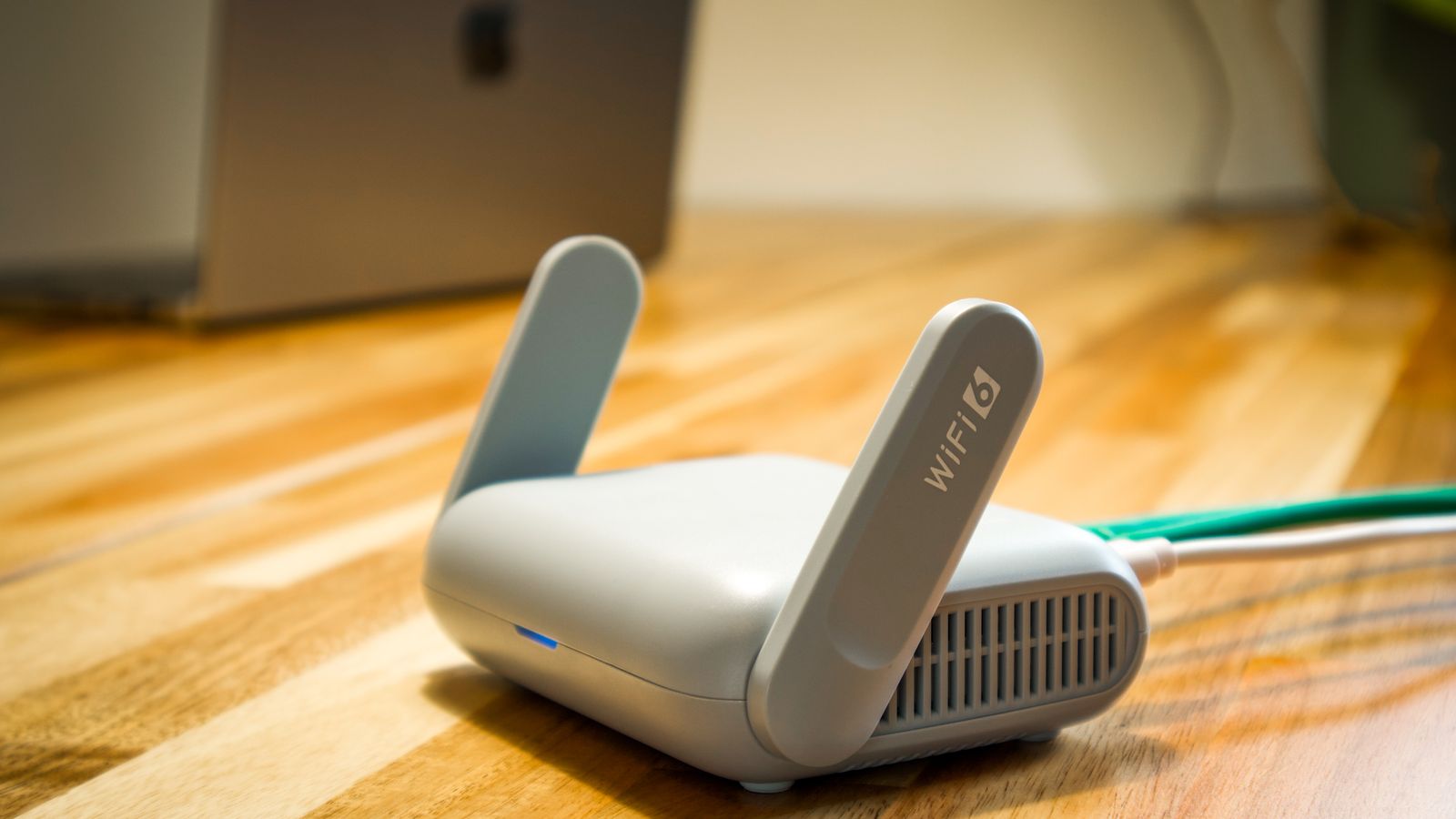
Avoid placing routers directly on the floor or inside enclosed cabinets, which trap and weaken the signal. An open, elevated spot with clear lines of sight to the rooms you care about most will consistently outperform a hidden, low position.
Avoid Signal-Blocking Materials
Certain building materials interfere with Wi-Fi far more than others. Concrete, brick, stone, metal, and mirrors are particularly effective at blocking or reflecting wireless signals, which is why homes with these features often struggle with dead zones even when the router is centrally located. Water is also a surprisingly strong absorber, so large fish tanks and even densely packed bookshelves can weaken a signal.
If your home has concrete walls or a metal-heavy structure, standard placement advice may not be enough, and you may need hardware built to punch through denser materials. The best routers for concrete walls and the best routers for thick walls are designed with stronger antennas and more capable signal processing to overcome these tough obstacles.
Keep Away from Interference Sources
Household electronics can interfere with Wi-Fi signals, especially devices that operate on similar frequencies. Microwaves, cordless phones, baby monitors, wireless speakers, and even some Bluetooth devices can cause interference when placed too close to your router. Keep your router at least a few feet away from these devices, and avoid placing it directly next to large metal appliances like refrigerators.
Neighboring networks can also cause congestion, particularly in apartments. Many routers can automatically select the least congested channel, but you can also set this manually if you notice slowdowns at busy times of day.

Antenna Positioning
For routers with external antennas, positioning matters as much as location. As a general rule, position antennas perpendicular to each other, one vertical and one horizontal, to maximize coverage for devices in different orientations, such as laptops flat on a desk versus phones held upright. On a two-story home, angling some antennas horizontally can help push signal upward to the floor above. Check your router’s manual for model-specific recommendations, as some antenna designs are optimized differently.
Dealing with Large or Multi-Story Homes
In larger homes, a single router, no matter how well placed, may not be able to cover every room adequately. This is especially true for homes over 2,500 square feet or those with multiple floors, long hallways, or detached wings. In these cases, extending range through a mesh system or a router built for long-distance coverage is often more effective than simply relocating a single unit.
The best long-range routers are designed to project stronger, farther-reaching signals suited to bigger properties, giving you a solid foundation before you add extenders or mesh nodes.
Testing and Adjusting Coverage
After placing your router, walk through your home with a smartphone and check signal strength in each room using your device’s Wi-Fi indicator or a free network analyzer app. Note any rooms with weak or no signal, then experiment with small adjustments, moving the router a few feet, changing its height, or rotating the antennas, and retest. Iterative testing often reveals surprisingly effective spots that are not obvious at first glance.
For a more precise picture, run a speed test in each room rather than relying on the signal bars alone, since a strong-looking signal can still deliver poor throughput if there is interference. Keep a simple note of results so you can compare before-and-after as you adjust placement.
Understanding the 2.4 GHz and 5 GHz Bands
Modern routers broadcast on at least two frequency bands, and understanding how they behave can influence placement decisions. The 2.4 GHz band travels farther and penetrates walls more effectively, making it better suited for devices in distant rooms or behind thick walls, though it offers slower speeds and is more prone to interference from other household electronics. The 5 GHz band delivers much faster speeds but has a shorter effective range and struggles more with obstacles. When you place your router centrally and elevated, you help both bands perform closer to their potential. Devices that need speed, like a nearby laptop or 4K streaming box, benefit from being within strong 5 GHz range, while distant smart home sensors can rely on the more forgiving 2.4 GHz band.
Seasonal and Environmental Factors
It is worth remembering that Wi-Fi performance is not static. Rearranging furniture, adding a large appliance, or even seasonal changes like closing doors more often in winter can subtly affect how signals travel through your home. If you notice coverage suddenly worsening, consider whether anything in the environment has changed recently. New neighbors setting up their own networks can also increase congestion, particularly in dense apartment buildings, which may call for switching channels or adjusting placement to maintain strong performance. Periodically re-testing your coverage, especially after any major change to your home layout, keeps your network performing at its best.
When to Consider Additional Hardware
If testing reveals persistent dead zones despite optimal placement, it may be time to consider a mesh Wi-Fi system, a Wi-Fi extender, or powerline adapters that carry your network signal through your home’s electrical wiring. These solutions work alongside good placement rather than replacing it, since even mesh systems perform best when the main router and satellite nodes are positioned thoughtfully with clear paths between them.
Common Placement Mistakes
Common errors include hiding the router in a basement or closet for aesthetic reasons, placing it near large fish tanks or mirrors, positioning it in a corner of the house rather than the center, tucking it inside a media cabinet, and stacking it under other electronics that generate heat and interference. Avoiding these simple mistakes often resolves coverage issues without needing any new hardware at all.
Does router height really make a noticeable difference?
Yes, elevating your router above furniture height typically improves signal distribution because it reduces the number of physical obstructions in the signal’s path to your devices.
Can I place my router near a window for better outdoor coverage?
You can, but keep in mind that Wi-Fi signals sent through windows are largely wasted on outdoor space unless you specifically need coverage in a yard, patio, or detached structure.
Is it better to use one powerful router or a mesh system?
For smaller or single-story homes, a single well-placed router is often sufficient. Larger or oddly shaped homes generally benefit more from a mesh system that blankets the space with multiple nodes.
How far can a typical home router reach?
Range varies widely based on walls and interference, but most home routers comfortably cover a medium-sized home when placed centrally. Thick walls and long distances quickly reduce effective range.
Final Thoughts
Good router placement costs nothing but a bit of testing and adjustment, yet it can dramatically improve your home’s Wi-Fi coverage. Start by centering your router, elevating it, keeping it away from interference sources, and angling the antennas thoughtfully, then test and refine from there. If dead zones persist after optimizing placement, upgrading to hardware designed for your home’s specific challenges, or adding a mesh system, is the next logical step toward reliable coverage in every room.









