
 Owen Bradley
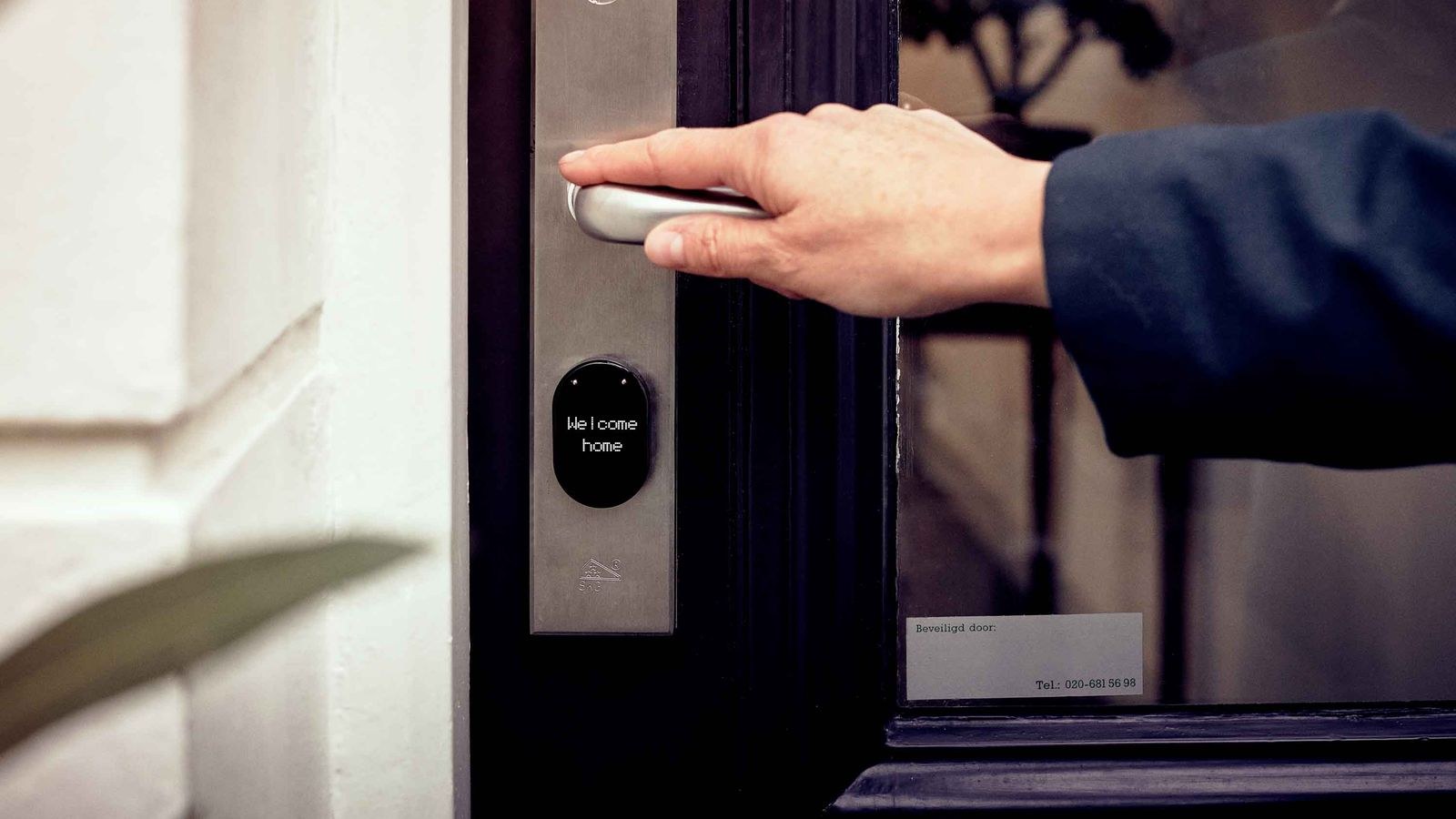
 A smart lock that has fallen off the network is a strange kind of broken. The keypad still works, the key still turns, the bolt still throws, but the app says “offline” and none of the remote features you actually paid for will respond. A smart lock wifi problem is almost never a hardware fault. It is usually a weak signal at the door, a router change nobody remembers making, a battery too flat for the radio, or a stale credential stored in the lock. This guide walks through the diagnosis in order, gives you a clean reset and re-pair sequence, and finishes with the settings that stop the lock dropping off again.
Check the Simple Causes First
Before you reset anything, spend five minutes ruling out the causes that require no reset at all. Resetting a lock wipes your codes and schedules, so it should be the fourth thing you try, not the first.
- Batteries. A WiFi radio draws far more current than the motor does during a brief burst. Cells that still turn the bolt fine can be too weak to hold a connection. If the app shows anything under about 40 percent, replace them before troubleshooting further.
- Your internet. Check whether other devices are online. If the whole house is down, the lock is a symptom, not the problem.
- The app and account. Force close the app, sign out and back in, and confirm you are on the same account and home that owns the lock. A phone stuck on cellular data sometimes shows stale status.
- Recent router changes. A new router, a changed password, a firmware update, or a switch to a mesh system will all knock a lock offline even though nothing about the lock changed.
- The bridge or hub. Many locks reach WiFi through a small plug-in bridge rather than directly. If the bridge is unplugged, moved, or on a different outlet, the lock loses its path even though the lock itself is fine.
Understand Why Front Doors Are Hard for WiFi
Entry doors sit at the physical edge of a home, often behind a metal frame or a steel-clad slab, both of which absorb 2.4GHz signal. The router usually sits at the centre or back of the house. A phone in the hallway may show two or three bars, but the lock has a much smaller antenna and far less transmit power, so its real-world signal is considerably worse than your phone suggests.
This is why a lock can pair successfully during setup, when you are standing beside it with the door open, and then drop off a day later. If the signal at the door is marginal, no amount of resetting will produce a stable connection. You need to fix coverage, not the lock. Extending coverage toward the entry is often the whole answer, and comparing options among the best mesh WiFi systems is a better long-term fix than repeatedly re-pairing.
Confirm the Band and the Network Name
Nearly every smart lock is a 2.4GHz-only device. It cannot see or join a 5GHz or 6GHz network. Modern routers ship with band steering enabled, which presents one network name and decides for each device which radio to use. That works fine for phones and laptops but frequently breaks setup for low-power devices, because the phone doing the pairing is sitting on 5GHz and hands over credentials the lock cannot use.
There are three reliable fixes, in order of preference:
- Temporarily disable band steering, or split the bands so the 2.4GHz network has its own name, pair the lock, then re-enable steering.
- Create a dedicated 2.4GHz guest or IoT network and put the lock on it permanently. This is the cleanest arrangement.
- Put your phone on the 2.4GHz network for the duration of setup only.
Also check the network name itself. Some locks reject names containing emoji, apostrophes, or unusual characters, and many cap the password length.
The Full Reset and Re-Pair Sequence
If the simple checks did not restore the connection, work through this in order. Do it standing at the door with the door open, and have your network password written down before you start.
- Write down what you will lose. A factory reset erases user codes, schedules, auto-lock settings, and often the pairing to any voice assistant.
- Remove the lock from the app first. Deleting the device from your account before resetting the hardware prevents a stale entry that blocks re-adding it later. Skipping this causes more failed re-pairs than anything else.
- Power cycle before resetting. Pull the batteries, wait a full minute, then reinstall them. A surprising share of offline locks recover here and need nothing more.
- Reset the bridge if you have one. Unplug it, move it to an outlet roughly halfway between the router and the door, wait thirty seconds, and plug it back in. Give it two minutes to boot.
- Factory reset the lock. The method varies: usually a recessed button on the interior body held for several seconds, or a button pressed while inserting the last battery. The lock confirms with a light pattern and a tone. Follow your model’s manual exactly, because a partial reset leaves it in a half-configured state.
- Put the lock into pairing mode. Most units enter it automatically after a reset for a limited window, often two to ten minutes. If that window expires, trigger pairing manually rather than resetting again.
- Add it back in the app. Scan the code printed on the lock body or in the manual. Keep your phone within a few feet of the lock throughout, since the initial handshake is over Bluetooth.
- Enter the 2.4GHz credentials carefully. Type the password rather than pasting it, and watch for autocorrect capitalising the first character.
- Wait out the firmware update. Freshly reset locks almost always pull an update. Do not remove batteries or walk away during it, as an interrupted update is the one way to genuinely brick the hardware.
- Rebuild your codes and settings. Re-enter user codes, auto-lock timing, and any automations, then re-link the lock to your voice assistant.
Test the Connection Properly Before Walking Away
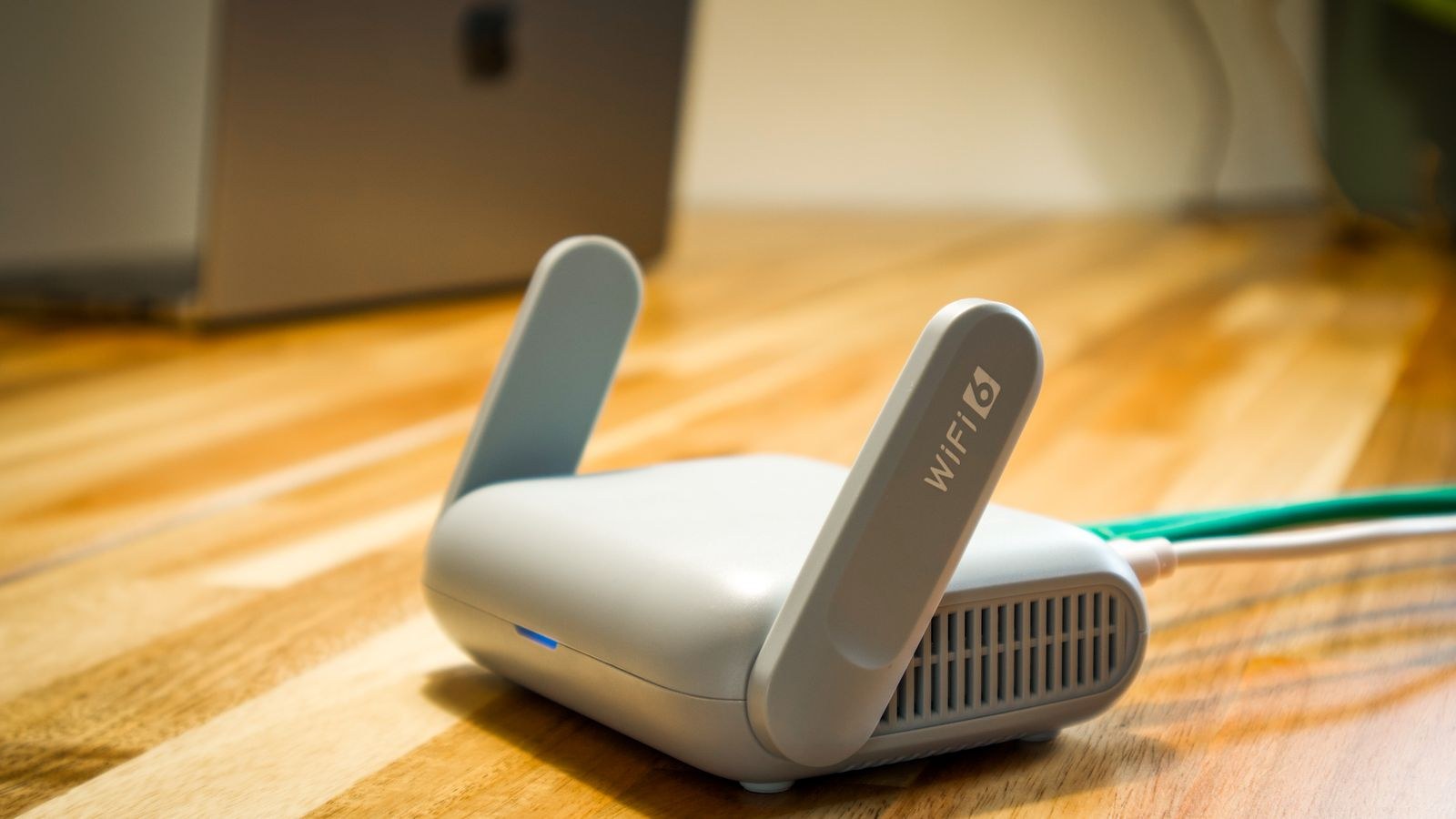
A lock that says “connected” while you stand next to it has not been tested. Close the door fully, walk to another room, and lock and unlock remotely three times, waiting thirty seconds between attempts. Then leave the house, disconnect your phone from WiFi so it is on cellular only, and try again. That final test matters most, because it forces the command through the manufacturer’s cloud rather than your local network.
Check the signal strength reading in the app if it offers one. Anything weaker than roughly -70dBm at the door predicts intermittent dropouts. Also confirm the entry log is recording events with correct timestamps, since a lock can be reachable for commands while failing to upload history.
Fixing the Router Side So It Stays Connected
Once the lock is back online, spend ten minutes on settings that prevent a repeat. These are the changes that turn a monthly annoyance into a device you forget about.
- Reserve a fixed IP address. In your router’s DHCP settings, bind the lock’s MAC address to one address. This stops the lock losing its lease and failing to renew it.
- Pin the 2.4GHz channel. Auto channel selection can move your network onto a congested channel at any time. Pick channel 1, 6, or 11 based on which is least crowded around you and leave it there.
- Turn off aggressive client steering and airtime fairness for the IoT network. These features are designed for phones and can repeatedly kick low-power devices off.
- Disable WiFi 6 only modes and WPA3-only security on the IoT band. Older lock radios often need WPA2 and legacy compatibility. Mixed mode is the safe setting.
- Reduce distance, not power. Turning transmit power up on the router does not help, because the weak side is the lock’s own transmitter. Move a node closer to the entry.
If your router is old enough that it lacks IoT network support or per-band naming, replacing it usually solves several smart home problems at once. Our roundup of the best WiFi routers highlights models with the band-splitting and device-reservation controls this kind of setup depends on.
When the Lock Itself Is the Weak Link
Some early WiFi locks were never designed for a stable always-on connection and drain batteries in weeks while trying. If you have replaced the batteries, fixed coverage, cleaned up the router settings, and the lock still drops off every few days, the hardware is telling you something. Locks built around a low-power radio with a dedicated bridge, or ones that use a mesh protocol and reach the internet through a hub, are far more reliable at the front door than first-generation direct-WiFi models.
When it is time to replace rather than repair, compare current designs among the best WiFi smart locks and the broader selection of the best smart locks, paying attention to the connection method rather than the feature list. If you are also changing the hardware on a second entry, the best smart door locks comparison covers the differences that matter for exterior use, and the step-by-step smart lock installation guide walks through fitting the replacement.
Mistakes That Make Things Worse
- Factory resetting before deleting the device from the app. This orphans the lock in your account and often prevents re-adding it until support intervenes.
- Resetting repeatedly. If pairing fails twice for the same reason, the cause is the network, not the lock. Fix the band or the signal instead.
- Pairing from across the room. The initial handshake is short range. Stand at the door.
- Using cheap or mismatched batteries. Mixing old and new cells causes voltage sag that looks exactly like a network fault.
- Ignoring a pending firmware update. Many connection bugs are fixed in firmware.
Frequently Asked Questions
Will resetting my smart lock delete my access codes?
A factory reset deletes everything, including codes, schedules, and users. A simple power cycle or a bridge restart deletes nothing, which is why you should always try those first.
Why does my lock keep going offline after a few days?
The two usual culprits are a marginal signal at the door and a DHCP lease that is not being renewed. Reserve a fixed IP for the lock and add a mesh node or move the bridge closer to the entry.
Can I still use the lock while it is offline?
Yes. Keypad codes, the physical key, and Bluetooth from a paired phone at close range all continue to work. Only remote commands, notifications, and log uploads stop.
Do I need to reset the lock after changing my router?
If the network name and password stayed identical, usually not. If either changed, the lock needs the new credentials, which on most models means a re-pair rather than a full factory reset.
Final Thoughts
Work the problem in order and a lock that has lost its connection is usually back within twenty minutes. Fresh batteries, a bridge restart, and a power cycle solve most cases with nothing lost. When a full reset is genuinely needed, delete the device from the app first, pair at close range on a 2.4GHz network, and let the firmware update finish. Then fix the router side, reserving an address and improving coverage at the entry, so this stays a one-time event.









