
 Owen Bradley
 A loud gaming PC can be distracting during intense sessions, video calls, or late-night gaming when everyone else is asleep. Fortunately, fan noise is usually fixable without sacrificing performance. From simple software adjustments to targeted hardware upgrades, there are several practical steps you can take to quiet down your rig. This guide walks through how to identify the source of the noise and address it methodically, starting with the easiest fixes first.
Understand Why Fans Get Loud
Fans spin faster, and therefore louder, when your components get hot. Anything that traps heat or restricts airflow, such as dust, poor cable management, or a cramped case, forces the cooling system to work harder. Loud fans are usually a symptom of an underlying heat or airflow problem, so the quietest results come from addressing the root cause rather than just capping fan speeds, which can lead to overheating.
Identify the Source of the Noise
Before making changes, figure out which fans are causing the noise. Common culprits include the CPU cooler fan, case fans, graphics card fans, and the power supply fan. Open the side panel while the system is running (carefully, and only if you’re comfortable doing so) to visually and audibly identify which component is loudest. A quick way to test is to gently and briefly stop each fan with a soft tool to hear whether the noise drops.
Step-by-Step: Reducing Fan Noise
- Clean out dust buildup. Dust-clogged fans and heatsinks force components to run hotter, which makes fans spin faster and louder. Use compressed air to clear dust from fan blades, heatsinks, and filters.
- Adjust fan curves in the BIOS or software. Most motherboards let you customize fan speed curves so fans ramp up more gradually and stay quieter at idle or light-load temperatures.
- Improve cable management. Poor airflow caused by tangled cables forces fans to work harder to maintain temperatures. Route cables behind the motherboard tray to open up airflow paths.
- Check for fan rattle or vibration. Loose screws or a fan touching a cable can create a rattling buzz. Tighten mounting screws and use rubber anti-vibration mounts if available.
- Reapply thermal paste. Old or poorly applied thermal paste reduces heat transfer efficiency, causing fans to spin faster than necessary. Reapplying fresh paste every couple of years keeps temperatures in check.
- Reposition your case. Make sure your case has several inches of clearance on all sides, especially near intake and exhaust vents, so fans aren’t struggling to pull in fresh air.
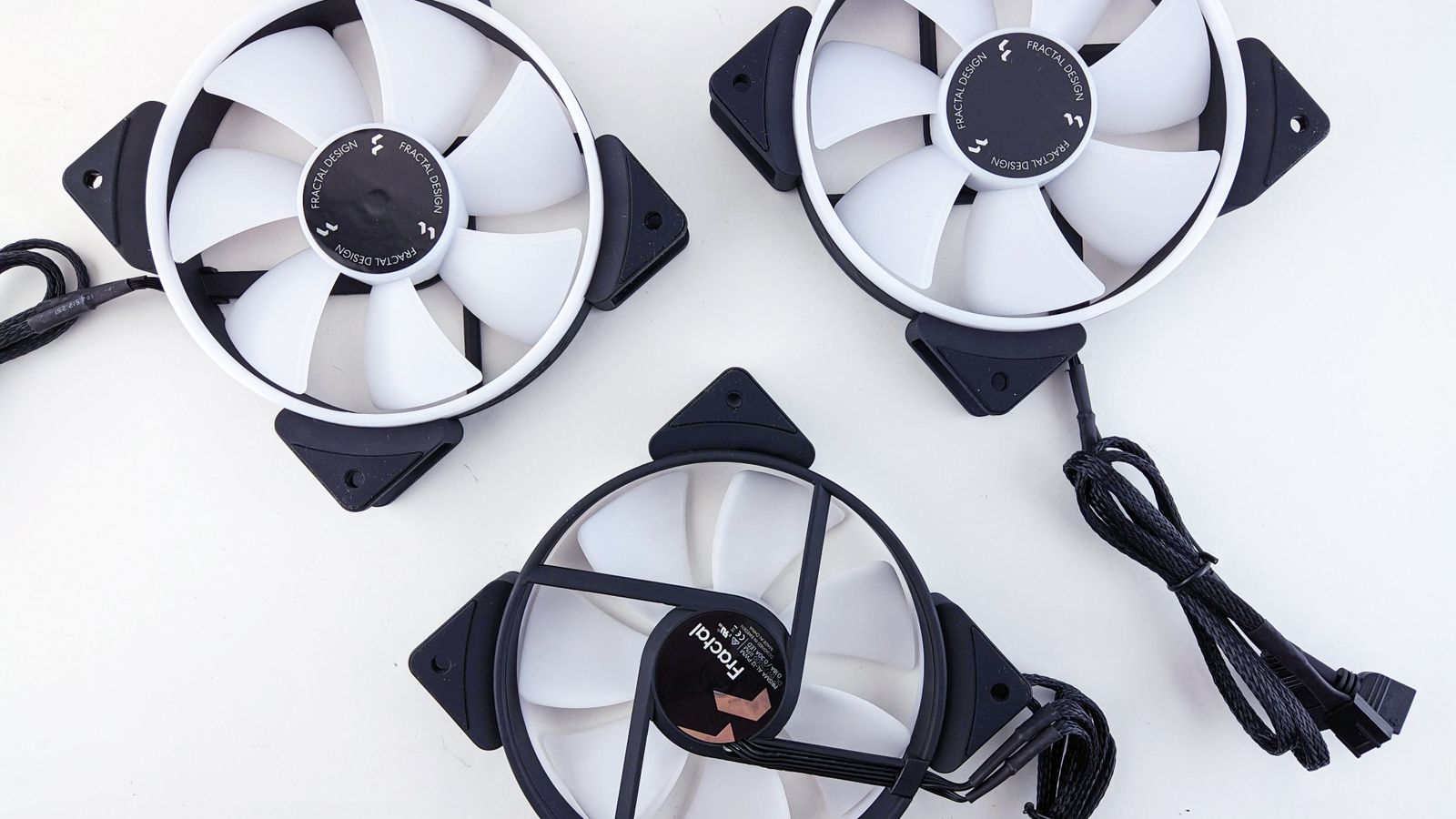
- Upgrade to quieter fans. If your stock fans are simply loud by design, replacing them with quieter, well-balanced models can make a dramatic difference without hurting cooling performance.
When it’s time to upgrade, look at the best cooling fans for PCs that are specifically designed for a balance of strong airflow and low noise output, often measured in decibels on the product spec sheet.

Software Tools That Help
Many motherboard manufacturers offer free utility software that allows granular control over each individual fan header, letting you set custom curves based on CPU or GPU temperature. Graphics card manufacturers also often provide similar tools for GPU fan curves, which can help during gaming sessions when the graphics card typically runs hottest. Setting a gradual curve, rather than an aggressive on-off response, prevents the sudden fan surges that are often the most noticeable and annoying.
When to Consider Bigger Upgrades
If you’ve cleaned, tuned, and re-cabled and your PC is still loud, the underlying cooling hardware may simply be undersized for your components. A larger CPU cooler, a case with better airflow, or additional slow-spinning fans can move the same amount of air at much lower noise levels. Bigger, slower fans are almost always quieter than small, fast ones moving the same volume of air.
Air Coolers vs. Liquid Cooling for Noise
The type of CPU cooler you use has a big impact on noise. A large air cooler with a slow-spinning fan is often one of the quietest options because its size lets it dissipate heat without spinning fast. All-in-one liquid coolers can also run quietly, but their pump adds a subtle hum, and low-quality units may develop a whine over time. If CPU fan noise is your main complaint, a high-quality tower air cooler or a well-reviewed liquid cooler can reduce it dramatically compared to a small stock cooler working at full speed.
Sound Dampening and Case Choice
Some cases are specifically designed with sound-dampening foam panels and noise-optimized layouts that muffle the whir of internal fans. If you’ve exhausted tuning and cleaning options, moving your components into a quieter case can lower perceived noise even without changing the fans themselves. Just be aware that heavily dampened cases can slightly restrict airflow, so pair them with efficient, larger fans to avoid trading noise for higher temperatures.
Balancing Noise and Cooling
The goal isn’t silence at any cost; it’s finding the sweet spot where your components stay safely cool while the system stays pleasantly quiet. Monitor your CPU and GPU temperatures under a typical gaming load and adjust your fan curves so temperatures stay within safe limits without fans screaming. A small, gradual increase in fan speed as temperatures climb is far less noticeable than sudden full-speed bursts, and it keeps your hardware protected during long sessions.
Common Mistakes to Avoid
- Setting fan curves too aggressively low, which can cause thermal throttling under heavy gaming loads
- Ignoring dust buildup as a root cause of rising fan speeds over time
- Blocking intake vents by placing the case too close to a wall or inside an enclosed desk cabinet
- Mixing incompatible fan sizes that create turbulence and extra noise
- Overlooking a failing fan bearing, which produces a grinding noise that only replacement will fix
Frequently Asked Questions
Is it normal for gaming PC fans to get loud during gameplay?
Some increase in fan noise during demanding games is normal since components generate more heat under load. Excessive or sudden loudness, however, often points to dust buildup or an aggressive fan curve.
Will quieter fans hurt my PC’s cooling performance?
Not necessarily. Many modern quiet fans use improved blade design and bearings to maintain strong airflow while operating at lower noise levels than older, cheaper fan models.
How often should I check my fan curves?
It’s a good idea to review your fan curve settings after any major hardware change, seasonal temperature shifts, or when you notice unusual noise patterns.
Why does my fan make a grinding or clicking sound?
That usually indicates a worn bearing or a cable catching the blades. Check for obstructions first, and if the noise persists, the fan bearing is likely failing and the fan should be replaced.
Do larger fans actually run quieter?
Generally, yes. A larger fan can move the same volume of air while spinning more slowly, and slower rotation produces less noise. Swapping small high-speed fans for larger models is one of the most effective ways to cut noise.
Can undervolting my components reduce fan noise?
Yes. Undervolting your CPU or GPU lowers the heat they produce, which lets your fans spin slower and quieter while maintaining performance. It’s an advanced but effective way to tackle noise at its source.
Final Thoughts
Reducing fan noise on a gaming PC usually comes down to a combination of cleaning, smarter fan curve settings, and occasionally upgrading to quieter hardware. If your current fans simply can’t keep up quietly, browsing the best cooling fans for PCs is a great next step toward a calmer, cooler gaming experience.









