
 Owen Bradley
 A macro turns a sequence of keystrokes into a single press. That sounds like a gaming feature, and it is, but the same tool that fires an ability rotation also inserts your email signature, opens a five-step spreadsheet formatting routine, or types a long file path you retype twenty times a day. Learning to record keyboard macros properly takes about half an hour and pays that back within a week. This guide covers how to record macros on a gaming keyboard using the manufacturer’s software, how to bind them sensibly, what to watch for with anti-cheat systems, and how to fix the timing problems that make a recorded macro misbehave.
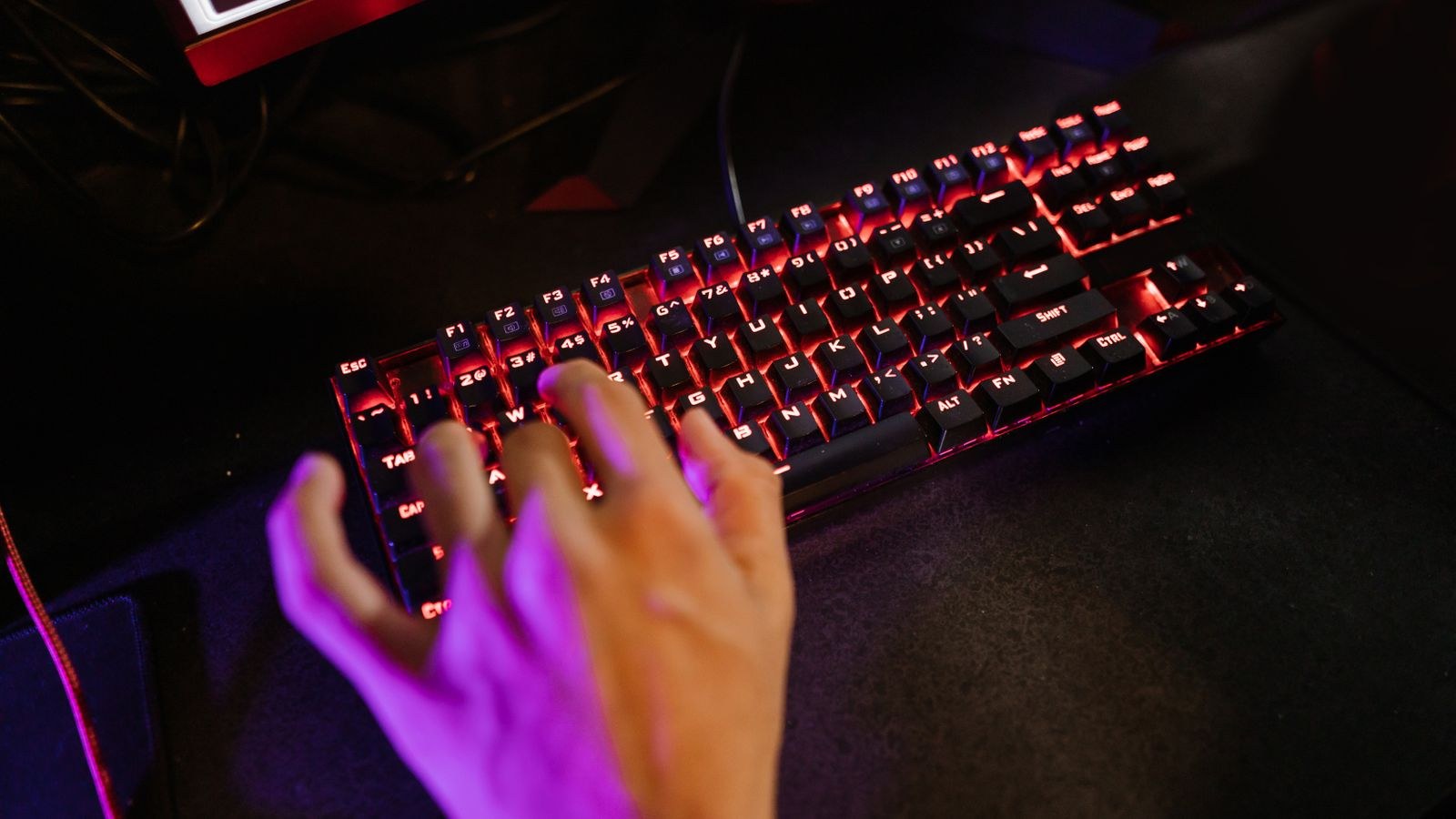
What You Need Before You Start
- A keyboard with macro support, either dedicated macro keys along the left edge or firmware that allows any key to be remapped.
- The manufacturer’s configuration software, installed and updated, or a browser-based configurator for boards running open firmware.
- Onboard memory, ideally. Boards that store macros in the keyboard itself keep working on machines where you cannot install software.
- A clear plan for the macro — write the exact sequence on paper first, including which modifiers are held and where pauses belong.
- A safe place to test, such as a text editor, rather than live in a game or a production document.
It also helps to know whether your board runs proprietary software or open firmware such as QMK and VIA. Proprietary software offers easy recording with a timeline editor. Open firmware stores macros in the board itself and works on any computer without an install, but the editor is more technical.
Step-by-Step: Recording Your First Macro
- Open the configuration software and select the right profile. Most software organises settings into per-application profiles. Create a new profile for the game or application rather than editing the default, so you can revert cleanly if something goes wrong and so the macro only activates where it belongs.
- Find the macro editor. It is usually a separate tab labelled Macros, Actions, or Scripts, distinct from the key-assignment screen. You record the macro here first, then assign it to a key afterwards; trying to do both at once is where most people get confused.
- Create a new macro and name it descriptively. Call it something like “email signature” or “reload and heal” rather than “macro 3”. Six months from now, a list of numbered macros is useless.
- Choose your delay recording mode. Software typically offers three options: record actual delays as you type them, use a fixed delay between every event, or record no delays at all. Real delays feel natural and work well for game inputs. Fixed delays are more predictable for text. No delay is fastest but can outrun applications that cannot process input that quickly.
- Press record and perform the sequence. Type deliberately and at a consistent pace. Do not correct mistakes mid-recording, because backspaces are captured as part of the macro. If you fumble, stop, delete the macro, and start again. Avoid moving the mouse during recording unless you specifically want mouse events captured.
- Stop recording and review the event list. The editor shows every key down, key up, and delay as a separate line. Check that every key that went down also came up. An unpaired key-down event leaves a modifier stuck on after the macro runs, which is the single most common macro bug.
- Edit the timeline to clean it up. Delete stray keypresses, shorten long human pauses to a consistent value, and insert deliberate delays where an application needs time to respond, such as after opening a menu. A delay between 20 and 50 milliseconds is a reasonable default for most software; game menus sometimes need more.
- Set the repeat behaviour. Options usually include play once per press, repeat while held, and toggle on and off. Choose play once for text insertion. Repeat-while-held suits repetitive in-game actions. Toggle modes are the ones most likely to attract anti-cheat attention, so use them thoughtfully.
- Assign the macro to a key. Return to the key-assignment screen, click the key you want, and select your macro from the list. Prefer dedicated macro keys or a function-layer combination over remapping a key you need for normal typing.
- Save to the profile and, if supported, to onboard memory. Onboard storage means the macro travels with the keyboard. Software-only storage means it disappears the moment the background application is not running.
- Test in a text editor before using it for real. Open a blank document, trigger the macro, and confirm the output is exactly what you intended with no stuck modifiers and no missing characters. Only then use it in the application it was built for.
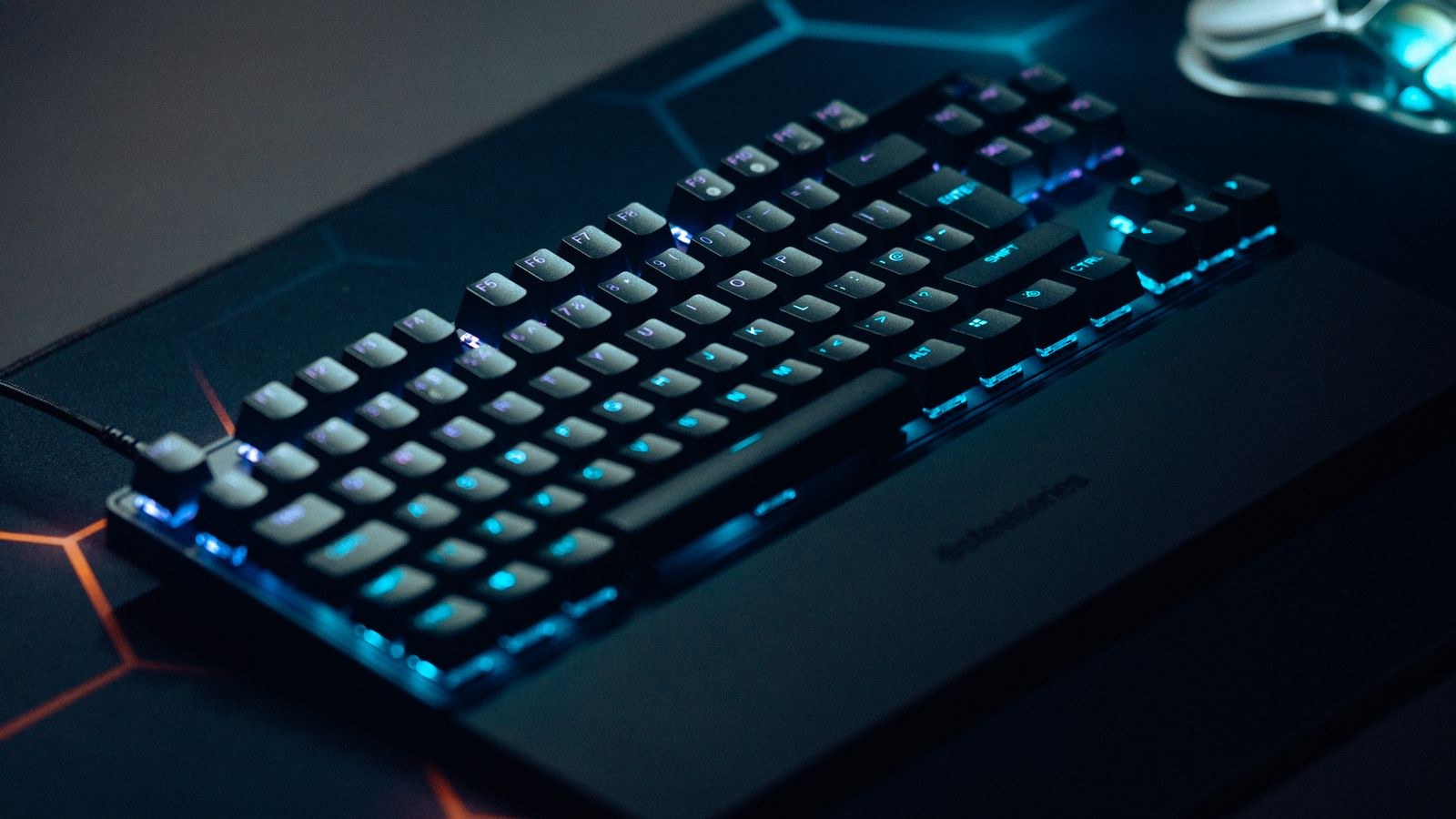
Binding Macros Without Breaking Your Layout
Where you put a macro matters as much as what it does. Dedicated macro columns exist precisely so you do not have to sacrifice a normal key, and boards with those columns are the easiest to live with; our list of the best keyboards with macro keys covers layouts that include them. If your board lacks them, use a function layer instead: hold a layer key and the number row becomes ten macro slots without disturbing anything.
Keep bindings consistent across profiles. If your reload macro sits on the first macro key in one game, put the equivalent action there in every game, so muscle memory transfers. Avoid binding macros to keys near where your hand rests during normal play, since accidental triggers during a tense moment are worse than not having the macro at all. Boards running open firmware give the most flexibility here, and the best programmable keyboards support multiple layers with per-key remapping stored in hardware.
Using a Separate Macro Pad
If you need more than a handful of macros, a small dedicated pad beside your main board is often better than cramming everything onto layers. Pads sit within easy reach of the off hand, give each macro a physical key you can label, and leave the main keyboard layout untouched. Our roundup of the best keypads covers options ranging from a few keys to full grids with screens.
Anti-Cheat and Fair Play Considerations
This is the part people skip and later regret. Anti-cheat systems generally do not object to a macro that performs one action per keypress, such as typing a chat message or triggering a single ability. They do flag macros that automate gameplay: rapid-fire loops that convert a held key into automatic fire, recoil-compensation sequences that move the mouse, and anything that continues acting without input.
The safe rule is one deliberate input equals one game action. Beyond that, check the specific game’s published policy, because rules vary widely: some competitive titles ban any macro outright, while others permit key remapping and simple bindings. A ban is permanent and applies to your account, so the cost of guessing wrong is far higher than the convenience gained. Macros used purely outside games, for text expansion and application shortcuts, carry none of this risk.

Productivity Macros Worth Building
Gaming gets the attention, but the highest return usually comes from work. Consider a macro that types your email address, one that inserts a standard reply opening, one that applies a chain of formatting shortcuts in a spreadsheet, and one that navigates to a deeply nested folder path. Each saves a few seconds and, more usefully, removes a small interruption from your train of thought.
Build these with fixed short delays rather than recorded human timing, since consistency matters more than realism in an office application. Keep sensitive information out of macros entirely; a macro that types a password stores it in plain configuration files and fires it into whatever window happens to be focused. For a board that handles both roles, the best gaming keyboards increasingly include full macro software alongside comfortable typing, and the best keyboards for gaming list highlights models with generous onboard profile storage.
Troubleshooting Macros That Misbehave
- Macro does nothing: the profile is not active, or the software is not running and the macro was never saved to onboard memory.
- Characters missing or out of order: delays are too short for the application; increase them to 30 milliseconds or more and retest.
- A modifier stays stuck on: an unpaired key-down event in the timeline. Find the missing key-up and add it manually.
- Macro fires repeatedly: repeat mode is set to toggle or repeat-while-held when you wanted play once.
- Works in one app but not another: some applications and games block simulated input; try onboard hardware macros instead of software-driven ones.
- Macro lost after a reboot: the profile saved to software only. Re-save to onboard memory and export a backup of your profiles.
Common Mistakes to Avoid
The biggest is recording without a plan. People hit record, improvise the sequence, make errors, and end up with a timeline full of corrections they then have to unpick. Write the sequence down first and the recording takes one clean pass.
The second is using zero delays everywhere for speed. Input sent faster than an application can process gets dropped silently, producing a macro that works four times out of five and fails unpredictably on the fifth. The third is remapping essential keys such as escape or a modifier to macros without a way back, which can make the keyboard hard to reconfigure. Finally, never skip the backup: export your profiles to a file after building a set you like, because a software reinstall or firmware update can wipe everything you spent an afternoon creating.
Frequently Asked Questions
Do macros work without the software running?
Only if your keyboard has onboard memory and you explicitly saved the profile to it. Software-stored macros depend on a background process, so they stop working on a fresh machine or after the process is closed.
Are macros considered cheating?
It depends on the game and the macro. A single action per keypress is normally acceptable; automated sequences that play the game for you generally are not. Check the specific title’s policy before using anything beyond a simple binding.
How many macros can one keyboard store?
It varies widely by model, from a handful of onboard slots to dozens spread across multiple profiles. Software storage is usually effectively unlimited, while onboard memory is the constrained resource, so prioritise which macros need to travel with the board.
Can I record mouse movement in a keyboard macro?
Some software supports capturing mouse clicks and movement alongside keystrokes, particularly when the keyboard and mouse share an ecosystem. Recorded mouse movement is fragile though, because it depends on window position and resolution staying identical.
Final Thoughts
Recording macros is less about the recording than about the editing that follows. Plan the sequence, capture it in one clean pass, then clean the timeline so every key that goes down comes back up and every delay is long enough for the target application. Bind to dedicated keys or a layer rather than sacrificing keys you need, save to onboard memory, and test in a harmless document before trusting the macro anywhere important. Do that and a single keypress reliably replaces a dozen, which is the whole reason macro keys are worth having in 2026.









