
 Owen Bradley
 Photo editing feels fast or slow depending on a handful of very specific components, and knowing which ones lets you spend your budget where it actually shortens your waits. Nobody enjoys watching a spinning cursor while Lightroom builds previews or Photoshop chokes on a stack of high-resolution layers. The good news is that a photo editing PC is highly predictable to spec once you understand which parts influence which tasks. This guide walks through the specs that genuinely speed up editing, from single-core processor speed and memory to fast scratch and catalog drives, so you can build or buy a machine that keeps pace with your workflow instead of fighting it.
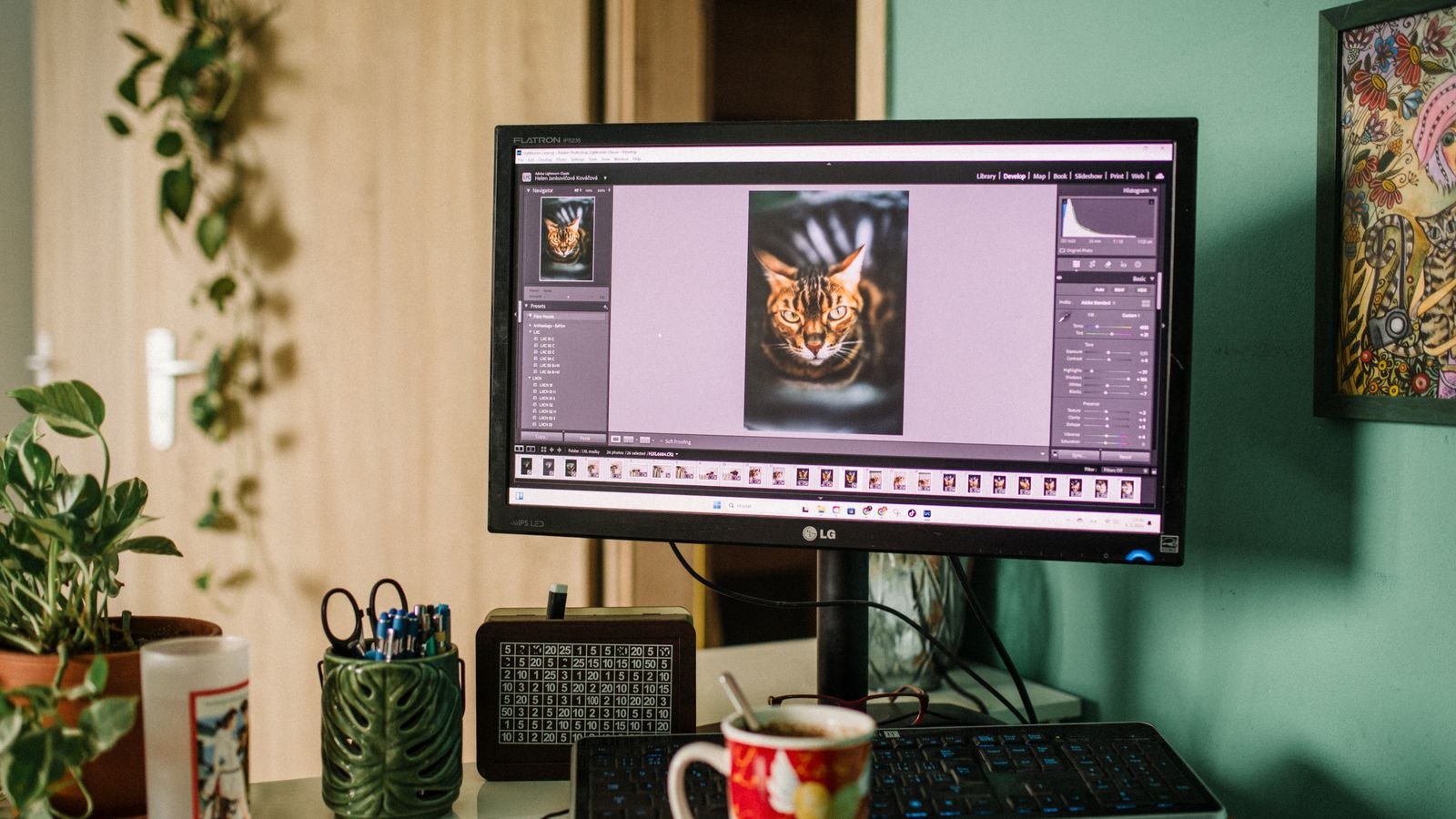
How Photo Editing Actually Uses Your Hardware
Editing photos is a mix of many small, responsive operations and a few heavy batch jobs. Adjusting sliders, painting masks, and moving around a large image are latency-sensitive tasks that reward a fast processor and quick memory. Exporting hundreds of images, building previews, or merging panoramas and HDR brackets are throughput tasks that benefit from more cores and fast storage.
Because most of your day is spent in that responsive, interactive mode, single-core speed and snappy memory usually matter more than raw core count. Understanding this balance is the key to not overspending on the wrong parts. A photo editor rarely needs the same hardware profile as a video editor or 3D artist, even though the software may look similarly demanding on paper.
The Processor: Prioritize Single-Core Speed
For applications like Lightroom Classic and Photoshop, high per-core performance is the single most impactful spec. Many editing operations are lightly threaded, meaning they rely on one or a few fast cores rather than spreading work across many. A processor with strong single-thread performance will make sliders feel instant and brushes feel fluid.
That said, a moderate core count still helps with exports and batch processing, so the sweet spot is a chip with excellent single-core speed and a reasonable number of cores rather than an extreme many-core part. Our guide to the best CPUs for photo editing highlights the processors that hit this balance, so you get responsive editing without paying for cores your software will barely touch.
Memory: The Comfort Zone for Large Files
RAM is where many photo editing PCs are under-built. Modern raw files are large, and stacking layers, smart objects, and multiple open documents eats memory quickly. Too little RAM forces the software to lean on your storage as overflow, and that is when everything slows to a crawl.
For serious editing, 32GB is a comfortable baseline, and 64GB gives real breathing room for large composites, high-megapixel files, and heavy multitasking. Faster memory also helps feed a quick processor, so a good kit pays off twice. If you want to see which modules balance capacity, speed, and reliability, our roundup of the best RAM for photo editing is a practical shortlist to work from.
Storage: Scratch, Catalog, and Library Drives
Storage is the most underrated speed lever in a photo editing PC, because it affects three different things: how fast your operating system and apps launch, how quickly your catalog and scratch files respond, and how long imports and exports take. A fast NVMe SSD for your system, applications, scratch disk, and active catalog transforms responsiveness compared with an older hard drive.
A smart layout uses a quick NVMe drive for the OS, your editing software, the Photoshop scratch file, and your Lightroom catalog, with a larger drive for your long-term image library. Keeping the catalog and scratch on fast storage is one of the biggest quality-of-life upgrades you can make. Our guide to the best SSDs for photo editing covers drives that deliver the sustained speeds these tasks demand.
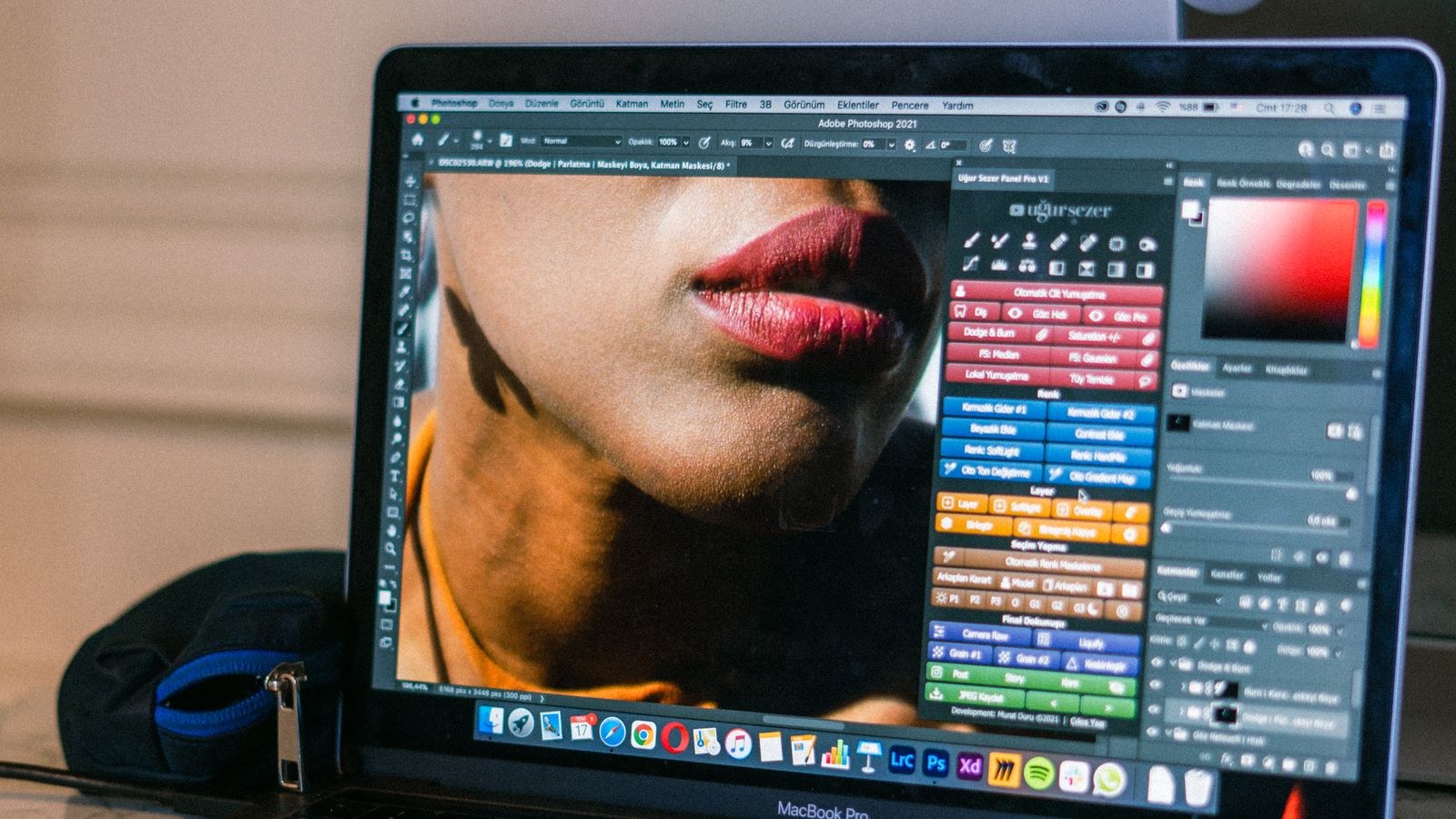
The Graphics Card: Helpful, Not the Headliner
Photo editing does use the GPU, and modern versions of Lightroom and Photoshop offload certain tasks like AI-based selections, denoise, and some filters to it. But for classic editing you do not need a flagship card. A solid mid-range GPU accelerates the features that use it without wasting money on gaming-grade horsepower you will not fully exercise.
If you also do occasional video work or heavy AI-based processing, sizing up a little makes sense. Otherwise, a capable mid-range card is plenty. Our list of the best GPUs for photo editing points to cards that handle GPU-accelerated features smoothly while leaving budget for the parts that matter more, namely the CPU, memory, and storage.
The Display and Color Accuracy
No component list is complete without addressing the monitor, because your edits are only as trustworthy as the screen you make them on. A color-accurate display with good coverage of the sRGB space, and ideally wider gamuts for print work, ensures the adjustments you make actually reflect reality. Pair it with a hardware calibration routine for consistent results.
Resolution matters too, as a higher-resolution panel lets you see fine detail and work with more of the image at once. While the monitor does not speed up processing, it directly affects the quality and confidence of your editing decisions, so treat it as a core part of the setup.
Putting It Together: A Balanced Build
For most photographers, the ideal allocation looks like this:
- CPU: A high single-core-speed processor with a moderate core count for responsive editing and reasonable export times.
- Memory: 32GB as a baseline, 64GB for large files and heavy multitasking.
- Storage: A fast NVMe drive for the OS, apps, scratch, and catalog, plus a larger drive for your image library.
- GPU: A capable mid-range card to accelerate GPU-based features.
- Monitor: A color-accurate, calibrated display sized to your work.
If you would rather buy a ready-made machine than assemble parts, our overview of the best desktop computers for photo editing lists prebuilt systems that already balance these priorities, which can save time if you do not want to source components individually.
Speeding Up Real Workflows
Hardware is only half the story; how you configure your software determines whether that hardware is fully used. In Lightroom, building standard or 1:1 previews on import trades a little up-front time for far faster browsing later, and pointing the catalog and previews at your fast NVMe drive keeps that browsing snappy. Setting your cache size generously lets the software hold more of your work in fast storage instead of rebuilding it repeatedly.
In Photoshop, assigning the scratch disk to your quickest drive and allocating a healthy share of memory to the application prevents slowdowns on large, layered files. Enabling GPU acceleration where the software offers it lets your graphics card take on the tasks it handles best. These settings cost nothing and can make a well-specced machine feel noticeably faster, turning good hardware into a genuinely responsive editing experience.
Scaling Up as Your Work Grows
Your needs will likely expand over time as cameras gain megapixels and your catalogs balloon. Building with a little headroom, such as choosing a motherboard with free memory slots or leaving room for an additional storage drive, means you can upgrade in stages rather than replacing the whole machine. Photo libraries in particular grow relentlessly, so planning your storage strategy for expansion saves pain later.
Thinking a step ahead also applies to backups. Fast working storage is for active projects, but your finished images deserve a separate, redundant home. Keeping your library protected on additional drives, and ideally an off-site copy, ensures a fast machine never becomes a single point of failure for years of irreplaceable work.
Common Mistakes to Avoid
The biggest misstep is pouring the budget into an expensive graphics card while skimping on RAM and storage, which leaves the machine feeling sluggish exactly where photo work is heaviest. Another is buying a huge many-core CPU that looks impressive but delivers less interactive snappiness than a faster-clocked chip. A third is neglecting the catalog and scratch drive, then blaming the software for slowdowns that are really a storage bottleneck. Spend on single-core speed, ample memory, and fast storage first.
Frequently Asked Questions
How much RAM do I need for photo editing?
32GB is a comfortable baseline for modern raw files and layered edits, while 64GB gives extra room for large composites, high-megapixel images, and heavy multitasking. Anything less risks the software spilling over onto storage and slowing down.
Is a powerful graphics card necessary for editing photos?
Not for classic editing. A mid-range GPU accelerates the specific features that use it, but the processor, memory, and storage have a much bigger impact on everyday responsiveness. Reserve high-end cards for video or heavy AI workloads.
Should I put my Lightroom catalog on an SSD?
Yes. Keeping your catalog and scratch files on a fast NVMe SSD is one of the most noticeable speed improvements you can make, dramatically improving how quickly the software responds during editing.
Does single-core or multi-core speed matter more?
For interactive editing, single-core speed matters most because many operations are lightly threaded. Multi-core helps with batch exports, so the ideal chip has strong single-core performance and a reasonable number of cores.
Final Thoughts
A great photo editing PC is not about the biggest numbers on the box; it is about matching hardware to how editing software actually behaves. Prioritize a processor with high single-core speed, give it plenty of fast memory, and put your operating system, scratch file, and catalog on quick NVMe storage. Add a capable mid-range GPU and a color-accurate monitor, and you will have a machine that keeps pace with your creativity throughout 2026. Spend where the waits actually happen, and every editing session will feel faster, smoother, and far less frustrating than fighting an unbalanced build.









