
 Owen Bradley
 The camera on your porch is only as private as the account that controls it. Every clip, every live view, and every stored recording sits behind a single email address and password — and if that password has ever appeared in a data breach, someone else may already be able to sign in. Two-factor authentication closes that door. It means a stolen password on its own is worthless, because signing in also requires something in your physical possession. Enabling it takes about five minutes, costs nothing, and is the single most effective security step a camera owner can take. This guide walks through doing it properly, plus the surrounding habits that keep the account genuinely locked down.
Why Camera Accounts Are a Prime Target
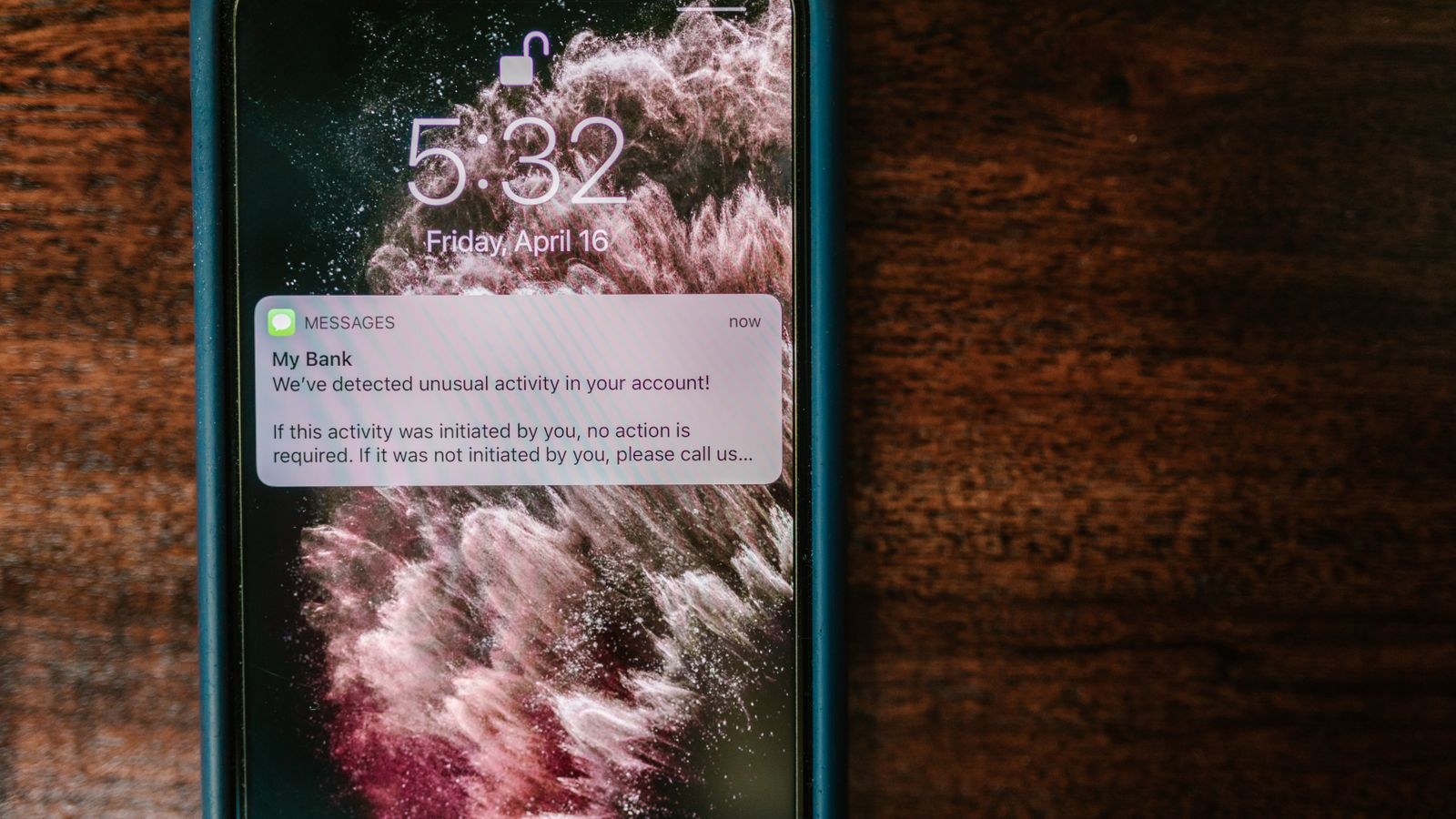
Almost every headline about “hacked” home cameras describes the same thing, and it is not a broken camera. It is credential stuffing: attackers take username and password pairs leaked from unrelated websites and try them in bulk against camera platforms, betting that people reuse passwords. A meaningful percentage do, and those accounts open on the first attempt.
What makes camera accounts especially attractive is what sits behind them — live video of the inside of a home, a stored history of when the house is empty, and often two-way audio. Unlike a compromised shopping account, the damage is immediate and deeply personal. Two-factor authentication defeats credential stuffing outright, because the leaked password no longer completes the login.
Choosing Your Second Factor
Not all second factors are equal. Ranked from strongest to weakest:
- Passkeys or hardware security keys — the strongest option where a camera platform supports it. Phishing-resistant by design, because the credential is bound to the real site.
- Authenticator app codes — a rotating six-digit code generated on your phone, working offline and immune to SIM-swap attacks. This is the best realistic choice for most people.
- Push approval — a “was this you?” prompt on a trusted device. Convenient and strong, though vulnerable to fatigue attacks if you approve prompts reflexively.
- Email codes — acceptable, but only as strong as the email account behind it. Secure your email with 2FA first or this is a paper wall.
- SMS codes — far better than nothing, but vulnerable to SIM-swap fraud. Use it only when no other option exists.
If your camera platform offers an authenticator app option, take it. If it only offers SMS, enable that today and treat upgrading the platform as a future consideration.
Step-by-Step: Locking Down Your Camera Account
- Secure the email address first. Password resets flow through email, so an unprotected inbox undermines every other control. Enable 2FA on your email provider before touching the camera account — otherwise an attacker simply resets your camera password.
- Install an authenticator app. Any reputable time-based one-time password app works. Set it up before you begin so you are not scrambling mid-flow while a QR code sits on screen.
- Open the camera app and find Account Security. Look under Settings, then Account, Profile, or Security. The option may be called Two-Factor Authentication, Two-Step Verification, or Multi-Factor Authentication.
- Change the password before enabling 2FA. If the current password is reused anywhere or predates a known breach, replace it now. Aim for a long, unique passphrase generated by a password manager — length beats complexity, and never reuse it on another site.
- Choose the strongest available second factor from the list above and follow the enrolment prompts. For an authenticator app you will scan a QR code and then enter one generated code to prove it works.
- Save the backup codes somewhere offline. Most platforms issue a set of one-time recovery codes at enrolment. Print them or store them in your password manager’s secure notes. Do not save them only on the phone that generates your codes — losing that phone would lock you out entirely.
- Enrol a second device or method if allowed. A backup factor is the difference between an inconvenience and a lockout when a phone is lost or replaced.
- Review active sessions and connected devices. Nearly every camera platform lists where the account is currently logged in. Sign out anything you do not recognise, plus old phones and tablets you no longer use.
- Audit shared access. Remove guest users, former housemates, contractors, or family members who no longer need the feed. Where the platform supports role levels, give shared users view-only access rather than full administrative control.
- Turn on login and new-device alerts. These notify you the moment a sign-in occurs from an unfamiliar device or location, which turns a silent compromise into something you can act on within minutes.
- Sign out and sign back in to verify. Confirm the second factor is actually being requested. An enrolment that silently failed is worse than no 2FA at all, because you believe you are protected.
- Repeat for every camera brand you own. Households with cameras from two or three ecosystems often secure one and forget the rest.

Habits That Keep the Account Secure Afterwards
Enabling 2FA is a one-time action; keeping the account secure is ongoing. A handful of habits cover most of the remaining risk. Use a password manager so every service has a distinct password and you never need to remember any of them. Keep the camera app and the camera firmware updated, since vulnerabilities in older firmware occasionally allow bypassing account controls entirely. Review connected devices every few months and after any household change. Be sceptical of emails claiming your camera account has a problem — phishing pages that harvest both a password and a live 2FA code are common, and the safe response is always to open the app yourself rather than following a link.
Be careful with third-party integrations too. Voice assistants, dashboards, and automation platforms that connect to your cameras hold their own access tokens, and a token granted years ago keeps working long after you have forgotten it exists. Revoke anything you no longer use.
Common Mistakes to Avoid
- Enabling 2FA on the cameras but not on the email account behind them. The reset path becomes the weakest link.
- Storing backup codes only on the 2FA phone. Lose the phone and you lose both factors at once.
- Reusing the camera password elsewhere. Credential stuffing exists precisely because this is common.
- Approving push prompts without reading them. If a prompt arrives when you are not signing in, deny it and change your password immediately.
- Giving family members full admin rights. Shared view-only access limits the damage if their device or account is compromised.
- Leaving old cameras enrolled. Decommissioned units still hold credentials and still appear as trusted devices. Factory reset and remove them from the account.
- Assuming cloud storage is the only exposure. Locally stored footage is reachable too if the account controls the app that reads it.
The Account Is One Layer, Not the Whole Wall
Strong account security protects the front door of the platform. It does not help if the camera itself still uses a factory password, or if your home network is wide open. Treat 2FA as one layer in a stack that also includes unique device credentials, updated firmware, and a properly configured router. Our guide on how to secure a home network from hackers covers the network side, including router hardening and segmentation, and pairs naturally with the account work above.
Hardware choice matters as well, because security support varies. Some manufacturers push firmware updates for years and offer authenticator-based 2FA and granular sharing roles; others abandon models quickly and never move past SMS codes. If your current system offers weak account controls, that is a legitimate reason to change. The roundup of the best cloud security cameras is a useful place to compare platform security features, while the best smart home security cameras and best home security cameras with apps lists focus on ecosystems whose apps handle account protection sensibly. For a broader view before committing in 2026, the general best security cameras guide covers the full range of options.
Frequently Asked Questions
Will 2FA slow down my daily camera use?
Barely. Most platforms only prompt for the second factor on a new device or after a long absence, so day-to-day viewing on your usual phone is unchanged.
What happens if I lose my phone?
Use one of your saved backup codes, or the second factor you enrolled on another device. This is exactly why saving those codes offline at enrolment matters so much.
Is SMS-based 2FA good enough?
It is far better than nothing and blocks ordinary credential stuffing. But SIM-swap fraud can intercept it, so switch to an authenticator app or passkey whenever the platform supports one.
Do I need 2FA if my cameras store footage locally?
Yes. The account still controls remote viewing, playback, and often the ability to change settings or wipe storage. Local recording reduces cloud exposure but does not remove account risk.
How do I know if someone has accessed my account?
Check the active sessions and login history in the app, and enable new-device alerts. Unfamiliar locations, unexpected sign-in times, or settings you did not change all warrant an immediate password reset.
Final Thoughts
Securing a camera account comes down to a short sequence: protect the email first, set a long unique password, enable the strongest second factor the platform supports, store the backup codes somewhere safe, then clear out old sessions and stale shared access. Verify by signing out and back in, and turn on login alerts so anything unusual reaches you quickly. Ten minutes of setup permanently removes the most common way home cameras get compromised — and it means the feed of your living room stays yours alone.









