
 Owen Bradley
 You unbox a new smart plug, open the app, type in your Wi-Fi password, and watch the setup wizard spin for ninety seconds before announcing that it could not find the device. Nothing is broken. The plug has a 2.4GHz-only radio, your router broadcasts both bands under one name, and your phone was sitting on 5GHz when it handed over the credentials. This is the single most common smart home setup failure, and it has a handful of reliable fixes. This tutorial shows how to connect a 2.4GHz smart device to a dual-band router without permanently reconfiguring your network, using temporary band tricks, phone settings and a few workarounds for mesh systems that hide their radio controls.
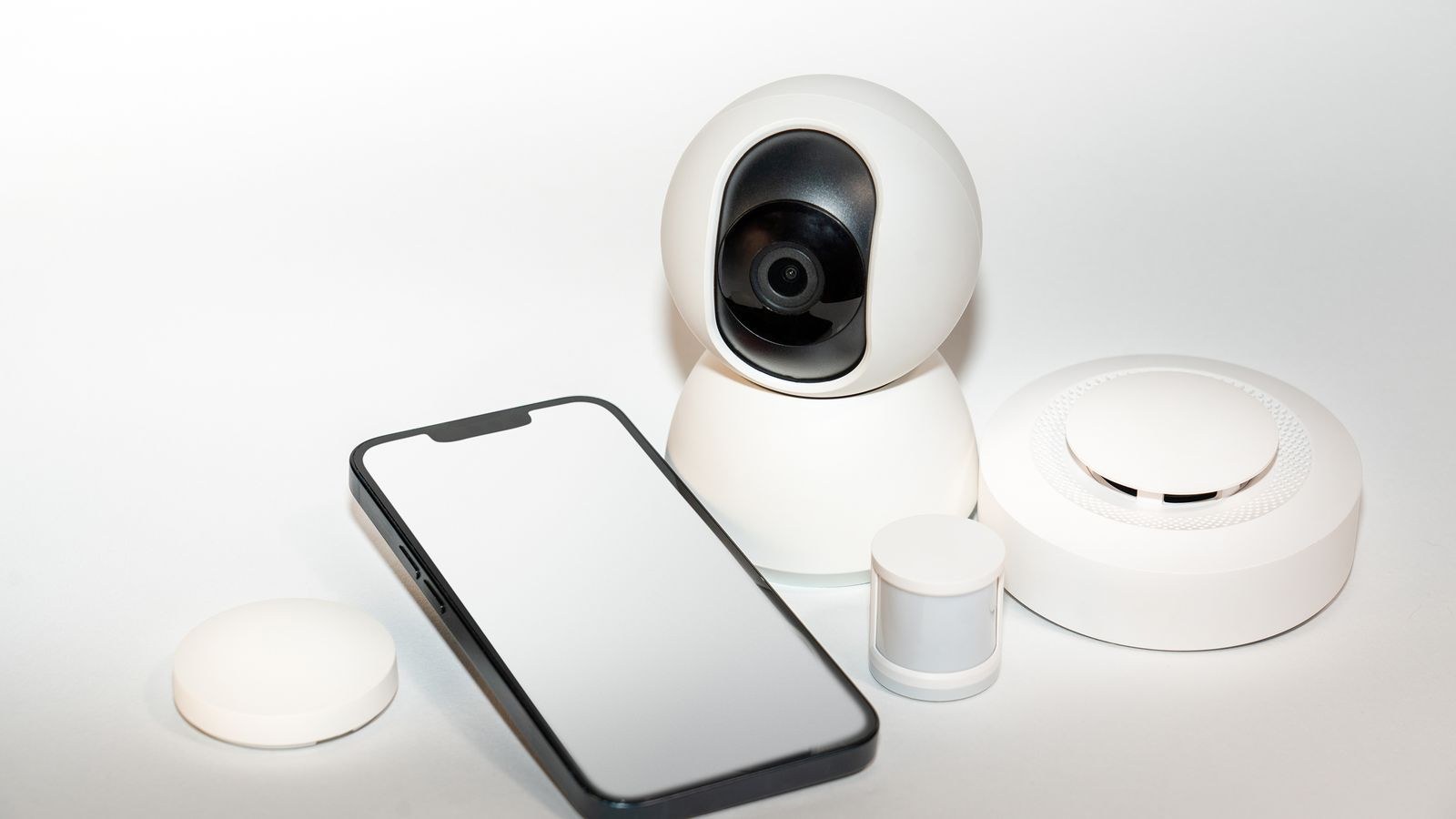
Why 2.4GHz-Only Devices Fail to Pair
Smart plugs, bulbs, sensors, older cameras and most budget IoT hardware use 2.4GHz radios because the chipsets are cheap, the power draw is low and the range through walls is better. None of those devices can see a 5GHz beacon at all. During setup, the device usually creates a temporary hotspot, your phone joins it, and the app pushes over your home SSID and password. If the SSID your phone reports belongs to the 5GHz radio, the device receives a network name it will never find.
A second failure mode happens on merged networks where both radios share one SSID. The device does find that name on 2.4GHz, associates, and then the router’s band steering tries to push it to 5GHz. Weak steering implementations can leave the client stuck in a loop, showing as connected in the router but never getting an address.
What You Need Before You Start
- The device’s app, installed and logged in, with the device factory reset and in pairing mode. Most enter pairing mode when the LED blinks rapidly after a long button press.
- Your Wi-Fi password, typed carefully. Passwords with spaces, apostrophes or non-ASCII characters break some IoT firmware entirely.
- Router admin access, in case you need to change band settings temporarily.
- A phone with Bluetooth and location services on. Many modern setup flows use Bluetooth to discover the device and will silently fail without location permission on Android.
- Physical proximity. Do the initial pairing within a few metres of the router, then move the device to its final position afterwards.
Step-by-Step: Getting the Device Connected
- Check your phone’s current network. Open Wi-Fi settings and note the SSID. If your router uses split names such as HomeNet and HomeNet-5G, simply join the 2.4GHz one before starting. That alone solves most cases.
- Forget the 5GHz network temporarily. On the phone, select the 5GHz SSID and choose Forget or disable auto-join. This stops the handset drifting back mid-setup, which is the most common cause of a pairing that starts fine and fails at ninety percent.
- Disable mobile data on the phone. Some setup apps route their traffic over cellular and never reach the device’s temporary hotspot. Turning mobile data off for a few minutes forces everything through Wi-Fi.
- Grant the app location and local network permissions. On Android, Wi-Fi scanning requires location. On iOS, look for a Local Network toggle in the app’s settings page. Missing either permission causes discovery to fail with no useful error.
- Factory reset the smart device. Even a brand-new unit sometimes ships half-configured. Hold the reset button until the indicator blinks quickly, which signals pairing mode. Do not skip this after a failed attempt, because devices often refuse to re-enter pairing mode on their own.
- Start pairing and enter the 2.4GHz SSID manually if offered. Some apps let you type the network name rather than picking it from the phone. Type the 2.4GHz name exactly, including case.
- Keep the phone unlocked and the app in the foreground. Background restrictions on both platforms will suspend the app mid-handshake and the pairing will time out.
- Wait the full timeout. Cheap devices can take two full minutes to obtain an address and check in with their cloud service. Cancelling at sixty seconds guarantees failure.
- Verify in the router’s client list. Once the app reports success, log in to the router and confirm the device appears with an IP address on the 2.4GHz radio. Give it a friendly name while you are there.
- Move the device to its final location and retest. Trigger it from the app. If it responds slowly or drops out, the spot is too far from the router and needs a mesh node or a repositioned access point.
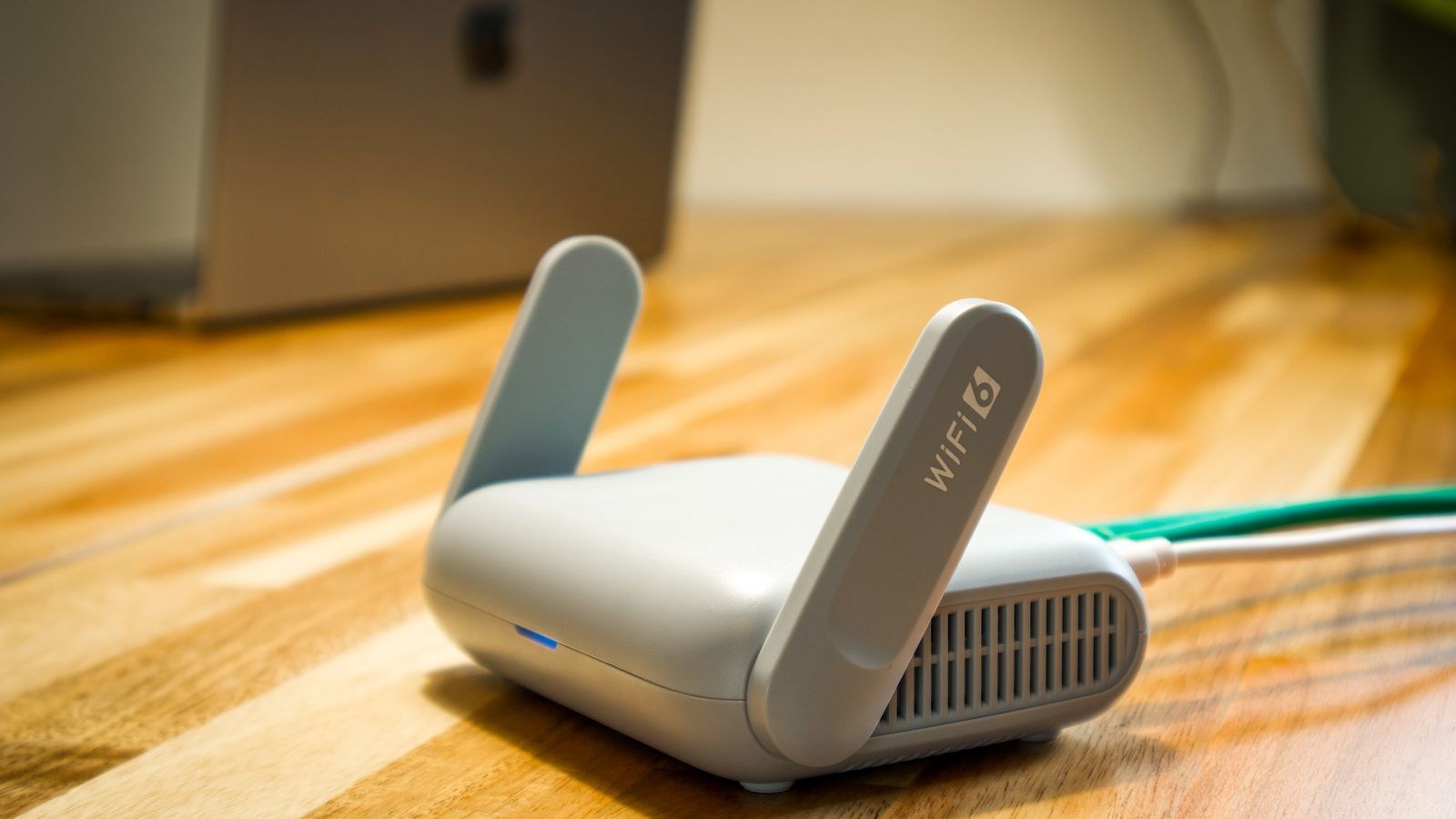
Temporary Band Tricks When the SSIDs Are Merged
If your router broadcasts one name for both bands and you would rather not split them permanently, these temporary measures get you through setup.
Disable the 5GHz Radio for Ten Minutes
Log in to the router, find the wireless settings, and switch the 5GHz radio off. Everything in the house falls back to 2.4GHz, including your phone, so the setup app can only pass along a 2.4GHz network. Pair the device, confirm it is online, then re-enable 5GHz. The smart device stays connected because the SSID name never changed.
Turn Off Smart Connect or Band Steering
A gentler version of the same idea. Disabling the steering feature exposes both radios separately, letting you join the 2.4GHz network by name. You can re-enable steering afterwards, though many people find they prefer the split arrangement once IoT devices stop misbehaving. Most of the best dual-band routers keep this toggle in plain sight rather than burying it.
Walk to the Edge of Coverage
The 5GHz signal fades much faster through walls. Standing in a far room or the garage often drops your phone onto 2.4GHz naturally, with no router changes at all. Pair the device there, then move it where you want it. Crude, but it works surprisingly often.
Use a Phone Hotspot as a Bridge
Set your phone’s hotspot to 2.4GHz-only with a simple name and password, pair the device to that, then in the app change its Wi-Fi network to your real 2.4GHz SSID. Not every ecosystem supports changing networks after pairing, so treat this as a last resort.
Mesh System Workarounds
Mesh platforms are the hardest case because most deliberately hide per-band controls to protect their roaming logic. Try these in order. First, check whether the system offers a dedicated IoT network, which is usually a 2.4GHz-only SSID designed for exactly this problem. Second, look for a pause or disable option on the 5GHz band inside the app’s advanced settings, which some vendors expose even when they hide SSID naming. Third, pair the device standing right next to a satellite node in a distant room, where 5GHz is weakest.
If none of that works, the honest answer is that the hardware is fighting you. A mesh system with a proper IoT SSID makes smart home life dramatically easier, and our comparison of the best mesh Wi-Fi systems notes which platforms include one. For homes centred on automation rather than raw coverage, a router chosen specifically for IoT compatibility is a better starting point, and the best routers for smart home roundup covers models that expose band controls properly.
Troubleshooting a Pairing That Keeps Failing
The app finds the device but setup fails at the end. The credentials reached the device but it could not join. Check the password for typos, confirm the 2.4GHz band is not WPA3-only, and try mixed WPA2/WPA3 mode instead.
The device never appears in the app. Discovery is failing, not joining. Check Bluetooth, location permission and local network permission, and confirm the device is genuinely in pairing mode with a fast-blinking LED.
It pairs but drops offline hours later. Usually a weak signal at the final location or a DHCP lease conflict. Reserve a static IP address for the device in the router and consider moving it closer to an access point.
It works on your phone’s hotspot but not your home Wi-Fi. Something in the router configuration is blocking it: client isolation, a MAC filter, AP isolation on the guest network, or WPA3-only encryption. Check those four in that order.
Only one of several identical devices fails. Reset that unit again and pair it alone, away from the others. Some chipsets get confused when multiple units sit in pairing mode simultaneously.
Everything worked until you added more devices. Cheap routers cap the number of simultaneous clients, and a house full of plugs and sensors hits that limit faster than people expect. Our guide to the best routers for many devices covers hardware built for high client counts.
Common Mistakes to Avoid
The most frequent error is doing the whole setup while standing next to the router with a phone locked onto 5GHz, then blaming the device when it fails three times in a row. Check the band first, every time. The second mistake is using a Wi-Fi password containing special characters. Many IoT devices handle only basic ASCII, so a passphrase of plain letters and numbers avoids an unfixable failure. The third is skipping the factory reset between attempts, which leaves the device in a half-configured state that will never pair. Finally, do not put smart devices on a guest network with client isolation enabled, because the app on your phone will not be able to reach them locally. If you are buying rather than troubleshooting, checking compatibility notes first saves grief, and our picks for the best Wi-Fi plugs flag which models pair painlessly on dual-band networks.
Frequently Asked Questions
Can a 2.4GHz device connect to a 5GHz router?
No. The radio hardware physically cannot see the 5GHz band. The device must join a 2.4GHz network, which every dual-band router provides even if it is hidden behind a merged SSID.
Do I have to permanently split my network?
No. Disabling the 5GHz radio for a few minutes during pairing is enough, and the device stays connected afterwards. Splitting permanently just saves you repeating that step for every new device.
Why does my phone need location permission?
Android treats Wi-Fi scanning as location data, so the app cannot enumerate nearby networks without it. Setup will fail silently if the permission is denied.
Will the device slow down my 5GHz speeds?
Not meaningfully. It sits on a separate radio and sends tiny amounts of data. Dozens of chatty devices can add management overhead on 2.4GHz, but they do not touch 5GHz throughput.
Should I use WPA3 on the 2.4GHz band?
Only in mixed WPA2/WPA3 mode. Pure WPA3 locks out a large share of existing smart home hardware and is the hidden cause of many unexplained pairing failures.
Final Thoughts
Connecting a 2.4GHz smart device to a dual-band router is rarely a hardware problem and almost always a band problem. Get your phone onto the 2.4GHz network before you start, forget or disable the 5GHz SSID for the duration, grant the app its location and local network permissions, and reset the device properly between attempts. If your router hides its band controls, switching the 5GHz radio off for ten minutes is the fastest universal fix. Once you have more than a handful of smart devices, a permanently split 2.4GHz SSID or a dedicated IoT network turns every future setup into a thirty-second job for the rest of 2026.









