
 Owen Bradley
 Charging a laptop from a battery pack used to require a bulky proprietary brick and a lot of luck. Now a single USB-C power bank can top up a phone, a tablet, and a full-size notebook from the same port, provided the numbers line up. That last part is where most people get stuck: they buy a pack, plug it in, and the laptop either refuses to charge, charges only while asleep, or drains slower than it fills. None of that is bad luck. It is a mismatch between the wattage the pack can deliver, the power profiles it advertises, and what the cable in your bag is physically able to carry. This guide walks through the checks in order so you can charge a laptop with a USB-C power bank reliably, and know within a minute why a setup is not working when it fails.

What You Need Before You Start
Gather these four things and confirm each one individually. Skipping the confirmation step is the single biggest reason people assume their power bank is defective when it is fine.
- A laptop with a USB-C port that accepts power. Not every USB-C port does. Data-only ports exist, especially on older or budget machines.
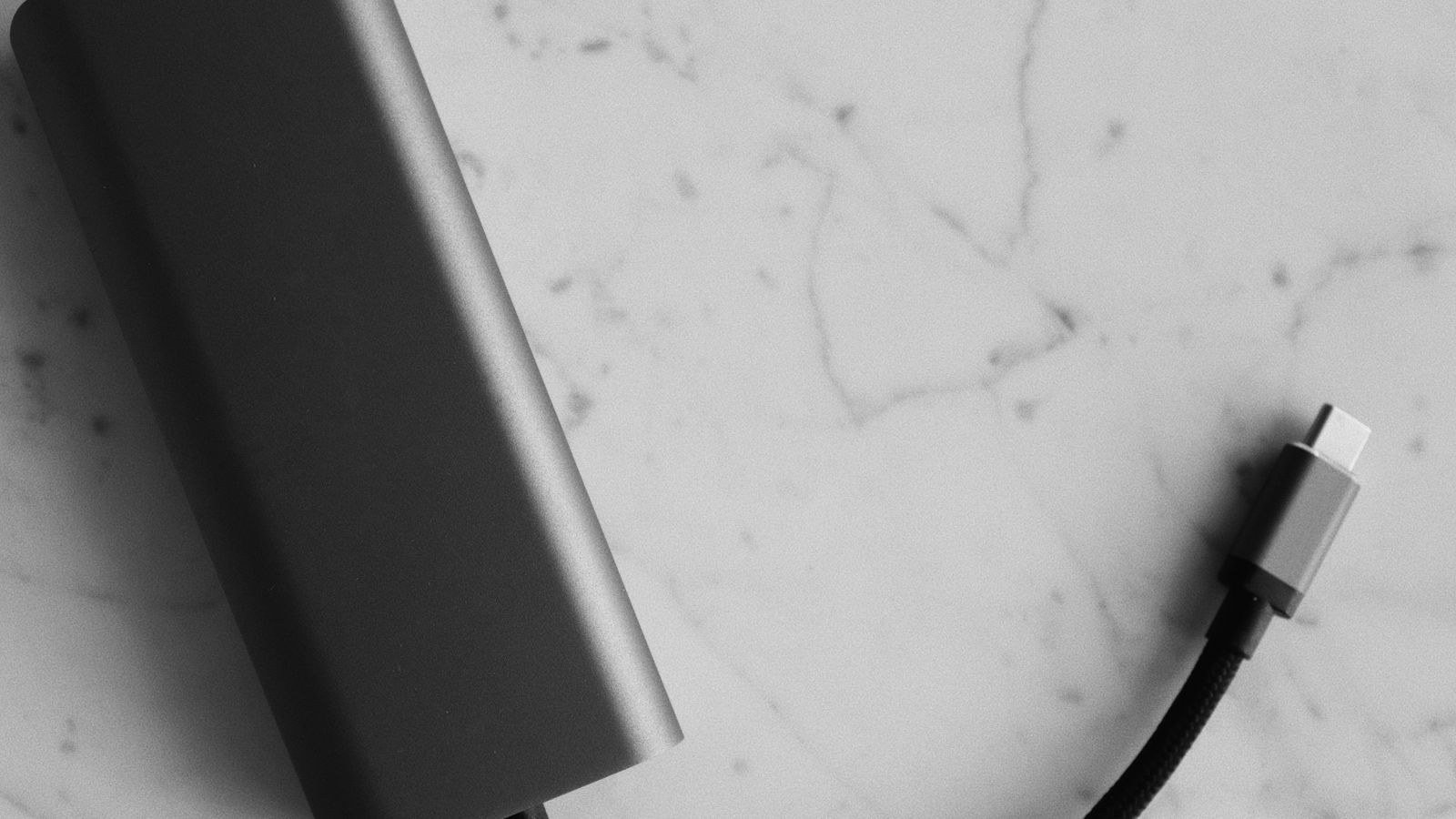
- A power bank with USB Power Delivery output, rated at or above your laptop’s charging requirement. Look for “PD” printed on the housing or in the spec sheet.
- A cable rated for the wattage you need. A charge-only or low-current cable will bottleneck everything else.
- Your laptop’s original charger, purely as a reference. The wattage printed on it tells you the target you are trying to hit.
A USB-C voltmeter or inline power meter is optional but genuinely useful. These small pass-through dongles sit between the pack and the laptop and display live voltage and amperage, turning guesswork into a reading you can act on.
Step-by-Step: Charging the Laptop
- Read the wattage on your laptop’s stock charger. It is printed in small type on the brick, usually as an output line such as 20V 3A, which equals 60W. That figure is your benchmark. Ultrabooks typically sit between 30W and 65W, while larger machines with discrete graphics can ask for 100W or more.
- Check the power bank’s maximum PD output. Do not read the total capacity figure, which describes how much energy it stores, not how fast it can push that energy out. You want the output line, often written as something like “PD 65W max”. A pack with a huge cell but a 18W output will never charge a 65W laptop at full speed.
- Match the voltage profiles, not just the watts. Power Delivery negotiates in fixed steps, commonly 5V, 9V, 12V, 15V, and 20V. Most laptops want the 20V profile. If a pack tops out at 12V, it may advertise a respectable wattage yet still fail to charge a machine that only accepts 20V. The profile list is usually printed beside the output port or in the manual.
- Choose a cable that can carry the current. For anything above 60W you need a cable rated for 5A, which requires an internal chip called an e-marker. Cables without one cap at 3A regardless of what the pack and laptop agree on. If your cable came bundled with a phone, assume it is the slow kind until proven otherwise.
- Connect the cable to the correct port on the power bank. Multi-port packs often have only one high-wattage output, with the rest limited to phone-level power. The high-output port is usually labeled “PD” or marked with a lightning icon.
- Plug into the laptop’s charging-capable USB-C port. On machines with several USB-C ports, only some may accept power. Look for a small battery or plug icon beside the port, or check the manual.
- Confirm charging in the operating system. Hover the battery icon or open the power settings. You want to see the battery reported as charging, not merely “plugged in”. Many systems also display the negotiated wattage, which is the fastest way to confirm the handshake worked.
- Reduce the load while charging if the pack is underpowered. A 45W pack feeding a laptop that draws 60W under heavy use will lose ground. Close demanding applications, dim the screen, or close the lid and let it charge while asleep.
How to Read the Numbers That Actually Matter
Capacity is advertised in milliamp-hours, but that figure is measured at the cell voltage of 3.7V, not at the 20V your laptop receives. To estimate real-world charges, convert to watt-hours: multiply the milliamp-hour rating by 3.7 and divide by 1000. A 20,000mAh pack is roughly 74Wh of stored energy. Conversion losses eat 10 to 20 percent of that, so plan on something closer to 60Wh delivered. If your laptop battery is 50Wh, expect a bit more than one full recharge, not the two or three the marketing might imply.
Charging speed comes down to the lowest ceiling in the chain. If the pack outputs 100W, the cable carries 60W, and the laptop accepts 65W, you will get 60W. Every link matters, and the weakest one wins.
When Your Laptop Will Not Charge From the Pack
Work through these causes in order, because the earlier ones are far more common than the later ones.
- The cable is the problem. Swap in a known-good cable that shipped with a laptop or a high-wattage charger. This resolves the majority of failures.
- The pack lacks a 20V profile. Common on inexpensive packs marketed mainly for phones.
- The port is data-only. Try a different USB-C port on the laptop.
- The pack has entered low-power standby. Many packs shut down when they detect a trickle draw. Press the power button once after connecting to wake the output.
- The laptop draws more than the pack supplies. The battery holds steady or drops slowly instead of rising. Lighten the workload and retest.
- The pack is too cold or too hot. Lithium cells throttle output outside roughly 32 to 104 degrees Fahrenheit.
Building a Charging Setup Around the Pack
A power bank is a stopgap, not a power source. The pack itself has to be refilled, and that is where wall infrastructure matters more than most people expect. Recharging a 100W pack through a 5W phone adapter takes most of a day, which defeats the purpose entirely.
If you regularly charge laptops and packs at a desk or bedside, built-in USB receptacles remove the adapter shuffle completely. Our roundup of the best USB-C outlets covers receptacles that deliver Power Delivery wattage straight from the wall, which is the fastest way to refill a high-capacity pack overnight. For mixed households still running older devices, the best USB outlets combine legacy USB-A ports with modern standards on a single plate. If you are comparing the electrical side, including amperage ratings and box depth, the best USB wall outlets list is organized around installation practicalities, and the USB outlet buying guide explains how to interpret port wattage ratings before you commit to a specific model.
Travelers face a different problem: one pack, several devices, and often a single available socket. Prioritize the laptop, because it is the hardest device to refill from a low-wattage source, and let phones charge from the laptop’s own ports. If you also carry networking gear, a compact router from the best travel routers can run for hours off the same USB-C pack, which keeps a hotel connection alive without a second adapter.
Safety and Battery Health
Modern packs and laptops negotiate power in software, so the risk of damage from a mismatch is low, but a few habits protect both batteries. Avoid charging a laptop from a pack that is sitting in direct sun, inside a closed bag, or on soft bedding, since heat is the main enemy of lithium cells. Do not stack a hot pack under a hot laptop.
Use cables from reputable makers. A poorly built cable can misreport its current rating, which invites a pack to push more current than the wire can safely carry. If a cable or connector ever feels warm enough to be uncomfortable, stop using it.
Store the pack at a partial charge if you will not use it for weeks. Somewhere near half full is far kinder to the cells than storing it empty or completely full. Top it up every few months rather than letting it sit flat, because a deeply discharged lithium pack can become unrecoverable.
Mistakes That Waste Money
The most expensive error is buying by capacity alone. A very large pack with a modest output port is heavy, slow to recharge, and unable to feed a laptop at usable speed. Output wattage and voltage profiles matter more than the headline number.
The second is treating cables as interchangeable. People spend well on the pack and then bottleneck the entire chain with a spare cord from a drawer. Label your high-wattage cables so they do not disappear into the household pile.
The third is forgetting the recharge side. Budget for a wall source capable of refilling the pack at a sensible speed, otherwise the pack spends more time recovering than working.
Frequently Asked Questions
Can any USB-C power bank charge a laptop?
No. It needs USB Power Delivery output, a voltage profile your laptop accepts, and enough wattage. Packs sold primarily for phones frequently lack the 20V profile laptops rely on.
Will using a power bank damage my laptop battery?
Not in normal use. The two devices negotiate voltage and current before any power flows, and the laptop’s charging circuit governs the battery. Heat, not the pack itself, is the thing to watch.
Why does my laptop charge slowly from the pack?
Usually the cable caps current at 3A, the pack tops out below the laptop’s requirement, or the machine is drawing heavily while charging. Test with the lid closed to see what the pack can do without a competing load.
How big a power bank do I need for a full laptop charge?
Compare watt-hours. Take your laptop battery’s watt-hour rating, add roughly 20 percent for conversion losses, and choose a pack with at least that much stored energy.
Can I use the laptop while it charges from the pack?
Yes, if the pack supplies more than the laptop consumes. Light work is usually fine. Heavy tasks such as video export can outpace a mid-range pack.
Final Thoughts
Charging a laptop from a USB-C power bank comes down to three numbers and one cable. Confirm the wattage your laptop wants, confirm the pack can output that wattage at a voltage the laptop accepts, and use a cable rated to carry it. When those line up, the connection simply works, every time, with no negotiation drama. Pair the pack with a capable wall source so it refills quickly between trips, and you have a charging setup in 2026 that keeps a full-size notebook running well beyond the nearest outlet.









