
 Marcus Bell
 Choosing the Best Routers for Office Use in 2026
Finding the best routers for office setups is about far more than raw speed on a box. A modern workplace runs on stable connections: video calls that do not drop, cloud apps that stay in sync, VoIP phones that sound clear, and dozens of devices that all compete for the same bandwidth. Whether you run a home office, a small business, or a busy branch location, the router you choose sets the ceiling for everything else on your network. This guide walks you through how to think about office networking, what specifications actually matter, and how to match a router to the size and demands of your workspace.
Instead of ranking products one by one, we focus on the buying decisions that matter most so you can pick with confidence. Below is a curated shortlist of popular office-ready routers to reference as you read.

Pros
- Three units combine to blanket homes up to 5,500 square feet under a single network name
- AC1900 3x3 dual-band radios support up to 100 connected devices
- Each unit carries 2 Gigabit Ethernet ports, 6 across the pack, and any one can act as the router
- Wired Ethernet backhaul is supported, so a Cat 5e run between floors frees the radios for clients
- Per-person profiles cap online time and block sites by category
Cons
- Wi-Fi 5 hardware, so Wi-Fi 6 phones and laptops gain none of the OFDMA benefits
- Two Ethernet ports per unit, and the main node loses one to the modem, leaving a single free socket there
- No USB port, so a shared drive or printer has to hang off something else

Pros
- Up to 1200 Mbps on 5 GHz plus 574 Mbps on 2.4 GHz for 1.8 Gbps of combined bandwidth
- Four high-gain external antennas with beamforming to focus signal toward distant devices
- OFDMA scheduling keeps dozens of smart-home devices from congesting the available airtime
- Joins an EasyMesh network, so a compatible extender shares one network name across a house
- Built-in OpenVPN and PPTP server plus a 2-year warranty on the hardware
Cons
- Dual-band only - there is no 6 GHz radio, so Wi-Fi 6E and 7 clients gain nothing extra
- WAN and LAN ports top out at gigabit, which bottlenecks any internet plan faster than 1 Gbps
- A separate modem is still required for most internet services, since none is built in
Bandwidth splits into up to 1200 Mbps on 5 GHz and up to 574 Mbps on 2.4 GHz, which is where the AX1800 label comes from. Those are link speeds shared across connected devices, not a guaranteed per-device figure.
- 5 GHz carries the fast traffic - 4K streaming, gaming, large downloads - over shorter distances.
- 2.4 GHz travels further through walls and is where most smart plugs, cameras and sensors live.
- Four high-gain antennas plus beamforming aim signal at devices rather than radiating evenly.
OFDMA lets the router talk to several devices within the same transmission slot, which is the practical Wi-Fi 6 gain in a busy household: fewer stalls when a dozen devices all want airtime at once.

Pros
- Three units cover up to 6,500 square feet and support up to 150 simultaneously connected devices
- AX3000 splits as 2402 Mbps on 5 GHz with HE160 support plus 574 Mbps on 2.4 GHz
- Nine Gigabit Ethernet ports in total, three per unit, and any unit can serve as the main router
- Wired Ethernet backhaul is supported, which frees the 5 GHz band from carrying node-to-node traffic
Cons
- The WAN port is Gigabit, so a 2 Gbps or faster fibre plan cannot be used at its full speed
- Dual-band only, with no dedicated backhaul radio, so wireless backhaul shares 5 GHz with your devices
- Full HomeShield parental controls and security features move to a paid subscription after the free tier

Pros
- Four Gigabit LAN ports plus a Gigabit WAN, so a console, TV and desktop can all run wired at once
- 1201 Mbps on the 5 GHz 802.11ax band with OFDMA and MU-MIMO for crowded device counts
- Dual-core 900 MHz processor keeps routing steady when a dozen devices stream simultaneously
- Four external high-gain antennas with beamforming, pivoting for a shelf or wall position
- OneMesh support lets a compatible extender join as one roaming network name rather than a second SSID
Cons
- The 2.4 GHz band runs 802.11n at 300 Mbps rather than 802.11ax, so Wi-Fi 6 gains apply on 5 GHz only
- No USB port, which rules out shared network storage or a connected printer
- No modem inside, so most ISP connections still need the provider box in front of it
Combined figures are 1201 Mbps on 5 GHz using 802.11ax plus 300 Mbps on 2.4 GHz using 802.11n, an AX1500 class device. Four external high-gain antennas with beamforming steer signal toward connected clients rather than radiating evenly in all directions.
- OFDMA lets several devices share one transmission slot, where Wi-Fi 6 helps most in a busy house
- MU-MIMO serves multiple clients at once instead of taking turns
- 1024-QAM raises the data carried per symbol for newer clients
- Dual-core 900 MHz processor keeps routing steady with many sessions open
- OneMesh support extends coverage under a single network name
Read those numbers as ceilings under ideal conditions. A phone two internal walls away will see a fraction of them, which is normal at this class and why spending ten minutes on antenna aiming pays off.

Pros
- Five gigabit ports split as 1 fixed WAN, 2 configurable WAN/LAN and 2 fixed LAN
- A USB port accepts a 4G or 3G modem as a backup uplink when the main line drops
- Handles up to 20 LAN-to-LAN IPsec tunnels plus 16 each of OpenVPN, L2TP and PPTP
- Omada SDN management through a hardware, software or cloud controller
- SPI firewall with DoS defence and filtering by IP, MAC and URL
Cons
- No wireless radio at all, so access points have to be bought and cabled separately
- OpenVPN configuration requires an Omada SDN controller rather than being available from the standalone interface
- Five ports with no power over Ethernet output, so anything beyond a handful of wired devices needs a separate switch
Pros
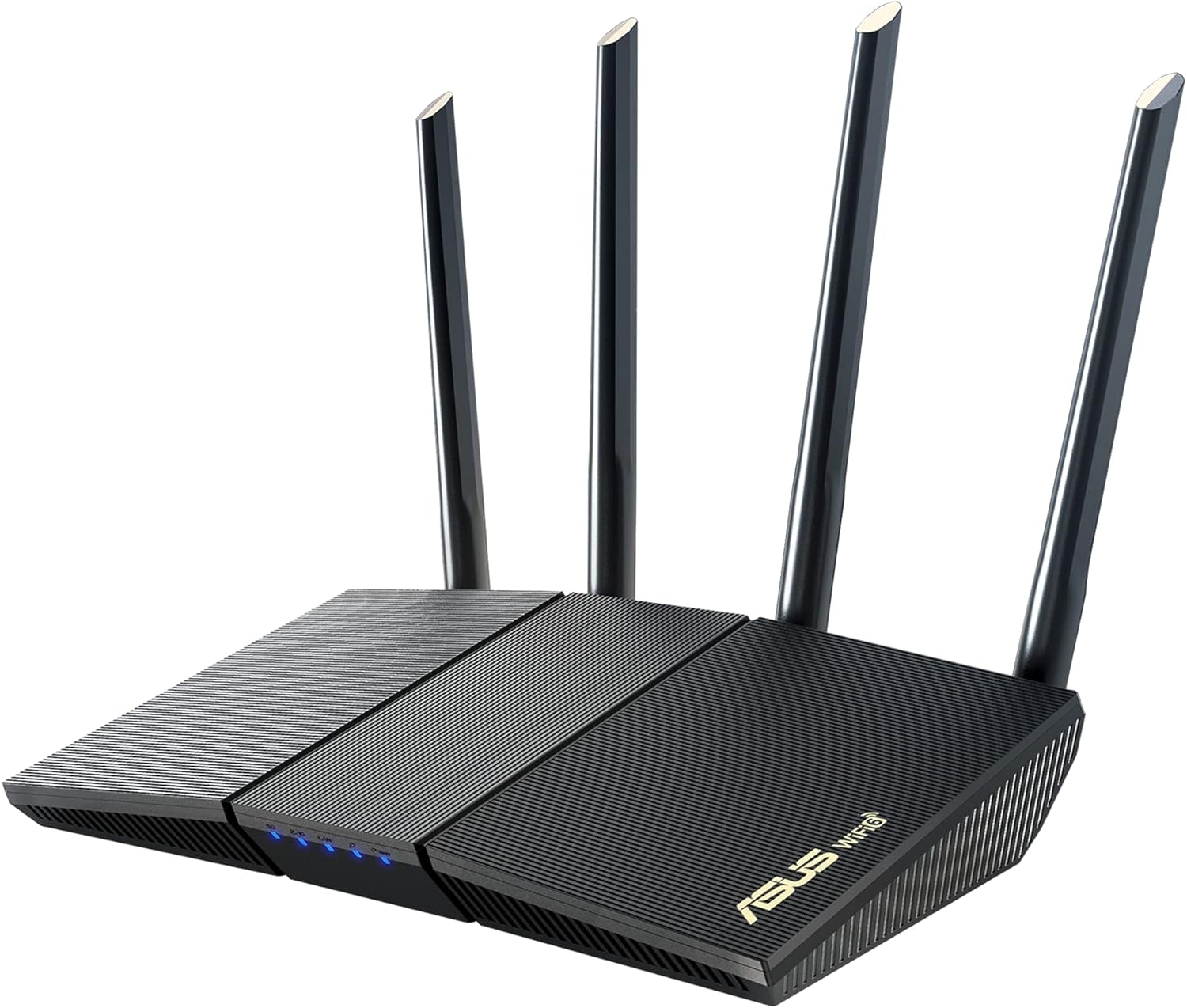
- Trend Micro powered network protection runs with no ongoing subscription attached
- Four external antennas on a 2x2 dual-band radio using 1024-QAM and 80 MHz channels
- AiMesh support, so a second compatible unit extends one network name rather than adding a second SSID
- Instant Guard opens a one-click encrypted tunnel home from a laptop on public Wi-Fi
Cons
- 2x2 radios cap the 5 GHz band near 1201 Mbps, so a multi-gig line cannot be fully used
- No USB port, so a shared drive or printer cannot be attached to the router itself
- Dual-core processor and no 160 MHz channel support, which limits top single-client speed

Pros
- Covers up to 2,000 sq ft from a single unit, roughly a 25-foot radius
- Two auto-sensing 2.5 GbE ports support internet plans up to 2.5 Gbps
- Supports 120+ connected devices on one network
- Backward compatible with all previous generations of the same mesh system for gradual expansion
- Backed by a 3-year warranty on the router hardware
Cons
- This listing is a 1-pack, so covering more than 2,000 sq ft means buying additional eero units to extend the mesh
- Full Wi-Fi 7 speed benefits only apply to client devices that also support the 802.11be standard
- Advanced network features and remote management depend on the eero app rather than a local web-based admin panel

Pros
- Total bandwidth of 6.5 Gbps across 2.4GHz and 5GHz bands with 6 spatial streams
- Two 2.5 Gbps ports (WAN/LAN and LAN) plus three 1 Gbps LAN ports
- Rated coverage up to 2,400 sq ft and 90 simultaneously connected devices
- USB 3.0 port for network-attached storage or printer sharing
- WPA3 encryption plus a separate managed network for IoT devices
Cons
- Dual-band design only, with no dedicated 6GHz band despite the Wi-Fi 7 label
- Full 5764 Mbps and 6.5 Gbps figures are only reached with Wi-Fi 7 client devices; older phones and laptops connect at lower legacy speeds
- Deeper security scanning and remote management run through the cloud-connected Tether app rather than working fully offline
This dual-band Wi-Fi 7 router combines a 5764 Mbps 5GHz band with a 688 Mbps 2.4GHz band for 6.5 Gbps of combined bandwidth across 6 spatial streams.
- Rated coverage of up to 2,400 sq ft with 6 external antennas and beamforming
- Supports up to 90 simultaneously connected devices
- Multi-Link Operation combines both bands for lower latency on supported clients
Because this is a dual-band design rather than tri-band, there is no dedicated 6GHz lane; devices without Wi-Fi 7 support fall back to standard 5GHz or 2.4GHz speeds rather than the peak combined figure. For a typical single-floor or small two-floor home, the antenna layout and beamforming keep signal consistent across rooms, though a very large multi-floor house may still benefit from a mesh add-on at the edges of the stated coverage area.

Pros
- Tri-band radios at 2402 Mbps on 6GHz, 2402 Mbps on 5GHz and 574 Mbps on 2.4GHz
- 2.5 Gbps port usable as either WAN or LAN, for multi-gig service or a wired NAS
- 1.0 GHz dual-core CPU with 512 MB of memory and six high-gain antennas with beamforming
- 160MHz channels on the 6GHz band, clear of legacy device traffic and neighbouring overlap
- Runs OpenVPN, PPTP and L2TP as both server and client, with WPA3 and a 2-year warranty
Cons
- Only Wi-Fi 6E clients can use the 6GHz band, and 6GHz signal attenuates faster through walls than 5GHz
- A separate modem is still required for most cable and DSL services
- Just one 2.5 Gbps port, so a second multi-gig wired device drops back to Gigabit
Three radios rather than two: 2402 Mbps on 6GHz, 2402 Mbps on 5GHz and 574 Mbps on 2.4GHz, making up the 5400 Mbps combined headline. The 6GHz band is the reason to buy a 6E unit at all, because it carries no legacy traffic from older devices and has room for 160MHz channels without overlapping the neighbours.
Six high-gain antennas with beamforming shape signal toward connected devices, and OFDMA plus true tri-band working raises capacity roughly fourfold against a comparable dual-band unit when many devices are active at the same time.
Behind the radios sit a 1.0 GHz dual-core CPU and 512 MB of memory, which is what stops throughput collapsing when dozens of clients, QoS rules and a VPN tunnel are all live at once. The housing is shaped for heat dissipation rather than stacking.
It works with any provider that hands off an Ethernet connection, including AT&T, Verizon, Xfinity, Spectrum, RCN, Cox, CenturyLink and Frontier. As with any standalone router, a separate modem is still needed for most cable and DSL services, so this replaces the router half of an existing gateway rather than the whole box.
On the client side, only Wi-Fi 6E devices can use the 6GHz band. Recent flagship phones, current laptops and newer 6E adapters qualify; anything older sits on 5GHz or 2.4GHz and sees no benefit from the third radio at all. Worth knowing too: 6GHz attenuates faster through walls than 5GHz, so the fastest band is also the shortest ranged.
OneMesh support lets a compatible extender join as a single roaming network name rather than appearing as a second SSID.
Pros
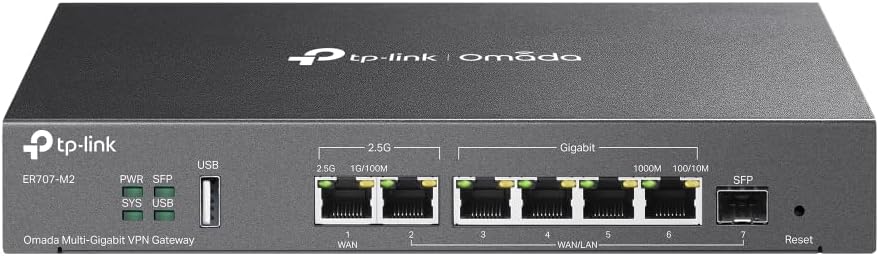
- Handles up to 500,000 concurrent sessions and 1,000+ clients, suited to small offices rather than a single household
- Two 2.5 Gbps WAN ports plus a Gigabit SFP port allow multi-gig internet and fiber uplinks on the same box
- Supports up to 100 site-to-site IPsec tunnels alongside OpenVPN, L2TP, and PPTP for remote access
- Backed by a 5-year warranty with technical support staffed 6am-6pm PST on weekdays
- USB 2.0 port adds LTE failover or attached storage without extra hardware
Cons
- No built-in Wi-Fi, so a separate access point is required for wireless coverage
- Omada SDN features work best alongside other Omada hardware, and the configuration depth may exceed a typical home setup
- Only one Gigabit SFP slot, so a single fiber uplink option remains once the multi-gig WAN ports are in use
Why Office Routers Are Different From Home Routers
A consumer router that works fine for streaming in a small apartment can quickly buckle under office conditions. Offices tend to have more simultaneous users, more always-on devices, and less tolerance for downtime. When a home connection stutters, you re-buffer a show. When an office connection stutters, calls drop, payments fail, and productivity stalls. That is why the best routers for office environments prioritize consistency, device capacity, and management features over flashy marketing numbers.
There are three broad categories worth understanding before you shop:
- Standalone wireless routers – a single unit that covers one room or a modest floor plan. Affordable and simple, ideal for compact offices.
- Mesh systems – two or three units that blanket larger areas with seamless roaming, perfect for multi-room or multi-floor workspaces.
- Wired and VPN routers – business-grade gateways that handle multiple internet lines, secure remote access, and heavier traffic loads.
Knowing which category fits your space narrows the field immediately and saves you from overpaying for capabilities you will never use.
Key Specifications to Evaluate
Router spec sheets are dense, but only a handful of features truly influence day-to-day office performance. Focus your attention here.
Wi-Fi Standard: Wi-Fi 6, 6E, and 7
The wireless standard determines efficiency, especially when many devices connect at once. Wi-Fi 6 (802.11ax) is the practical baseline today, delivering better throughput and smarter airtime sharing than older Wi-Fi 5 gear. A dependable Wi-Fi 6 option like the TP-Link Archer AX21 covers most small offices affordably, while the TP-Link Archer AX10 is an entry point for lighter workloads. If you want extra headroom, Wi-Fi 6E adds a clean 6 GHz band – the TP-Link Archer AXE75 is a strong tri-band example. For future-proofing, Wi-Fi 7 routers such as the TP-Link BE6500 and the Amazon eero 7 push toward multi-gigabit performance.
Coverage and Square Footage
Match the router to your floor plan, not the other way around. A single unit works well up to a few hundred square feet, but larger offices need mesh coverage. Systems like the TP-Link Deco S4 and the TP-Link Deco X55 are built to cover several thousand square feet across multiple units, eliminating the dead zones that plague single-router setups in open-plan spaces.
Ports, Wired Backhaul, and Speed
Wireless gets the headlines, but wired connections keep the essentials rock solid. Look for enough Gigabit LAN ports to hardwire desktops, printers, and network storage. Multi-gig WAN ports matter if your internet plan exceeds 1 Gbps. Mesh systems that support Ethernet backhaul deliver noticeably more stable performance, and business routers like the TP-Link ER707-M2 add dual 2.5 Gigabit WAN ports for high-capacity networks.
Device Capacity
Count everything that connects: laptops, phones, tablets, printers, smart displays, security cameras, and IoT sensors. Offices reach high device counts fast. Routers with strong processors and technologies like MU-MIMO and OFDMA handle crowded networks gracefully, keeping every connection responsive instead of letting a few heavy users choke the rest.
Security and Remote Work Features
Security is non-negotiable for any business network. The best routers for office use include modern protections that guard sensitive data and give administrators control.
- WPA3 encryption for stronger wireless security than legacy standards.
- Built-in VPN support so remote staff can connect safely to office resources. The ASUS RT-AX1800S includes a subscription-free VPN and network protection.
- Firewall and threat filtering to block malicious traffic at the gateway.
- Guest networks that separate visitor traffic from internal systems.
For offices that depend on secure site-to-site links or multiple internet lines, dedicated VPN routers such as the TP-Link ER605 provide SPI firewalls, load balancing, and failover to keep the business online even if one connection fails.
Wired VPN and Multi-WAN Routers for Growing Teams
As a business scales, a single wireless router may no longer be enough. Wired gateway routers sit between your modem and your switches or access points, taking over the heavy lifting of routing, firewall duties, and VPN termination. This separation lets you expand Wi-Fi coverage with dedicated access points while a robust gateway manages traffic. Load balancing across multiple WAN ports also means you can combine two internet providers for both speed and redundancy – a major advantage when uptime directly affects revenue.
If your office has outgrown all-in-one units, pairing a business gateway with mesh or access-point coverage is often the smartest long-term path.
How to Match a Router to Your Office Size
Use these practical guidelines to shortlist the right type quickly.
Small or Home Office (1-10 people)
A single dual-band Wi-Fi 6 router usually covers the need. Prioritize easy setup, reliable coverage for a few rooms, and solid parental or content controls. Affordable standalone routers hit the sweet spot here without overspending.
Medium Office or Multi-Room Space
A mesh system is typically the better choice. Multiple nodes remove dead zones and let employees roam between rooms without dropping connections. Look for Ethernet backhaul support to keep speeds high across the whole footprint.
Larger or Multi-Line Business
Consider a wired VPN gateway paired with access points, or a Wi-Fi 7 flagship if you want cutting-edge wireless. Multi-gig ports, load balancing, and centralized management become priorities as user counts climb.
Balancing Budget and Performance
Price is always part of the equation, but the cheapest router rarely turns out to be the most economical choice once you factor in reliability and lifespan. A slightly higher upfront investment in a capable Wi-Fi 6 or Wi-Fi 6E router often pays for itself by lasting several more years and handling growth without a replacement. That said, overspending on features you will never use is equally wasteful. The goal is to find the point where the specifications comfortably exceed your current demands with a little room to spare.
A useful approach is to size your router to where your office will be in two to three years, not just where it is today. If you are hiring, adding cloud tools, or deploying more connected devices, buy for that near future. Standalone units remain the value champions for compact teams, mesh systems justify their cost in larger spaces, and business gateways earn their price through uptime and control. Reading through the shortlist above with your budget ceiling in mind makes it easier to spot the option that delivers the most dependable performance per dollar.
Also weigh the ongoing costs. Some routers bundle security and parental control features for free, while others gate them behind subscriptions. For an office, a router with built-in, no-subscription protection can save meaningful money over its lifetime and simplify budgeting. Warranty length and the quality of the manufacturer’s support are worth checking too, since responsive expert help minimizes downtime when something does go wrong.
Setup and Management Tips
Even the best hardware underperforms if it is poorly configured. A few habits keep an office network healthy:
- Place the router or main node centrally and elevated, away from thick walls and metal.
- Hardwire stationary, bandwidth-heavy devices to free up wireless capacity.
- Keep firmware updated to patch security holes and improve stability.
- Use separate networks for staff, guests, and IoT devices to contain risk.
- Schedule reboots or monitor performance with the router’s companion app.
Centralized management platforms, offered by several business router lines, make it far easier to oversee multiple sites or a growing device fleet from one dashboard.
Frequently Asked Questions
Do I need Wi-Fi 7 for my office?
Not necessarily. Wi-Fi 6 remains excellent for most offices. Wi-Fi 7 makes sense if you have very high device counts, multi-gigabit internet, or want maximum longevity from your purchase.
Is a mesh system worth it?
For anything larger than a couple of rooms, yes. Mesh eliminates dead zones and provides seamless roaming, which single routers struggle to match in bigger spaces.
Should I separate my router from my access points?
For larger or security-sensitive offices, a dedicated gateway plus access points offers more control, better VPN handling, and easier scaling than an all-in-one device.
Final Thoughts
The best routers for office networks are the ones matched carefully to your space, device load, and security needs rather than the ones with the biggest numbers on the box. Start by identifying your office size and category, prioritize a modern Wi-Fi standard with adequate coverage and ports, and never compromise on security features like WPA3 and VPN support. Whether you choose a budget-friendly standalone router, a whole-office mesh system, or a business-grade VPN gateway, investing in the right networking foundation pays off every single workday. Review the shortlist above, weigh it against your requirements, and upgrade your office connectivity with confidence.


