
 Marcus Bell
 Best Desktop Computers Under $500: A Smart Buyer’s Guide
Shopping for the best desktop computers under $500 is easier than most people think, but it does take a little strategy. At this price point you are not chasing the flashiest gaming rig or a maxed-out creative workstation. Instead, you are hunting for the sweet spot of reliability, everyday speed, and long-term value. The good news is that the sub-$500 market has matured dramatically. Between brand-new all-in-one machines and professionally renewed business-class towers, you can now get a desktop that handles work, study, browsing, and light multitasking without a hitch.
This guide walks you through how to choose the right desktop for your needs, what specifications actually matter, and where the best deals tend to hide. Rather than ranking machines one by one, we focus on helping you understand the trade-offs so you can pick with confidence. Below you will find a curated shortlist of strong options to explore, followed by everything you need to know before you buy.
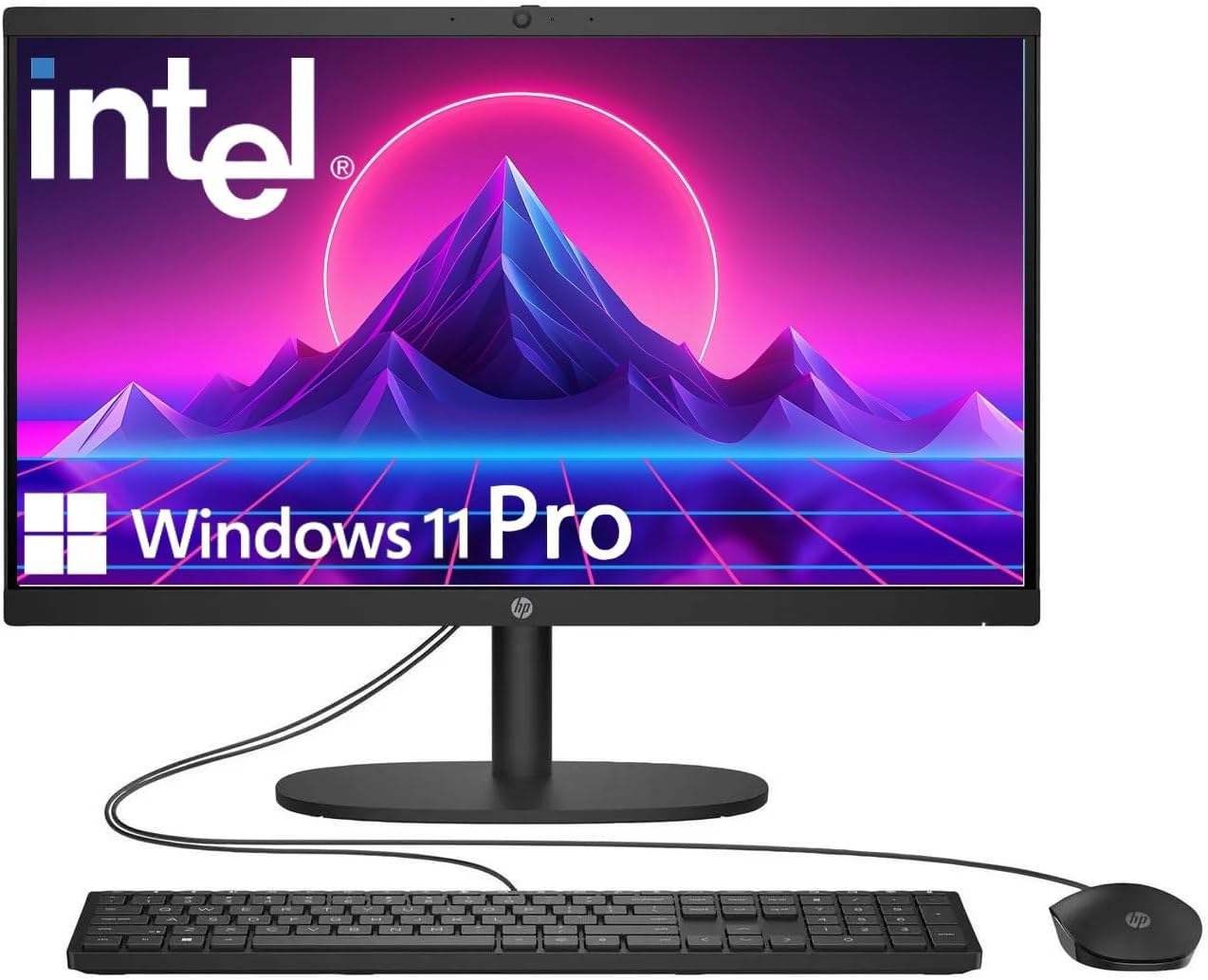
Pros
- Intel N100 quad-core processor turbos to 3.4GHz with a 6MB cache for everyday multitasking
- 21.5-inch Full HD 1920x1080 display includes an anti-glare coating and a privacy-shutter webcam
- Wi-Fi 6 and Bluetooth 5.3 built in, ahead of the 802.11ac found on many similarly specced all-in-ones
- Six total ports including USB-C 5Gbps, two USB-A, and RJ-45 Ethernet for wired networking
- Compact footprint at 6.69 x 19.43 x 15.07 inches suits a shared desk or small office corner
Cons
- 128GB SSD is on the small side once Windows 11 Pro and updates are accounted for
- 8GB of DDR5 RAM is fixed at the entry level for an all-in-one running multiple browser tabs and apps
- USB-C port is data-only, so it won't charge phones or drive an external display over that connection
This all-in-one runs on an Intel N100 processor, a 4-core, 4-thread chip that turbos to 3.4GHz with 6MB of cache and integrated UHD graphics, paired with a 21.5-inch Full HD (1920 x 1080) panel with anti-glare coating. It suits browsing, office documents, and video calls rather than demanding creative or gaming workloads.
- 8GB of DDR5 RAM handles a handful of open applications at once, though heavier multitasking will feel the ceiling
- 128GB SSD storage keeps boot times quick, useful mainly as a system drive rather than a media library
- Built-in HD webcam includes a physical privacy shutter for video calls
Dual stereo speakers cover casual audio needs, and the 6.69 x 19.43 x 15.07 inch chassis keeps the footprint small on a shared or secondary desk.

Pros
- Dimensions of 13.8 x 10.8 x 6 inches engineered for optimal spatial fitting
Cons
- Requires verifying placement clearance for 13.8 x 10.8 x 6 inches prior to installation

Pros
- The i7-9700 runs eight physical cores from 3.0 GHz up to 4.70 GHz
- 32GB of DDR4 paired with a new 1TB NVMe M.2 SSD rather than a recycled drive
- An AX210 card adds Wi-Fi 6E and Bluetooth to a machine that originally shipped wired-only
- Five USB 3.1 and four USB 2.0 ports, plus two DisplayPort outputs for a dual-screen desk
- Arrives with Windows 11 Pro installed and a wireless keyboard and mouse in the box
Cons
- The small form factor chassis takes only low-profile cards and a short internal supply, so a full-size graphics card will not fit
- Renewed condition means cosmetic marks are expected and the original manufacturer warranty does not carry over
- The 9th generation platform has no PCIe 4.0 and no path to DDR5, so upgrades stop at more DDR4 and more storage
The core specification is an 8-core Intel i7-9700 at 3.0 GHz base and up to 4.70 GHz turbo, with 32GB DDR4 and a new 1TB NVMe M.2 SSD.
- Eight physical cores, with no hyper-threading on this particular chip
- 32GB is well beyond what most office desktops ship with, and it handles large spreadsheets, virtual machines and dozens of browser tabs
- NVMe storage rather than SATA, so boot and application loading are quick
- Windows 11 Pro pre-installed, which brings BitLocker and domain join
The combination is aimed at office and home productivity rather than gaming. For document work, accounting packages, remote desktop sessions and light photo editing, the bottleneck on machines of this age is usually memory and storage, and both have been addressed here.

Pros
- 8 USB 3.0 ports plus 2 USB 2.0 ports give ample wired peripheral and storage connections
- Supports 4K dual-display output through 2 DisplayPorts for extended or mirrored screens
- Ships with a fresh, activated Windows 11 Pro install and genuine COA sticker rather than a carried-over license
Cons
- 6th generation Intel Core i7-6700 processor is several generations behind current CPUs, limiting performance on modern demanding software
- Mouse and keyboard are not included and must be purchased separately
- Wi-Fi requires an included USB adapter rather than a built-in wireless card, taking up one USB port
This small form factor desktop is built around a 6th generation Intel Core i7-6700 processor running at 3.4GHz with 8MB SmartCache, paired with 32GB of DDR4 RAM and a 1TB SSD for storage. Graphics are handled by integrated Intel HD Graphics 530, which supports 4K output across 2 DisplayPorts plus 1 VGA port for older monitors. Connectivity includes 8 USB 3.0 ports and 2 USB 2.0 ports for peripherals and external drives, along with a 10/100/1000 Gigabit Ethernet port for wired networking.
- Intel Core i7-6700 (6th gen) at 3.4GHz with 8MB SmartCache
- 32GB DDR4 RAM and a 1TB SSD
- 8x USB 3.0, 2x USB 2.0, 2x DisplayPort, 1x VGA
The integrated graphics handle everyday desktop and productivity tasks but are not built for gaming or GPU-accelerated workloads.

Pros
- Six-core i7-8700 reaching 4.60 GHz, with twelve threads for heavy multitasking
- 32GB of DDR4 fitted from the start, so no memory upgrade is needed for large spreadsheets
- A 512GB NVMe M.2 SSD rather than a SATA drive, which shortens boot and load times
- Five USB 3.0 and two USB 2.0 ports plus two DisplayPort outputs for a dual monitor desk
- Wi-Fi and Bluetooth are built in, and a wireless keyboard and mouse are included
Cons
- The small form factor chassis takes only low-profile cards, so a full-height graphics card will not fit
- A renewed unit, so cosmetic marks are possible and the original maker warranty no longer applies
- The listed port set includes no USB-C, so modern docks and cables need an adapter
The core specification is a six-core Intel i7-8700 with twelve threads and a peak clock of 4.60 GHz, paired with 32GB of DDR4 and a 512GB NVMe M.2 SSD.
- Six physical cores handle video calls, a browser full of tabs and an office suite at the same time
- 32GB is well above the 8GB or 16GB most desktops in this class carry, which is what keeps large workbooks and photo edits responsive
- NVMe storage on the M.2 bus is several times quicker than a SATA SSD for boot and file loads
- Windows 11 Pro is pre-installed, bringing BitLocker and domain join
Graphics come from the CPU, which is fine for multiple monitors, video playback and light editing, but not for demanding 3D work.

Pros
- Intel Core i7-7700 with four cores and eight threads at 3.60 GHz base, paired with 32 GB of DDR4
- 1 TB solid state drive rather than a mechanical disc, so cold boots and application loads stay quick
- Chassis measures 11.5 by 3.6 by 11.4 inches, small enough to stand behind a monitor or hang on a VESA sleeve
- HDMI and DisplayPort together drive two monitors straight from the integrated graphics
- Arrives with Windows 11 Pro installed plus a wired keyboard and mouse, a USB Wi-Fi adapter and the power cord
Cons
- Warranty is 90 days from the seller, far shorter than the multi-year term on a new desktop
- The seventh-generation processor is not on the list of chips Microsoft supports for Windows 11, so the configuration sits outside supported hardware
- The small form factor takes low-profile cards only and the supply carries no PCIe power lead, so a full-size graphics card will not fit
The core specification is an Intel Core i7-7700, four cores and eight threads at 3.60 GHz base, with 32 GB of DDR4 memory and a 1 TB solid state drive. Windows 11 Pro 64-bit comes installed. The bundle covers a wired keyboard and mouse, a USB Wi-Fi adapter and the power cord, so the only missing pieces are a monitor and its cable.
Port coverage runs to USB 3.0 and USB 2.0, HDMI, DisplayPort, Ethernet and analogue audio in and out. Two monitors run from the HDMI and DisplayPort outputs directly off the integrated graphics, with no add-in card required. The 32 GB memory figure is the standout, since most refurbished office machines carry half that, and it makes virtual machines and heavy browser sessions comfortable.

Pros
- Designed with Ample Storage memoryusers can customize their setup with up to for reliable daily operation
- Designed with FAST BUSINESS PERFORMANCE Powered by the Intel Celeron N4505 Dual-Core for reliable daily operation
- Dimensions measure 14.2 x 6.4 x 19.3 inches for spatial allocation
Cons
- Requires checking PCIe slot clearance and case depth for acer Aspire Busine
Why $500 Is the Sweet Spot for Everyday Desktops
The $500 ceiling is a meaningful line in the sand. Spend much less and you often sacrifice storage speed, memory, or build quality. Spend much more and you are paying for performance that most users never touch. Right at or just under $500, you can secure a machine with a modern operating system, a solid-state drive, and enough memory to keep dozens of browser tabs, office apps, and streaming windows open at once.
Two very different types of computers compete in this bracket. The first is the brand-new all-in-one or compact desktop, which bundles the display or a fresh warranty into a clean, out-of-the-box experience. The second is the professionally renewed business desktop, which repurposes durable corporate hardware and often delivers far more raw power per dollar. Understanding the difference between these two categories is the single most important step in your buying journey.
New All-in-One Versus Renewed Business Towers
All-in-one machines like the HP All-in-One Desktop integrate the screen, webcam, and computer into one tidy unit. They are ideal for tight desks, front offices, and anyone who wants a plug-and-play setup with a modern warranty and the latest generation processor. The trade-off is that you typically get less memory and storage than a comparably priced renewed tower.
Renewed business desktops tell a different story. Machines such as the Dell OptiPlex 3060 or the Dell OptiPlex 7070 were built for corporate reliability, then refurbished to run like new. Because the original hardware was premium, you can land a Core i5 or Core i7 processor, 32GB of memory, and a large SSD for well under the price of a new budget machine. If you want the most performance per dollar, this is usually where you look.
Key Specifications That Actually Matter
It is easy to get lost in spec sheets, so focus on the handful of numbers that shape real-world speed. When you compare the best desktop computers under $500, prioritize these components in order.
Processor: The Engine of Your Desktop
The processor, or CPU, determines how quickly your computer thinks. For everyday tasks, a modern quad-core chip is the minimum you want. For heavier multitasking, spreadsheets with many formulas, or dozens of open tabs, a six or eight-core processor makes a noticeable difference. Renewed towers shine here because they often pack Intel Core i7 chips. The HP EliteDesk 800 and the Dell OptiPlex 7060 both feature capable multi-core i7 processors that comfortably outrun many new budget CPUs in raw throughput.
Memory: How Much RAM Do You Need
Memory, or RAM, is your desktop’s short-term workspace. With 8GB you can browse, stream, and run office apps smoothly. With 16GB you gain real breathing room for multitasking. With 32GB, which is common in renewed business machines, you can leave everything open at once and never think about it. If you regularly juggle many applications, look for a machine with 16GB or more. Several renewed towers in this guide ship with a generous 32GB, which is remarkable at this budget.
Storage: Speed Beats Size
Always choose a solid-state drive over an old spinning hard disk. An SSD boots your system in seconds and loads programs almost instantly, and it is the upgrade you will feel every single day. Newer NVMe M.2 drives are faster still. The Dell OptiPlex 7050 pairs a roomy SSD with reliable business components, giving you both speed and space. When comparing options, a smaller SSD almost always beats a larger mechanical drive for everyday responsiveness.
Connectivity and Extras
Do not overlook the ports and wireless features. Built-in Wi-Fi and Bluetooth save you from buying adapters. USB-C, HDMI, and multiple display outputs matter if you plan to run more than one monitor. Machines like the Acer Aspire Desktop support dual 4K monitors and include a keyboard and mouse, which reduces the number of accessories you need to buy separately. A bundled keyboard and mouse is a small but genuine saving.
Matching a Desktop to How You Actually Use It
The right choice depends far more on your daily habits than on any single spec. Here is how to think about the most common use cases when narrowing your shortlist.
For Home Office and Remote Work
If you spend your day in email, video calls, documents, and spreadsheets, prioritize memory and a fast SSD over sheer processor muscle. A machine with a built-in webcam and a clean, modern operating system keeps meetings simple. An all-in-one like the HP All-in-One is a natural fit because it consolidates everything into one footprint and includes an HD webcam out of the box.
For Students and Everyday Families
Students and shared family computers benefit from durability and value. A renewed business desktop such as the Dell OptiPlex 3060 offers plenty of storage for photos, coursework, and downloads, plus the reliability of hardware originally built for corporate environments. It handles research, writing, and streaming with ease and leaves budget for a nicer monitor.
For Power Users on a Budget
If you push your machine harder, running many apps at once or working with larger files, aim for a Core i7 tower with 32GB of memory. The Dell OptiPlex 7070 and the HP EliteDesk 800 both deliver this kind of headroom. You get workstation-grade multitasking for the price of a modest laptop, which is the core appeal of shopping renewed.
Understanding Renewed and Refurbished Desktops
Many of the strongest values under $500 carry the label renewed or refurbished, and this word scares off shoppers who do not need to be scared. A renewed desktop has been inspected, cleaned, tested, and restored to full working order, often with a fresh operating system installed. Because businesses cycle out hardware on a fixed schedule rather than because it failed, this equipment usually has plenty of life left.
To buy renewed with confidence, look for machines with a clear condition rating and strong review counts. High review totals, like those on the Dell OptiPlex 7050 and the Dell OptiPlex 7060, signal that many buyers have received a working, well-prepared unit. A newer operating system such as Windows 11 Pro also means you will continue to receive updates and support well into the future.
What to Check Before You Buy Renewed
- Operating system: Confirm it ships with a current, activated version so you are not stuck on outdated software.
- Storage type: Verify it uses an SSD or NVMe drive rather than an old mechanical disk.
- Included accessories: Some bundles add a wireless keyboard and mouse, which saves you a separate purchase.
- Wireless support: Built-in Wi-Fi and Bluetooth make setup far simpler, especially away from a wired connection.
- Review volume and rating: A large number of reviews is a reassuring sign of consistent quality.
New Desktops: When Fresh Hardware Wins
There are good reasons to choose new over renewed. A brand-new machine gives you the latest generation processor, an untouched warranty, and zero prior wear. If you value a modern all-in-one design, a built-in display, or the simplicity of unboxing something factory-fresh, the extra confidence can be worth it. The HP All-in-One and the Acer Aspire Desktop represent this new-hardware path, offering current components, fresh warranties, and tidy designs that suit clean workspaces.
The trade-off, as noted, is usually memory and storage. New budget machines often ship with 8GB or 16GB rather than the 32GB common in renewed towers. If your workload is light and you prize newness and warranty coverage, that is a perfectly reasonable exchange.
Common Mistakes to Avoid
Shoppers looking for the best desktop computers under $500 tend to stumble in a few predictable ways. Avoid them and you will end up much happier with your purchase.
- Chasing storage size over speed: A large mechanical hard drive feels slow. A smaller SSD feels fast. Choose speed.
- Ignoring memory: Too little RAM causes stutter no matter how good the processor is. Aim for 16GB or more if you multitask.
- Overlooking the operating system: An outdated system means missing updates and security patches. Insist on a current version.
- Forgetting the monitor: A tower does not include a screen. Budget for a display unless you choose an all-in-one.
- Dismissing renewed hardware: You often get far more power per dollar from a quality renewed business desktop.
How to Make Your Final Decision
Bring it all together with a simple decision path. First, decide whether you want an all-in-one with a built-in screen or a compact tower you can pair with your own monitor. Second, set your priority: newness and warranty point you toward a new machine, while maximum performance per dollar points you toward a renewed business desktop. Third, match the memory and storage to your workload, favoring 16GB or 32GB and an SSD wherever possible.
From there, the shortlist in this guide gives you strong starting points across both categories. Whether you lean toward a fresh all-in-one like the HP All-in-One, a powerhouse renewed tower like the Dell OptiPlex 7070, or a balanced value pick like the Dell OptiPlex 7060, you can land a dependable machine without crossing the $500 line.
Final Thoughts
The market for the best desktop computers under $500 has never offered more genuine value. By focusing on the specifications that matter, understanding the honest trade-offs between new and renewed hardware, and matching a machine to how you actually work, you can buy smart and avoid buyer’s remorse. Use the shortlist above to compare your options, weigh your priorities, and pick the desktop that fits your desk, your workflow, and your budget. A little planning now pays off every day you sit down to use it.


