
 Owen Bradley
 Almost every consumer router ships with the same limitation: four LAN ports, sometimes only two or three. That was plenty when a household had a desktop and a printer. Today a single living room can eat all four with a television, a console, a streaming box, and a media server, and that is before you reach the office. Adding a network switch is the standard fix, and it is genuinely one of the easiest upgrades in home networking. Plug it in, connect one cable to the router, and every device on the switch joins the same network with the same internet access and the same local file sharing. This guide covers choosing the right switch, wiring it correctly, keeping DHCP intact, and avoiding the handful of mistakes that turn a five-minute job into an evening of troubleshooting.
What a Switch Actually Does
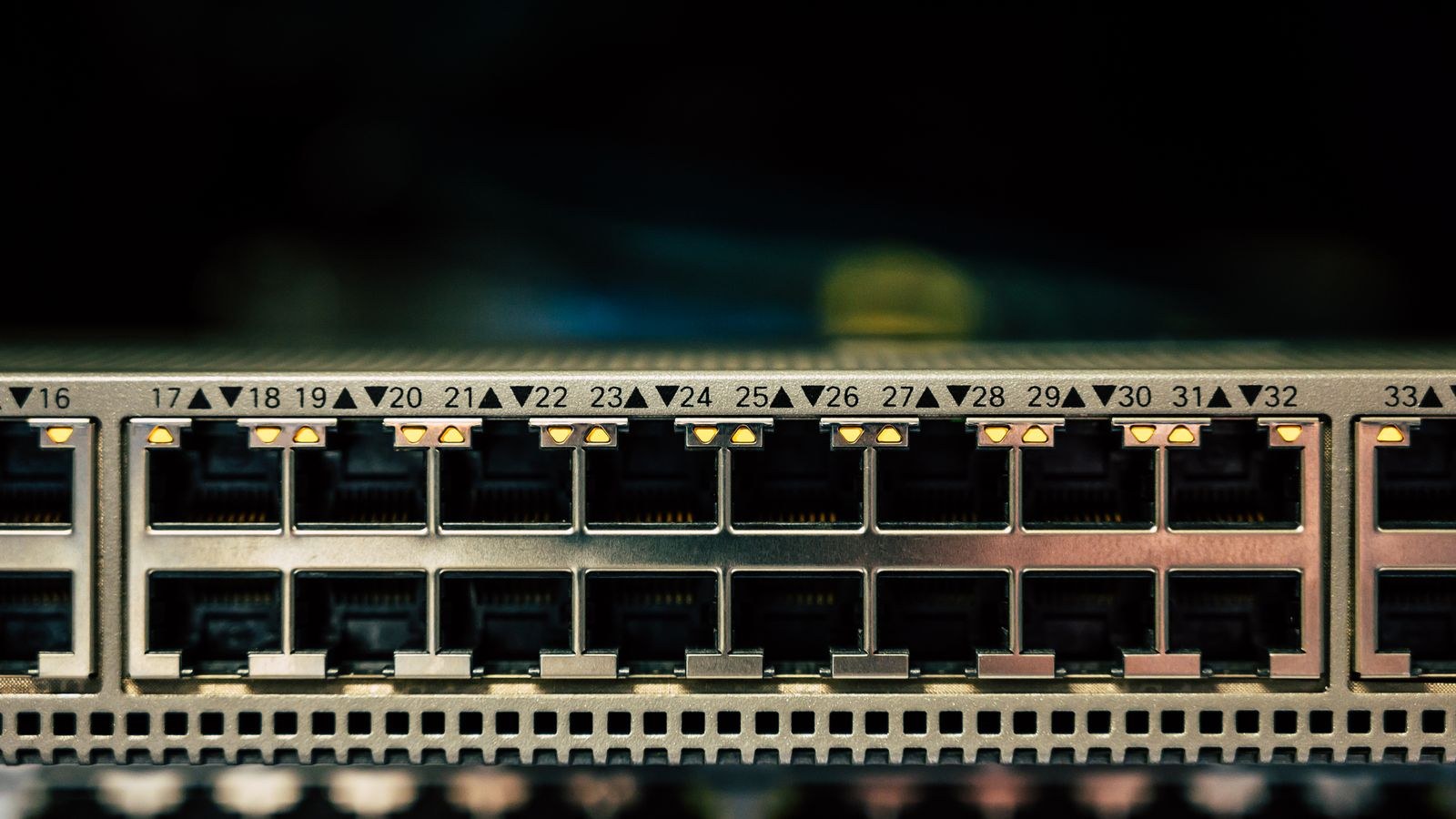
A switch is a port multiplier for your local network. It receives a frame on one port and forwards it only to the port where the destination device lives, which is why switches scale so much better than the old hubs that broadcast everything everywhere. Importantly, a switch does not hand out IP addresses, does not route between networks, and does not provide a firewall. Your router keeps doing all of that.
That division of labor is the reason adding a switch is safe. The router remains the single DHCP server and the single gateway to the internet. The switch simply extends the router’s LAN, so a computer plugged into the switch behaves exactly as if it were plugged into the router directly. Nothing about your Wi-Fi, port forwarding, or parental controls changes.
Unmanaged, Smart, or Managed
Three tiers exist. An unmanaged switch has no configuration at all: power and ports, nothing else. For most homes this is exactly right, and it is the cheapest and most reliable option. A smart or web-managed switch adds a browser interface for VLANs, port mirroring, link aggregation, and basic monitoring, which is useful if you want to isolate cameras or guest devices. A fully managed switch adds command-line control and advanced protocols, which is more than a residential network needs.
Buy unmanaged unless you have a specific reason not to. If you know you want VLAN segmentation for smart home gear or a separate work network, step up to a smart switch and configure it after the basic install is proven working.
Choosing the Right Switch
- Port count: count what you need today, add at least two spares, and remember one port is consumed by the uplink to the router. Five, eight, sixteen, and twenty-four port models are the common sizes.
- Speed: gigabit is the minimum worth buying. Multi-gig models make sense only if your router, your internet plan, or a local server can actually exceed 1 Gbps.
- Power over ethernet: needed if the switch will feed access points, IP cameras, or a video doorbell. Check the total power budget in watts, not just the port count.
- Fanless design: anything living in an office or living room should be passively cooled. Small switches almost always are; larger rack models often are not.
- Metal chassis: a small quality signal that usually indicates better heat handling and a longer service life.
If you are shopping, our roundup of the best network switches for home and small office use compares port counts, PoE budgets, and noise levels across the tiers described above.
Step-by-Step: Adding the Switch
- Pick a location. Place the switch near the cluster of devices it will serve, not necessarily next to the router. A switch behind the television feeding four media devices needs only one cable back to the router, which is far tidier than four long runs. Make sure the spot has an outlet and some airflow.
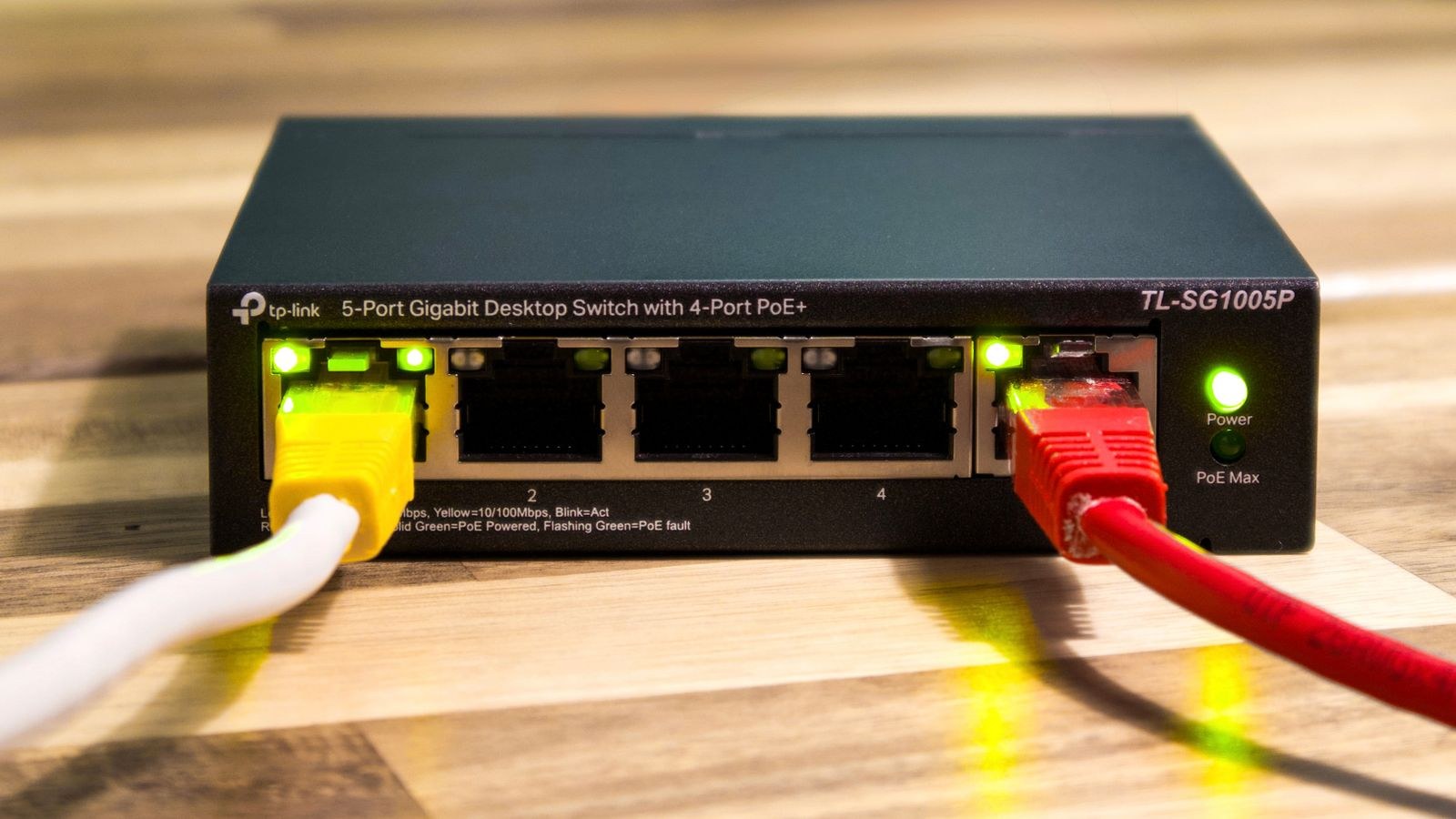
- Power the switch and let it boot. Connect the supplied adapter and give it thirty seconds. Most models show a single power light plus a status light per active port.
- Run the uplink cable. Connect any LAN port on the router to any port on the switch with a single ethernet cable. On an unmanaged switch, every port is identical, so there is no special uplink port to hunt for. Use a Cat5e or Cat6 cable in good condition and keep it under 100 meters.
- Do not use the router’s WAN port. This is the one wiring error that breaks everything. The WAN or internet port is reserved for the modem. Plugging the switch into it will disconnect your internet or create a confusing double network.
- Connect your devices. Plug each computer, console, television, or printer into any remaining port on the switch. Order does not matter. Watch for a link light on each port as you go, which confirms the physical connection before you troubleshoot anything else.
- Verify addressing. On one connected device, check that it received an IP address in the same range as the rest of your network, typically something like 192.168.1.x. If it did, DHCP is flowing correctly through the switch and the job is essentially done.
- Test throughput and internet. Load a website, then copy a large file between two devices on the switch. Local transfers should run near gigabit speed if both devices support it, which confirms the switch is not negotiating down to 100 Mbps.
- Label and tidy the cables. Tag each cable at both ends with the device name. Bundle loosely with hook-and-loop straps rather than tight zip ties, which can crush the jacket over time.
Keeping DHCP and the Network Clean
The most common worry is whether adding a switch will confuse address assignment. It will not, as long as you add a switch and not a second router. A second router plugged in normally would run its own DHCP server, creating a network inside a network with all the attendant headaches for file sharing, casting, and smart home discovery.
If the only spare device you own is an old router, you can still use it as a switch. Disable its DHCP server in the admin interface, give it a static IP outside your main router’s DHCP range, then connect it router-LAN-port to old-router-LAN-port, leaving the old unit’s WAN port empty. That configuration turns it into a plain switch with a bonus access point if you leave the radio on and set matching wireless settings.
Speed Matching and Bottlenecks
A switch runs each port at whatever speed the connected device negotiates, so a 100 Mbps printer does not slow down a gigabit computer on the neighboring port. The uplink is different. Every device on the switch shares that single cable back to the router, so if you plan heavy local transfers between switch devices and router devices simultaneously, that link is the constraint. In practice this rarely matters at home, because most traffic between two devices on the same switch never touches the uplink at all.
Where it can matter is with a network attached storage box. Put the NAS on the same switch as the devices that stream from it and the traffic stays local and fast. If your storage lives on the router side, look at options in our guide to the best routers for NAS and home servers, which covers models with faster wired backplanes.
Avoiding Loops
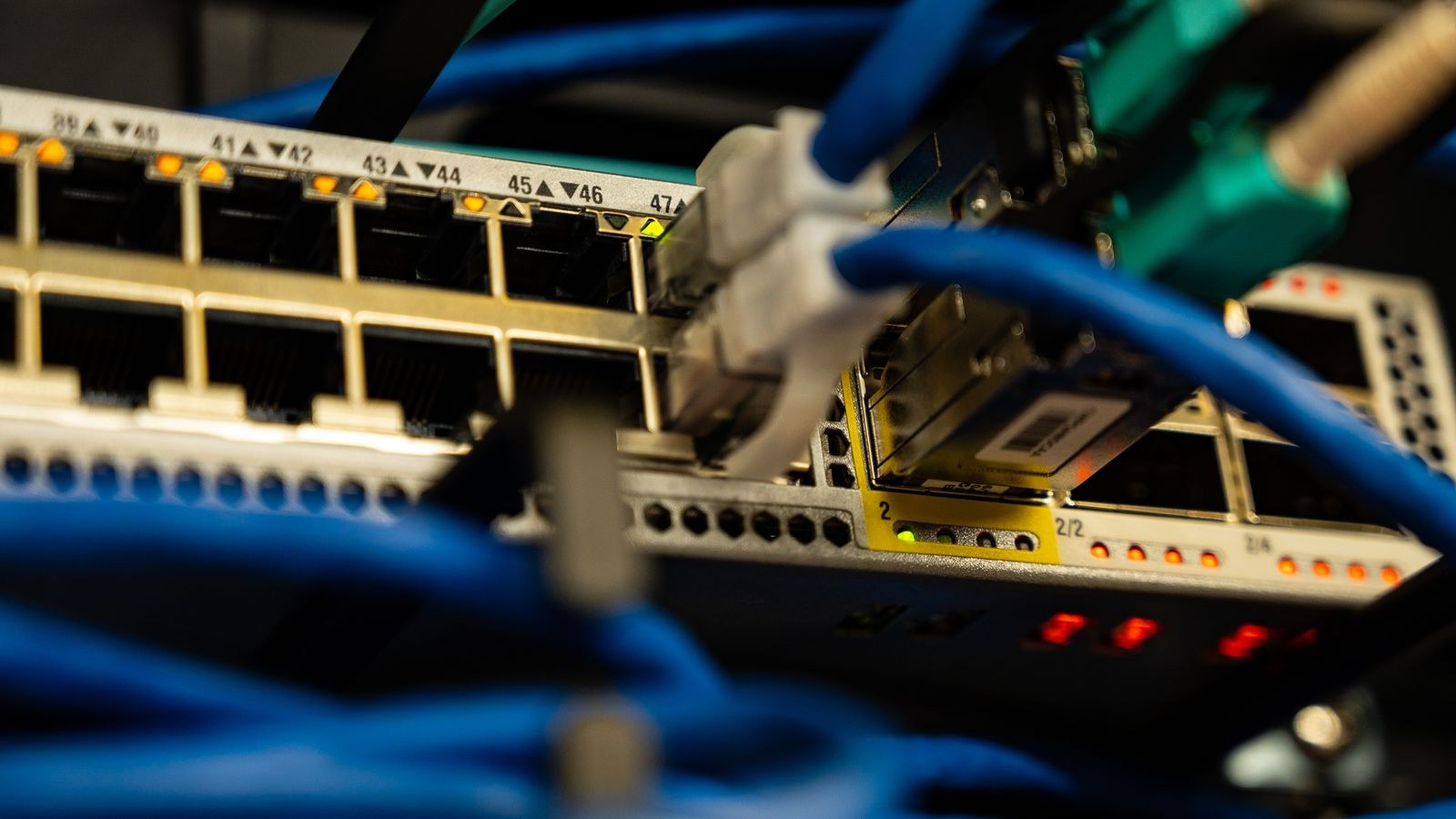
A network loop happens when two ports are connected in a circle, either by cabling two switches together twice or by accidentally plugging both ends of a cable into the same switch. Without protection, broadcast traffic circulates endlessly and the network grinds to a halt within seconds, usually with every port light blinking in unison.
Prevent it with discipline: one cable between any two devices, and trace both ends of every cable before you plug it in. Managed and many smart switches support spanning tree protocol, which detects and blocks loops automatically. Unmanaged switches generally do not, though some include basic loop detection. If your network suddenly dies right after a cabling session, unplug everything from the switch and add devices back one at a time.
When the Router Itself Is the Problem
Sometimes a switch is treating a symptom. If your router is several generations old, its LAN ports may be limited to 100 Mbps, which caps everything downstream regardless of how fast the switch is. Check the specifications before blaming the new hardware. Upgrading the core device is often the better investment, and our comparison of the best ethernet routers with high-speed wired ports is a good starting point.
Two other cases favor a router upgrade over a switch. If you want to power cameras or ceiling access points from the network, look at the best PoE routers and powered networking gear so a single cable carries data and power. And if you want a shared drive or printer available to the whole house without buying separate hardware, the best routers with USB ports handle that natively.
Troubleshooting Common Problems
No link light on a port: swap the cable first, since bad patch cords are the leading cause. Then try a different port to rule out a dead one.
Device gets a 169.254.x.x address: that is an automatic fallback meaning DHCP never answered. Confirm the uplink goes to a LAN port on the router, not the WAN port, and that the router is powered and healthy.
Everything runs at 100 Mbps: a damaged cable with a broken pair, or an old Cat5 patch cord, is the usual cause. Gigabit needs all four pairs working.
Intermittent drops: check for heat buildup if the switch sits in an enclosed cabinet, and confirm the power adapter is the one that shipped with it. Underpowered or overheating switches fail in exactly this maddening, intermittent way.
Frequently Asked Questions
Will a switch slow down my internet?
No. A gigabit switch forwards traffic at wire speed and adds latency measured in microseconds. Your internet speed is set by your service plan and router, not by the presence of a switch.
Can I connect one switch to another?
Yes, daisy chaining switches is fine and common. Just make sure there is only one cable between any two switches to avoid creating a loop, and keep the chain reasonably short.
Do I need a managed switch for a home network?
Rarely. An unmanaged switch handles ordinary home use perfectly. Consider a smart switch only if you specifically want VLANs to separate smart home devices, guests, or work equipment.
Does the switch need its own configuration?
An unmanaged switch requires none at all. Smart and managed switches ship with defaults that work out of the box, so you can install first and configure advanced features later.
Final Thoughts
Adding a network switch is the highest-value, lowest-risk upgrade available to a crowded home network. Choose a fanless gigabit model with more ports than you think you need, run one cable from a router LAN port to any switch port, plug in your devices, and confirm each one picks up an address from the router. Keep a single path between any two devices to avoid loops, label your cables, and place the switch near the cluster it serves rather than near the router. Handle those basics and your wired network in 2026 will be faster, quieter, and far easier to expand the next time you add a device.









